
If your iPhone 17e battery is draining faster than you expected, you're not alone. There are several straightforward things you can check if your battery isn't lasting as long as expected. I'd start with the battery health check, as it gives you the best overall picture of what's happening.
Check Your Battery Health and Usage
Head to Settings > Battery > Battery Health. This screen shows your battery's maximum capacity as a percentage. Maximum capacity declines as the battery ages. Also check the message under Peak Performance Capability: normal status reads "Your battery is currently supporting normal peak performance."
More importantly, go back to the main Battery menu and check Daily Usage and App and System Activity. Tap View All Battery Usage to see the last eight days, then tap a day for its details. Look for apps with high Background Activity to see where power is going.
Update iOS and Your Apps
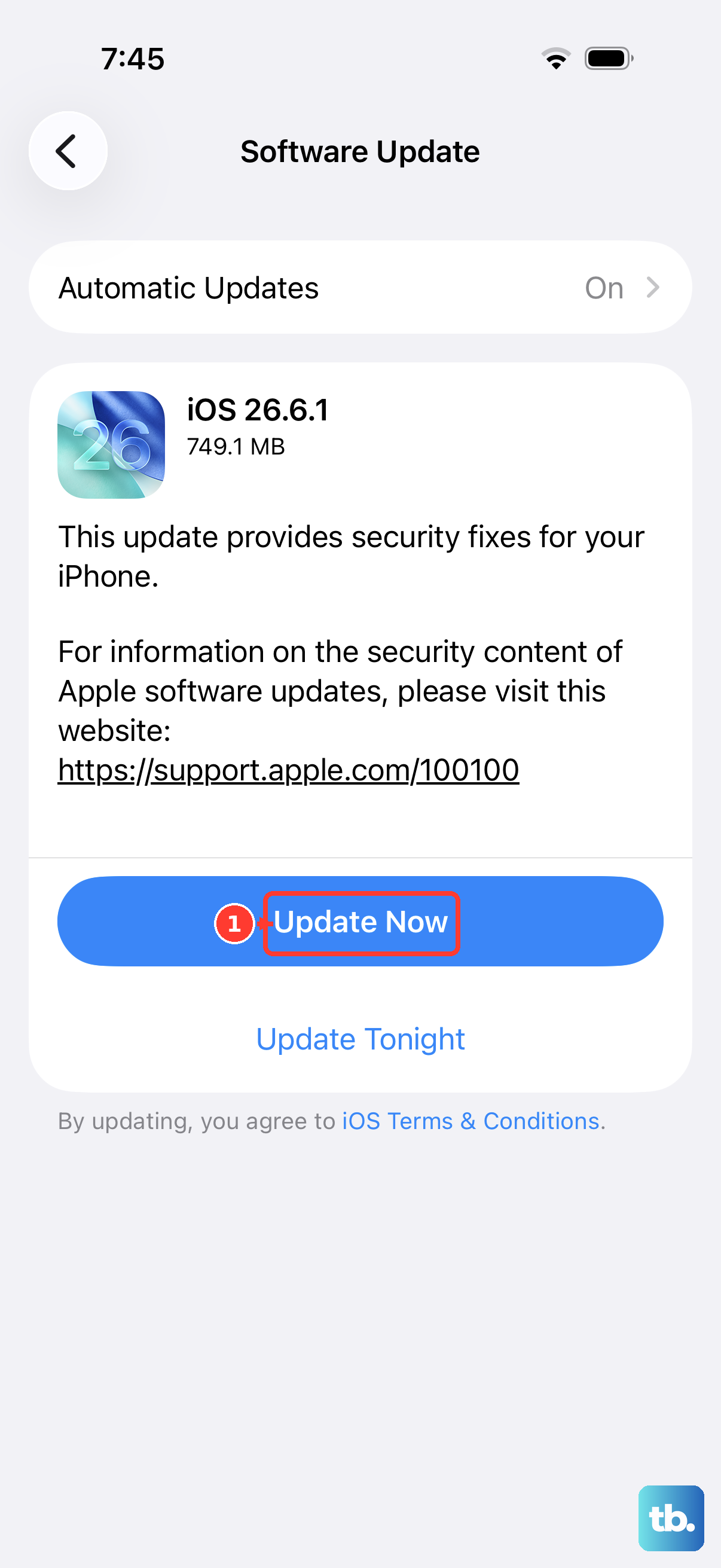
The iPhone 17e launched with iOS 26. Go to Settings > General > Software Update and install any available update. It's a good idea to check the App Store for app updates too. If battery life has decreased after an iOS update, wait a few days and check again, since update tasks can continue in the background.
Manage Background Activity
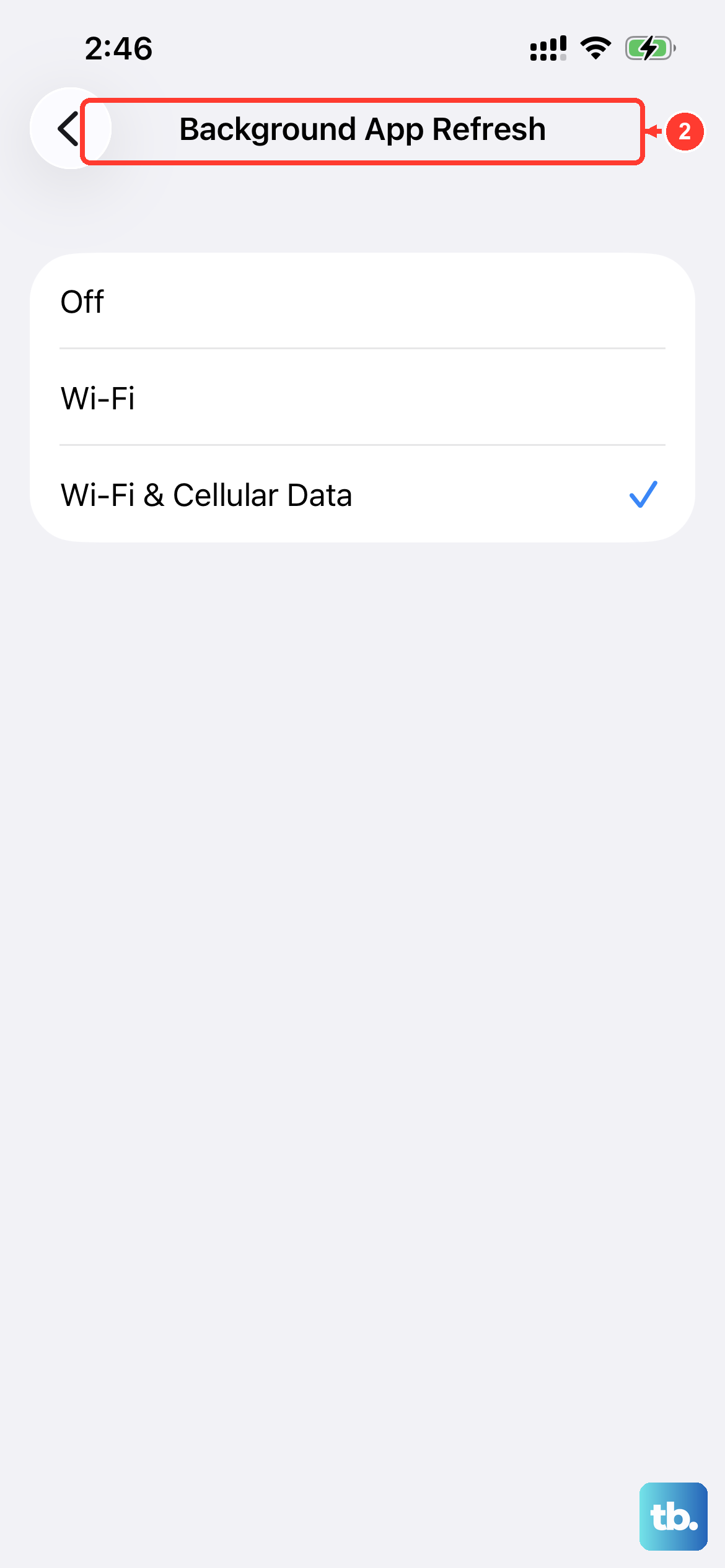
Background App Refresh allows apps to update content when you're not using them. You can turn this off globally or just for specific apps. Go to Settings > General > Background App Refresh. Tap Background App Refresh again and choose "Off," "Wi-Fi," or "Wi-Fi & Cellular Data."
Also check Location Services. Go to Settings > Privacy & Security > Location Services. Review the list and set apps to "While Using" or "Never" instead of "Always" unless it's absolutely necessary for the app to function.
Adjust Display and Motion Settings
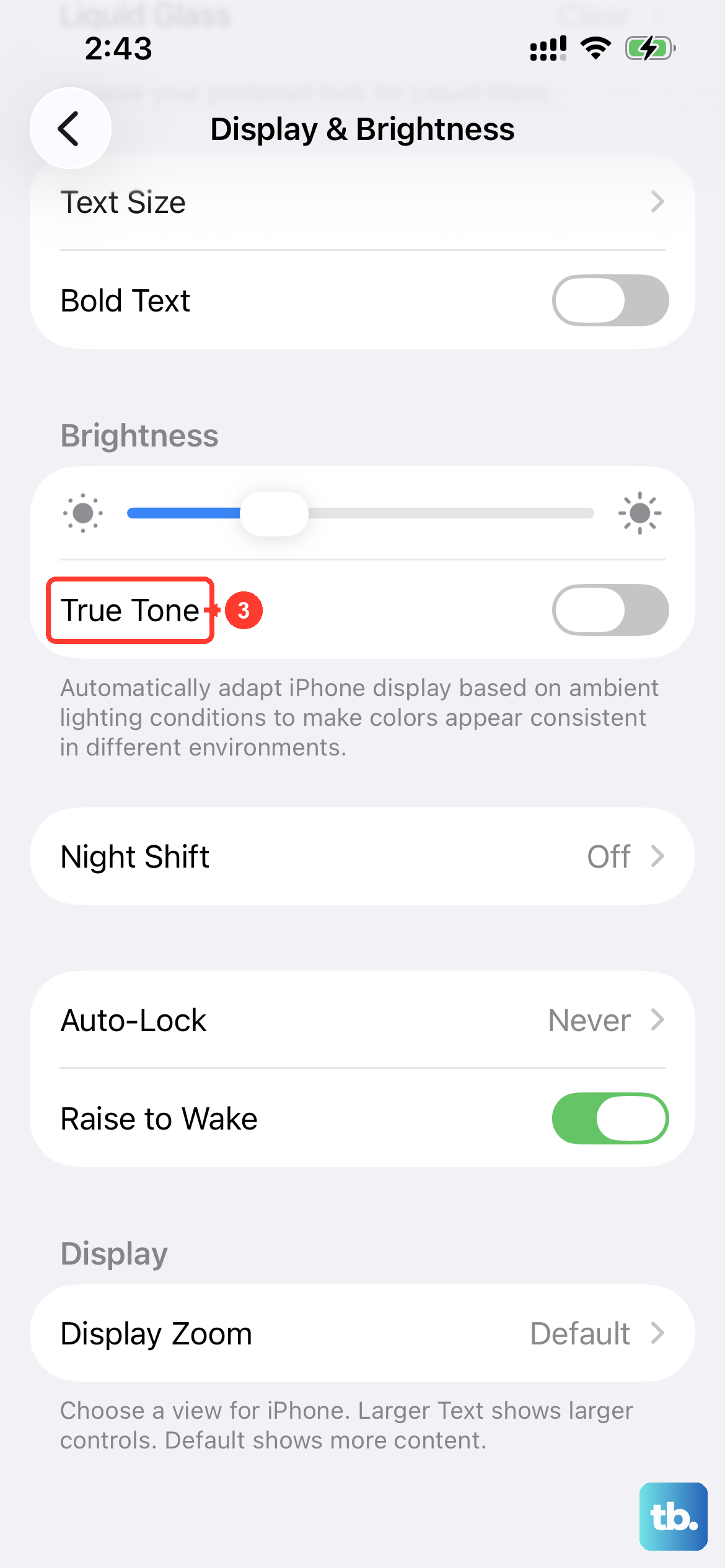
The display is a major battery user. First, consider using Dark Mode, which saves power on the OLED screen. You can find it under Settings > Display & Brightness. While you're there, reduce the Auto-Lock timer to 30 seconds and lower the brightness slider a bit.
You can also turn off features like "Raise to Wake" and "True Tone" on that same screen. Another helpful setting is under Settings > Accessibility > Motion. Toggle on "Reduce Motion" to limit animated effects.
Review Connectivity Features
Use Wi-Fi when you can, since it uses less battery power than cellular networks. Go to Settings > Wi-Fi and choose a network. A weak Wi-Fi or cellular signal can use more energy, so use your phone somewhere with a strong signal when possible. If you'll be somewhere with no coverage for a while, enable Airplane Mode.
Also, take a look at your mail fetch settings. Go to Settings > Apps > Mail and tap Fetch New Data. If you don't see it there, look under Mail Accounts. Turning off "Push" and setting fetch to "Hourly" or "Manually" can make a difference if you get a lot of email.
Identify and Remove Problem Apps
Go back to App and System Activity in Settings > Battery. If a social media, gaming, or video streaming app has high Background Activity, check whether that matches how you've been using it. Playing music or tracking location can use power in the background. Reducing your use of an app can help extend battery life.
Also, remove any Home Screen widgets or apps you don't actually use. Each one can consume small amounts of background resources.
Use Low Power Mode and Proper Charging
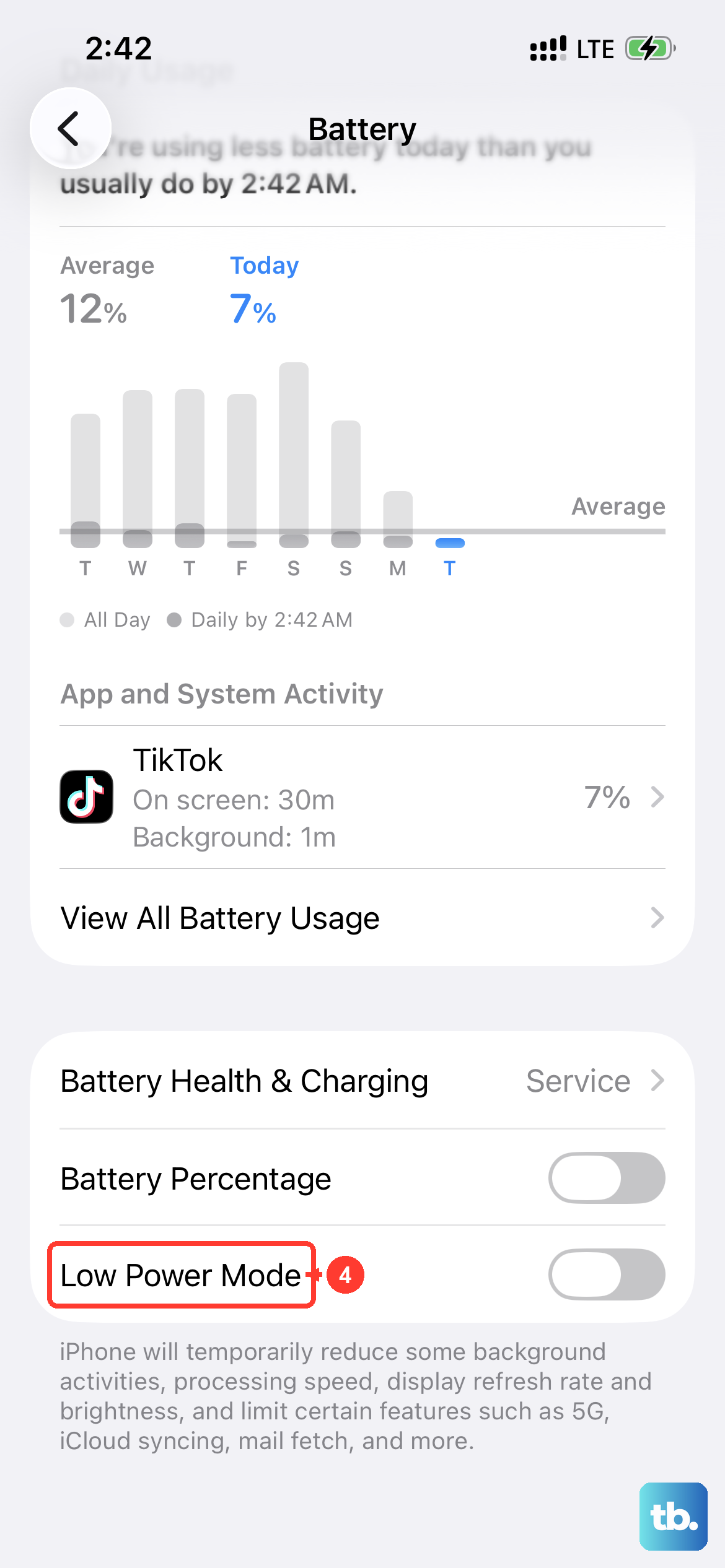
Don't forget about Low Power Mode. You can turn it on manually in Settings > Battery > Power Mode, or swipe down from the top-right corner to open Control Center and tap the battery icon. It's a great way to extend battery life when you know you'll be away from a charger for a while.
Speaking of charging, the iPhone 17e can charge up to 50% in 30 minutes with a 20W adapter or higher and a USB-C cable, and supports MagSafe wireless charging up to 15W. A 20W USB-C charger is perfectly sufficient. I've seen some users worry they need a faster charger like the Pro models use, but that's not the case. Just make sure you're using a good quality cable and adapter.
Perform a Force Restart
If the phone feels warm or seems sluggish, a software process might be stuck. A force restart can clear this without deleting any data. Quickly press and release the Volume Up button, then quickly press and release the Volume Down button. Finally, press and hold the Side button until you see the Apple logo appear, then release.
Reset All Settings
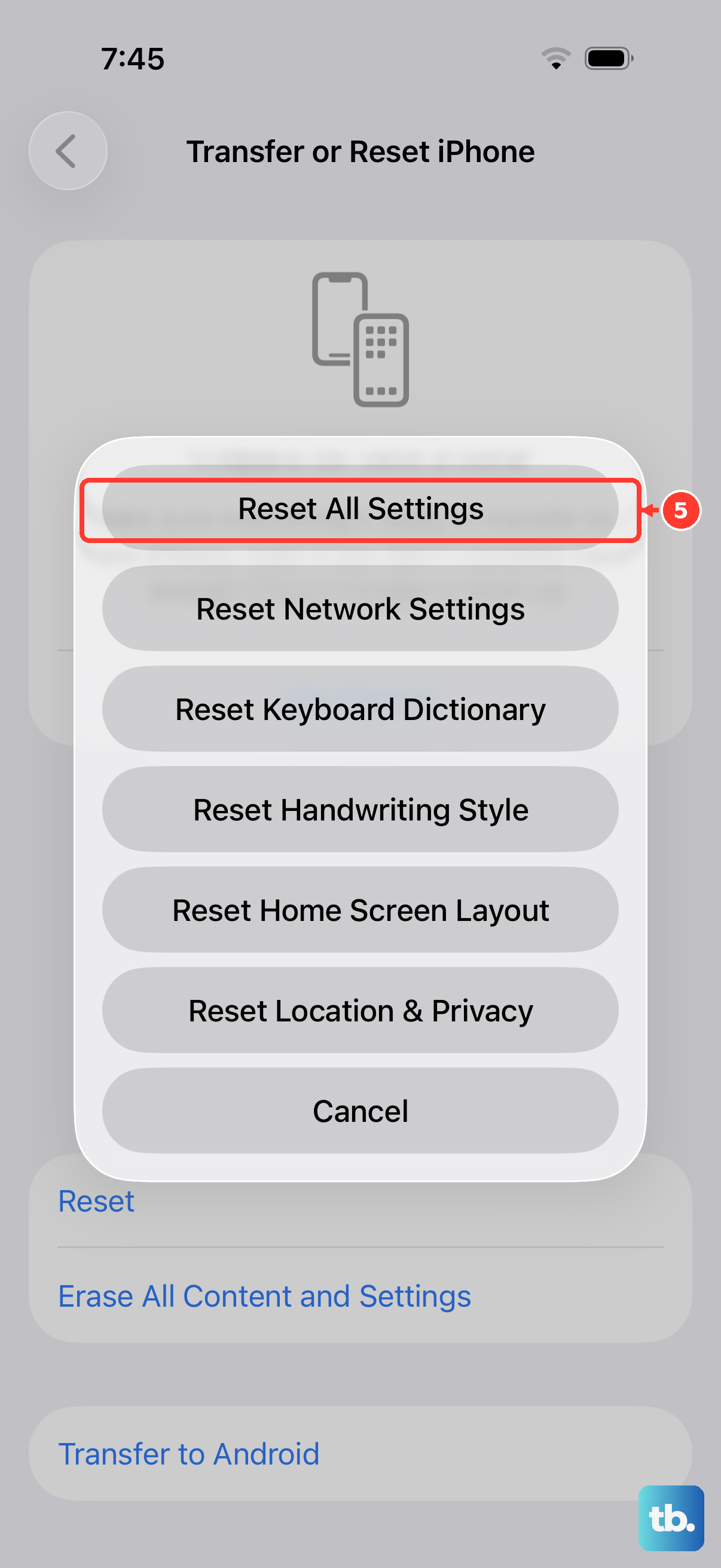
If you've tried everything and the drain persists, a settings reset can help. This won't erase your photos, messages, or apps, but it will reset settings such as wallpaper and remove saved Wi-Fi networks, Apple Pay cards and device pairings. You'll need to rejoin Wi-Fi, re-pair Bluetooth devices and Apple Watch, and set up Face ID again. Go to Settings > General > Transfer or Reset iPhone > Reset, and choose "Reset All Settings."