
A black screen on your iPhone 17 can be a real scare, but it's often a temporary glitch rather than a permanent failure. The phone might be on and running with just the display frozen, or a deeper software crash could be at play. Here's how to get your screen back on.
Perform a Force Restart
This is almost always the first step you should take. On your iPhone 17, quickly press and release the Volume Up button, then quickly press and release the Volume Down button. Immediately after, press and hold the Side button.
Keep holding it, even if the screen stays black for longer than 10 seconds. You'll know it's working when you finally see the Apple logo appear. A force restart works even when the screen or an app is frozen.
Charge Your iPhone 17
A totally dead battery will show absolutely nothing. Grab your USB-C cable and a power adapter; for the fastest charging, iPhone 17 uses a 40W adapter or higher. Plug it in and leave it alone for an hour.
If you don't see the charging indicator after that time, try a different cable and power source.
Check Your Screen Brightness
It sounds simple, but it happens. If your screen brightness is somehow turned all the way down, it can look completely black. Try asking Siri to "turn up the brightness" if you have that enabled.
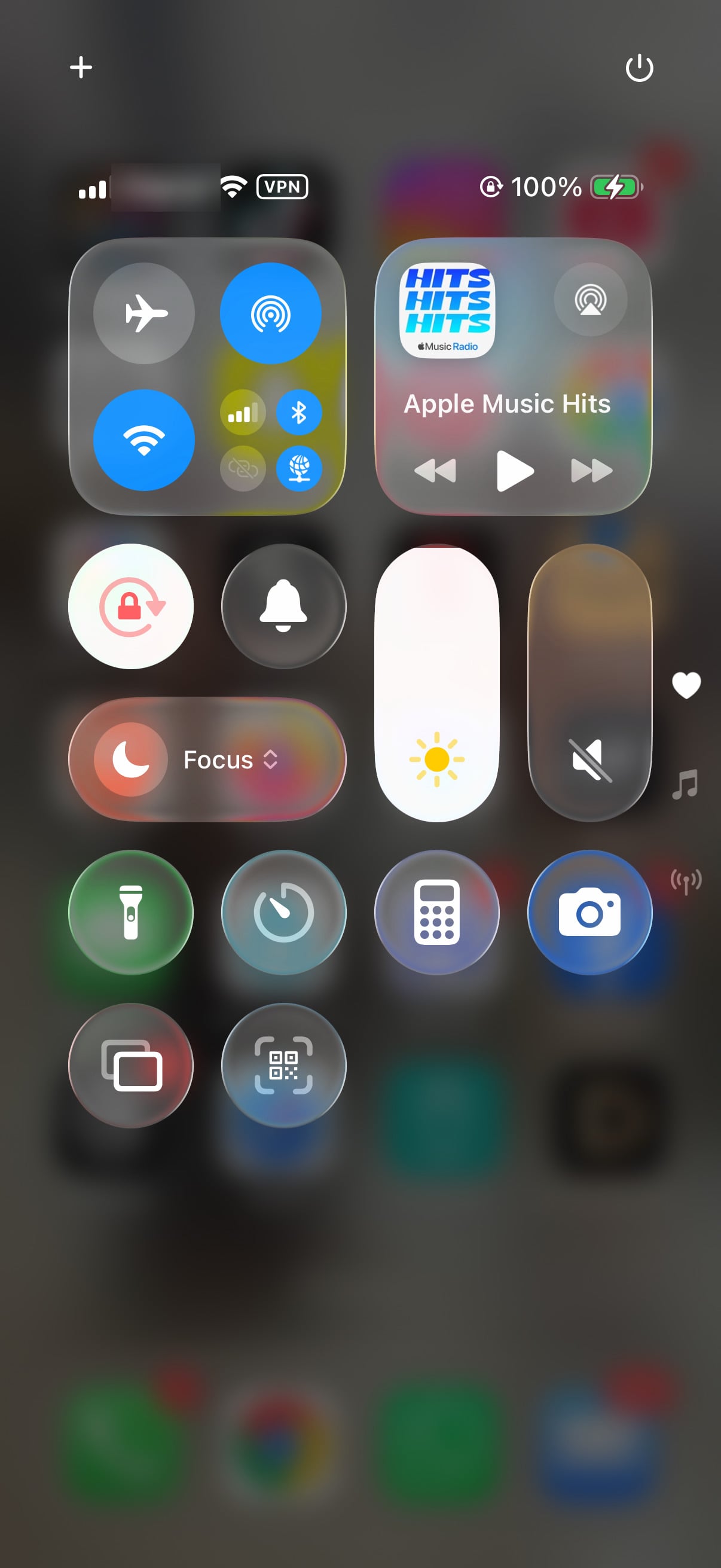
You can also attempt to swipe down from the top-right corner to open Control Center, though this is tricky if you can't see. If auto-brightness is malfunctioning, it might have dimmed the screen in a way that makes it seem off.
Inspect for Physical or Liquid Damage
Take a close look at your iPhone 17's screen. Look for any new cracks, dark splotches, or signs of a recent impact. Pay attention to whether the phone still vibrates for notifications or if you can hear it ring.
If the device seems to be functioning but the display is dark, the screen hardware itself is likely damaged. Similarly, if it was exposed to moisture, liquid can interfere with the internal connectors. Let it dry powered off in a dry area with some airflow, but avoid rice or heat sources which can cause more harm.
Connect to a Computer for Recovery
If the force restart didn't help, it's time to involve a computer. Connect your iPhone 17 to a Mac or PC using a good USB-C cable. On a Mac using Finder or a Windows PC using the Apple Devices app, the computer should detect the phone in recovery mode if it's seriously stuck.
When prompted, always choose Update first. This tries to reinstall iOS without erasing your personal data. If the update fails or isn't an option, then you may need to use Restore, which will erase everything on the device.
Put Your iPhone 17 into Recovery Mode
Sometimes you need to manually trigger recovery mode. First, connect the USB-C cable to your computer. Then, quickly press and release the Volume Up button, then the Volume Down button. Immediately press and hold the Side button.
Don't let go when you see the Apple logo. Keep holding until you see the recovery mode screen, which shows a cable pointing to a computer icon. Your connected computer will then give you the option to Update or Restore.
Attempt a DFU Restore
DFU mode is the deepest restore possible, useful for major software corruption. Connect your iPhone 17 to the computer. Press Volume Up, then Volume Down, then hold the Side button for 10 seconds.
After 10 seconds, while still holding the Side button, also press and hold the Volume Down button for 5 seconds. Then, release only the Side button but keep holding the Volume Down button for another 10 seconds. If done correctly, the screen will remain completely black, but your computer will detect the device and prompt for a restore.
Consider Software and Charging Settings
Be aware that software problems can affect system stability, and a problematic update is one possible cause of the black screen. Also, check your charging settings if the issue seems related to power.
Go to Settings > Battery > Charging. A charge limit (80% to 95%) stops charging at that level, and Optimized Battery Charging (available when the limit is 100%) can delay charging past 80%. Neither stops a nearly empty battery from charging.