
Getting your new iPhone 17 set up with all your stuff is the first step to enjoying it. Whether you're upgrading from an older iPhone or switching from Android, iOS 26 has a few different paths to get your data moved over. The process is designed to be smooth, but knowing which method to use can save you a lot of time.
Start with Quick Start for iPhone-to-iPhone
If you have your old iPhone right next to you, Quick Start is the way to go. Make sure the old iPhone is connected to Wi-Fi and has Bluetooth on, then turn on your new iPhone 17 and place it near the old device. Follow the onscreen Quick Start prompt on the old iPhone, connect the new iPhone to Wi-Fi or cellular when asked, and continue through activation and Face ID setup.
When you choose a direct transfer from the previous iPhone, keep both devices near each other and plugged in until migration finishes. Transfer time varies based on network conditions and the amount of data being moved.
Restore from an iCloud Backup
This is your best option if your old phone isn't with you or is already erased. First, double-check that a recent backup exists on your old device by going to Settings > [Your Name] > iCloud > iCloud Backup. On your new iPhone 17, follow setup until the Transfer Your Apps & Data screen.
Tap From iCloud Backup, sign in with your Apple Account, and choose the most relevant backup by date and size. Stay connected to Wi-Fi while the restore runs; after setup, content such as apps, photos, music, and other information can keep restoring in the background, so connect to Wi-Fi and power often until it completes.
Use a Computer for a Faster, Local Transfer
For a local computer backup, use the Finder on a Mac, the Apple Devices app on Windows, or iTunes on Windows without Apple Devices or on macOS Mojave or earlier. Connect your old iPhone to the computer with a USB cable that fits that iPhone, find the device, and select Back Up Now. Turn on Encrypt local backup if you want saved passwords, Wi-Fi settings, website history, Health data, and call history included.
Once that backup is complete, start the iPhone 17 from the Hello screen; if it is already set up, erase it before restoring this backup. On the transfer screen, choose From Mac or PC, connect it to the computer, and select Restore Backup. Pick the backup by date and size, enter the encrypted-backup password if asked, and keep the iPhone connected until the restore and sync finish.
Moving Your Data from an Android Phone
Switching from Android? On the Transfer Your Apps & Data screen during initial setup, tap From Android. If your Android phone supports the Android 17 no-app transfer path, tap Transfer without App; otherwise tap Transfer with App and use the Move to iOS app from Google Play.
A ten-digit or six-digit code will appear on your iPhone. Enter that code on the Android device. You can then select supported content such as contacts, message history, photos and videos, mail accounts, WhatsApp messages and media, call history, calendars, and some free apps. Keep both phones near each other and plugged in; for wireless Move to iOS transfers, the iPhone creates a temporary Wi-Fi network that the Android phone joins when prompted. You can also connect the phones with a USB-C cable for a faster transfer.
Manually Moving Specific Items
Sometimes you don't need a full device clone. For contacts and calendars, just make sure they're synced to your iCloud or Google account, then sign into that account on your iPhone 17. Your photos and videos will sync if you have iCloud Photos enabled on your old device.
For WhatsApp when switching from Android, use the official Move to iOS flow during iPhone setup. In Move to iOS, select WhatsApp on the Transfer Data screen, then install WhatsApp on the iPhone, sign in with the same phone number, and complete the import when WhatsApp prompts you.
What Usually Doesn't Come Over
It's good to know the limits so you're not caught off guard. Apps that have been removed from the App Store won't reinstall. Any local data within apps that doesn't use iCloud or another cloud service might be left behind, so check your important apps first.
Music or podcasts downloaded for offline listening in apps like Apple Music or Spotify will need to be re-downloaded, though your library and playlists will sync once you log in. You'll also likely need to sign back into banking apps, social media, and authenticator apps for security reasons.
Finishing Up on Your iPhone 17
After the transfer is done, take a few minutes to scroll through your home screens and make sure all your apps are present and accounted for. Open a few key apps to confirm they work and that your data is there. This is also the time to re-pair your Apple Watch or any other accessories.
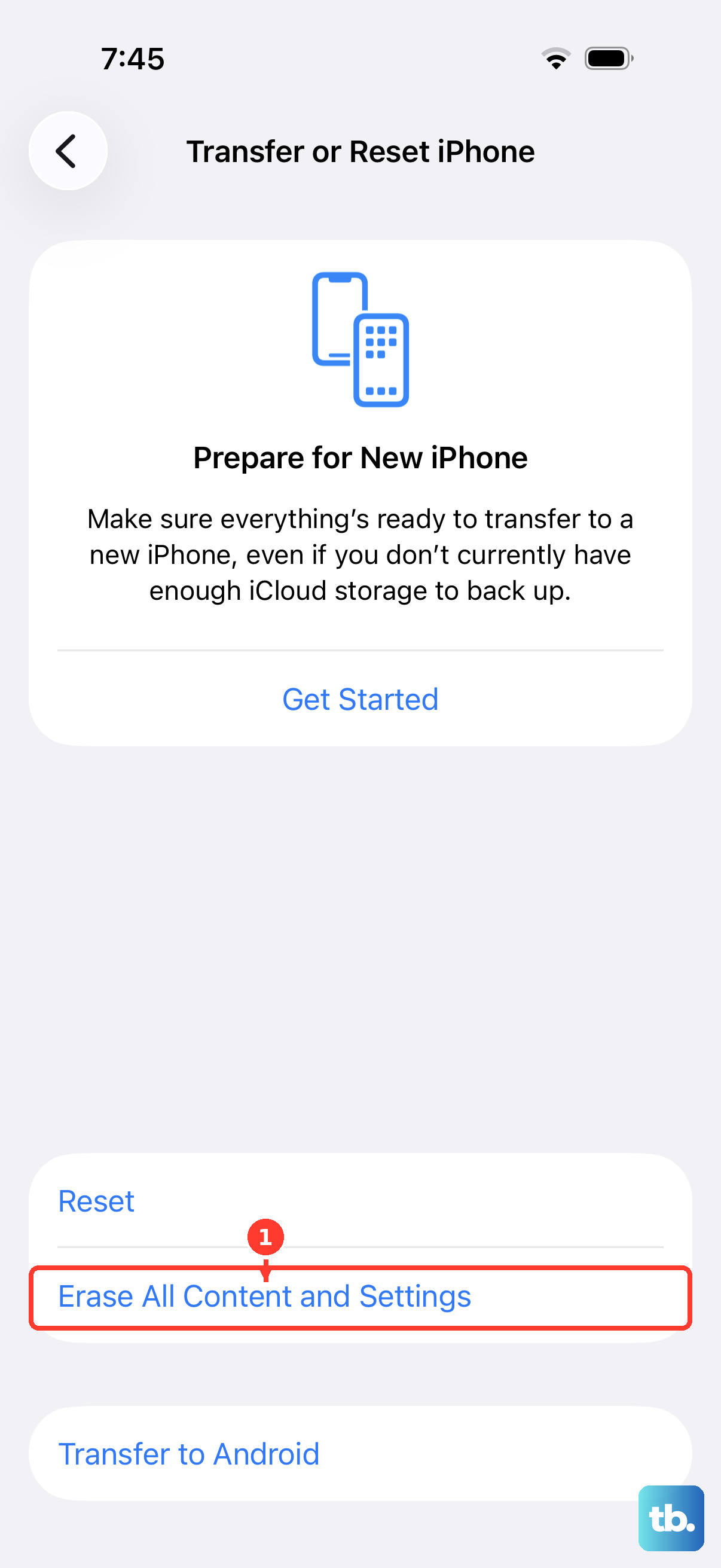
Once you're completely satisfied that everything moved successfully, you can securely wipe your old phone. On the old device, go to Settings > General > Transfer or Reset iPhone > Erase All Content and Settings.











