
If your iPhone Air won't connect to your car, headphones, or other Bluetooth accessories, you're in the right place. Bluetooth hiccups happen to every phone now and then, but most are quick to fix. This guide walks through the most effective solutions for iOS 26 on the iPhone Air.
Start With the Basics
Before diving deeper, check the simple things. Make sure Bluetooth is actually on, open Control Center and look for the Bluetooth icon to be highlighted blue. Both devices should have enough battery, ideally above 15%.
Keep the iPhone Air within about 30 feet of the other device, and confirm that whatever you're pairing is in discovery or pairing mode. If you're connecting to something like AirPods or a smartwatch, check that they don't need a firmware update via their companion app.
Try connecting to a different Bluetooth device. If that works, the problem is probably with the original accessory, not the phone.
Toggle Bluetooth and Restart
The fastest fix is turning Bluetooth off and back on. Swipe down to open Control Center, tap the Bluetooth icon to turn it off, wait about 10 seconds, then tap it again. Try pairing once more.
If that doesn't help, restart both devices. On the iPhone Air, press and hold the Side button along with either volume button until you see the power-off slider. Slide to turn off, wait a moment, then hold the Side button again to power back on. Also restart the Bluetooth accessory itself.
For a more thorough reset when the phone is acting odd, do a force restart: quickly press and release Volume Up, then quickly press and release Volume Down, then press and hold the Side button until the Apple logo appears. This clears temporary software glitches without erasing any data.
Forget and Re-Pair the Device
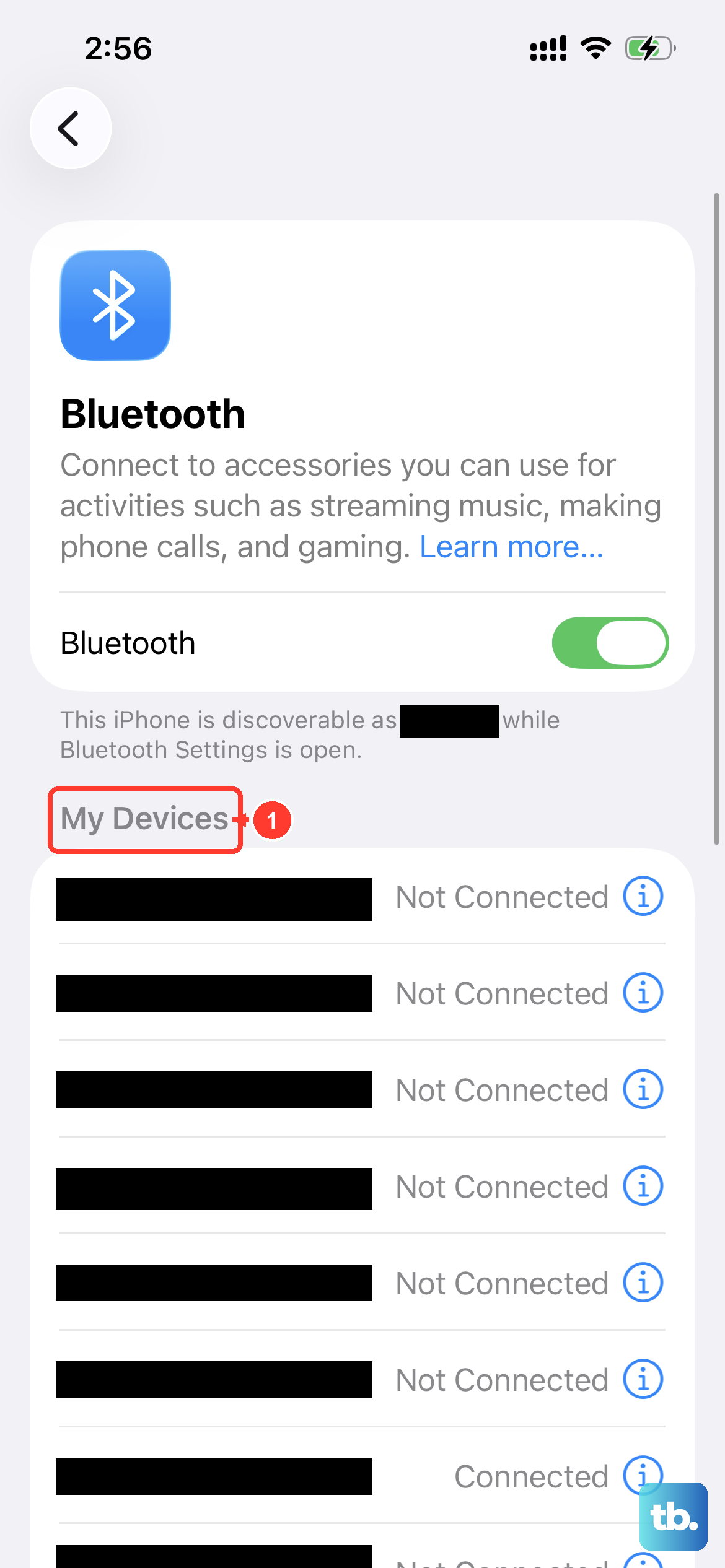
Sometimes the saved Bluetooth profile gets corrupted. Removing it and pairing fresh often solves the problem.
Go to Settings > Bluetooth. Tap the blue "i" icon next to the problematic device, then tap Forget This Device. Confirm the action.
Now put the accessory back into pairing mode and look for it under "Other Devices" in the Bluetooth settings. Tap it to pair. It should connect without the old issues.
Reset Network Settings
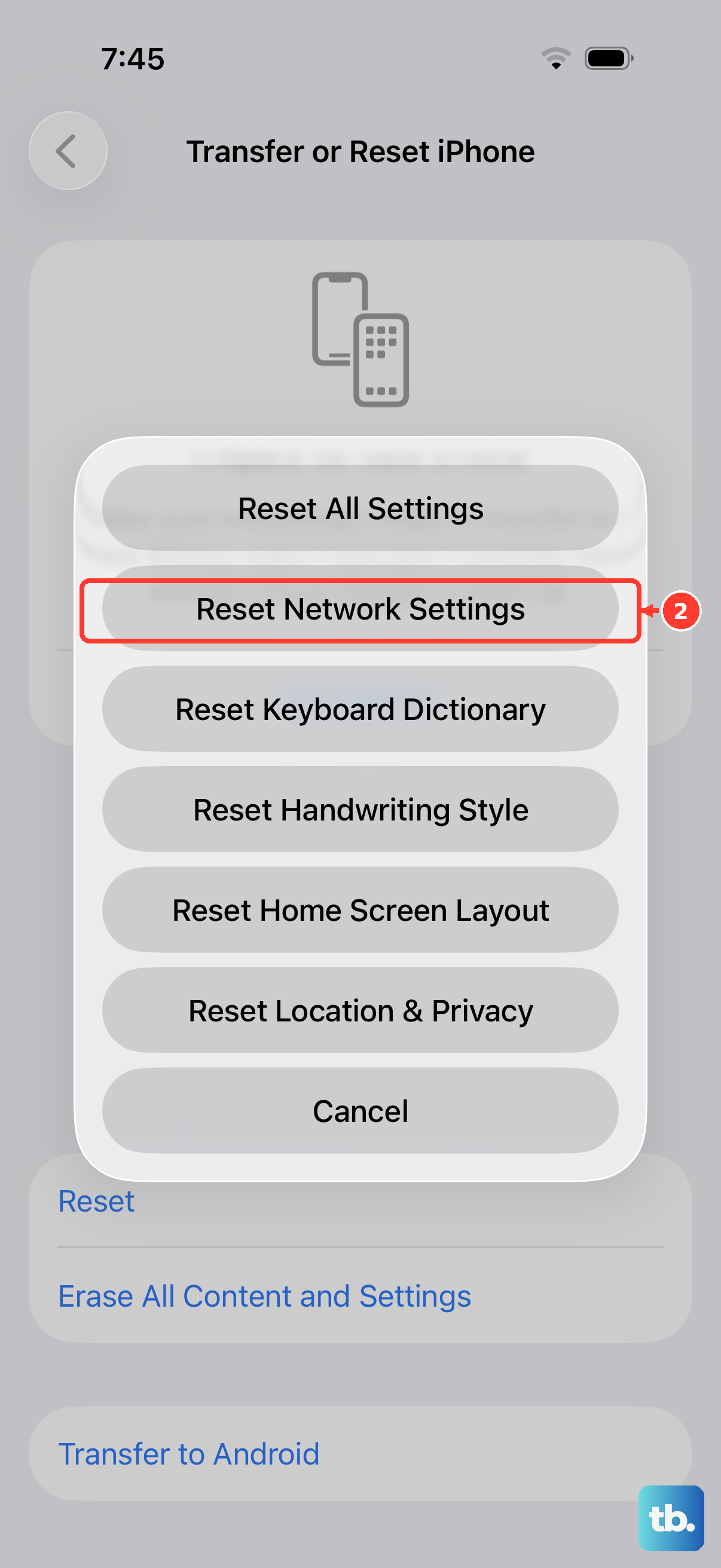
This wipes all saved Wi-Fi networks, VPN configurations, and Bluetooth pairings, but it's a powerful fix for persistent wireless problems. Your personal data and media stay intact.
Go to Settings > General > Transfer or Reset iPhone > Reset > Reset Network Settings. Enter your passcode if prompted, then confirm. The phone will restart, and you'll need to re-pair all your Bluetooth devices afterward.
In my experience, resetting network settings clears about 70% of stubborn Bluetooth issues that don't respond to a restart.
Update iOS and Accessory Firmware
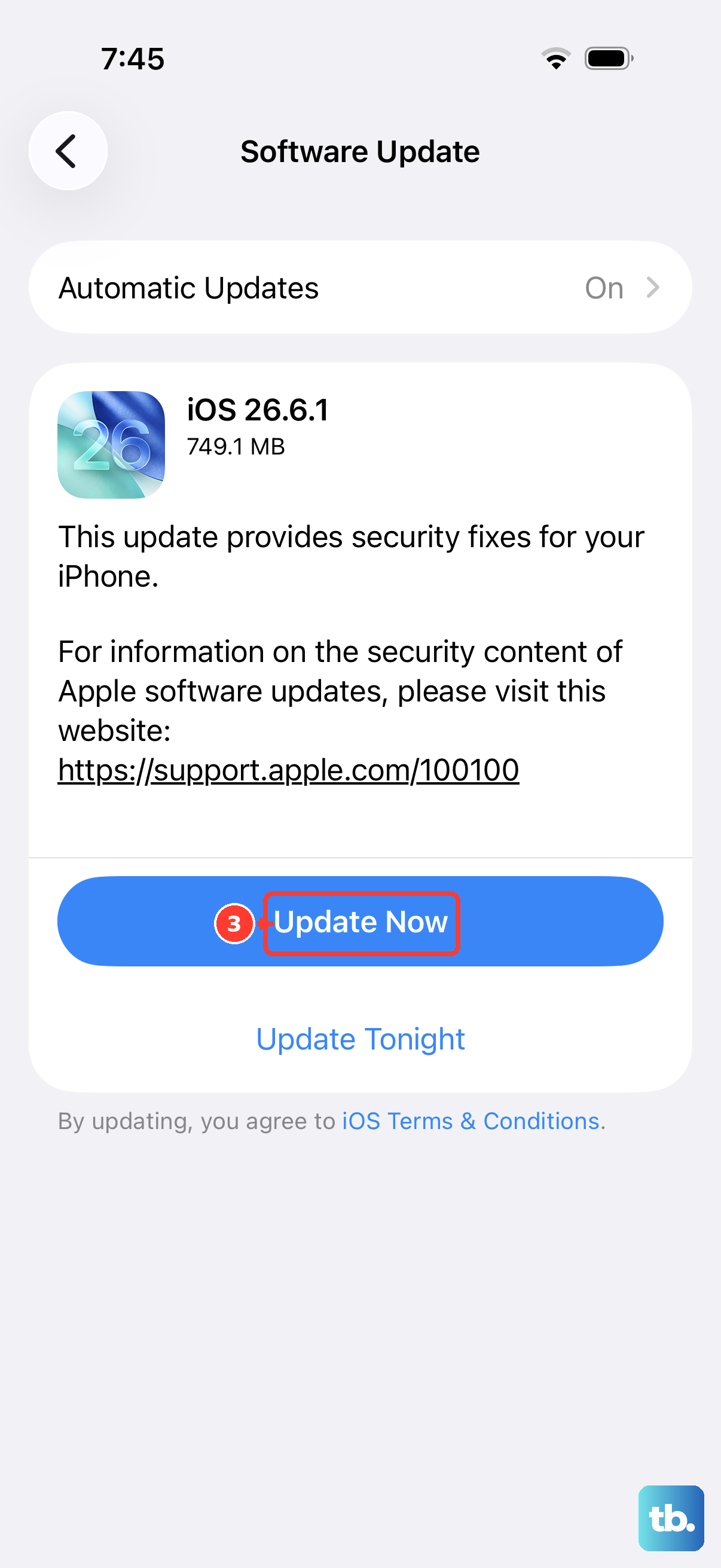
Outdated software can cause Bluetooth compatibility problems. Make sure your iPhone Air is running the latest version of iOS 26.
Open Settings > General > Software Update. If an update is available, tap Download and Install. It's a good idea to plug into power using a USB-C cable or place it on a MagSafe charger before updating.
Don't forget to check for firmware updates on your Bluetooth accessory too. Many brands like Sony, Bose, and Samsung offer companion apps that push firmware updates that can fix connection drops.
Check for App Interference
iOS doesn't have a Safe Mode like Android, but you can test if a third-party app is messing with Bluetooth. If the problem started after installing a new app, try uninstalling it and see if Bluetooth behaves again.
Another quick test is to use Bluetooth in Airplane Mode. Swipe into Control Center and turn on Airplane Mode, then manually turn Bluetooth back on (iOS lets you keep Bluetooth on even in Airplane Mode). Try connecting your device. If it works, something was interfering over the cellular network or Wi-Fi.
You can also check if any app with heavy Bluetooth permissions (like location-based apps) is misbehaving. Go to Settings > Privacy & Security > Bluetooth and review which apps have access. Revoke permissions for any app you don't trust.
When to Reset All Settings
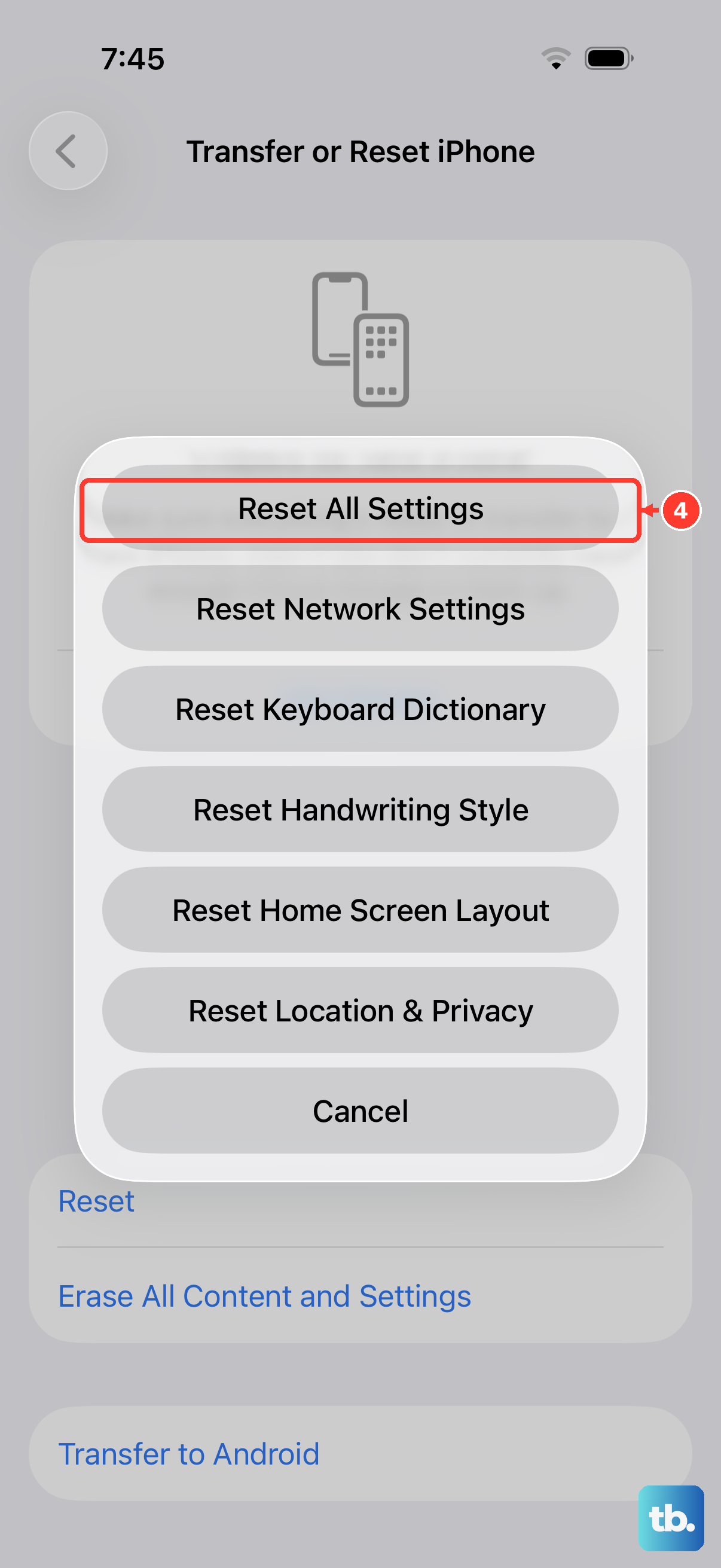
If none of the above works, but you're not ready for a full factory wipe, try resetting all settings. This reverts everything in Settings (wallpaper, notifications, display, etc.) to default but doesn't touch your photos, apps, or music. You'll need to re-enter Wi-Fi passwords and re-pair Bluetooth devices afterward.
Go to Settings > General > Transfer or Reset iPhone > Reset > Reset All Settings. Enter your passcode and confirm. The phone restarts, and you start fresh on settings. Test Bluetooth immediately after.
This fix resolves weird software glitches that individual steps can't touch, especially after a major iOS update.
Check for Hardware Problems
If Bluetooth still refuses to work after resetting all settings, there might be a hardware issue with the iPhone Air's Bluetooth chip. You can get a hint by opening Settings > Bluetooth and looking for a "Bluetooth: Not Available" or grayed-out toggle. That's a sign the hardware isn't waking up properly.
Before jumping to conclusions, try the force restart one more time. If that doesn't help, and the problem persists across multiple accessories, reach out to Apple Support for service. The iPhone Air uses the USB-C port for diagnostics, so an authorized technician can test the Bluetooth module directly.