
WiFi dropping out or refusing to connect is one of those things that makes you want to throw your phone across the room. The iPhone Air is a solid device, but like any phone running iOS 26, it sometimes hits a rough patch with wireless connections. Most of the time, this is a quick fix that doesn't require any technical know-how.
Toggle WiFi and Try Airplane Mode
Start with the simplest thing. Open Control Center (swipe down from the top-right corner), tap the WiFi icon to turn it off, wait about five seconds, then tap it back on. That forces your iPhone to re-scan for networks.
If that didn't help, turn on Airplane Mode from Control Center and leave it on for about 15 seconds before turning it off again. This resets all your wireless radios at once, and it often wakes up a stubborn WiFi connection.
Force Restart Your iPhone Air
When your iPhone gets confused about WiFi, a regular restart doesn't always cut it. A force restart clears out deeper software hiccups. Here's the sequence for the iPhone Air: quickly press and release the Volume Up button, then quickly press and release the Volume Down button, then press and hold the Side button until the Apple logo appears. Let it boot back up and try connecting to WiFi again.
This is the same trick you'd use if your phone becomes unresponsive after the battery drains completely, which is a known issue on the iPhone Air. A force restart fixes more than you'd expect.
Forget the Network and Reconnect
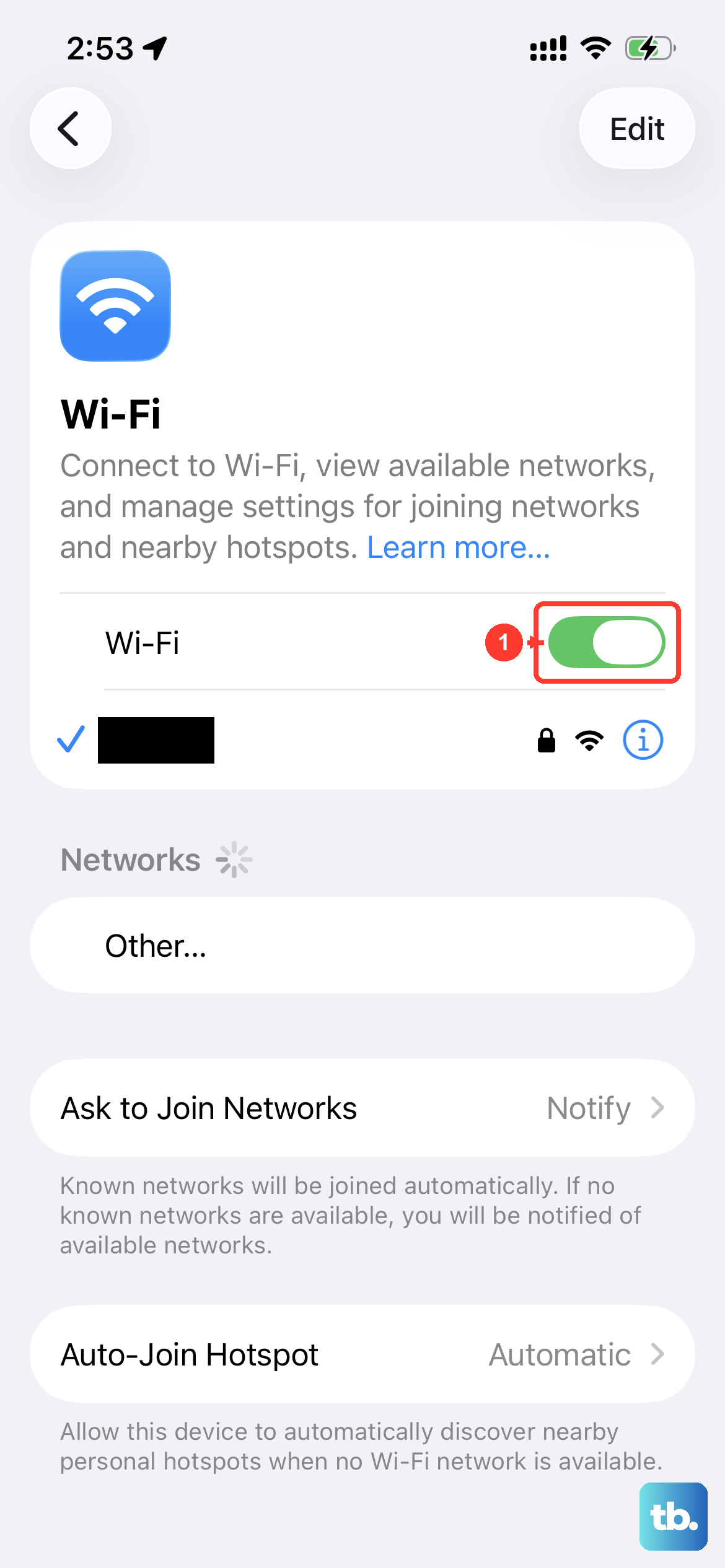
Your iPhone sometimes hangs onto corrupted or outdated network credentials. Go to Settings > WiFi, tap the blue info icon next to your network name, and tap Forget This Network. Then tap the network again from the list and enter the password fresh.
This is especially useful if you recently changed your WiFi password or swapped out your router. Your iPhone Air might be trying to connect with the old password, and it'll keep failing until you clear that data.
Check Your WiFi Password and Router
It's easy to overlook, but make absolutely sure you're typing the right password. WiFi passwords are case-sensitive, so check that Caps Lock isn't on. Also glance at the network name you're selecting, because if your neighbor has a similar SSID, your iPhone might be trying to join theirs instead.
If other devices in your house are having WiFi problems too, the issue is probably your router. Unplug it from power, wait a full 60 seconds, then plug it back in. Let it fully restart before trying to connect with your iPhone Air again.
Turn Off Bluetooth Temporarily
Bluetooth and WiFi both use the 2.4GHz frequency band, and on some networks they can interfere with each other. Swipe into Control Center and tap the Bluetooth icon to turn it off. Then try connecting to WiFi again. If it works, you've found the interference source, though this is less common on the iPhone Air with its newer wireless chips.
Disable Private WiFi Address for Your Network
iOS 26 includes a privacy feature that rotates your MAC address on each network. Some routers don't handle this well and block the connection. Go to Settings > WiFi, tap the blue info icon next to your network, and toggle off Private WiFi Address. Your iPhone will reconnect using a fixed address, which usually solves the issue immediately.
Update iOS 26
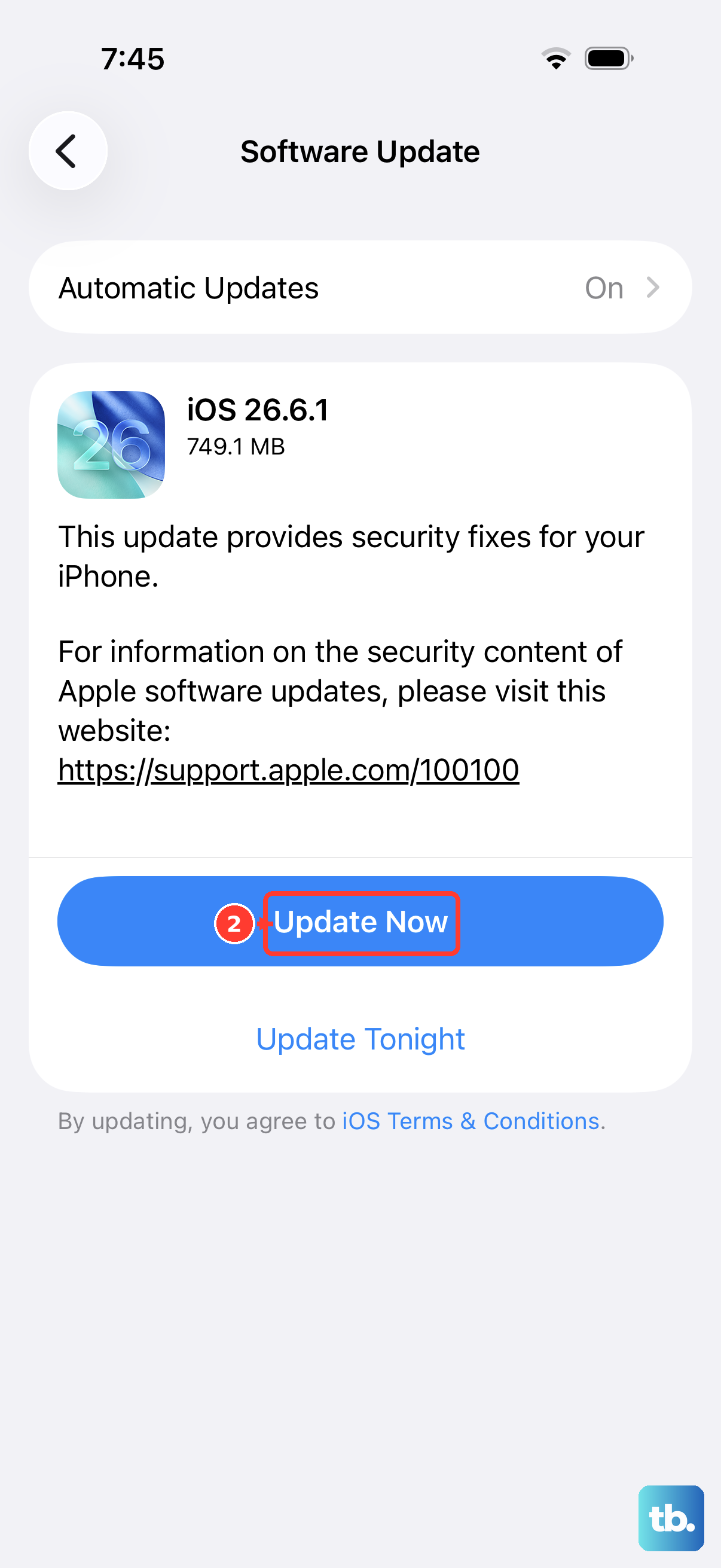
Apple regularly pushes software updates that fix WiFi bugs. Go to Settings > General > Software Update and install anything that's available. The iPhone Air shipped with iOS 26, and later versions have addressed several connectivity issues, so keeping your software current is worth the few minutes it takes.
Check Date and Time Settings
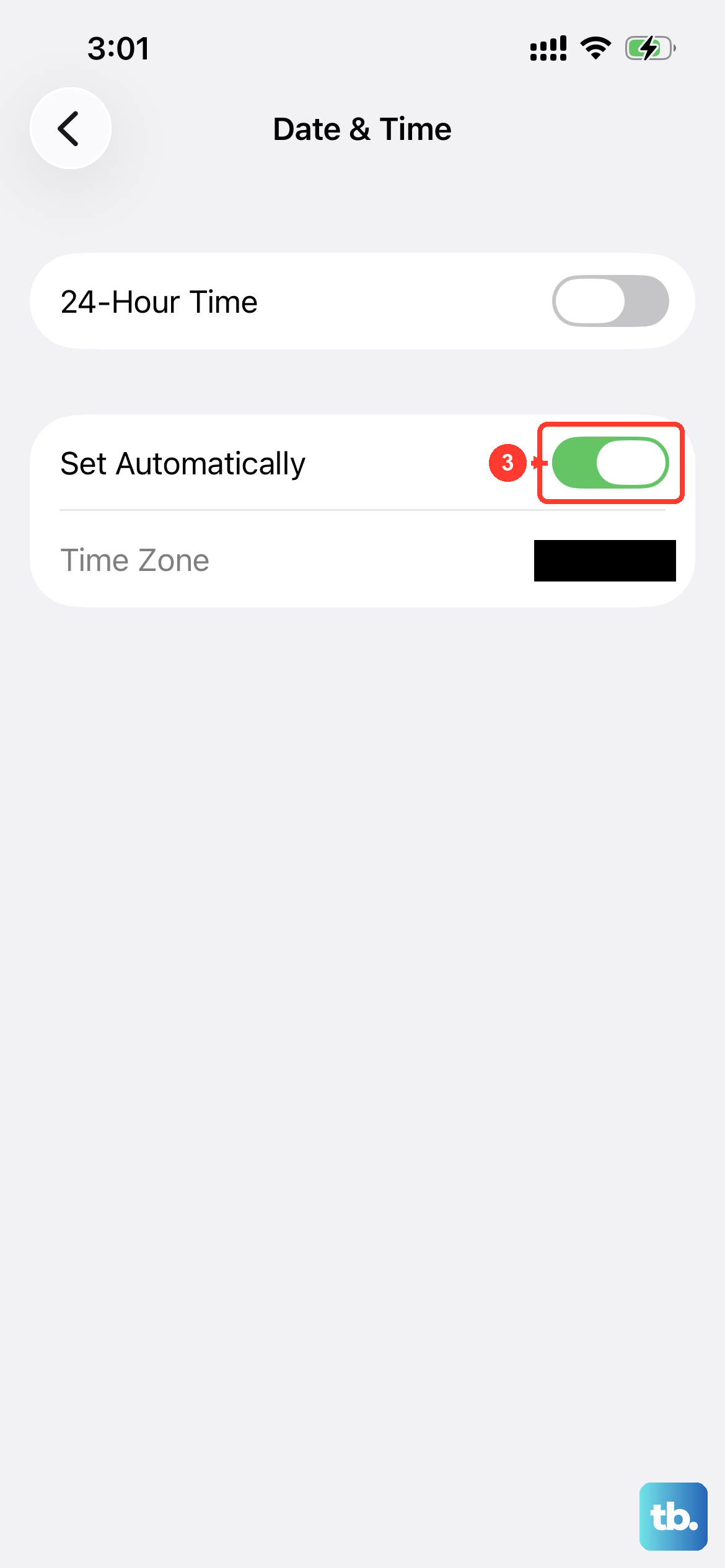
This sounds unrelated, but it trips up a lot of people. If your iPhone's date and time are wrong, WiFi authentication can fail because security certificates won't validate. Go to Settings > General > Date & Time and make sure Set Automatically is turned on. That's it, your phone handles the rest.
Reset Network Settings
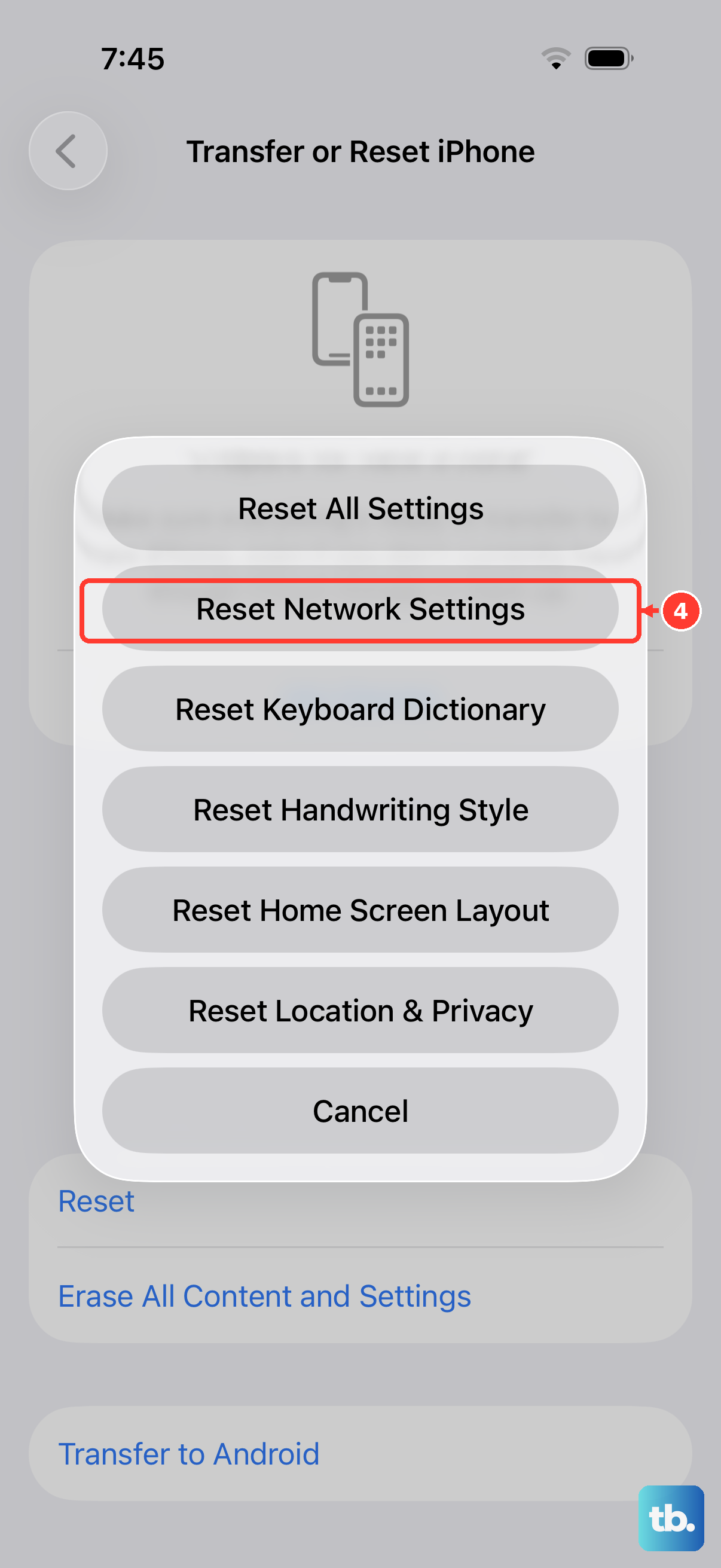
If you've run through everything above and your iPhone Air still won't connect to WiFi, it's time to reset your network settings. Go to Settings > General > Transfer or Reset iPhone > Reset > Reset Network Settings. This wipes all saved WiFi networks, Bluetooth pairings, and VPN configurations, so you'll need to reconnect to everything afterward. It's a clean slate for your wireless connections.
Check for VPN and Third-Party App Interference
VPNs, ad blockers, and some security apps can interfere with WiFi connections on iOS 26. Go to Settings > General > VPN & Device Management and turn off any active VPN. If you have a security app installed, try temporarily removing it to see if WiFi starts working. In my experience, this is the culprit more often than people realize.
Factory Reset as a Last Resort
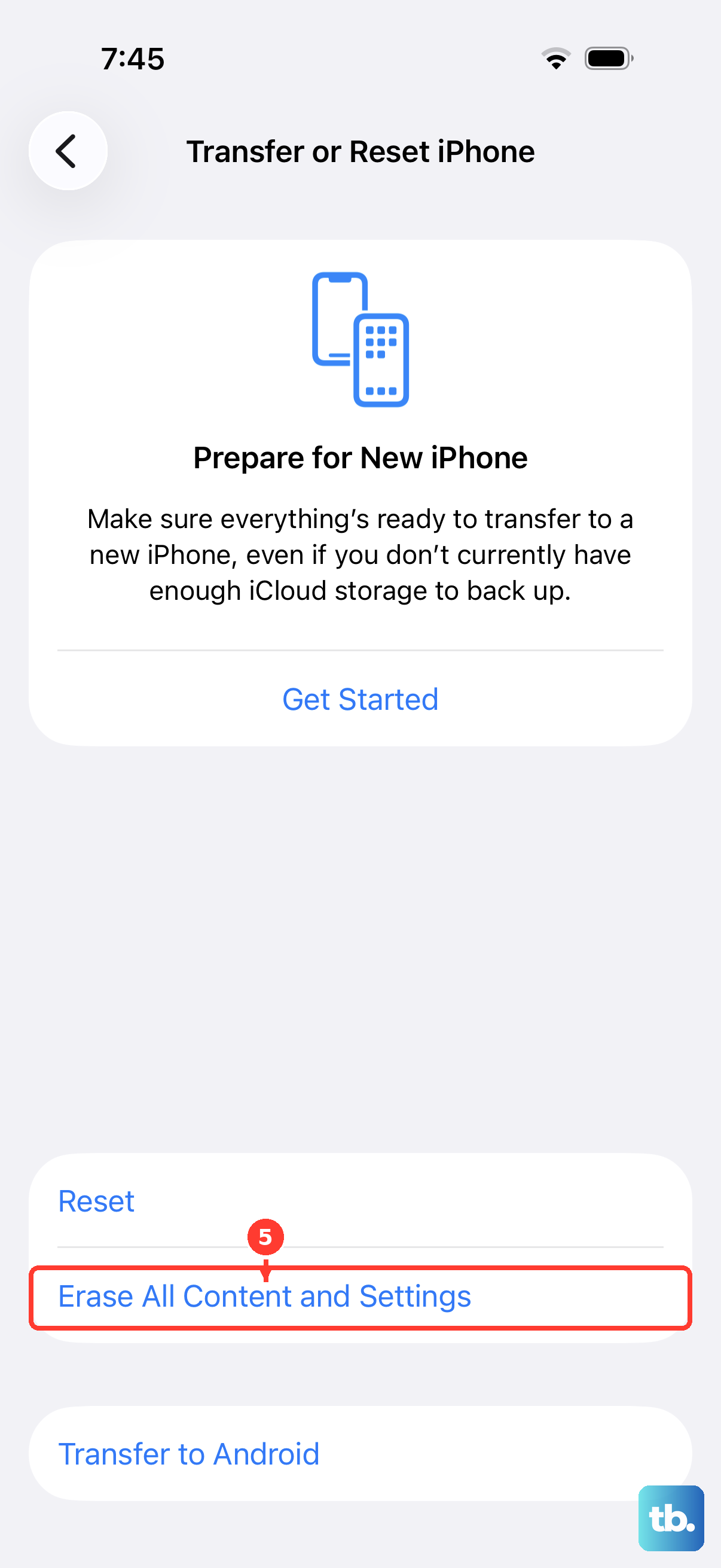
If you've tried every fix on this list and your iPhone Air still won't connect to WiFi, a factory reset is your last option before hardware repair. Back up everything first (photos, contacts, app data) because this erases your iPhone completely. Go to Settings > General > Transfer or Reset iPhone > Erase All Content and Settings.
Only go this route if you've exhausted everything else. In most cases, one of the simpler fixes above will solve the problem. If WiFi still doesn't work after a factory reset, there could be a hardware issue with the wireless chip, and you'll want to check with Apple or an authorized service provider.