
Your iPhone Air shows "Not Registered on Network" and you can't make calls, send texts, or use mobile data. This usually means the phone can't authenticate with your carrier's towers. A quick check: open the Phone app and dial *#06#. If you see a proper IMEI number, the issue is likely software or account related. If it shows "Null" or zeros, you've got a deeper problem to tackle.
Start with the simplest fixes and work your way down. Most of these don't require any tools beyond your thumbs.
Try a Force Restart
A force restart is different from turning your phone off and on. It clears certain temporary files without erasing your data. On the iPhone Air, here's how to do it: quickly press and release the Volume Up button, then quickly press and release the Volume Down button, then press and hold the Side button until you see the Apple logo. Let go of the Side button and wait for the phone to fully boot. Check if the network error is gone.
Toggle Airplane Mode On and Off
Airplane Mode cuts all wireless connections. Turning it back on forces the phone to re-register with the network. Swipe down from the top-right corner to open Control Center, tap the Airplane icon, wait about 10 seconds, then tap it again. Give your phone about 30 seconds to reconnect. If that doesn't help, try leaving Airplane Mode off for a minute before testing.
Remove and Reinsert the SIM Card
Your SIM card handles the authentication handshake with your carrier. If it's slightly loose or dirty, the phone can't complete the registration. Power off your iPhone Air completely. Use the SIM eject tool (or a paperclip) to pop out the SIM tray on the left side. Remove the SIM, check for any visible dirt or debris, and gently wipe the metal contacts with a clean, dry cloth. Put the SIM back in, push the tray in until it clicks, and power your phone on. The network should connect within a minute.
Check Your Carrier Account Status
Sometimes the problem isn't your phone at all. Log into your carrier's app or website from another device. Make sure your account is active, your bill is paid, and your line hasn't been suspended. Prepaid plans can expire without warning. If everything looks fine, try calling your carrier's support line to confirm there are no outages or restrictions on your account.
Reset Network Settings
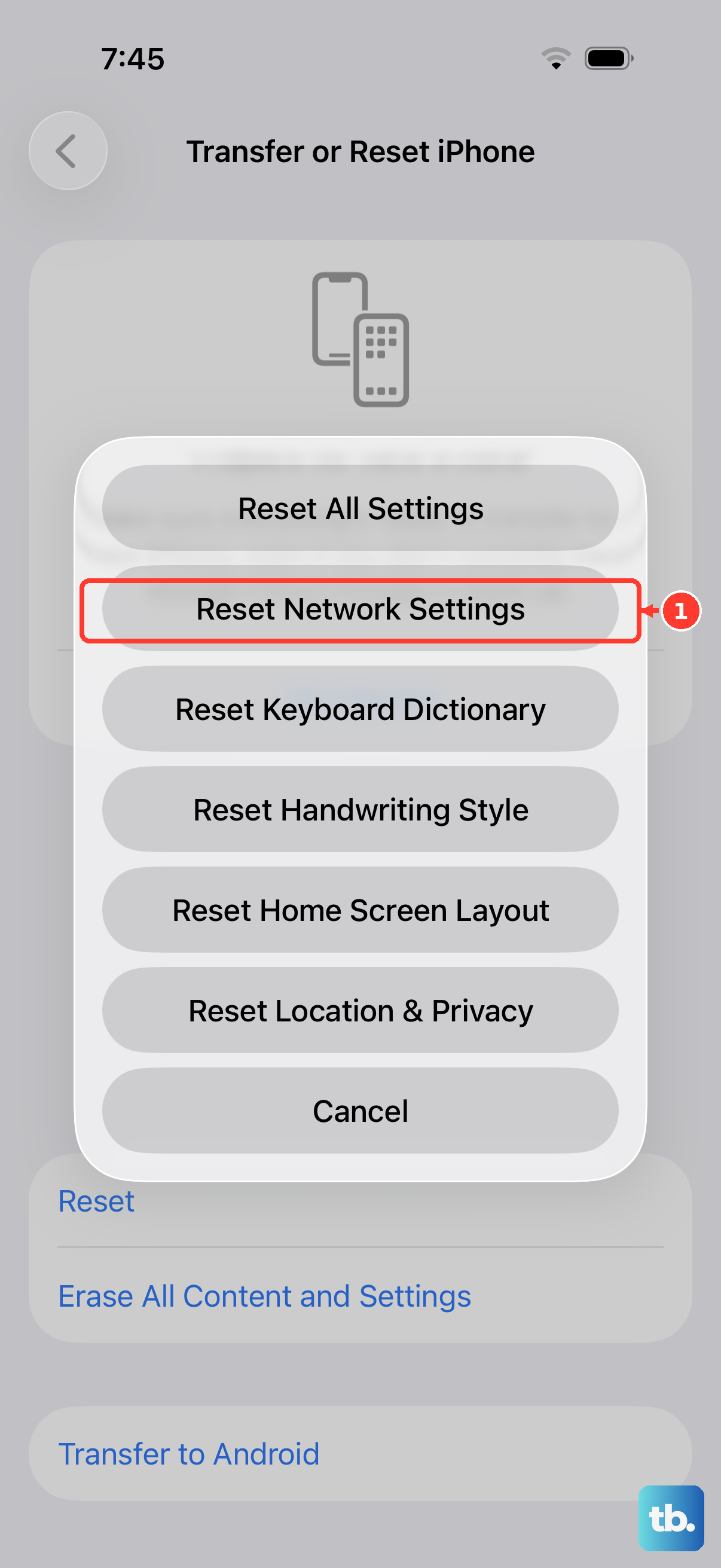
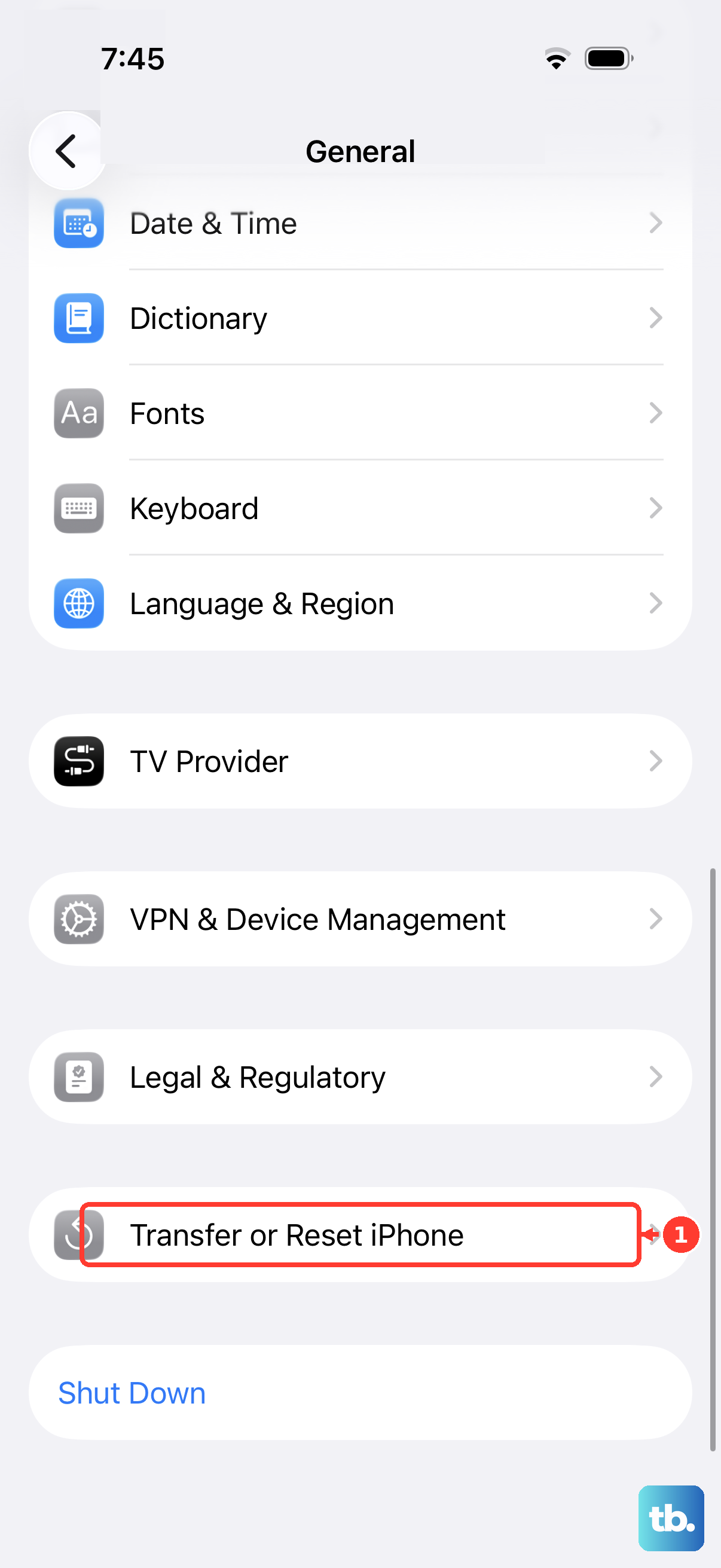
This clears saved Wi-Fi passwords, Bluetooth pairings, VPN configurations, and cellular settings. It's a safe step that often resolves stubborn network errors. Go to Settings > General > Transfer or Reset iPhone > Reset > Reset Network Settings. Your phone will restart and you'll need to re-enter Wi-Fi passwords, but the network registration issue may be fixed right away.
Manually Select a Network
Your iPhone Air might be trying to connect to a carrier network that isn't available in your current location. You can force it to pick a specific network manually. Go to Settings > Cellular > Network Selection and turn off Automatic. Wait for the list of available networks to appear, then tap your carrier's name. If it connects, leave manual selection on. If not, try another network from the list, but only do this if you're sure you're in range of your own carrier's towers.
Update to the Latest iOS Version
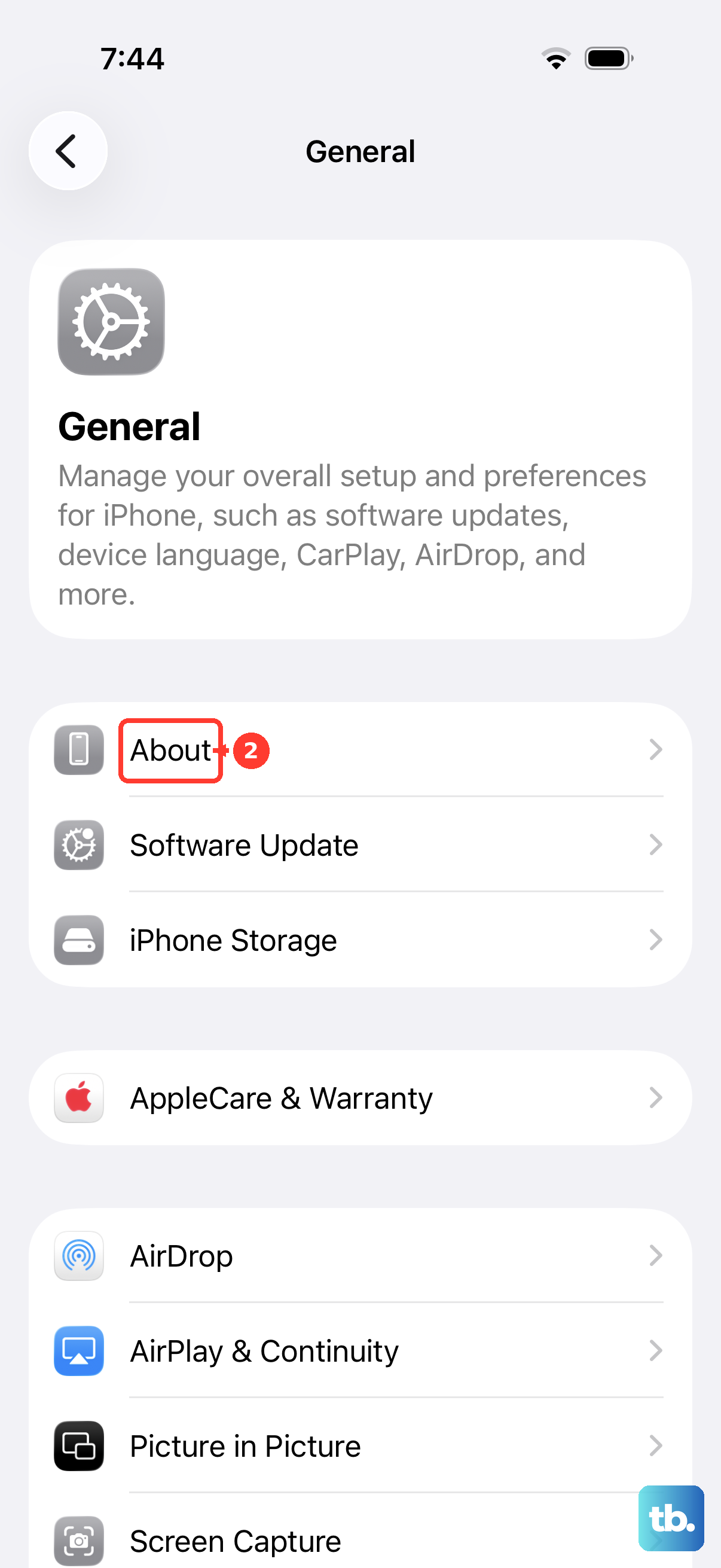
Apple and carriers release updates that fix network registration bugs. Your iPhone Air runs iOS 26, and there may be a minor update that addresses exactly this issue. Go to Settings > General > Software Update. If an update is available, download and install it over Wi-Fi. After the phone restarts, check the network status. Don't forget to also check for a Carrier Settings update, go to Settings > General > About and wait a few seconds. If an update is available, you'll see a prompt to update your carrier settings.
Try a Different SIM Card
If your original SIM is damaged or defective, no software fix will help. Borrow a working SIM from a friend or family member and insert it into your iPhone Air. If the borrowed SIM connects to the network, your old SIM is the problem, request a replacement from your carrier. If the borrowed SIM also fails, the issue is with your phone's software or hardware.
Factory Reset as a Last Resort
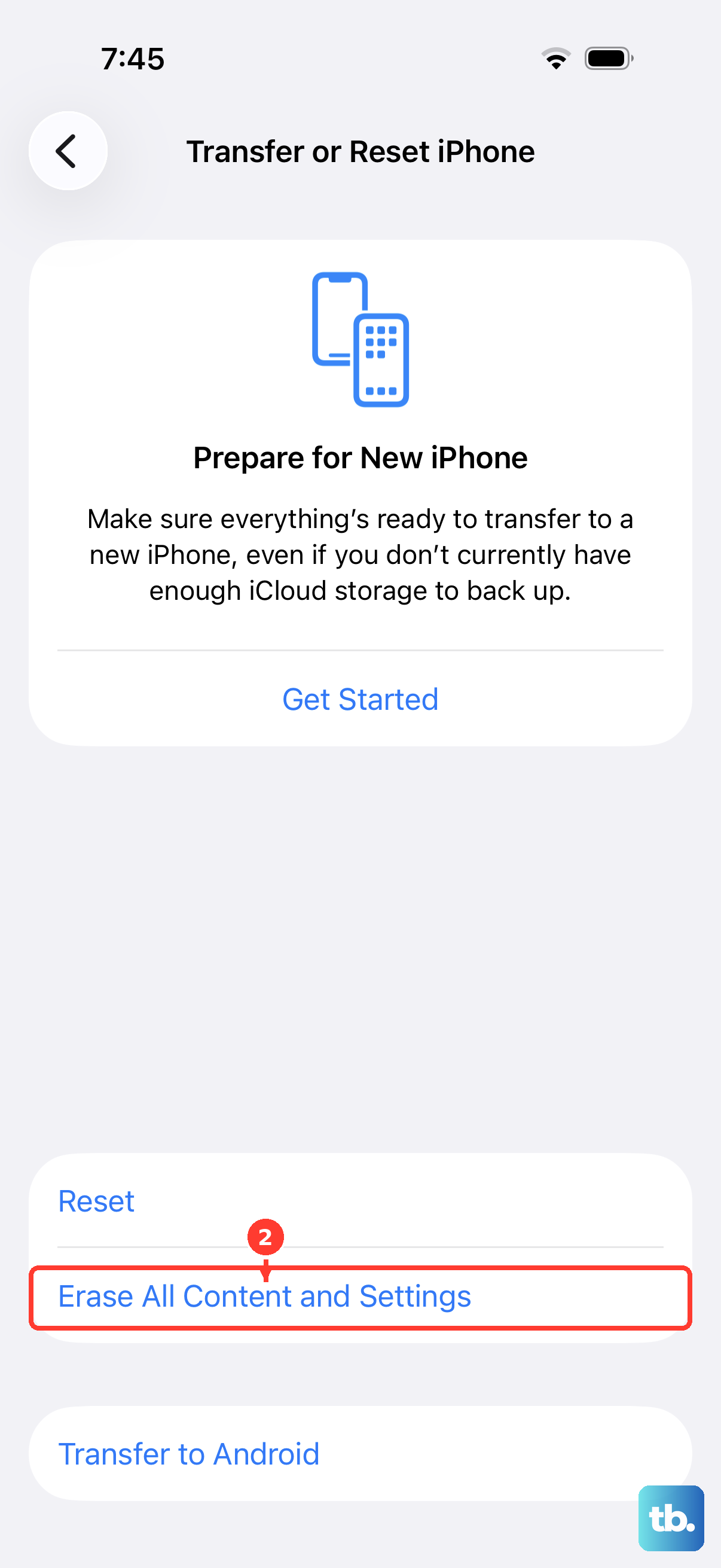
Before you do this, back up everything important. A factory reset erases all data and returns your iPhone to its original state. Go to Settings > General > Transfer or Reset iPhone > Erase All Content and Settings. After the reset, set up your phone as new (don't restore from a backup at first) and check if the network error is gone. If it persists, the cellular hardware might be faulty, and you'll need to contact Apple Support or visit an Apple Store.