
The Quickest Fixes
Before diving into deep settings, start with the fast stuff. Toggle your location services off and on. You can do this in Control Center by tapping the Location icon, or go to Settings > Privacy & Security > Location Services and flip the switch. Wait 15 seconds and turn it back on.
If that doesn't do it, restart your iPhone Air. A standard restart clears out the junk that builds up in daily use. Press and hold the Side button and either volume button until you see the power off slider. If the screen is stuck or unresponsive, a force restart is your best bet: quickly press and release Volume Up, then quickly press and release Volume Down, then press and hold the Side button until the Apple logo shows up.
I've found that a force restart fixes all sorts of weird behavior on the iPhone Air, especially if it's been acting glitchy after a battery drain.
Why Permissions Matter
Sometimes the fix is dead simple. Your GPS is on, but the app you're using doesn't have permission to see your precise location.
Open Settings > Privacy & Security > Location Services and scroll down to the app that's giving you trouble. Tap it and make sure it's set to "While Using the App" or "Always" if it's a navigation or Find My type app. The "Precise Location" toggle needs to be green. If it's off, the app only knows your general area, which is useless for turn-by-turn directions.
In my experience, this is almost always the culprit when GPS works in Maps but not in a third-party app.
Is Airplane Mode the Culprit?
Your iPhone Air uses Assisted GPS, meaning it borrows data from cellular towers and Wi-Fi networks to get a fast lock. If those radios are messed up, your GPS will struggle.
Swipe down from the top-right corner to open Control Center and tap the Airplane Mode icon. Leave it on for about 15 seconds, then tap it again to turn it off. This forces every wireless radio in the phone to power cycle and reconnect. It's a quick trick that often fixes a GPS that's stuck searching for a signal.
Update Your Software
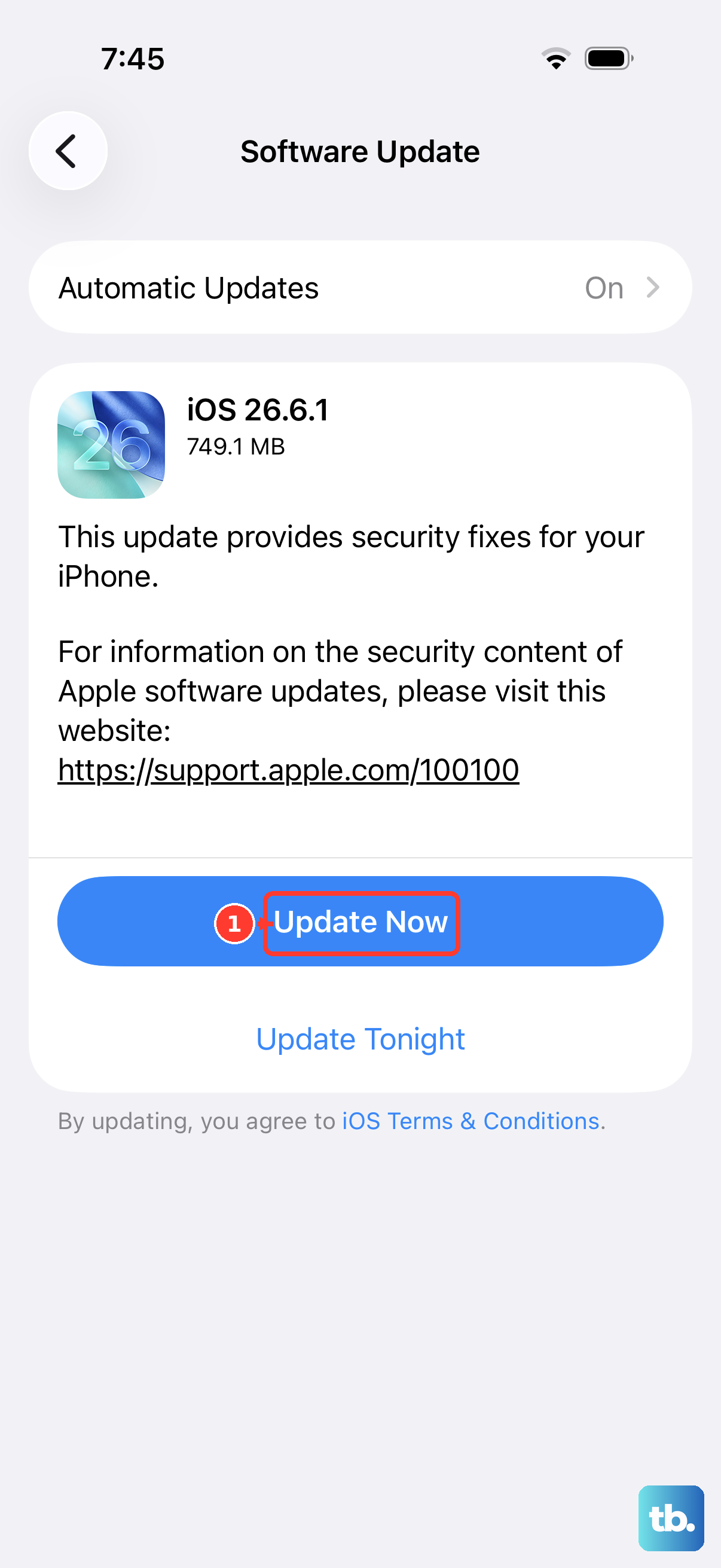
iOS 26 has been generally solid, but a reported firmware issue in versions before 26.4.2 caused intermittent problems with core system functions, including location services.
Go to Settings > General > Software Update. If you're not on the latest version of iOS 26, go ahead and install it. Apple pushes out fixes for GPS and connectivity bugs regularly, and a simple update could be all you need.
Reset Without Losing Data
Android users clear a cache partition. On the iPhone Air, you reset your Location and Privacy settings. It sounds drastic, but it only wipes your location permissions and calibration data, not your photos, messages, or apps.
Navigate to Settings > General > Transfer or Reset iPhone > Reset > Reset Location & Privacy. Enter your passcode and confirm. You will have to re-grant location permissions to your apps, but it clears out any corrupted settings that were causing the GPS to act up.
Calibrate Your iPhone Air
iOS runs several system-level location services in the background. If these get turned off or confused, your GPS accuracy takes a hit.
Head to Settings > Privacy & Security > Location Services > System Services. Make sure "Compass Calibration" and "Motion Calibration & Distance" are enabled. If you use Find My, keep "Find My iPhone" on here too. These services help the phone figure out where it is and which direction it's pointing.
If the Compass app asks you to tilt and move the red ball around a circle, do it. That's the calibration process in action.
Check for Blockages
GPS signals are incredibly weak. They can be blocked by thick phone cases, especially ones with metal plates, magnets, or battery packs built in. The iPhone Air is thin, so a bulky case can make a real difference.
Pop your phone out of its case and see if the GPS improves. Also, make sure you're not standing next to tall buildings or in a basement. Getting outside with a clear view of the sky is the best way to test if the hardware is working at all.
Rule Out Hardware Failure
If your GPS never works, no matter what you try, it's time to check the hardware. Open the built-in Compass app. If it asks you to calibrate but never does, or if the blue dot in Maps jumps around randomly, you might have a hardware issue.
If the GPS locks on fine in open areas but fails indoors or near buildings, that's normal behavior. If it can't find any satellites even in an open field, it's worth contacting Apple.
When a Force Restart Is the Answer
The iPhone Air has a known issue where it becomes completely unresponsive after the battery drains to zero. In that state, it won't charge via the USB-C port right away, and it definitely won't track your location.
If your phone is a black brick, attach a wireless charger or a MagSafe battery pack to the back. Leave it for a few minutes. Once it wakes up, perform a force restart: Volume Up, Volume Down, then hold the Side button. This specific sequence is the only way to wake it up from a deep discharge state.
Don't Forget Your Internet Connection
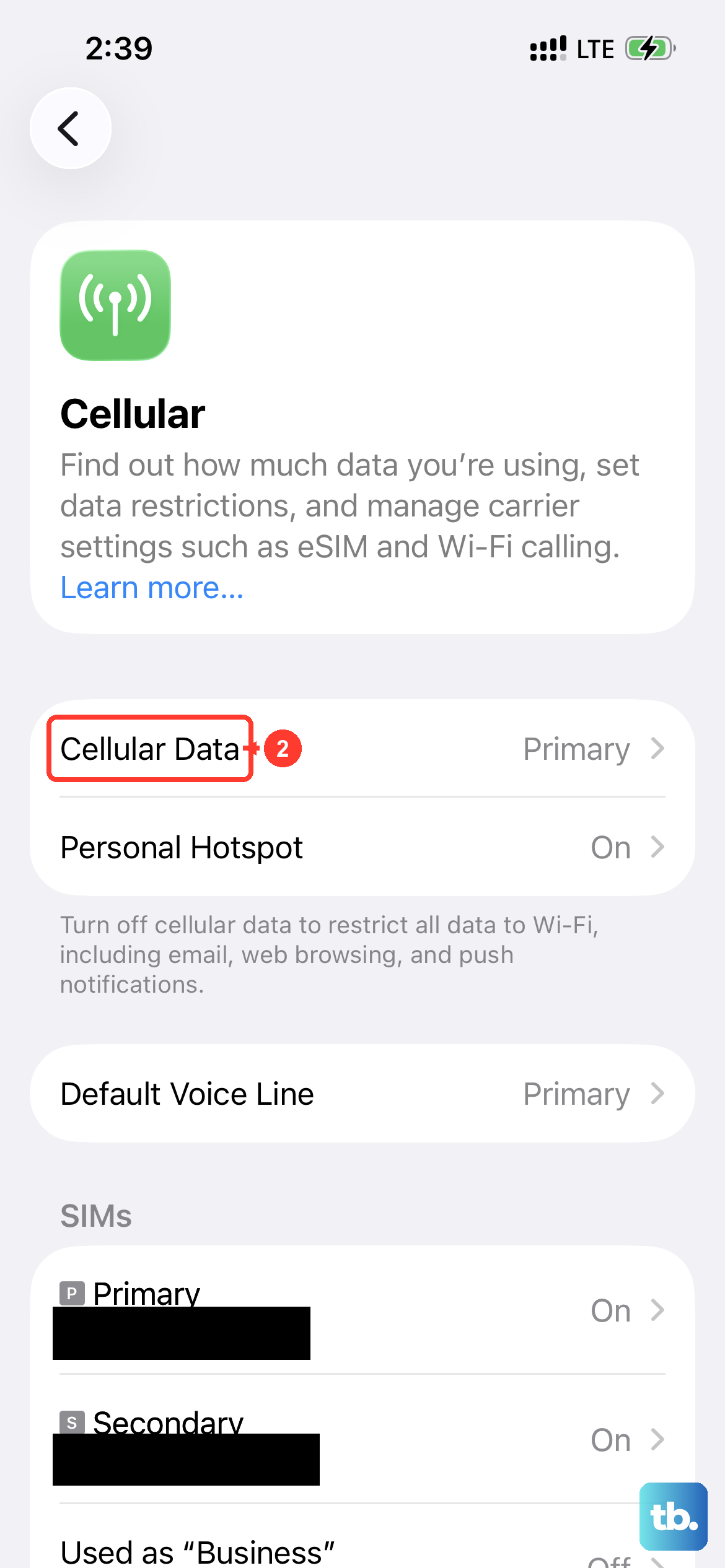
Your GPS needs a data connection to download satellite almanac data and get a quick lock. If you're in a dead zone for both Wi-Fi and cellular, the GPS will take much longer to work, or it might not work at all.
Toggle Wi-Fi and Cellular Data off and on in Control Center. If you're traveling, make sure you have a solid data connection before relying on the iPhone Air for turn-by-turn navigation. A quick test is to just load a webpage when it starts acting up.