
If your iPhone 16 videos are constantly pausing to load, appearing choppy, or freezing while the audio keeps playing, it's a common headache. The good news is that with iOS 26, most of these buffering and stuttering problems have straightforward fixes you can try right now.
I'd start by checking your internet connection, as that's the culprit more often than not. But if you're watching a video saved directly on your phone, the issue is likely with your device's software or storage.
Check Your Network Connection First
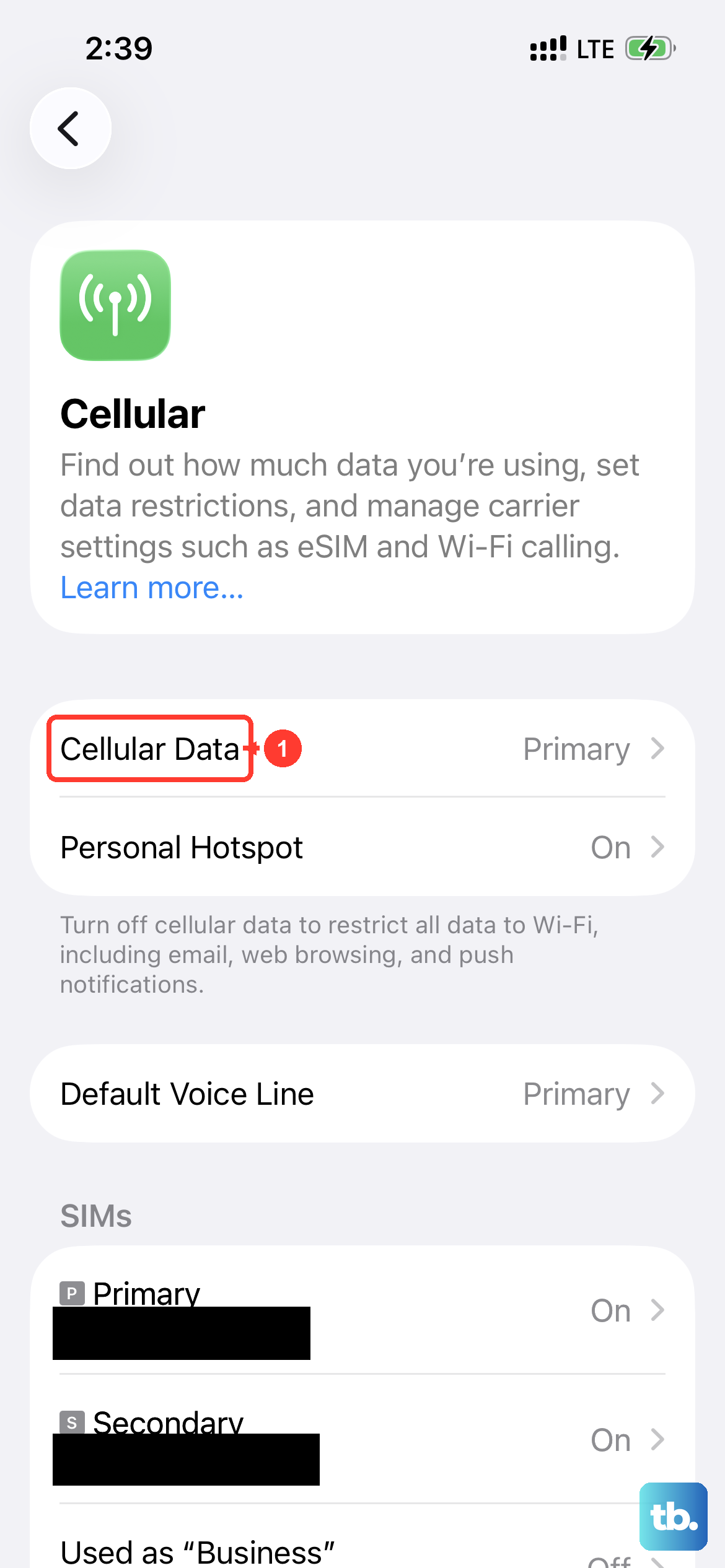
For any streamed video from YouTube, Netflix, or social media, a weak signal is the most common cause of buffering. Try switching from Wi-Fi to your 5G cellular data, or vice versa, to see if the problem clears up.
If you're on Wi-Fi, try moving closer to your router. You can also go to Settings > Wi-Fi, tap the "i" next to your network, and choose "Renew Lease" to refresh your connection. For a more thorough reset, restart your router by unplugging it for 30 seconds.
Free Up iPhone Storage Space
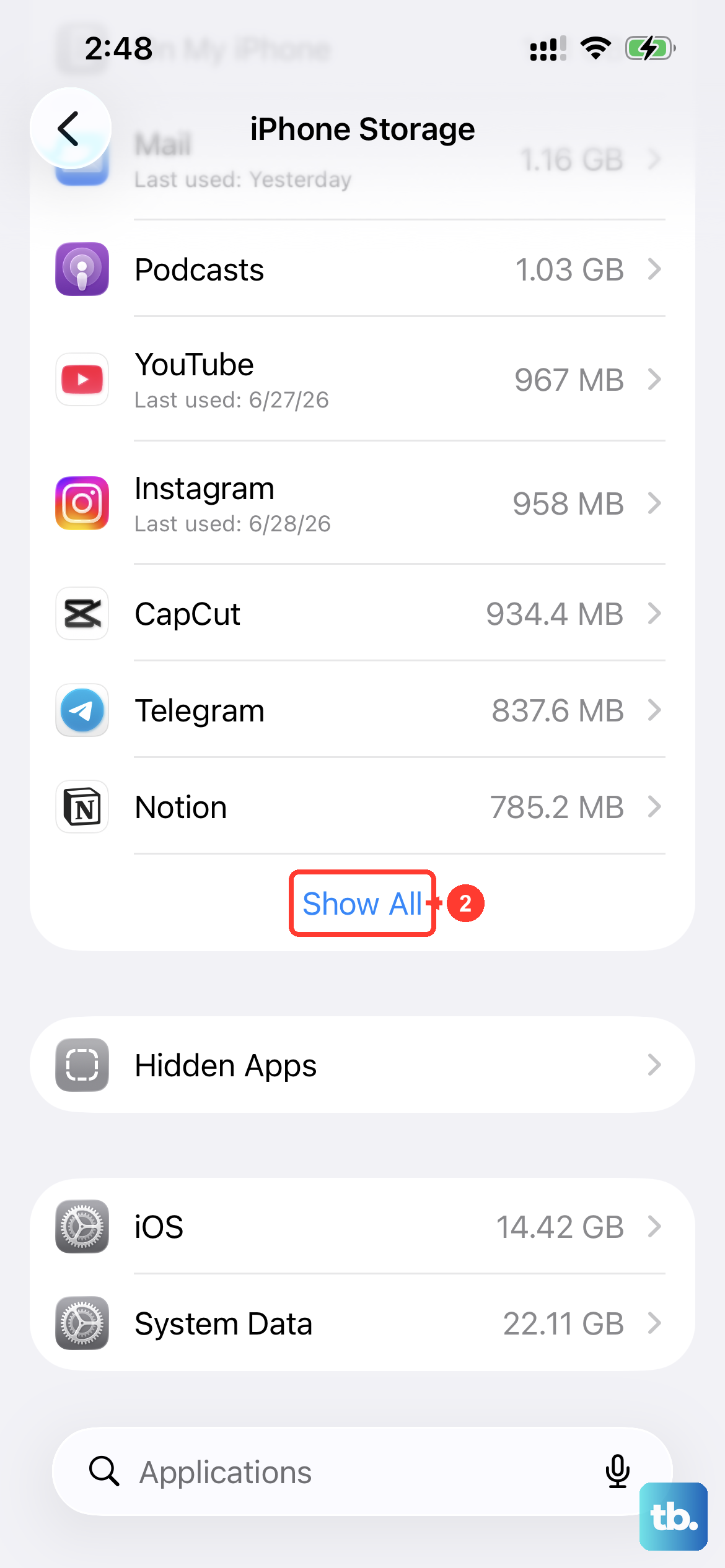
When your iPhone 16 is critically low on space, it struggles to cache video data properly, leading to stutters and lag. Head to Settings > General > iPhone Storage to see your available space.
If you have less than 5-10GB free, it's time for a cleanup. You can offload unused apps, delete old message threads, and clear your Safari cache. Enabling iCloud Photos can also move your full-resolution photos and videos to the cloud, freeing up significant local storage.
Update iOS and Your Apps
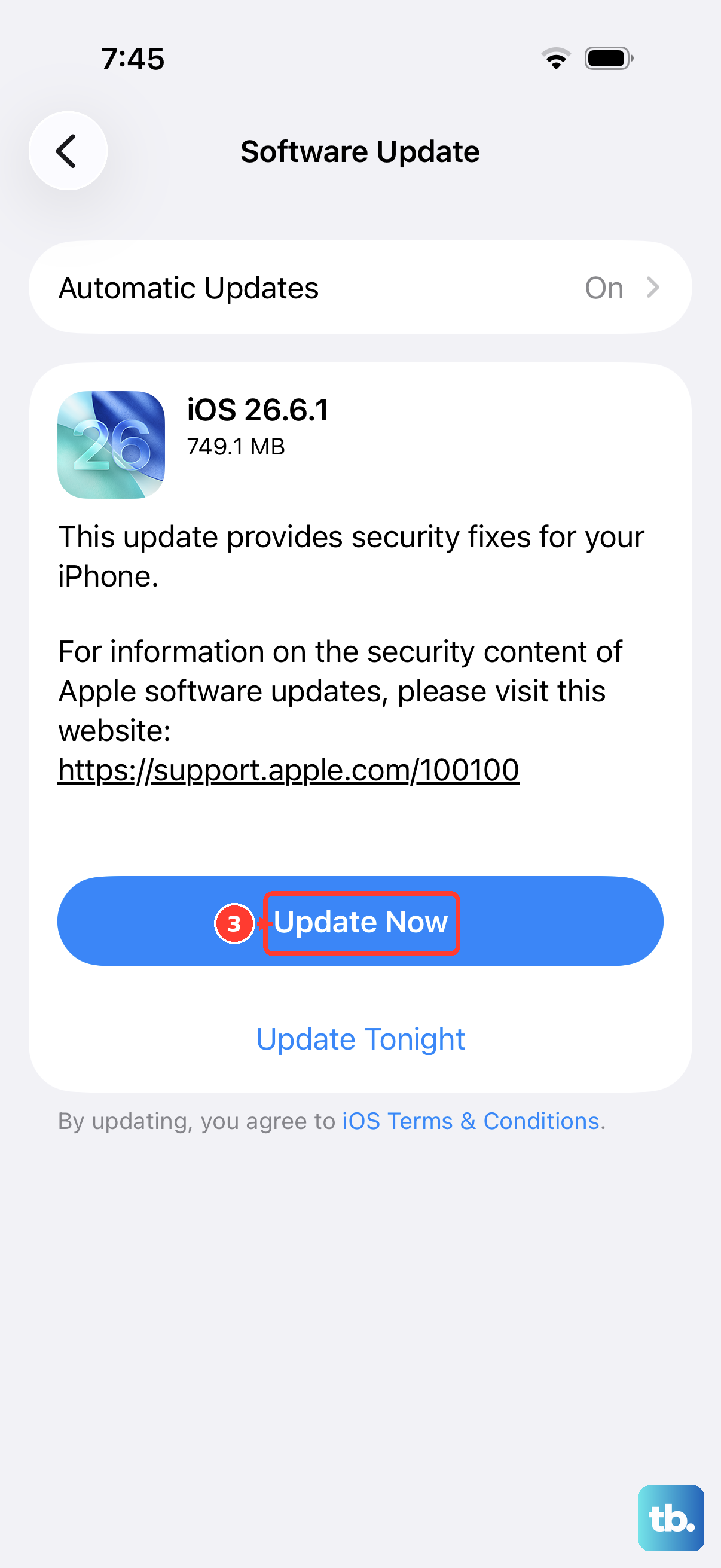
Running an outdated version of iOS 26 can lead to compatibility bugs with video players and codecs. Apple frequently releases point updates that address performance issues.
Go to Settings > General > Software Update and install any available update. While you're there, open the App Store, tap your profile icon, and update all your apps, especially the ones you use for video playback.
Force Close and Reopen the Problem App
A temporary glitch in the video app itself can cause playback problems. Swipe up from the bottom of your screen and pause in the middle to enter the app switcher. Find the problematic app and swipe it up and off the top of the screen to close it completely.
Wait a few seconds, then tap the app icon to relaunch it. This clears the app's temporary memory and often resolves one-off stuttering or freezing.
Disable Low Data Mode
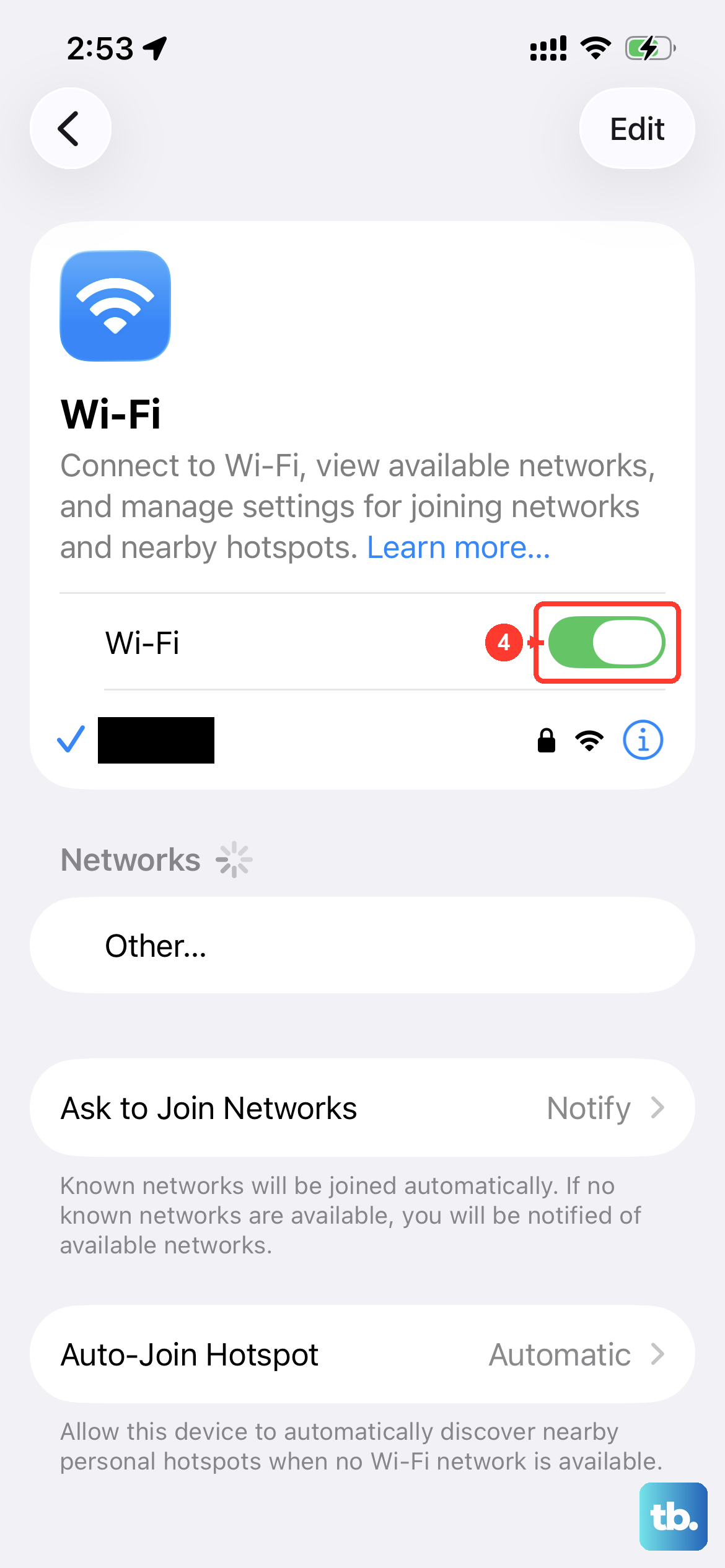
Low Data Mode is designed to reduce cellular and Wi-Fi data usage, but it can also throttle video stream quality, causing more frequent buffering. To check if it's on, go to Settings > Cellular or Settings > Wi-Fi.
Tap the "i" icon next to your active network and make sure "Low Data Mode" is switched off. This allows videos to stream at their intended, higher quality without artificial restrictions.
Reset Your Network Settings
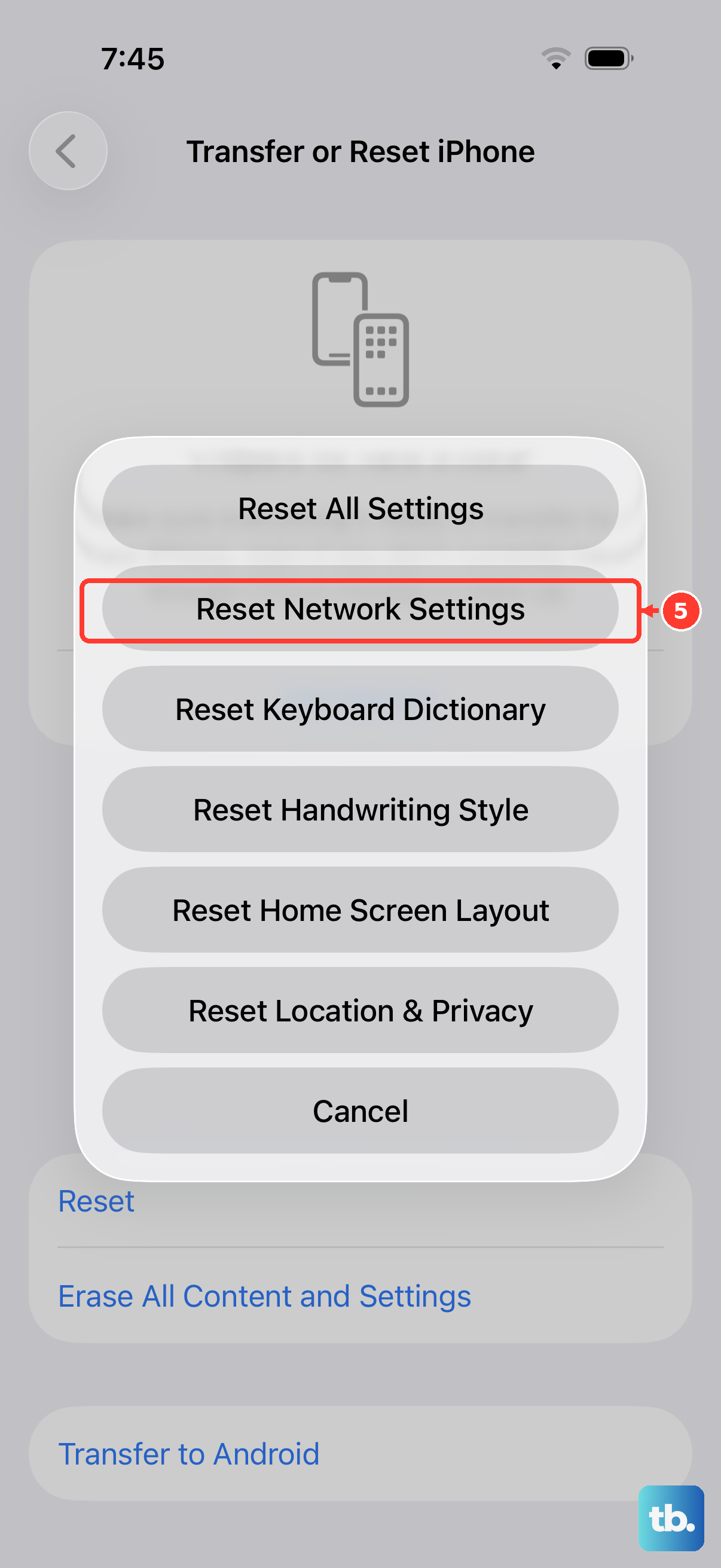
If your connection seems strong but videos still buffer, corrupted network settings might be to blame. This reset will erase all saved Wi-Fi passwords, Bluetooth pairings, and VPN configurations, so you'll need to re-enter them.
Go to Settings > General > Transfer or Reset iPhone > Reset. Then, tap "Reset Network Settings" and enter your passcode to confirm. Your iPhone 16 will restart, and you can then reconnect to your Wi-Fi to test video playback again.
Check for Background App Refresh
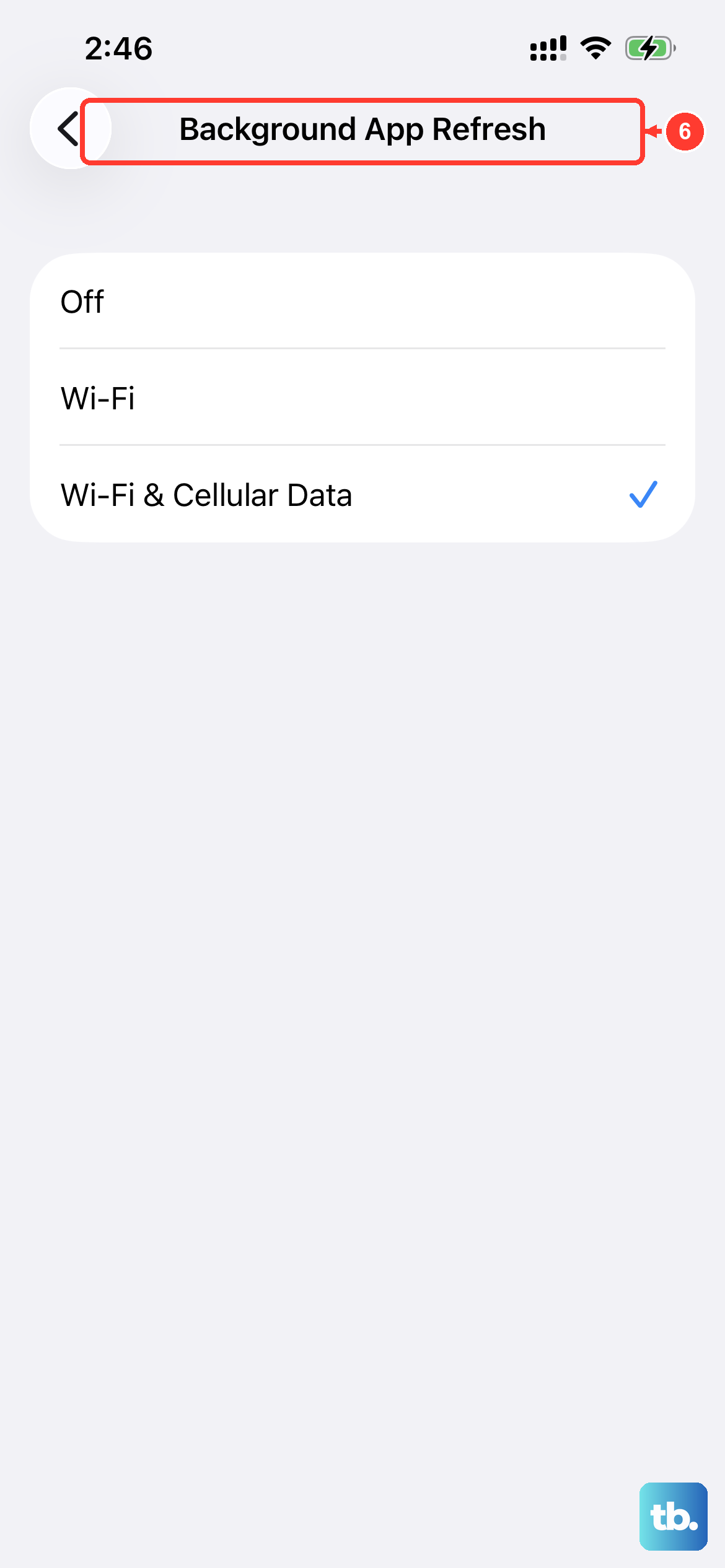
Too many apps updating in the background can consume system resources and bandwidth, interfering with smooth video playback. You can manage this by going to Settings > General > Background App Refresh.
You can turn the feature off entirely, or select "Wi-Fi" only instead of "Wi-Fi & Cellular Data." For a more targeted approach, scroll through the list and disable Background App Refresh for any non-essential apps you don't need updating constantly.
Perform a Force Restart
A force restart is more thorough than a standard shutdown and can clear deeper system caches that might be affecting performance. On your iPhone 16, quickly press and release the Volume Up button, then quickly press and release the Volume Down button.
Finally, press and hold the Side button. Keep holding it until you see the Apple logo appear, then release. This doesn't delete any data, but it can resolve temporary software hiccups causing video lag.
Reset All Settings
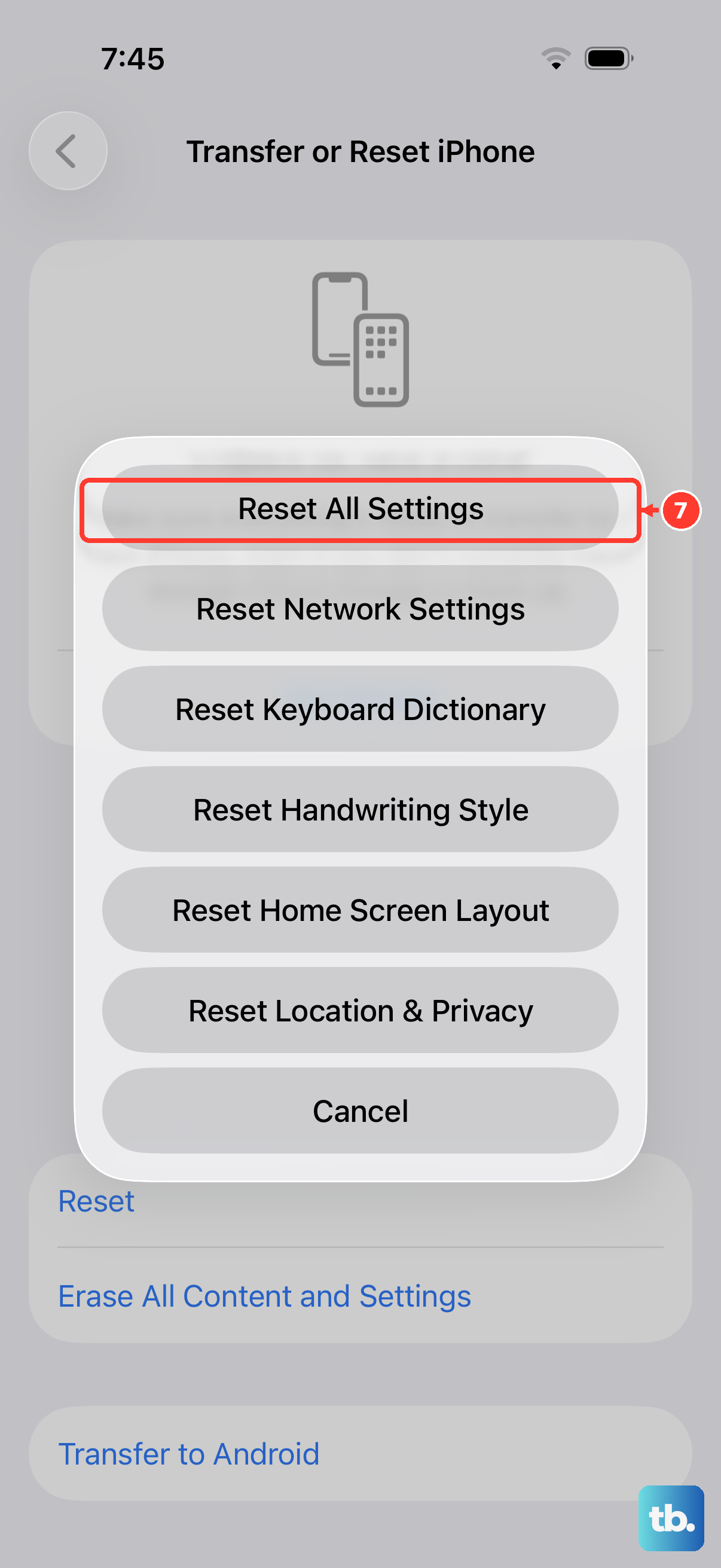
This is a stronger step that resets every preference on your phone, like display brightness, sound settings, and home screen layout, back to factory defaults without erasing your personal data. It can fix misconfigured settings affecting media playback.
Navigate to Settings > General > Transfer or Reset iPhone > Reset. Choose "Reset All Settings" and enter your passcode. After your phone restarts, you'll need to reconfigure your preferences, but your videos, photos, and apps will remain intact.
Test With a Different Video Source
To rule out a problem with a specific service or file, try playing a video from a different source. If Netflix is buffering, try a video saved in your Photos app or a live stream on a different platform.
If the problem only happens in one app, the issue is likely with that app or your account with that service. If all videos stutter, regardless of source, the problem is almost certainly with your iPhone 16's system or network connection.