
When your iPhone 16 volume buttons stop responding, it's a surprisingly common hiccup. You press them and get no feedback, no sound change, nothing. The good news is this is often a quick software or settings glitch you can fix yourself.
I'd start by removing your phone case. Some cases, especially thicker ones designed for MagSafe, can press against the buttons just enough to make them feel stuck or unresponsive. Taking the case off for a moment is the fastest way to rule that out.
Perform a Force Restart
A force restart clears out temporary software bugs that can cause hardware controls to freeze. This is the most effective first step and won't delete any of your data.
On the iPhone 16, you press and quickly release the Volume Up button, then press and quickly release the Volume Down button. Finally, press and hold the Side button until you see the Apple logo appear on the screen.
Check Your Sound Settings
Head into your settings to make sure a simple toggle isn't the culprit. Go to Settings > Sounds & Haptics.
Look for the option that says "Change with Buttons" and make sure it's toggled on. If it's off, your physical buttons won't control your ringer and alert volumes.
Clean Around the Buttons
Dust and pocket lint are classic enemies of small mechanical parts. The buttons on the iPhone 16 have very little travel, so even a tiny bit of grit can interfere.
You can try gently blowing compressed air around the edges of the buttons. For any sticky residue, a cotton swip dipped lightly in isopropyl alcohol can help, but be very careful not to get liquid inside the device.
Test in Different Apps and Situations
Open your Music app or a YouTube video and try the buttons there. Then, try them when the phone is locked or on the home screen.
If the buttons work in one app but not another, the issue is likely with that specific app. Try force-closing the problematic app and reopening it. If they don't work anywhere, the problem is more systemic.
Toggle the Ring/Silent Switch
This old trick sometimes helps reset the connection. Flick the switch on the left side of your iPhone 16 back and forth from silent to ring a few times.
After you've done that, test the volume buttons again. It's a simple action that can jog the system out of a minor glitch.
Use AssistiveTouch as a Diagnostic Tool
Enabling AssistiveTouch isn't just an accessibility feature, it's a great way to test if the problem is software or hardware. Go to Settings > Accessibility > Touch > AssistiveTouch and turn it on.
A small gray button will appear on your screen. Tap it, go to Device, and then use the virtual Volume Up and Volume Down buttons. If these on-screen controls work but your physical buttons don't, it points more strongly toward a hardware or deeper driver issue.
Update to the Latest iOS
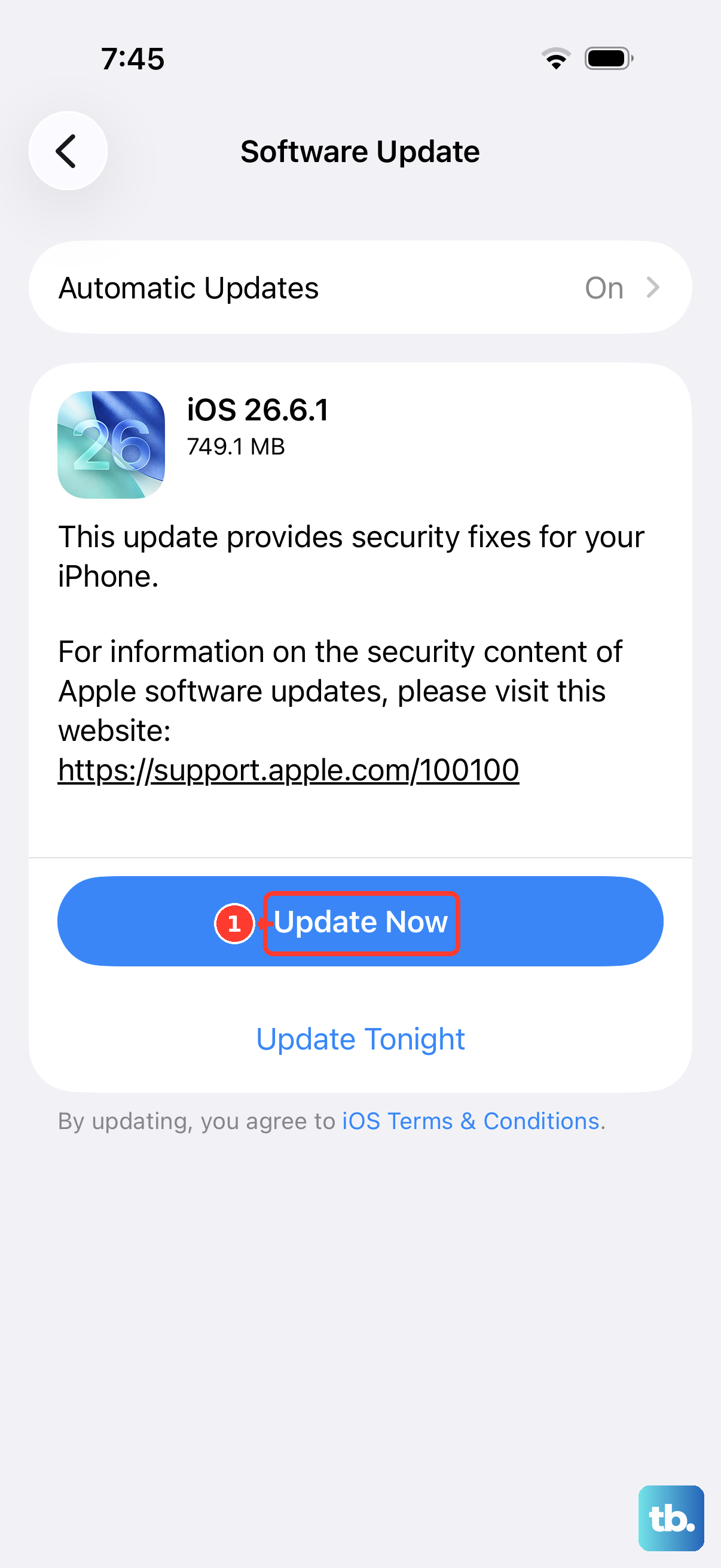
Since your iPhone 16 runs iOS 26, make sure you have the latest version installed. Apple frequently releases updates that fix bugs affecting hardware controls.
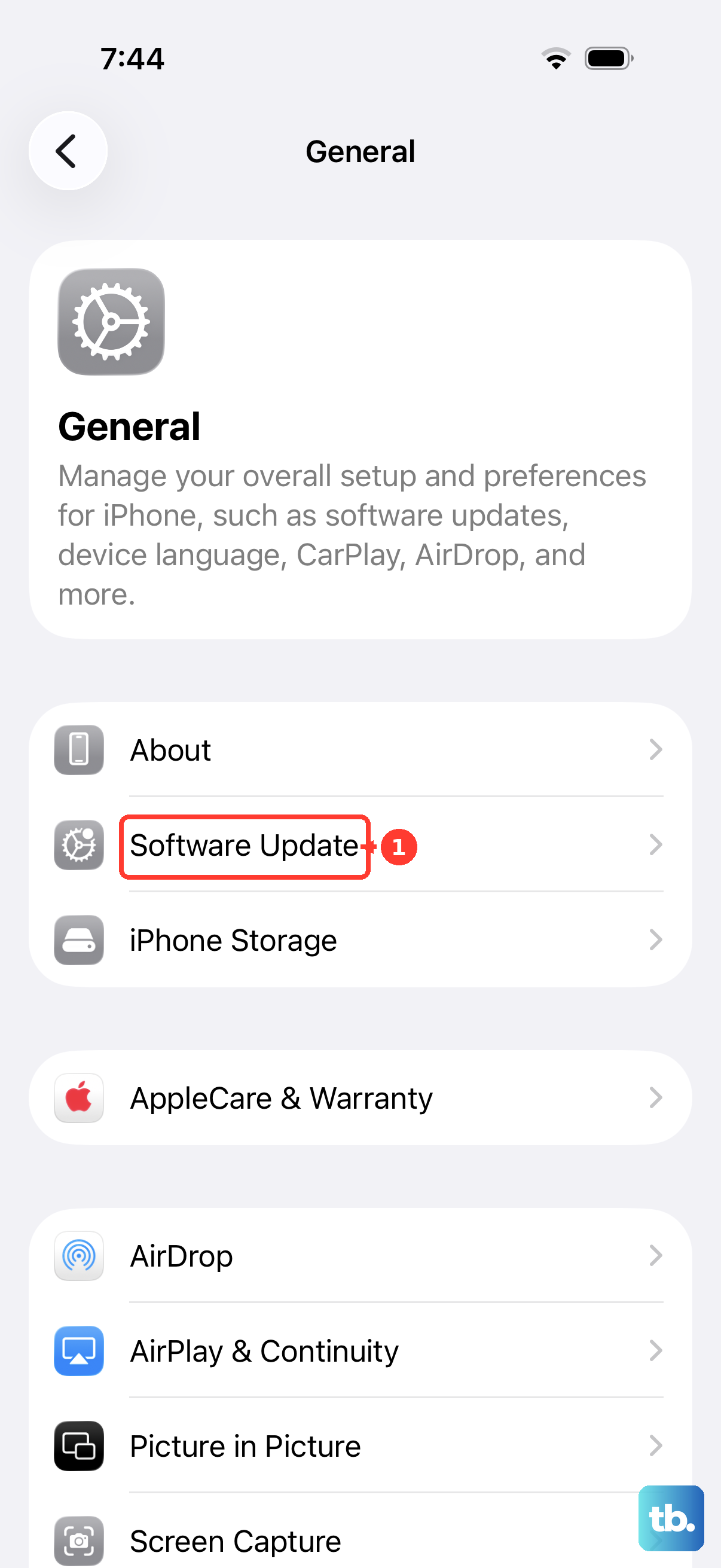
Connect to Wi-Fi and plug your phone into power. Then go to Settings > General > Software Update. Download and install any available update. I've seen minor point updates resolve button responsiveness issues before.
Reset All Settings
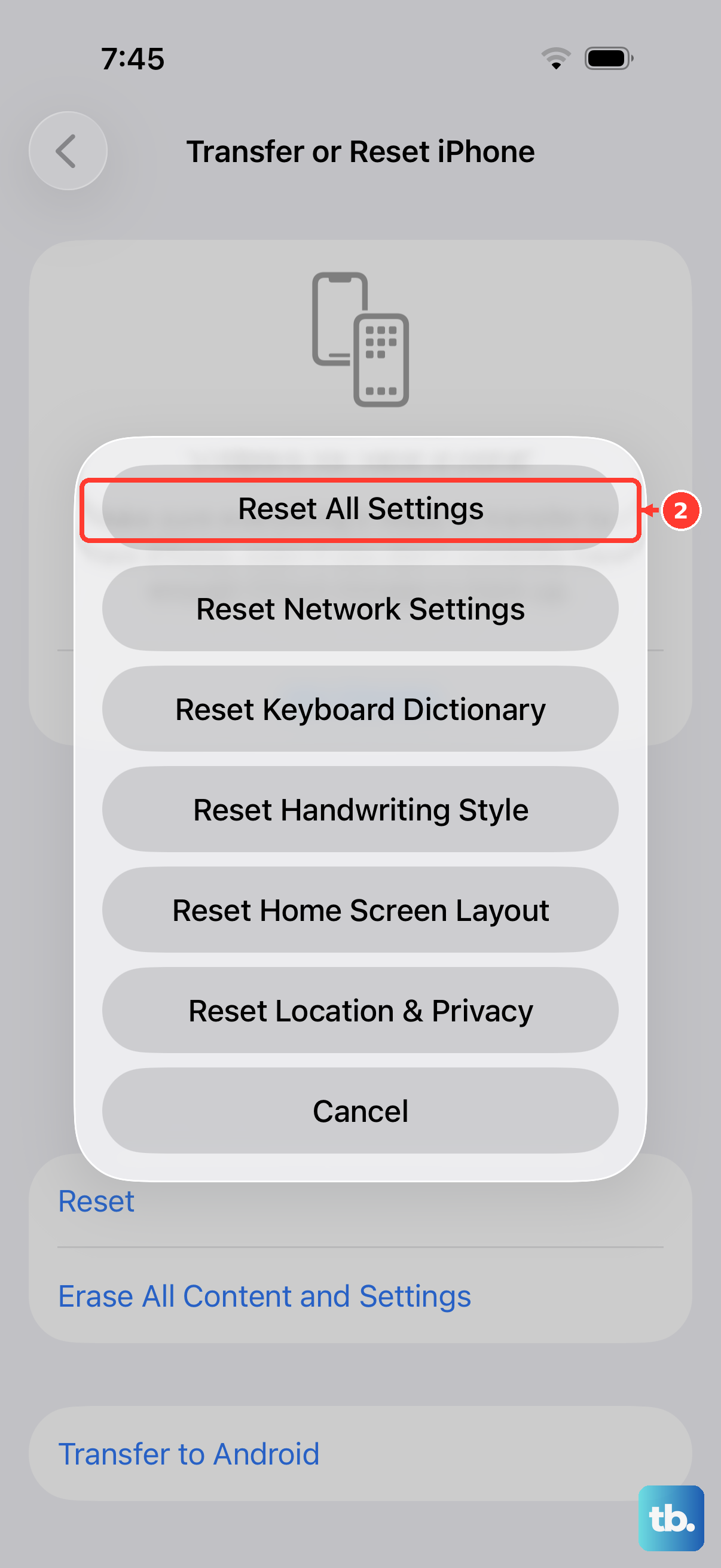
If a force restart and update didn't help, a settings reset might. This will revert all your preferences (like Wi-Fi passwords and wallpaper) back to default without erasing your personal data like photos and messages.
Go to Settings > General > Transfer or Reset iPhone > Reset. Then choose Reset All Settings. You'll need to re-enter your passcode and reconfigure things like Face ID, but it can clear out corrupted preferences affecting the buttons.
If you've worked through all these steps and the volume buttons are still completely dead, the issue is likely physical. The internal ribbon cable connecting the button assembly to the logic board could be loose or damaged, or the buttons themselves may have failed.
Before any major repair, if you're still under warranty or have AppleCare+, contacting Apple Support is your best next move. They can run remote diagnostics to confirm the hardware status and guide you to the next steps.