


If your iPhone 16 Pro has gone silent and you're missing calls and alerts because it won't vibrate, the fix is usually quick. I'd start with the simplest solution first, which often clears up these kinds of glitches.
Force Restart Your iPhone
This is the go-to first step for any weird behavior on an iPhone. It clears out temporary software bugs without touching your data. On the iPhone 16 Pro, you'll press and quickly release the Volume Up button, then quickly press and release the Volume Down button.
Finally, press and hold the Side button. Keep holding it until you see the Apple logo appear on the screen, then you can let go. Your phone will restart and the vibration motor might just spring back to life.
Check the Ring/Silent Switch
It sounds obvious, but it's the most common reason for missed vibrations. Look at the left side of your iPhone 16 Pro. If you see an orange stripe next to the switch, it means your phone is in Silent mode.
In Silent mode, your phone will only vibrate. If the switch is flipped toward the front of the phone and you don't see orange, it's in Ring mode. Try flipping the switch back and forth a couple of times to make sure it's not stuck.
Verify Your Sound Settings
Open the Settings app and tap on Sounds & Haptics. Right at the top, make sure the switch next to Vibrate on Ring and Vibrate on Silent are both turned on (green). If one is off, tap it to enable it.
While you're here, scroll down a bit to the Ringer and Alerts section. Drag the slider to make sure your ringer volume isn't all the way down. Sometimes if the system volume is too low, it can feel like nothing is happening.
Test with a Haptic Alert
Your iPhone 16 Pro uses advanced haptic feedback, which is different from a simple vibration. Let's see if the Taptic Engine (the hardware that creates the vibration) is working at all. Go back to Settings > Sounds & Haptics.
Under the Sounds and Vibration Patterns section, tap on Ringtone or Text Tone. Scroll through the list and tap on any tone. You should feel a distinct haptic tap preview. If you feel it here, the hardware is fine and the issue is with a specific app or setting.
Review App-Specific Notification Settings
If your iPhone vibrates for some things but not others, the problem is likely with a specific app's notifications. Go to Settings > Notifications. Find the app that isn't alerting you, like Messages or your email client, and tap on it.
First, make sure Allow Notifications is turned on at the top. Then, tap on the specific notification type (like "Messages" for the Messages app). Look for the Sounds option and ensure it's set to a tone, not "None." Also, verify that the Lock Screen, Notification Center, and Banners are enabled.
Check Focus Modes
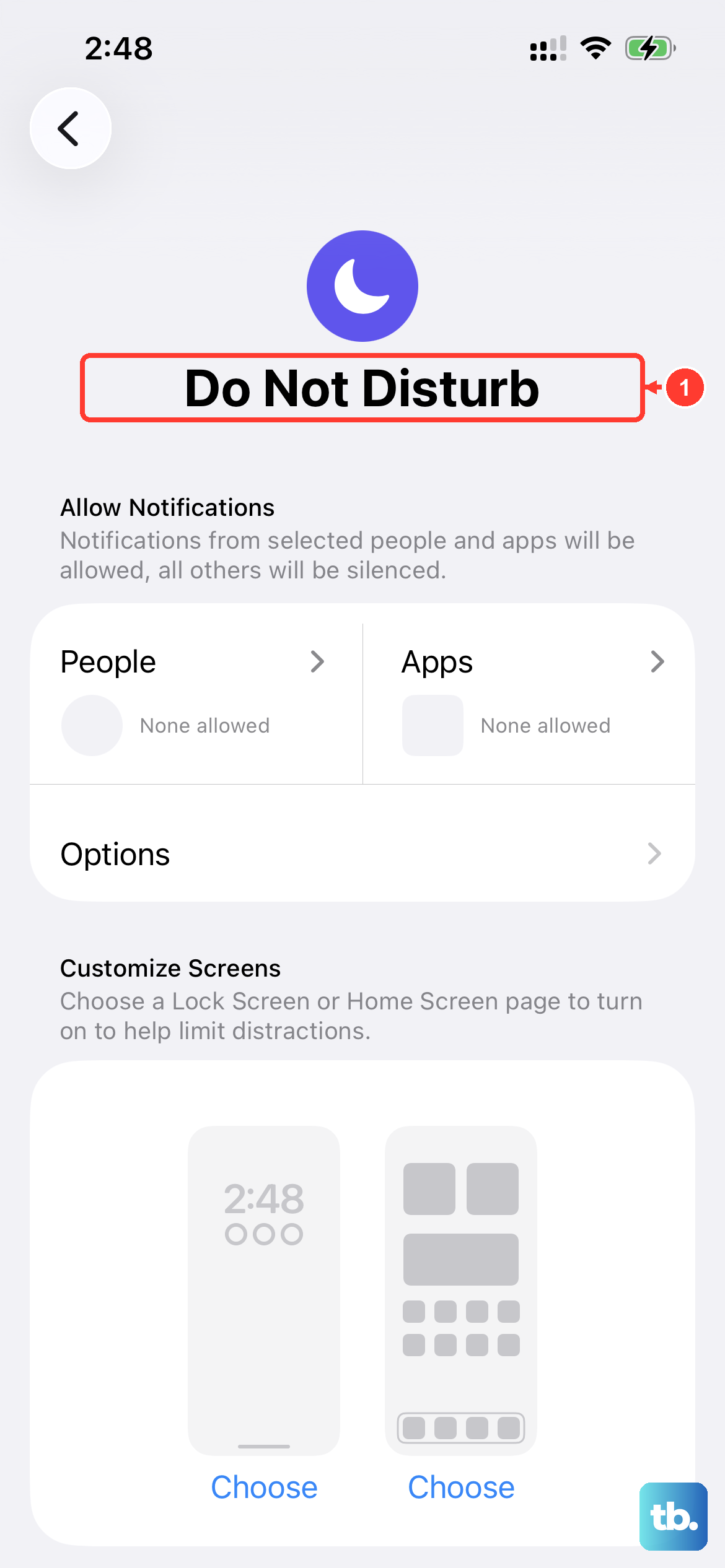
iOS 26's Focus modes are powerful but can silently filter out vibrations. Swipe down from the top-right corner to open Control Center. Look at the Focus icon (it might say "Work," "Sleep," or "Do Not Disturb").
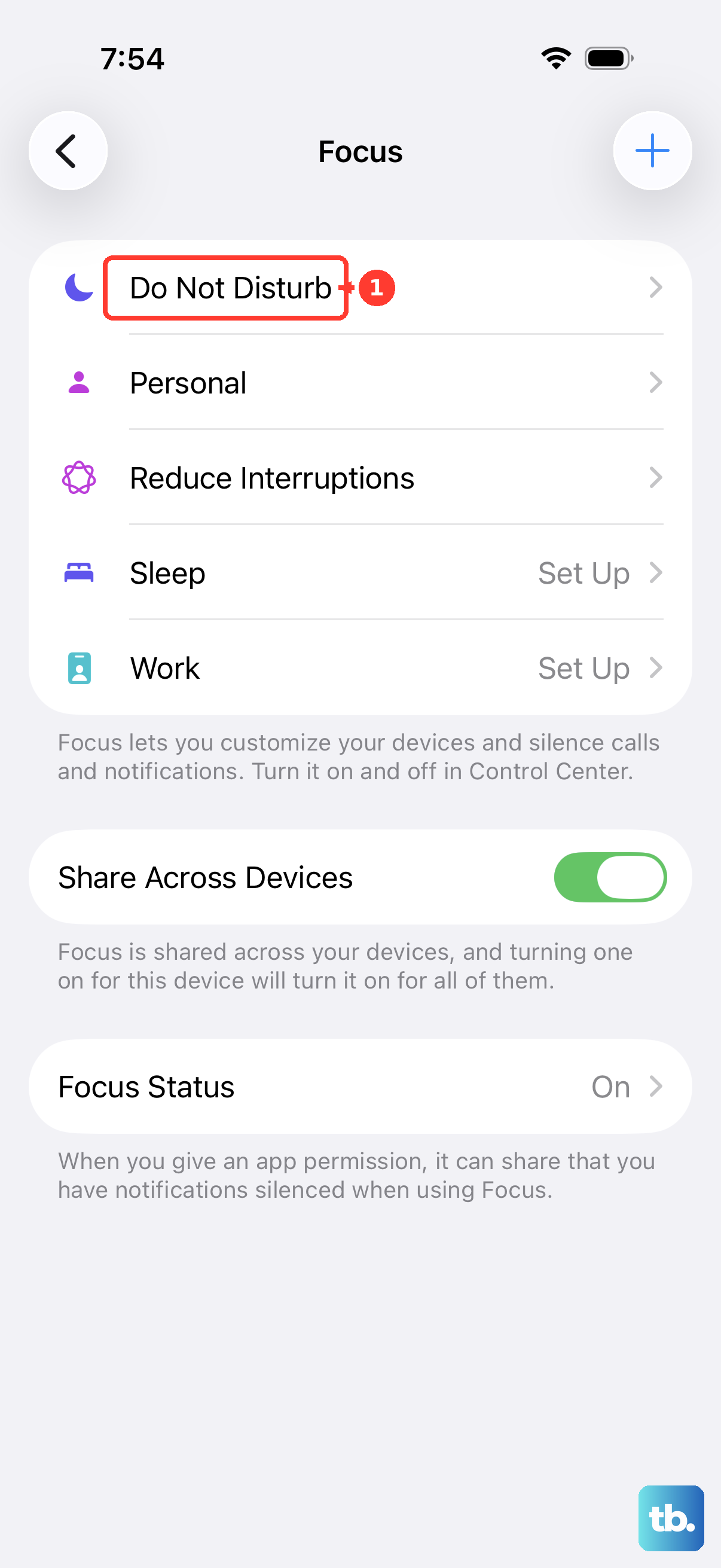
If a Focus mode is on, tap it to see its settings. You may have allowed certain people or apps to notify you, but the vibration could be suppressed. Try turning the Focus mode off completely to see if your vibrations return.
Update iOS
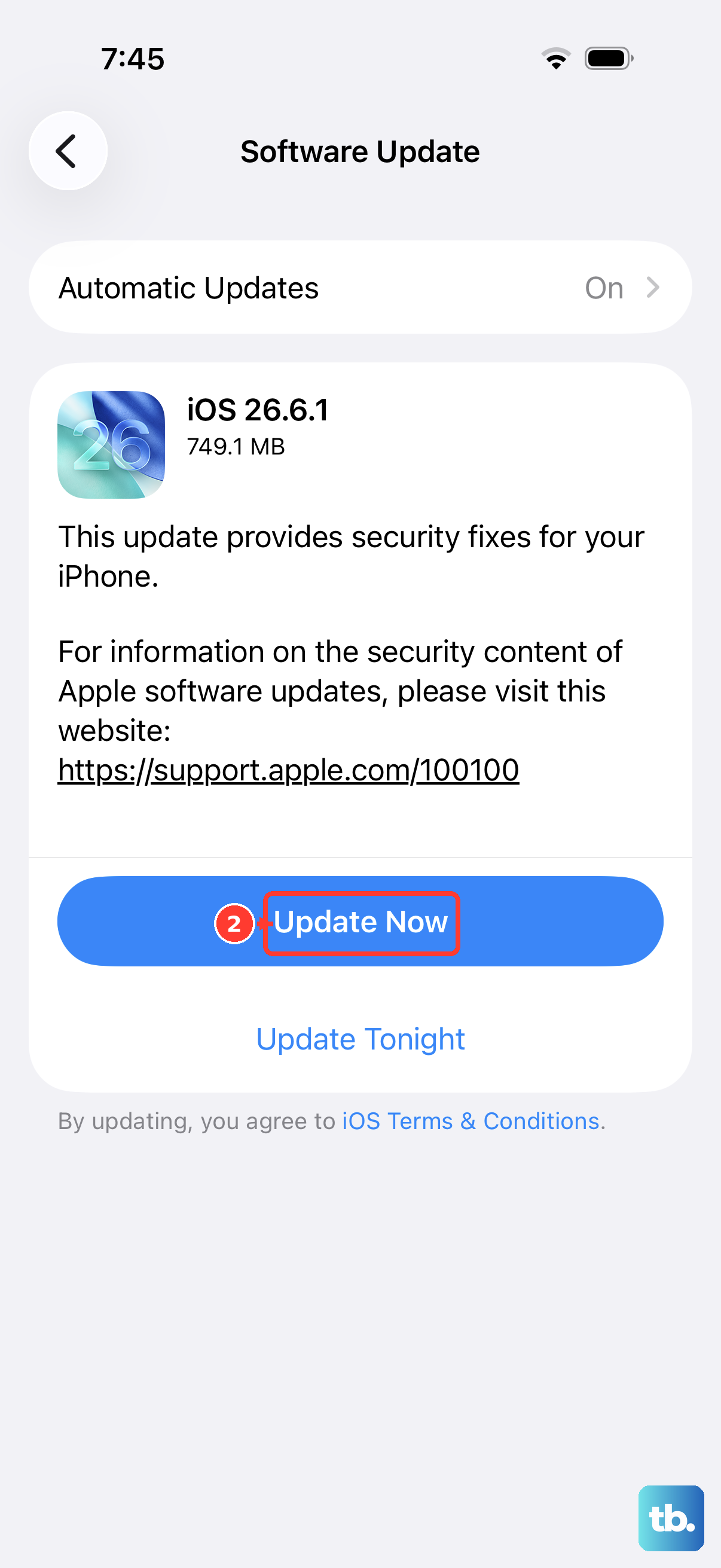
A software bug in an older version of iOS 26 could be causing the haptic motor to malfunction. Keeping your iPhone 16 Pro updated is crucial for these kinds of fixes. Connect to Wi-Fi and plug your phone into power.
Go to Settings > General > Software Update. If an update is available, tap Download and Install. Apple often includes patches for hardware communication issues in these updates, so this can resolve problems that appeared out of nowhere.
Reset All Settings
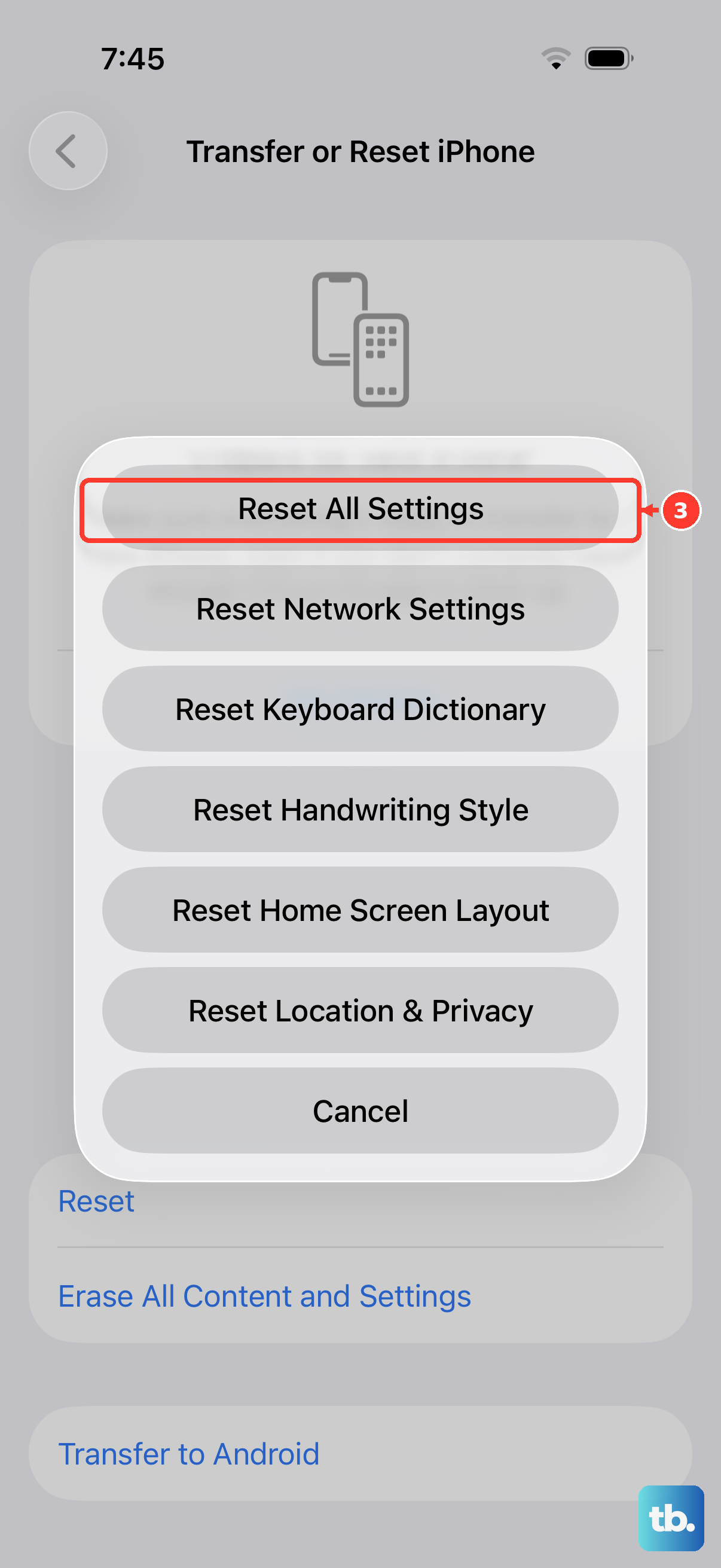
If you've tried everything and your iPhone 16 Pro still won't vibrate, this step can help. It resets every setting on your phone, network, display, notifications, privacy, back to factory defaults without erasing your personal data, photos, or apps.
Go to Settings > General > Transfer or Reset iPhone. Tap Reset, then choose Reset All Settings. You'll need to enter your passcode and confirm. After your phone restarts, you'll need to reconfigure Wi-Fi, wallpaper, and preferences, but it often clears deep software conflicts.