
If your iPhone 16 is feeling sluggish, you're not imagining it. Even with the A18 chip, performance can dip for a handful of specific reasons. The lag may be tied to software, storage, or a few background settings that are easy to adjust.
Start with a simple force restart. For the iPhone 16, you press and quickly release the Volume Up button, then press and quickly release the Volume Down button. Finally, press and hold the Side button until you see the Apple logo appear. A restart can help with temporary performance issues.
Check Your iPhone 16's Battery Health
Head to Settings > Battery > Battery Health. Check Maximum Capacity and the message under Peak Performance Capability, and look for a recommendation to replace the battery. Batteries lose capacity and peak performance over time, so this is worth a quick look.
While you're there, check Settings > Battery > Power Mode and turn off Low Power Mode if you need full performance. Low Power Mode limits some features to save battery, and the battery icon turns yellow when it is active.
Free Up Storage Space on iPhone 16
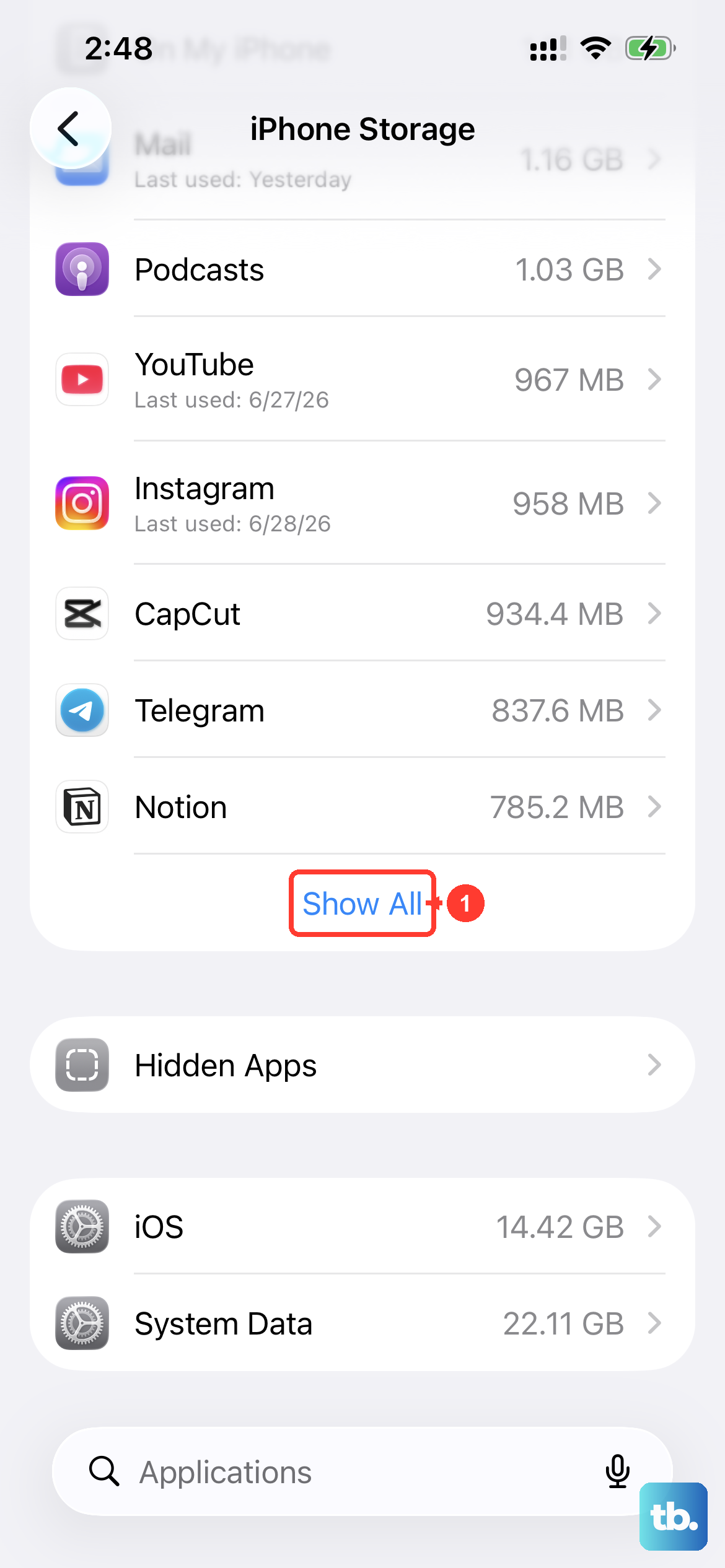
When your storage is critically full, your phone can slow down. Keep at least 1 GB of space free. Go to Settings > General > iPhone Storage. iOS will show you recommendations, like reviewing large attachments or offloading unused apps.
Offloading apps is a great feature for the iPhone 16. It removes the app but keeps its documents and data, so you can reinstall it later without losing your progress. You can enable this automatically under Settings > Apps > App Store by toggling on "Offload Unused Apps."
Update to the Latest iOS Version
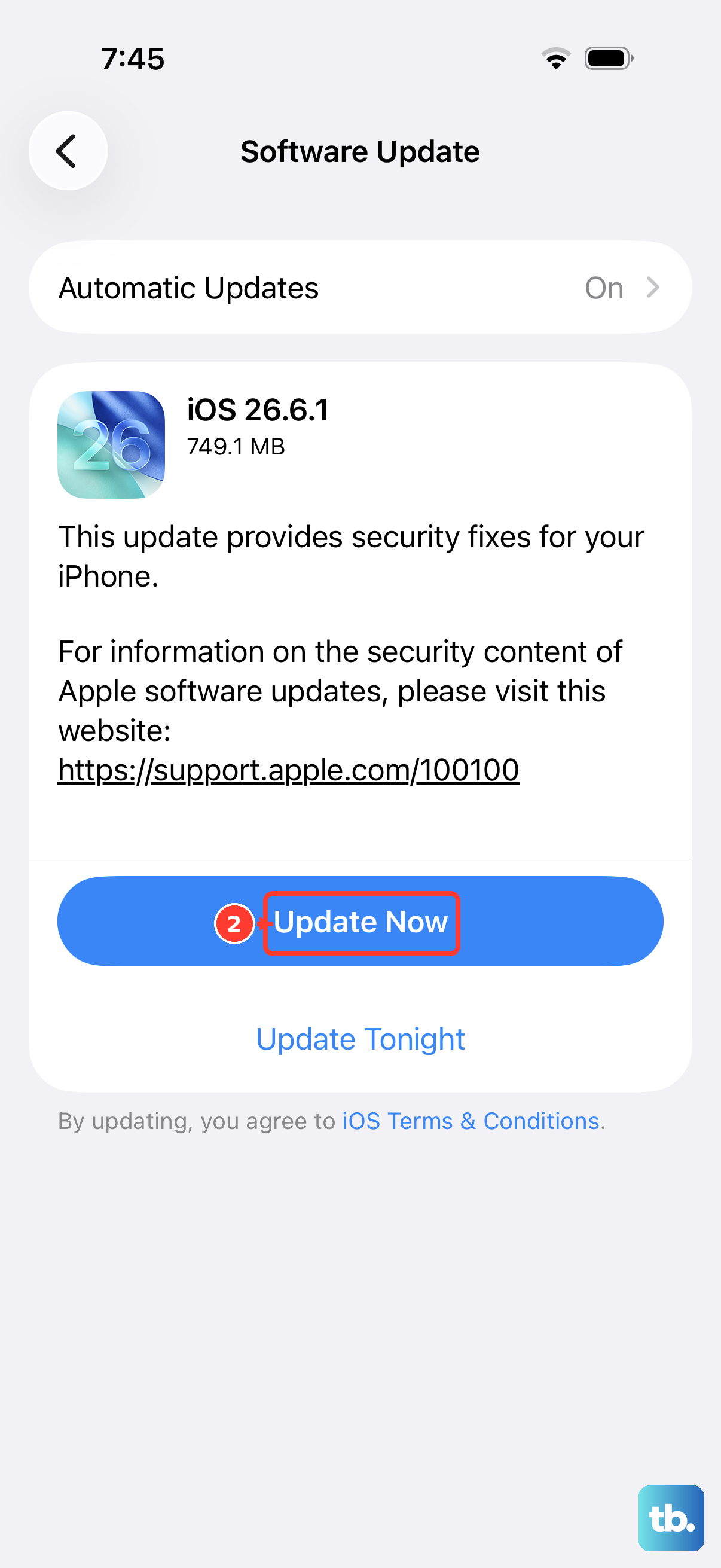
Apple frequently releases software updates that include performance improvements and bug fixes. Navigate to Settings > General > Software Update. If an update is available, plug your phone into power, connect to Wi-Fi, and install it.
Manage Background App Refresh
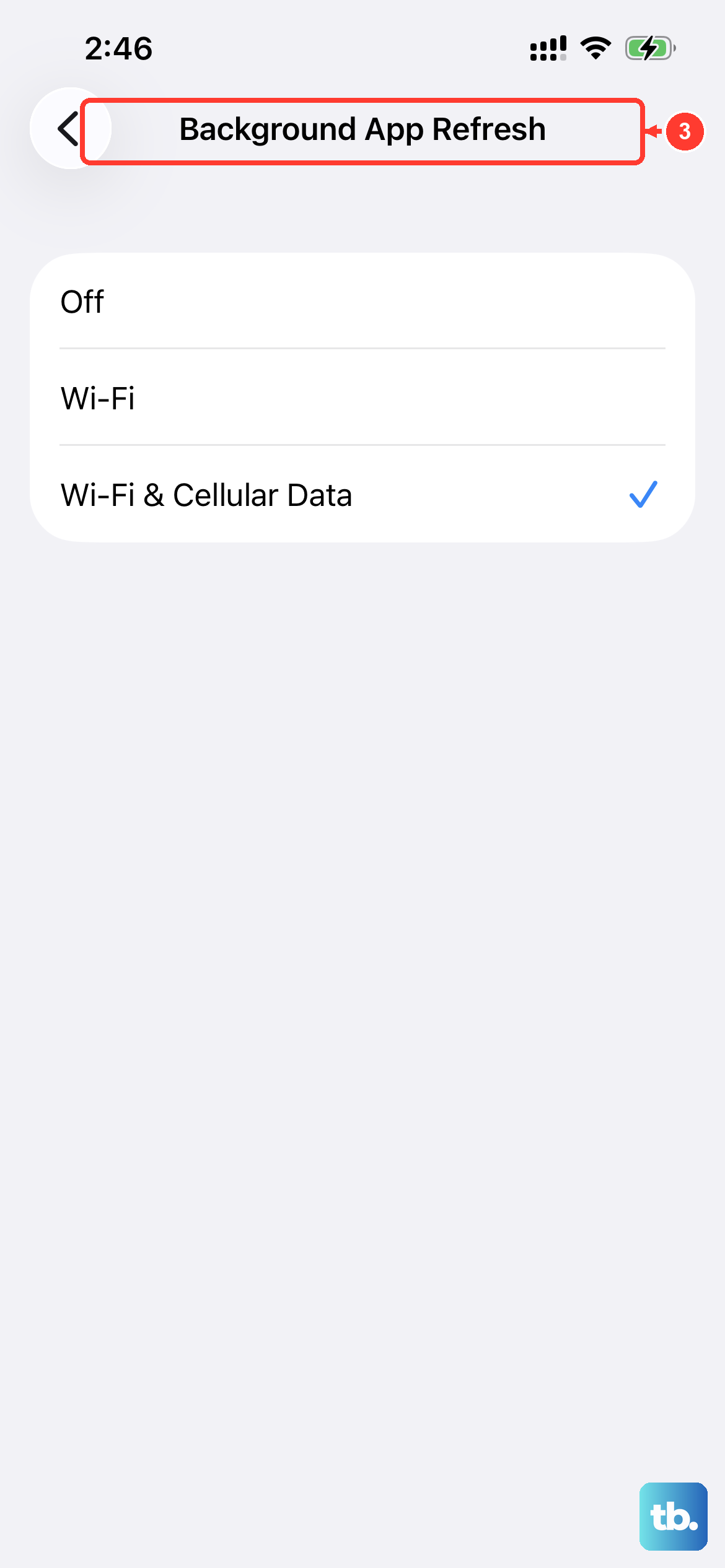
This setting allows apps to update their content in the background. Having it on for dozens of apps can drain resources. You can find it at Settings > General > Background App Refresh.
Set it to "Wi-Fi" only or turn it off completely for apps that don't need live updates, like your library or utility apps. This limits background activity.
Review and Update Your Apps
Outdated apps may cause performance issues. Open the App Store, tap the My Account button (your photo) at the top, then tap App Updates. Tap Update next to an app or Update All.
You can also enable automatic updates in Settings > Apps > App Store > App Updates. Just be aware that a bunch of apps updating simultaneously in the background might temporarily slow things down.
Reduce Motion and Visual Effects
The parallax and zoom effects on the Home Screen and within apps use processing power. You can simplify these animations. Go to Settings > Accessibility > Motion and toggle on "Reduce Motion."
You can also enable "Reduce Transparency" in Settings > Accessibility > Display & Text Size. This turns frosted glass effects into solid colors.
Clear Safari's Website Data
Over months of browsing, Safari caches a huge amount of website data. Clearing this can free up storage and improve browsing speed. Open Settings > Apps > Safari and scroll down.
Tap "Clear History and Website Data," choose a timeframe, then tap "Clear History." This can log you out of websites, so you may need to sign in again.
Reset All Settings
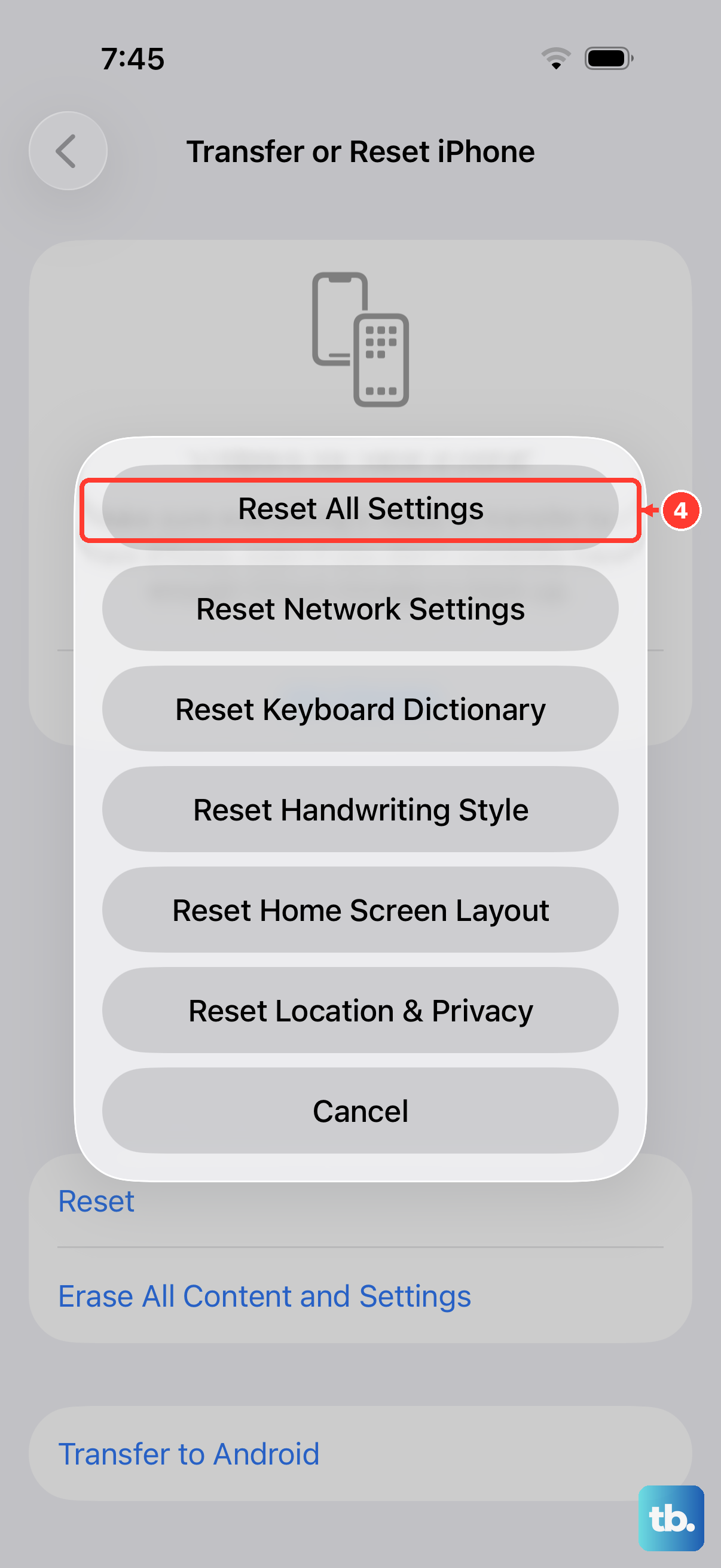
If you've tried the other fixes and the phone is still laggy, you can try resetting settings. This resets preferences such as wallpaper and privacy settings and removes Wi-Fi passwords, Apple Pay cards, Bluetooth pairings, and Apple Watch pairings without deleting your personal data or apps.
Go to Settings > General > Transfer or Reset iPhone, then tap "Reset." Choose "Reset All Settings" and enter your passcode. Afterward, you'll need to rejoin Wi-Fi, re-pair Bluetooth devices and your Apple Watch, and set up Face ID again.
Check for Problematic Apps
Sometimes, one misbehaving app is the culprit. Go to Settings > Battery and check App and System Activity for today's battery use. Tap View All Battery Usage to see the last eight days. If an app has unusually high background activity, it may be worth checking.
If that app isn't responding, swipe up from the bottom of the screen and pause to open the app switcher, find the app, then swipe up on its preview to close it. Avoid force-closing apps unnecessarily, since reopening them takes longer as they reload their data. If the app keeps misbehaving, delete it and download it again from the App Store. You might lose data stored in the app.