
Seeing that "SIM Not Provisioned" message on your iPhone 16 can stop you in your tracks. It means your phone can't connect to your carrier's network, so calls, texts, and mobile data won't work. The good news is, it's usually something you can fix yourself.
I'd start with the simplest fix first. Grab a paperclip or the SIM eject tool that came with your phone and turn it off. Pop out the SIM tray, take a close look at the card for any dust or damage, and then firmly reseat it. Power your iPhone 16 back on and see if that did the trick.
Restart Your iPhone 16
A simple restart can clear out temporary software glitches that might be blocking the network connection. Just hold the side button and either volume button, then slide to power off. Wait about 30 seconds, then press the side button again to turn it back on.
If the phone is completely frozen and you can't access the power slider, you'll need to force restart it. Quickly press and release the volume up button, then quickly press and release the volume down button. Finally, press and hold the side button until you see the Apple logo appear on the screen.
Toggle Airplane Mode
This is like giving your iPhone's cellular radio a quick nap. Swipe down from the top-right corner to open Control Center and tap the airplane icon. Wait for about 15 seconds, then tap it again to turn airplane mode off.
You should see the cellular bars disappear and then reappear. This forces the phone to search for and reconnect to your carrier's network from scratch, which can resolve provisioning hiccups.
Check for a Carrier Settings Update
Your carrier occasionally sends small updates that help your iPhone 16 communicate properly with their network. These are separate from iOS updates. To check, go to Settings > General > About.
If an update is available, a prompt will appear right on this screen. Just tap "Update" when you see it. Your phone will reboot to apply the settings, and this often clears up provisioning errors.
Verify Your Account Status with Your Carrier
This is one of the most common reasons for this error. If you just got a new SIM card or a new phone number, it might not be fully activated on your carrier's end yet. Similarly, if you're on a prepaid plan, your service might be suspended due to an overdue balance.
The fastest way to check is to log into your carrier's account portal using their app or website. Look for your line status or account balance. If everything looks fine there, a quick call to their customer service can confirm if there's a system-wide issue or if your SIM needs reprovisioning.
Manually Select Your Network
Sometimes letting your iPhone 16 automatically choose a network can lead to it getting stuck. You can manually pick your carrier to force a fresh connection. Head to Settings > Cellular.
Tap Network Selection and turn off "Automatic." Your phone will search for a moment, then display a list of available networks. Select your carrier's name from the list. Wait a minute, then turn "Automatic" back on.
Reset Your Network Settings
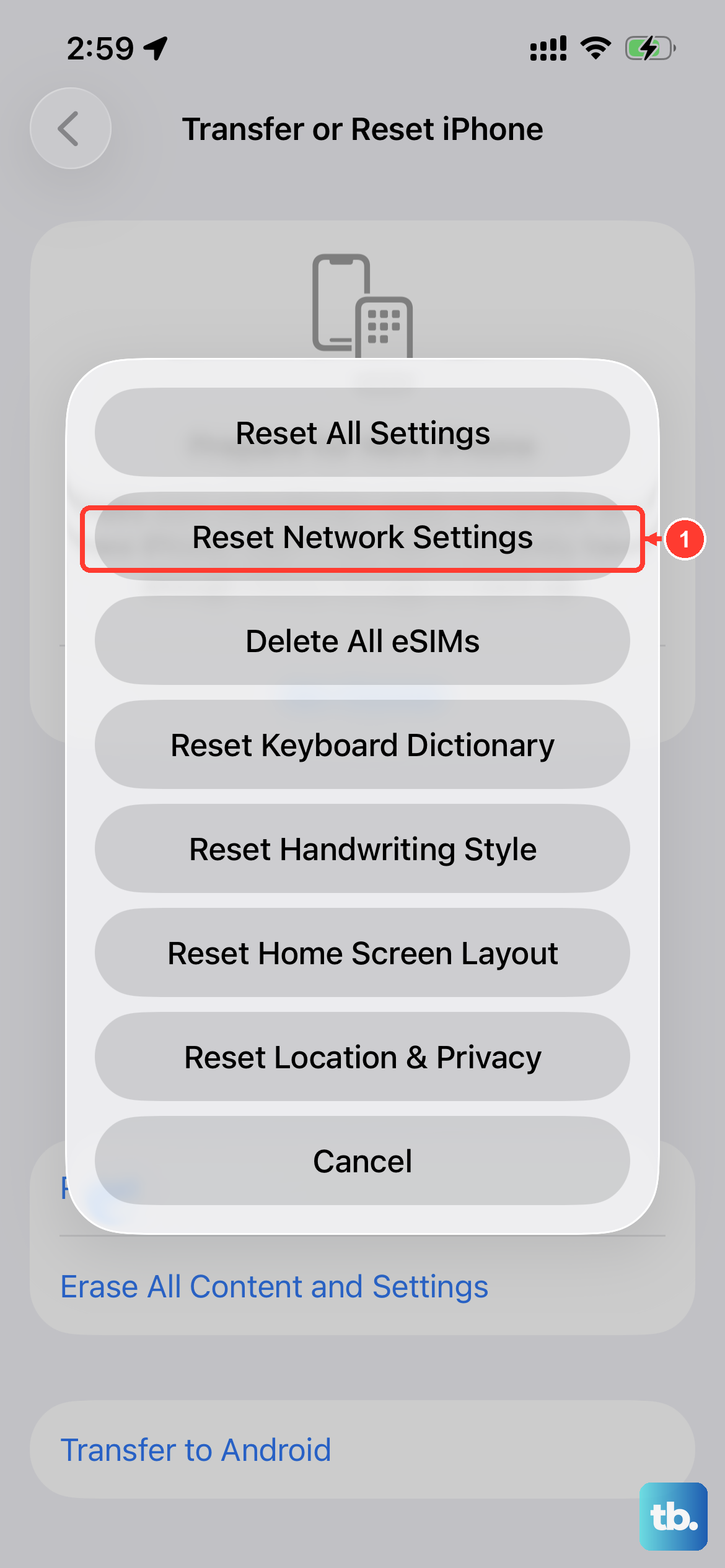
This is a more thorough step that clears all your saved Wi-Fi passwords, Bluetooth pairings, and cellular network configurations. It's very effective for stubborn network issues. Go to Settings > General > Transfer or Reset iPhone.
Tap Reset and then choose Reset Network Settings. You'll need to enter your passcode to confirm. Your iPhone 16 will restart, and you'll have to rejoin Wi-Fi networks afterward, but it often resolves deep-seated provisioning problems.
Try Your SIM Card in Another Phone
This test tells you exactly where the problem lies. If you have access to another unlocked phone, power it off and insert your iPhone 16's SIM card. Turn that phone on.
If the SIM works perfectly in the other device, then the issue is likely with your iPhone 16's software or hardware. If you get the same "Not Provisioned" error in the second phone, then the problem is definitely with the SIM card or your carrier account.
Request a New SIM Card from Your Carrier
SIM cards can wear out or become damaged over time, even if you can't see any physical scratches. If you've tried everything else and the SIM still doesn't work in another phone, it's probably time for a replacement.
Most carriers will send you a new SIM card for free, especially if you're reporting a problem. They can often activate the new SIM over the phone or through their app, so you can be back online quickly. Just make sure it's the right size for your iPhone 16's SIM tray.
Update to the Latest Version of iOS
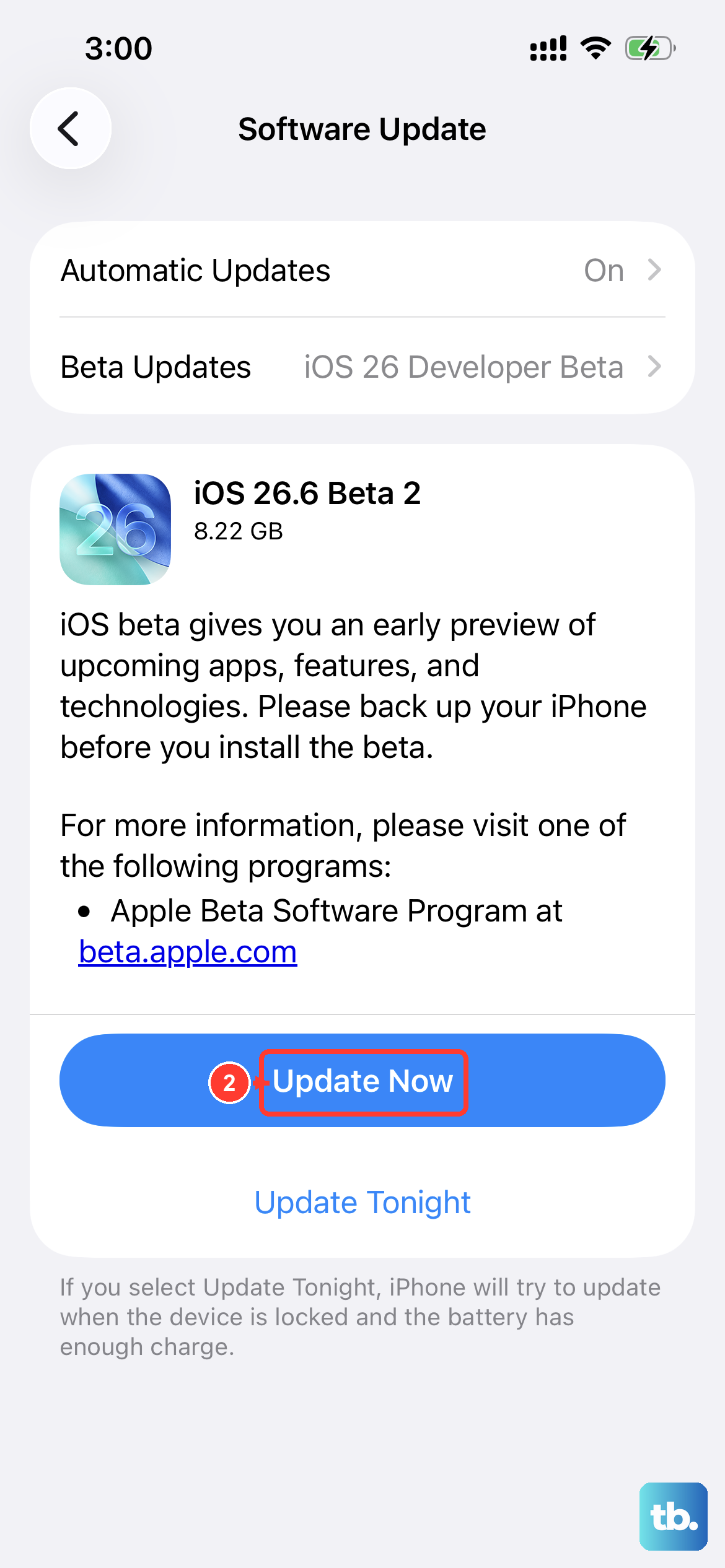
Apple frequently releases iOS updates that include bug fixes for cellular connectivity. A bug in iOS 26 could be interfering with the provisioning process. To check, open Settings > General > Software Update.
If an update is available, tap "Download and Install." It's best to do this while connected to Wi-Fi and with your phone plugged into power. After the update installs and your iPhone 16 restarts, check if your cellular service has returned.











