
If your iPhone 15 videos are stuttering, freezing, or just not playing smoothly, it can be really annoying. This is a common problem that pops up for a few different reasons, but the good news is you can usually fix it yourself without too much trouble.
Let's jump straight into the most common fix. A simple restart can clear out temporary software glitches that might be interfering with video playback. On your iPhone 15, you can do this by pressing and holding the side button and either volume button, then sliding the power off slider.
Check Your iPhone 15's Storage
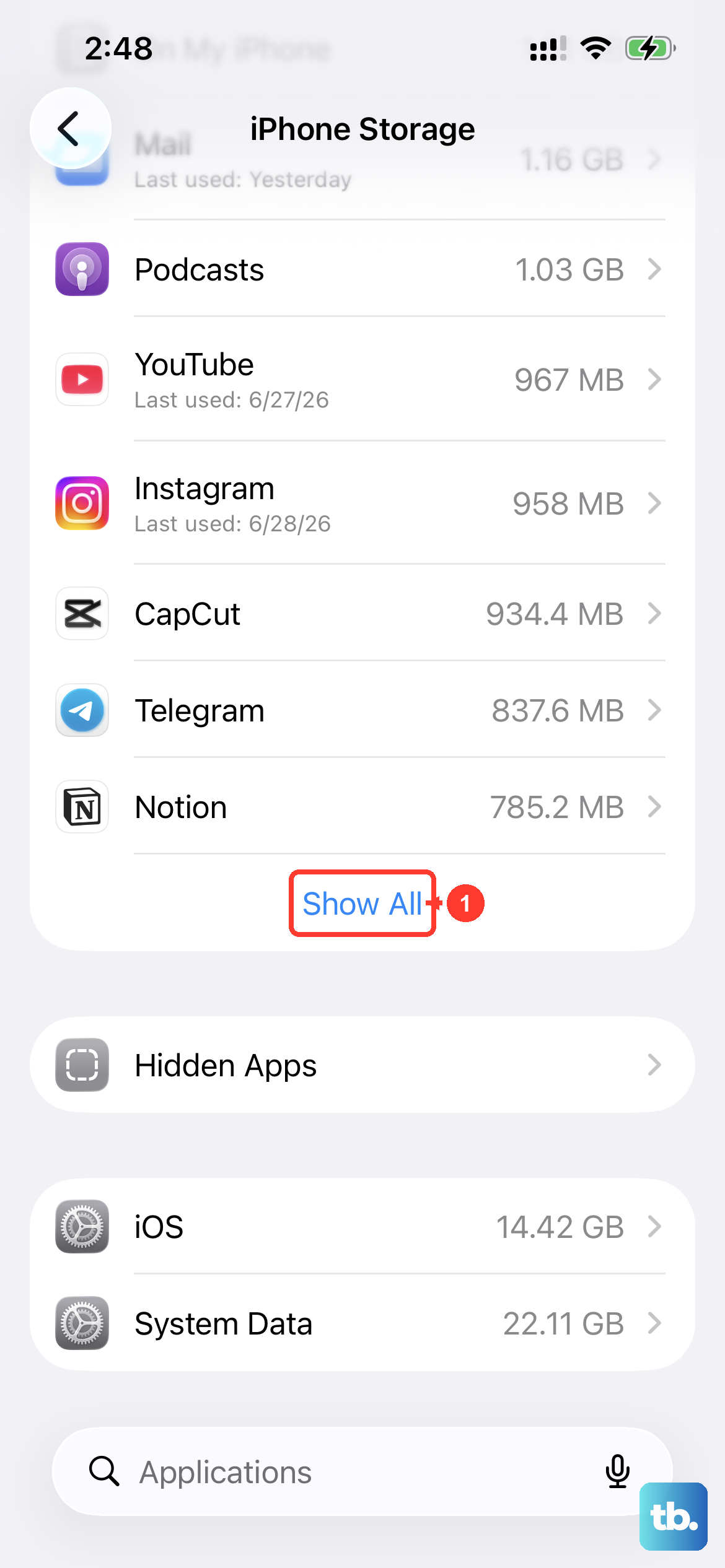
When your phone's storage is nearly full, it can struggle with tasks that need to write data quickly, like playing a high-resolution video. This often leads to choppy playback or dropped frames.
Head to Settings > General > iPhone Storage to see how much space you have left. If you're below a couple of gigabytes, it's time for a cleanup. You can offload unused apps, delete old messages, or move photos to iCloud to free things up.
Update to the Latest iOS
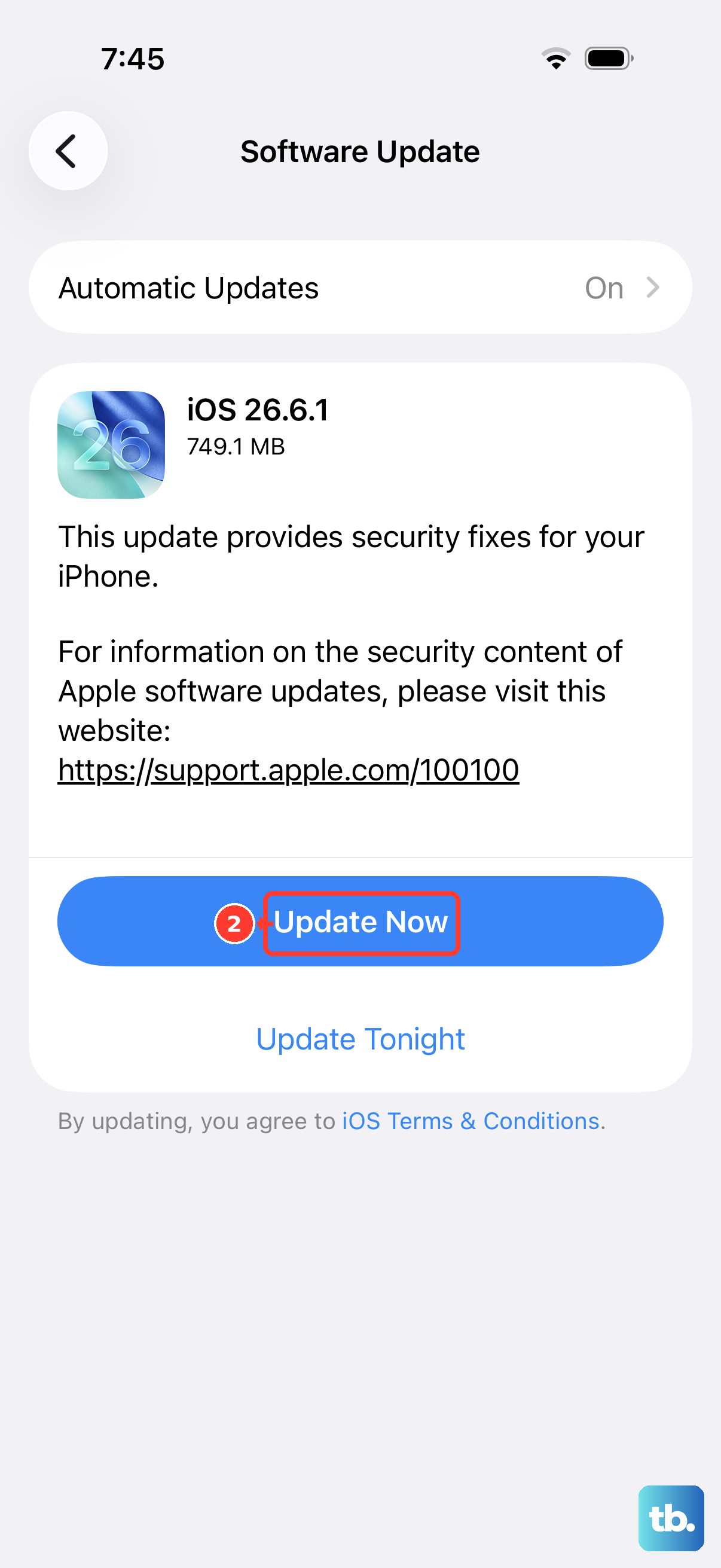
Running an old version of iOS can cause compatibility issues with video files and apps. Apple releases updates that often include performance improvements and bug fixes specifically for media playback.
Make sure you're on the latest version by going to Settings > General > Software Update. Since you're on an iPhone 15, you'll want to ensure you have the most recent version of iOS 26 or whatever the latest public release is.
Test Your Internet Connection for Streaming
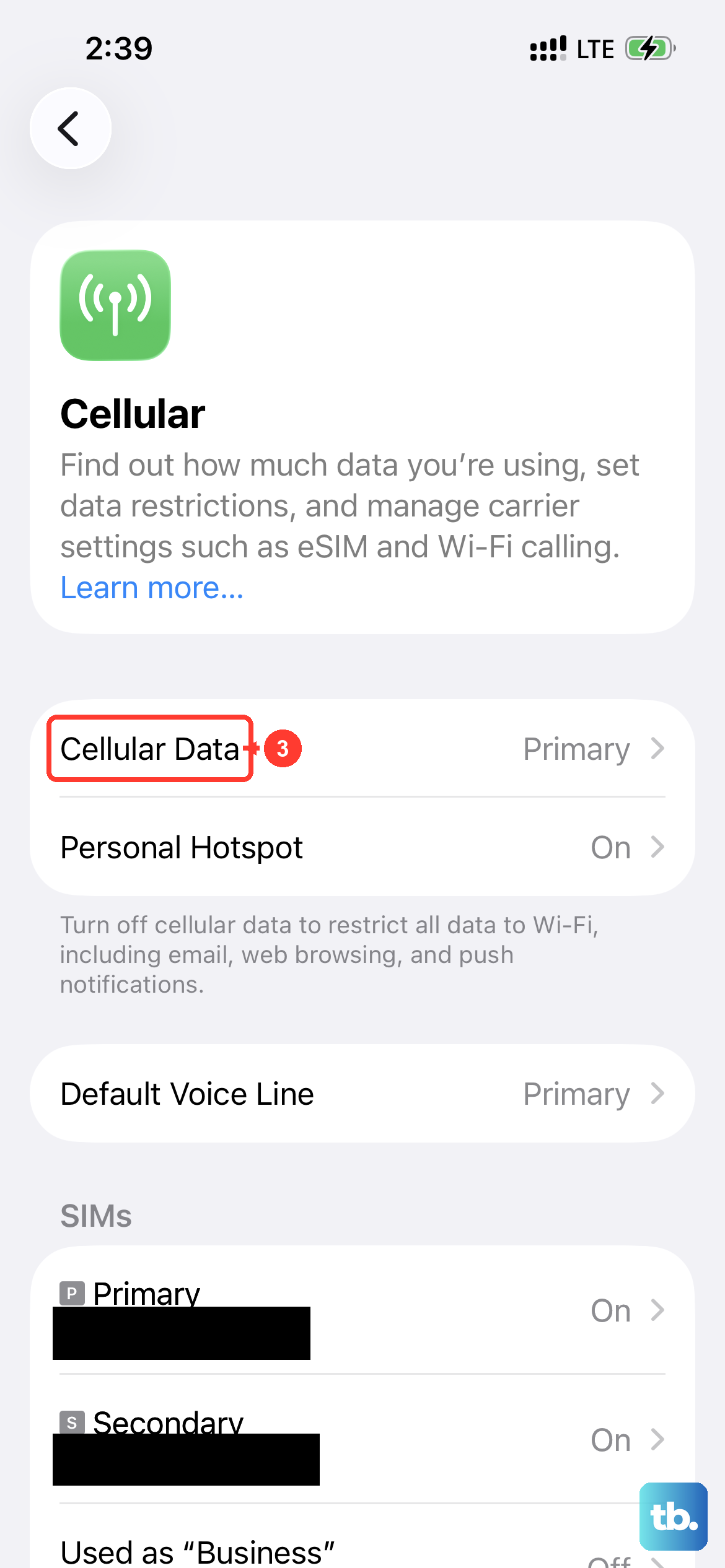
If you're trying to stream video from services like YouTube or Netflix, a weak or unstable internet connection is the most likely culprit. This causes constant buffering and lag.
Try switching from Wi-Fi to your 5G cellular data, or vice versa, to see if the problem goes away. If you're on Wi-Fi, you might try moving closer to your router or restarting the router itself.
Close Background Apps and Restart the Problem App
Sometimes, an app that's playing video just gets stuck in a weird state. Other times, too many apps running in the background can use up the system resources your video player needs.
First, close the video app completely by swiping it away from the app switcher. Then, reopen it and try playing your video again. If that doesn't help, try closing a few other recent apps to free up your iPhone 15's memory.
Check for App-Specific Updates
The issue might not be with your iPhone, but with the video app itself. Developers frequently push updates to fix bugs related to playback and performance.
Open the App Store, tap your profile icon in the top right, and scroll down to see if any pending updates are available for your video apps. Installing these can resolve playback problems.
Reset All Settings on Your iPhone 15
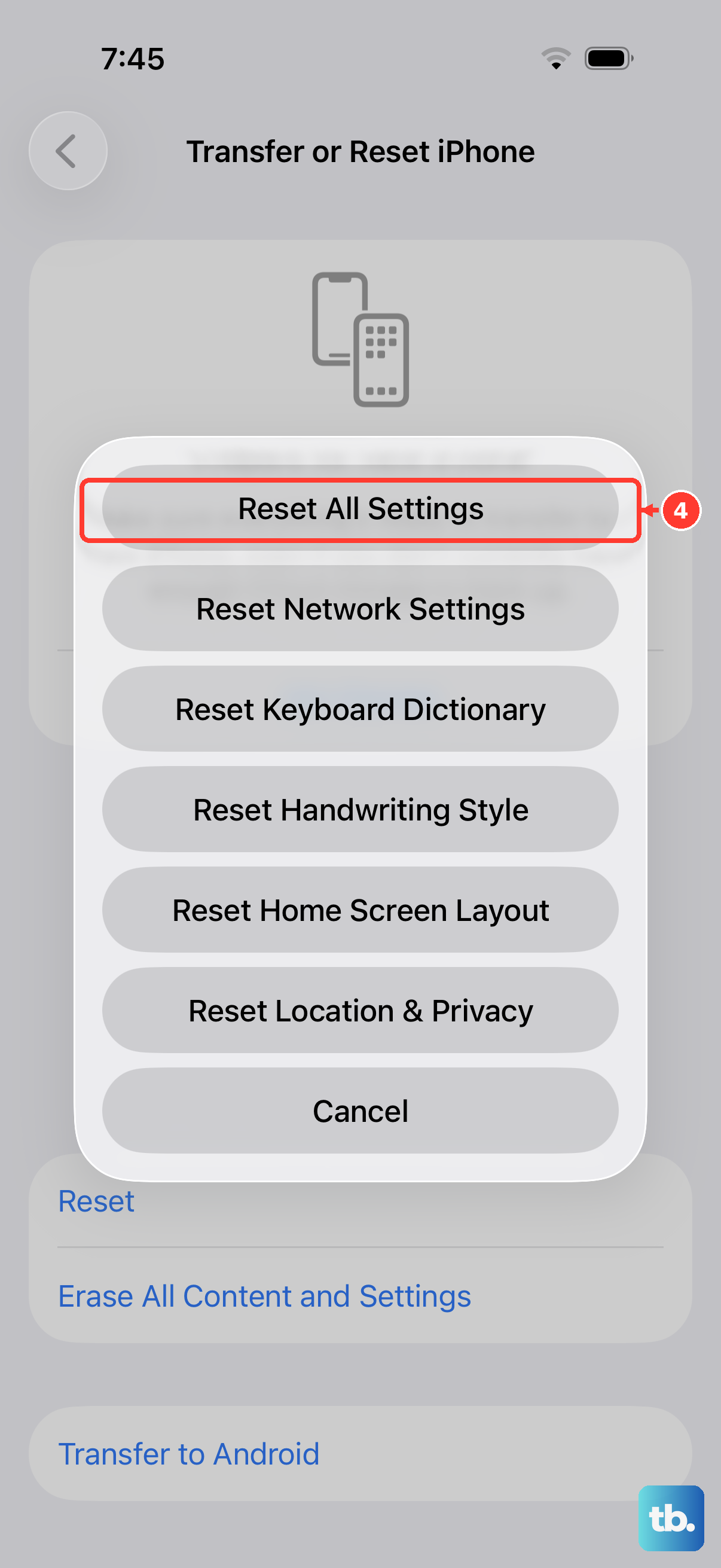
If the lag is happening everywhere, in multiple apps and with different videos, a deeper software setting might be misconfigured. Resetting all settings can fix this without deleting any of your personal data like photos or messages.
You'll find this option at Settings > General > Transfer or Reset iPhone > Reset > Reset All Settings. You'll need to re-enter your Wi-Fi passwords and reconfigure some preferences, but it often clears up persistent performance issues.
Consider Your Video Source and Format
Not all video files are created equal. If you're trying to play a video file you downloaded from the web or received from an Android user, it might be in a format or use a codec that your iPhone 15 doesn't handle natively.
Try playing a different video, preferably one you recorded with your own camera app or one from a major streaming service. If that plays smoothly, the issue is likely with that specific video file and not your phone.
Perform a Force Restart
This is a step up from a normal restart and can clear more stubborn system caches. For the iPhone 15, quickly press and release the Volume Up button, then quickly press and release the Volume Down button. Finally, press and hold the Side button until you see the Apple logo appear, then let go.
This doesn't erase any data, it just gives the system a fresh start. I've found it can help when a normal restart doesn't seem to do the trick.