
If your iPhone 15 isn't vibrating for calls or notifications, a software setting or a minor glitch may be the cause. Start by checking the settings and trying the troubleshooting steps below.
Start With a Force Restart
Before you dive into settings, try a force restart. This may help with a temporary software issue affecting vibration. On the iPhone 15, you do this by quickly pressing and releasing the Volume Up button, then the Volume Down button, and finally holding down the Side button.
Keep holding the Side button until you see the Apple logo appear, then let go. This doesn't erase any of your data, and I've seen it solve vibration issues more times than I can count.
Check Your Ring/Silent Switch
Start by checking the switch position. Look at the left side of your iPhone 15, above the volume buttons. If you see an orange stripe, the ring/silent switch is set to silent mode.
In silent mode, your phone won't ring, but it may still vibrate depending on your settings. Flip the switch so the orange stripe is no longer visible. You should feel a haptic tap and see a "Ring" indicator on your screen.
Verify Your Sound Settings
Open the Settings app and go to Sounds & Haptics. Turn on System Haptics for feedback when using system controls. For typing feedback, tap Keyboard Feedback and turn on Haptic.
If typing still produces no vibration, go to Settings > Accessibility > Touch and make sure Vibration is on. On iOS 26 and earlier, Sounds & Haptics > Haptics > Always Play enables call and alert vibrations in both ring and silent modes.
Test With Different Vibration Patterns
Still in Settings > Sounds & Haptics, check the ringtone haptic pattern below Ringtone, or tap an alert category such as Text Tone to check its pattern.
Tap Haptics and choose a different pattern, or tap Create New Vibration to record your own. If your phone vibrates with the new pattern, it can produce vibration during this test. You can then keep that pattern or select your preferred pattern again.
Review App-Specific Notification Settings
If your iPhone 15 vibrates for some alerts but not others, the problem is likely in the notification settings for a specific app. Go to Settings > Notifications and tap on the app that's not vibrating.
First, ensure "Allow Notifications" is on and enable Sounds if that option is available. To change the vibration for an alert category, go to Settings > Sounds & Haptics, tap a category such as Text Tone, then tap Haptics and choose a pattern.
Check for Focus Modes
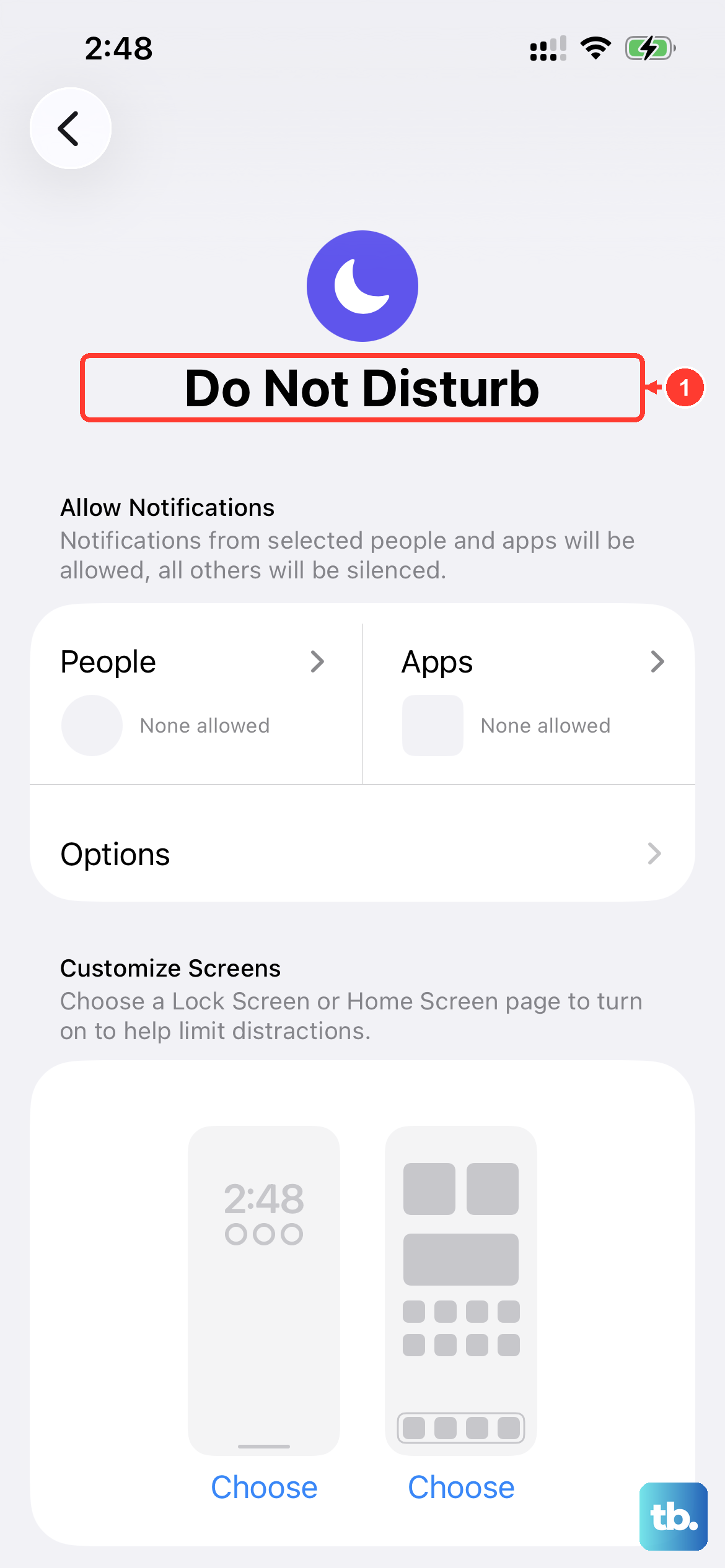
Focus modes like Do Not Disturb, Sleep, or a custom Focus can silence notifications, including vibrations. Swipe down from the top-right corner to open the Control Center and look for the Focus icon (a crescent moon or another symbol).
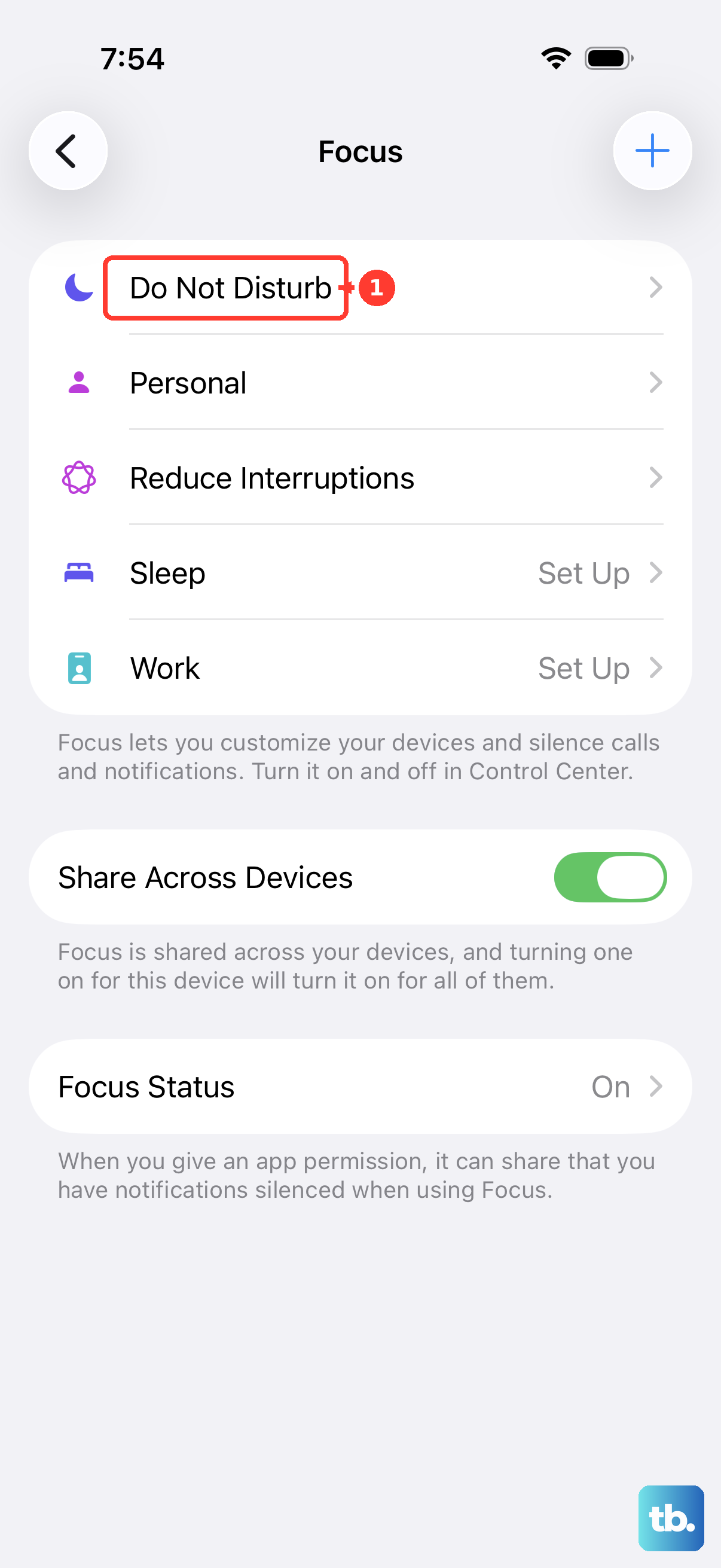
If a Focus is active, tap the icon to turn it off. You can also go to Settings > Focus to see which ones are configured and check their notification allowances.
Update iOS
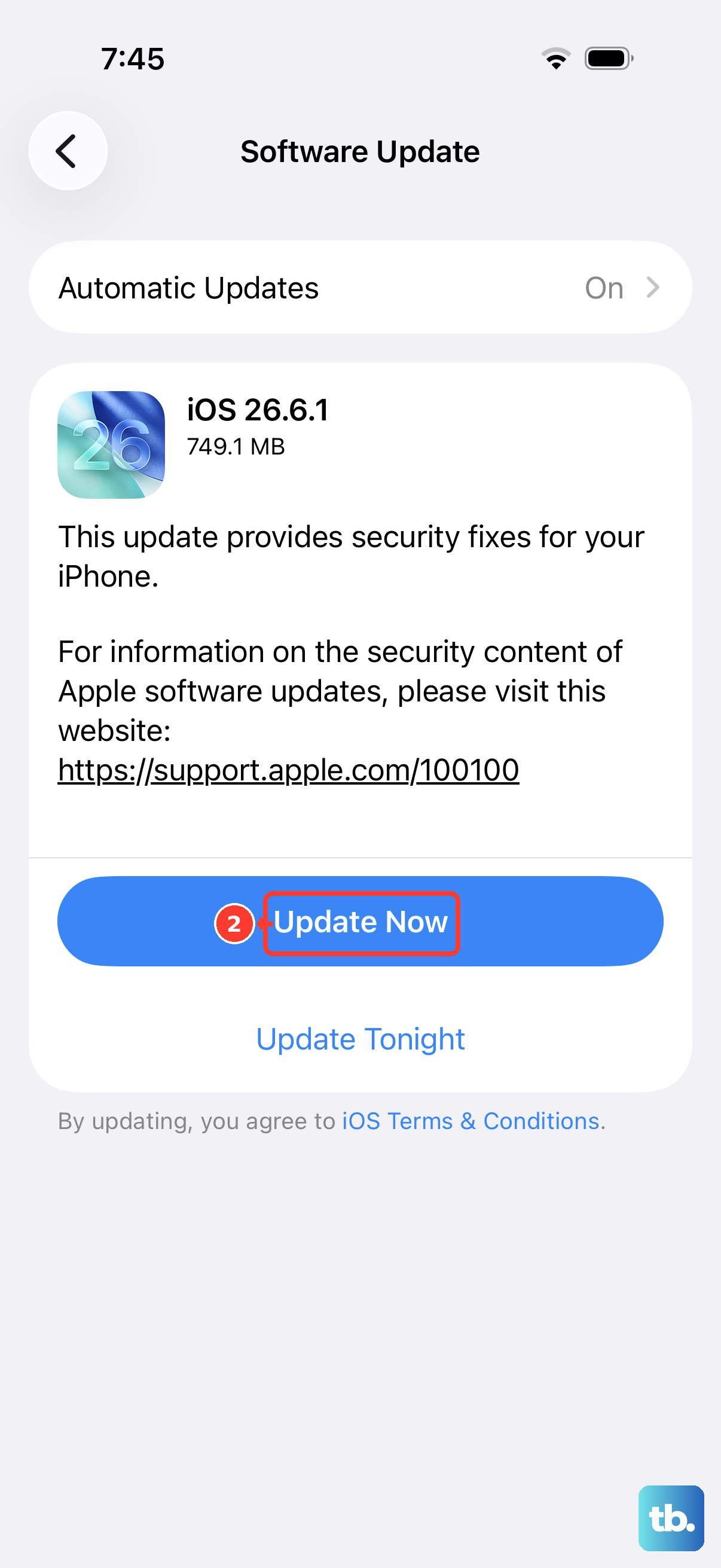
A software bug in your current version of iOS could be interfering with the haptic system. Installing the latest version of iOS may help with software-related problems. Connect your iPhone 15 to Wi-Fi and go to Settings > General > Software Update.
If an update is available, tap "Download and Install." I'd recommend doing this while your phone is charging, as the iPhone 15's update can take a few minutes.
Reset All Settings
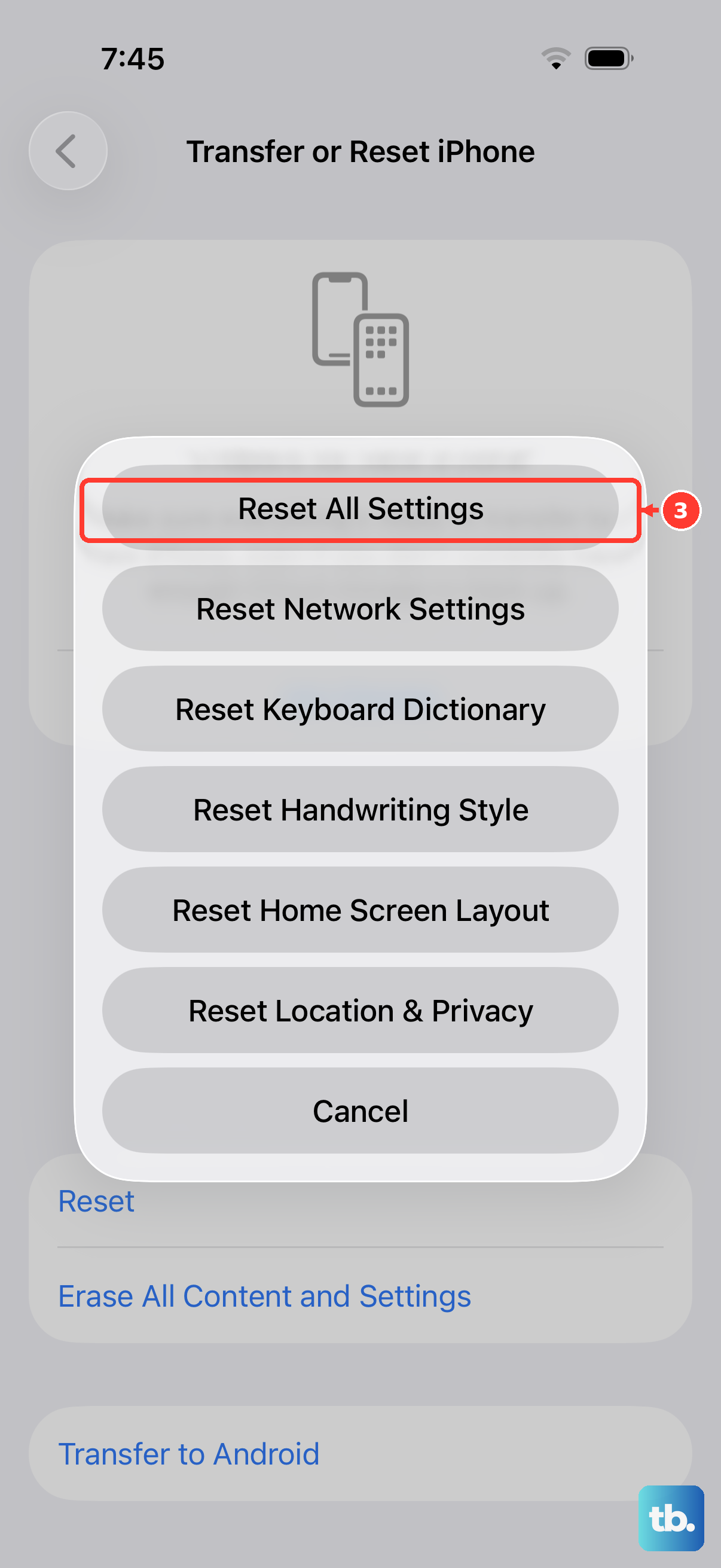
If none of the above steps work, a settings reset is a strong next move. This removes or resets settings including Wi-Fi passwords, wallpaper, privacy settings, Bluetooth pairings, and Apple Watch pairings without deleting your personal data, photos, or apps.
Go to Settings > General > Transfer or Reset iPhone. Tap Reset and then choose Reset All Settings. Enter your passcode and confirm. After the reset, you'll need to rejoin Wi-Fi, re-pair Bluetooth devices and any Apple Watch, and set up Face ID and Apple Pay again.
Consider a Recent Drop or Impact
The Taptic Engine in the iPhone 15 is a small, precise mechanical component. If your phone has been recently dropped or suffered a significant impact, the motor could be physically damaged. Damage is worth considering if vibration stopped after the impact.
If you've tried every software fix here and the phone never vibrates, not for calls, not in the vibration test pattern, not for system haptics, it might be time to contact Apple Support or visit an Apple Store for a hardware diagnostic.