
Missing calls on your iPhone 15 is a problem that can make you feel completely disconnected. It's often a simple setting or a temporary glitch, especially with the newer iOS versions. I'd start with the quick fixes below, as they resolve the majority of these issues in just a minute or two.
Check Do Not Disturb and Focus Modes
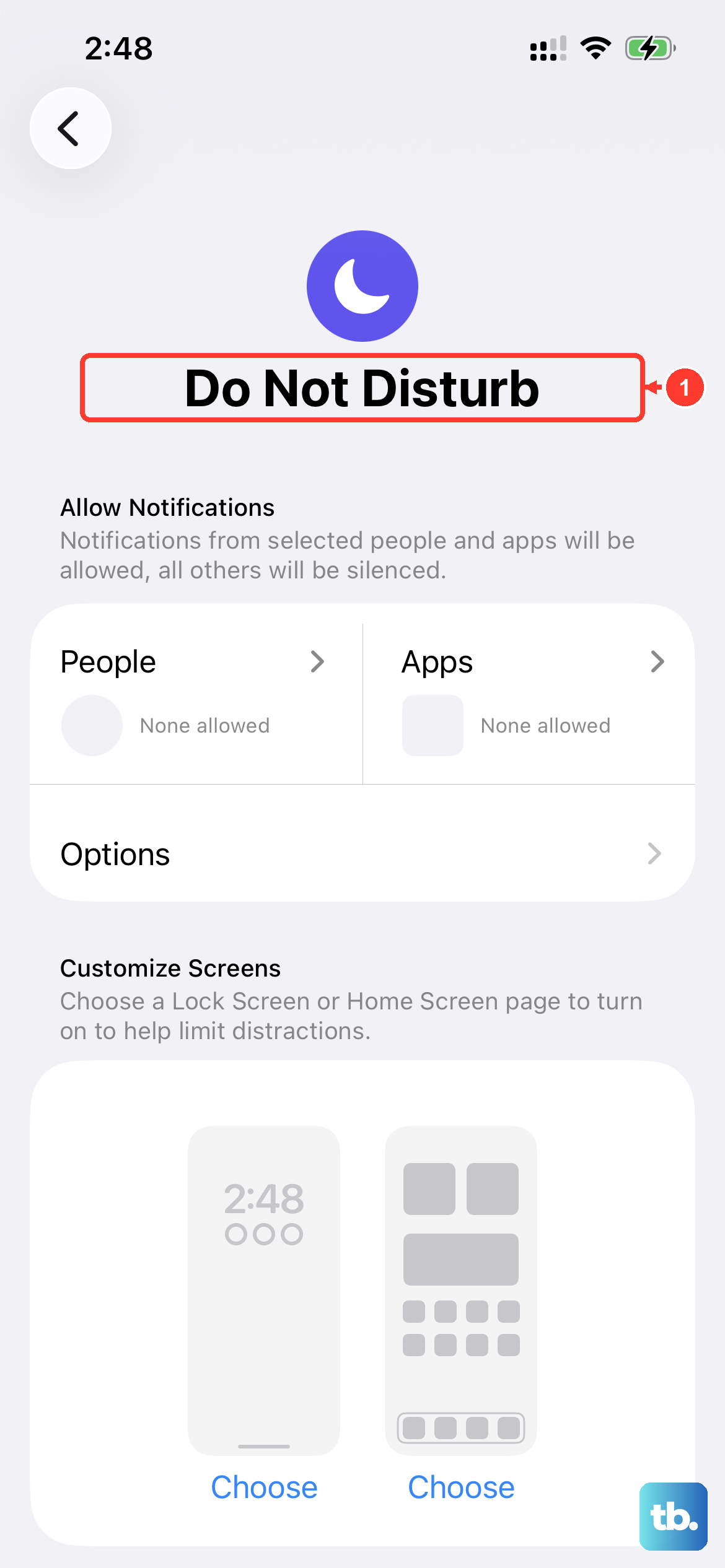
This is the most common culprit for missed calls. Your iPhone 15 has several Focus modes that can silence notifications. Swipe down from the top-right corner to open Control Center and look for the Focus icon (a crescent moon or another symbol). If it's purple, tap it to turn it off immediately.
You should also go into Settings > Focus and review each mode, like Do Not Disturb, Work, or Sleep. Make sure the "Silence Notifications From" setting isn't set to silence everyone, which would block calls from coming through.
Toggle Airplane Mode
A quick network refresh can clear up temporary carrier connection issues. Swipe into Control Center and tap the airplane icon to turn Airplane Mode on. Wait about ten seconds, then tap it again to turn it off.
You'll see the cellular bars disappear and reappear. This forces your iPhone 15 to re-establish a fresh connection with your carrier's network, which can often resolve call routing problems.
Restart Your iPhone 15
A simple restart clears out minor software bugs in iOS that might be interfering with the Phone app. Press and hold the Side button and either volume button until the power slider appears. Drag the slider to turn it off completely.
After about 30 seconds, press and hold the Side button again until you see the Apple logo. This is different from the force restart, which is a more hard reset for when the phone is frozen.
Check for a Carrier Settings Update
Carrier settings are small files that help your iPhone 15 communicate properly with your specific network. Apple and your carrier push these out periodically. To check, go to Settings > General > About.
If an update is available, a prompt will appear on this screen. Just tap "Update" when it shows up. This process only takes a moment and doesn't require a restart, but it can fix calling issues related to network configuration.
Review Call Blocking & Identification

iOS has built-in spam call blocking that can sometimes be too aggressive. Open the Settings app and scroll down to Phone. Tap on Call Blocking & Identification.
Here, you'll see a list of apps that can block calls. Make sure you haven't accidentally enabled a setting that blocks all unknown callers. Also, check the "Blocked Contacts" list further up in the Phone settings to ensure no important numbers are listed there.
Disable Call Forwarding
If call forwarding is accidentally enabled, all your calls are being sent to another number before your iPhone 15 even rings. Go to Settings > Apps > Phone > Call Forwarding.
Make sure the toggle at the top is switched off. If it was on, turning it off will immediately stop forwarding your calls. This setting can sometimes get enabled by carrier codes or in rare software glitches.
Reset Network Settings
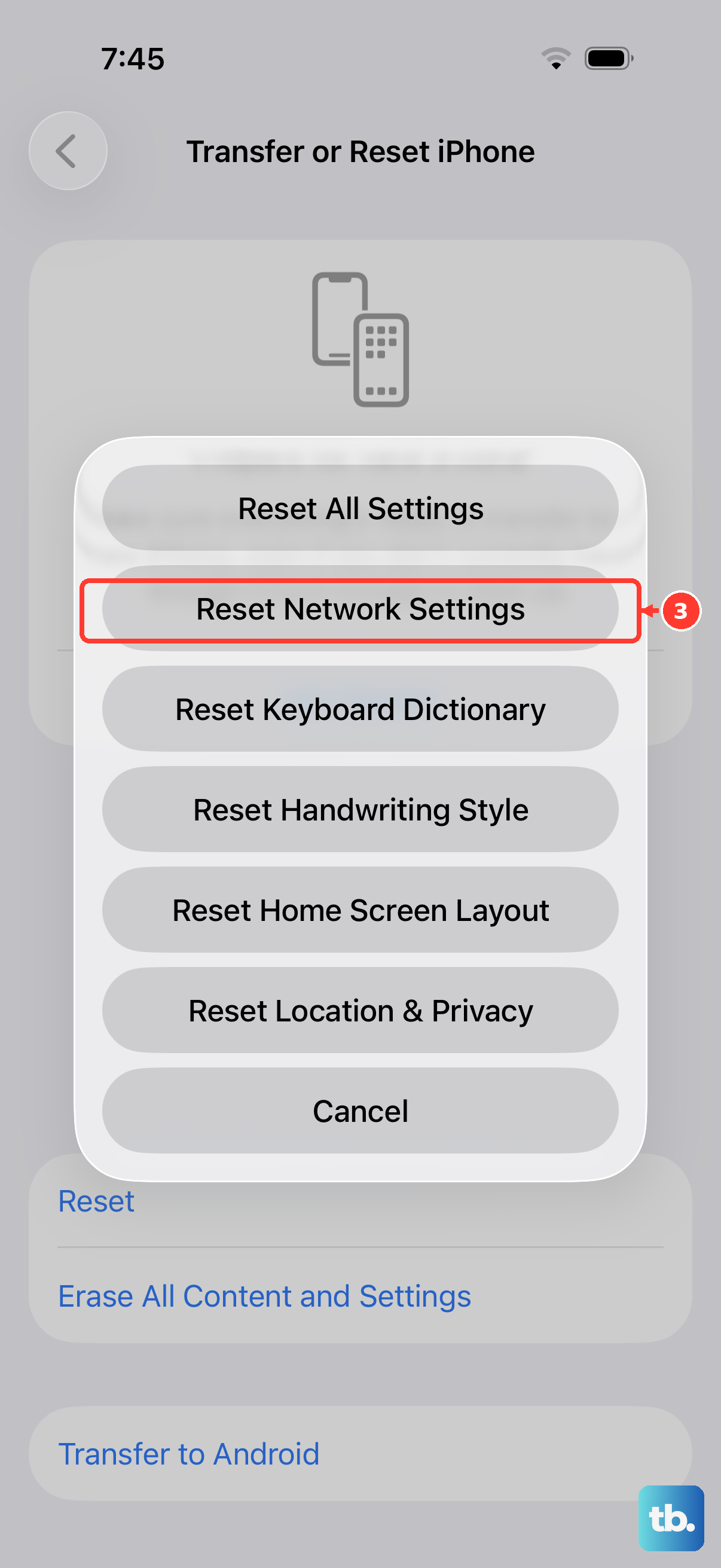
This will erase all your saved Wi-Fi passwords, Bluetooth pairings, and VPN settings, but it's very effective for persistent network issues. Go to Settings > General > Transfer or Reset iPhone.
Tap Reset and then choose Reset Network Settings. Your iPhone 15 will restart. After it boots up, you'll need to reconnect to Wi-Fi networks and pair Bluetooth devices again, but this often clears deep-seated cellular problems.
Update iOS to the Latest Version
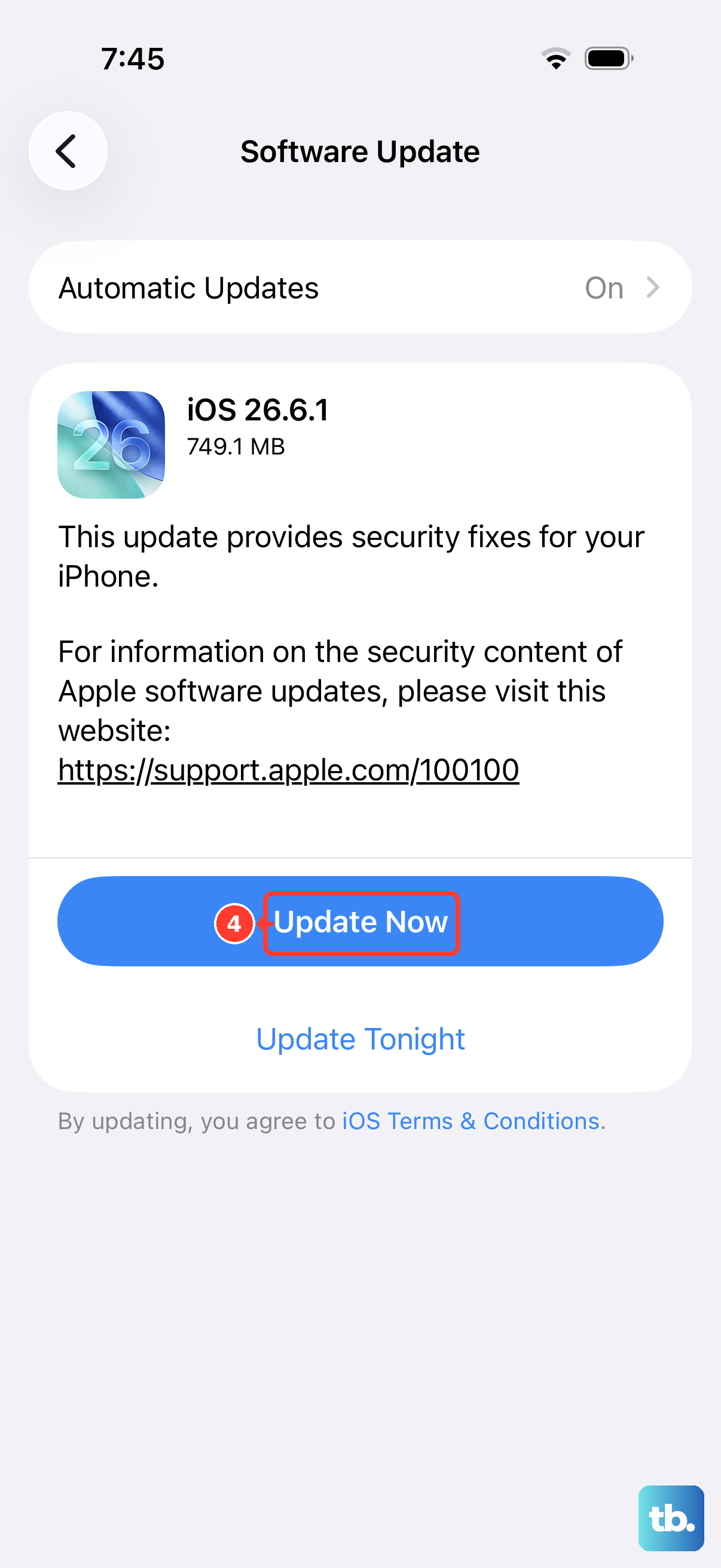
Software bugs that affect calling are often patched in iOS updates. Apple is constantly refining iOS, and your iPhone 15 should be running the latest version. Go to Settings > General > Software Update.
If an update is available, tap "Download and Install." It's best to do this while connected to Wi-Fi and with your phone plugged into power using a proper USB-C cable. I've seen point updates specifically address issues with call delivery.
Check Silence Unknown Callers
This is a helpful feature for stopping spam, but it can also silence legitimate calls from numbers not in your contacts. Go to Settings > Apps > Phone and scroll down to find "Silence Unknown Callers."
If this is enabled, turn it off. With this off, calls will ring through normally. You can always turn it back on later if you're getting a lot of spam, but disabling it is a quick test to see if it's the cause.
Force Restart Your iPhone 15
If your phone is acting sluggish or the Phone app is frozen, a force restart can help. This is different from a normal shutdown. Quickly press and release the Volume Up button, then quickly press and release the Volume Down button.
Immediately after, press and hold the Side button. Keep holding it even when you see the power off slider. Continue holding until you see the Apple logo appear, then you can let go. This clears the device's memory without affecting your data.