
When your iPhone 15 won't download apps from the App Store, it can bring your day to a grinding halt. You might see the app icon stuck with a loading circle, or the download just never starts. This is a common hiccup, and it's almost always something you can fix yourself without needing a trip to the Apple Store.
Let's go through the fixes, starting with the quick ones you should try right away.
Check Your Internet Connection
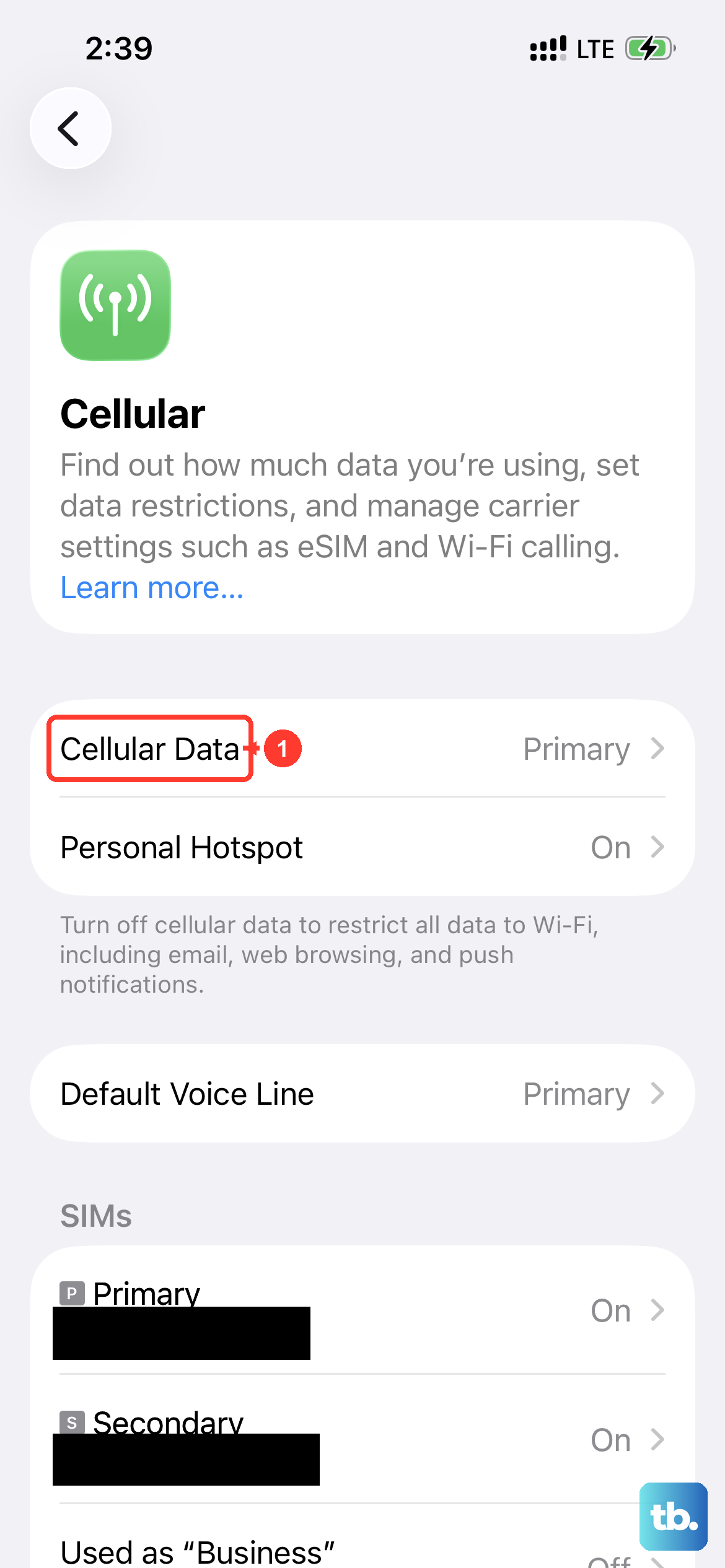
This might seem obvious, but it's the most common culprit. The App Store needs a stable connection to verify your Apple ID and download app data. If you're on Wi-Fi, try turning it off and using your cellular data instead.
Some public Wi-Fi networks block the ports the App Store uses. To toggle, open Control Center by swiping down from the top-right corner and tap the Wi-Fi icon. If switching to cellular works, you know the issue is with your Wi-Fi network.
Force Restart Your iPhone 15
A quick force restart clears out temporary software glitches that can freeze the App Store. It's different from a normal restart and fixes a surprising number of issues.
Here's how to force restart the iPhone 15: quickly press and release the Volume Up button, then quickly press and release the Volume Down button. Finally, press and hold the Side button until you see the Apple logo appear, then let go.
Sign Out and Back Into the App Store
Sometimes there's a temporary authentication hiccup with your Apple ID. Signing out refreshes this connection. Open the App Store, tap your profile icon in the top right, scroll down, and tap "Sign Out."
After a moment, sign back in with your Apple ID password. I'd try this one early, as it often resolves download hangs without affecting anything else on your phone.
Check Your Date & Time Settings
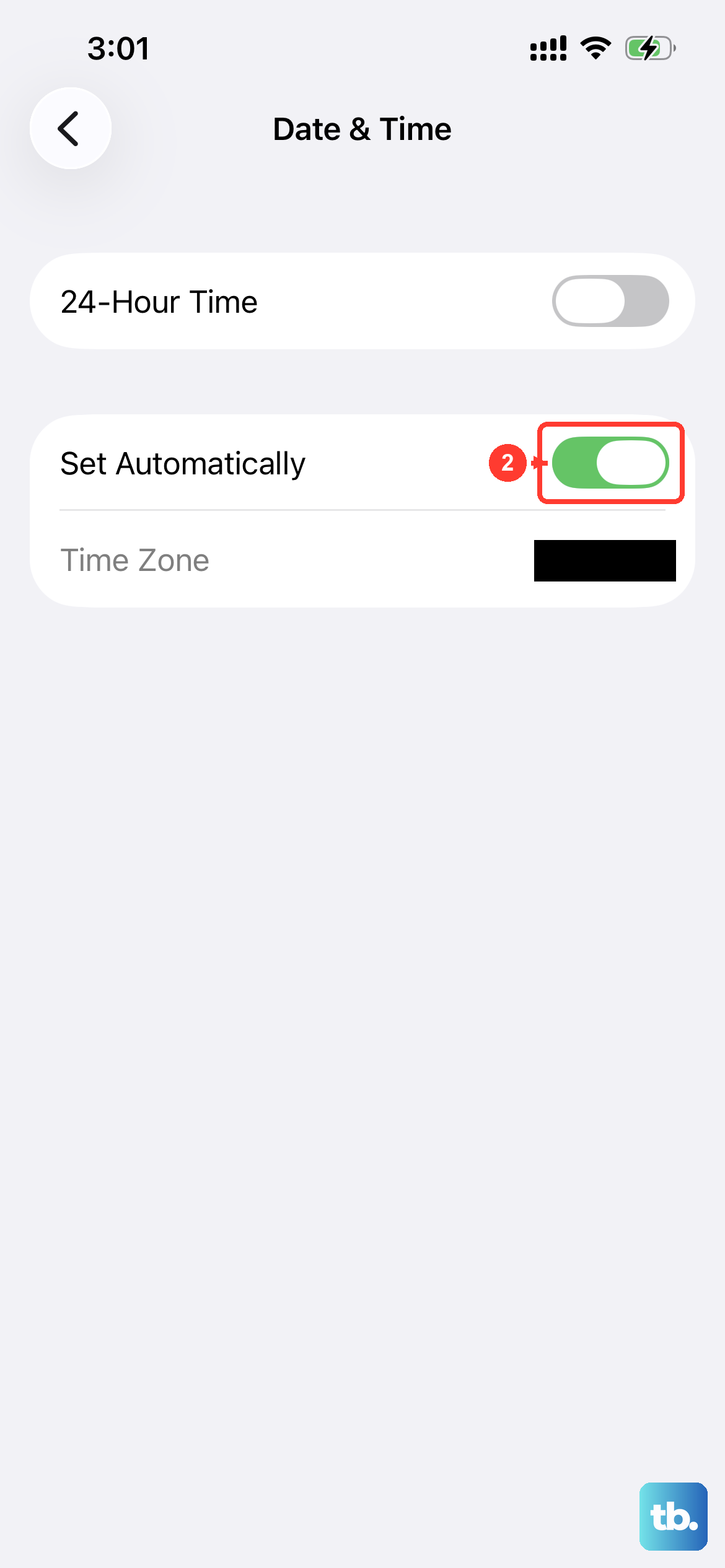
If your iPhone's date and time are incorrect, it can break secure connections to Apple's servers, including the App Store. Your phone needs to sync properly to verify purchases and downloads.
Go to Settings > General > Date & Time. Make sure "Set Automatically" is turned on. If it's already on, try turning it off and back on again to force a fresh sync.
Update iOS
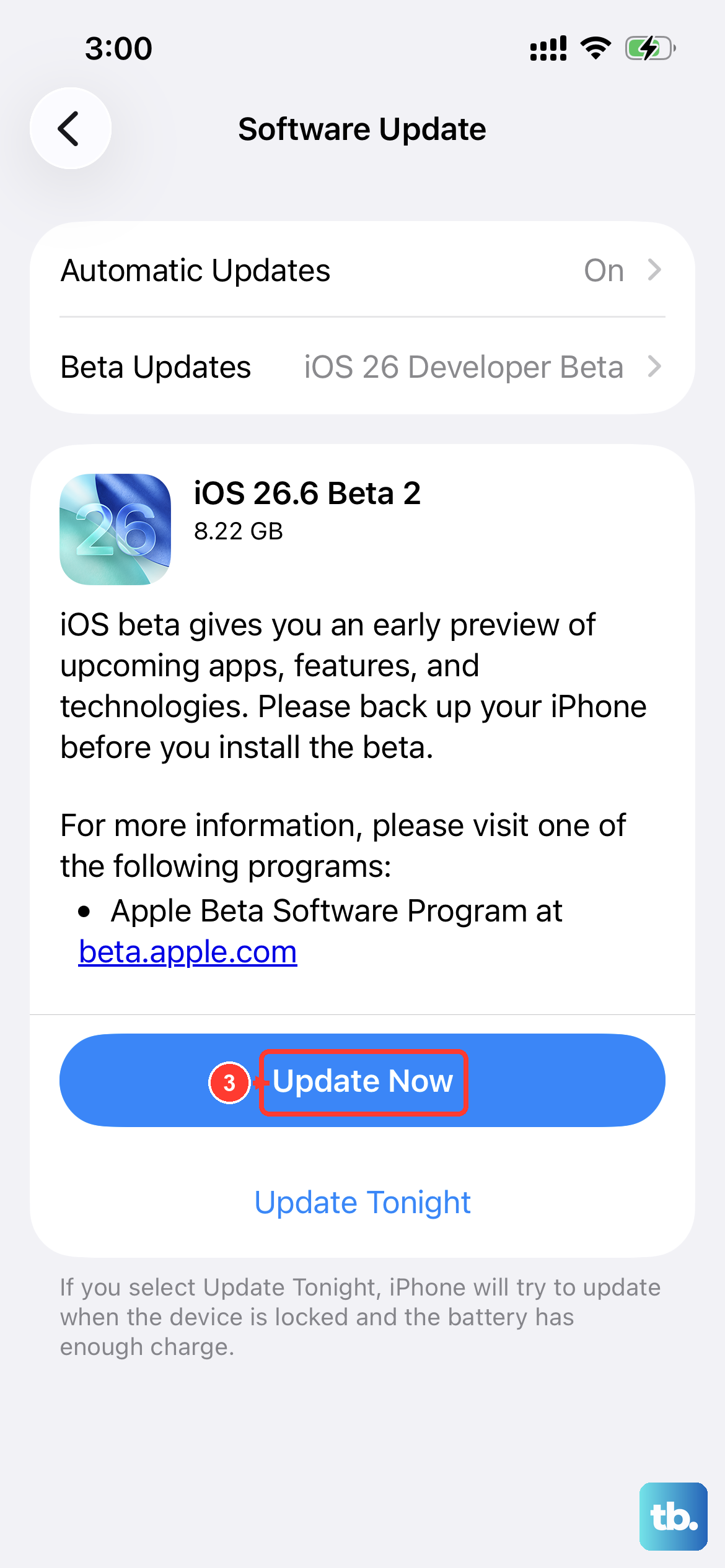
Running an outdated version of iOS can cause compatibility problems with the App Store. Apple frequently releases updates that include bug fixes for the store itself.
Head to Settings > General > Software Update. If an update is available, install it. Make sure your iPhone 15 is plugged in or has plenty of battery life and is connected to Wi-Fi first.
Check Your Apple ID Payment Method
An expired or declined payment method on file can block all downloads, even free apps. The system needs a valid payment method to verify your account, though it won't be charged for free items.
Go to Settings > [Your Name] > Payment & Shipping. You can try updating your card details or, if you're sure you only want free apps, you can remove the payment method entirely and see if that unblocks the process.
Reset Your Network Settings
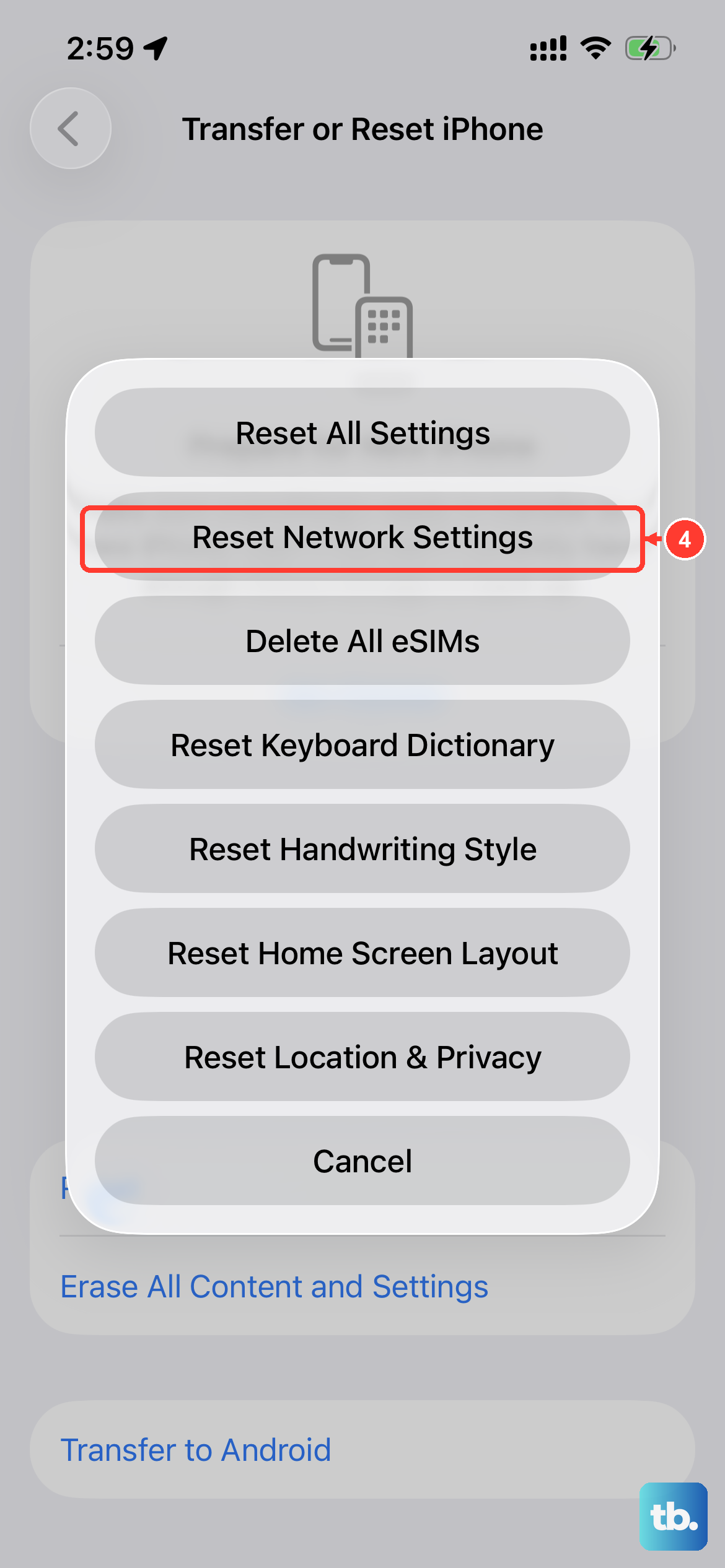
This clears all your Wi-Fi passwords, cellular settings, and VPN configurations. It's a stronger fix for connection-related download problems. You'll have to re-join Wi-Fi networks afterward.
Go to Settings > General > Transfer or Reset iPhone > Reset. Then, tap "Reset Network Settings." Enter your passcode if prompted and confirm. Your iPhone will restart.
Check Your Screen Time & Content Restrictions
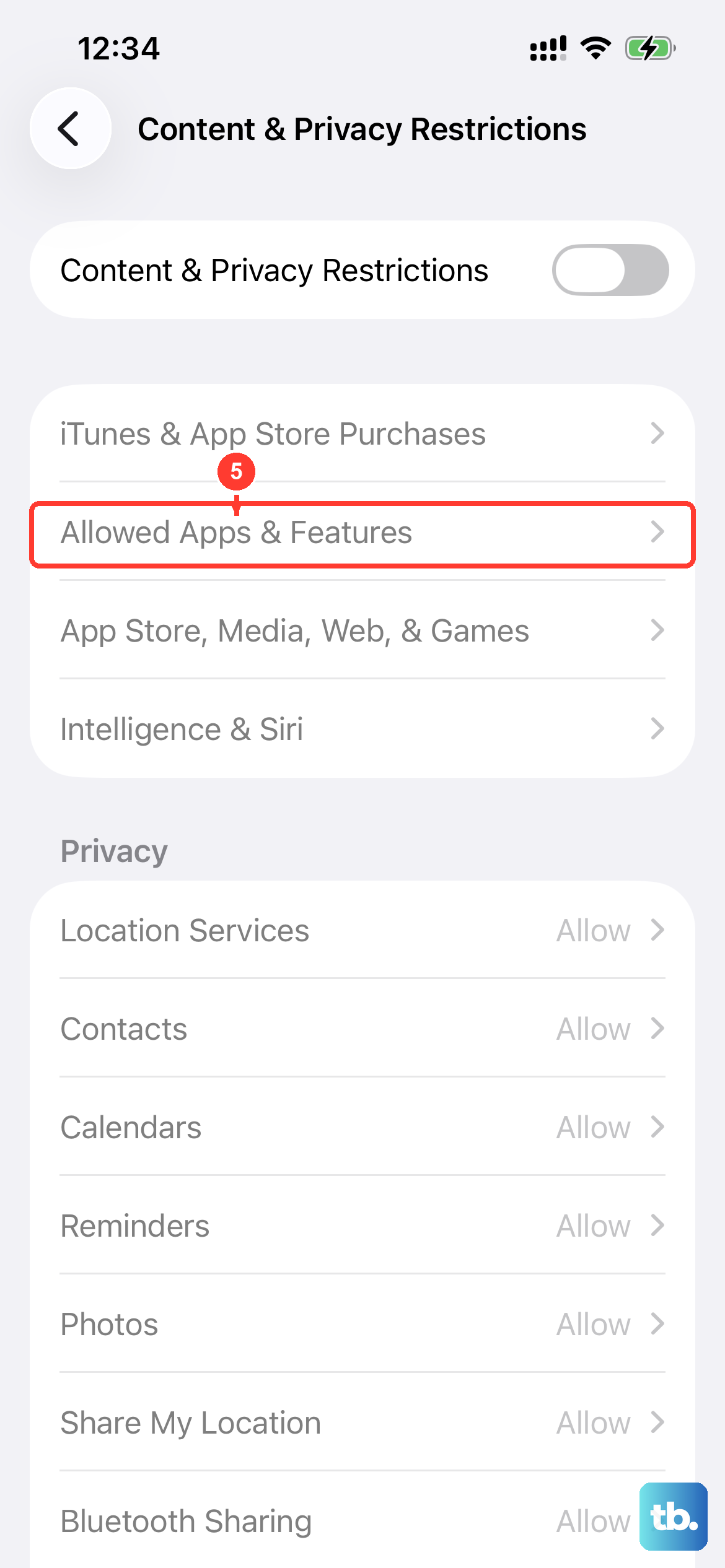
If Screen Time is enabled, a restriction might be blocking app downloads or purchases. This can happen accidentally, especially if you share the device with family.
Open Settings > Screen Time. Tap "Content & Privacy Restrictions." If it's on, tap "iTunes & App Store Purchases." Make sure "Installing Apps" is set to "Allow."
Free Up iPhone Storage Space
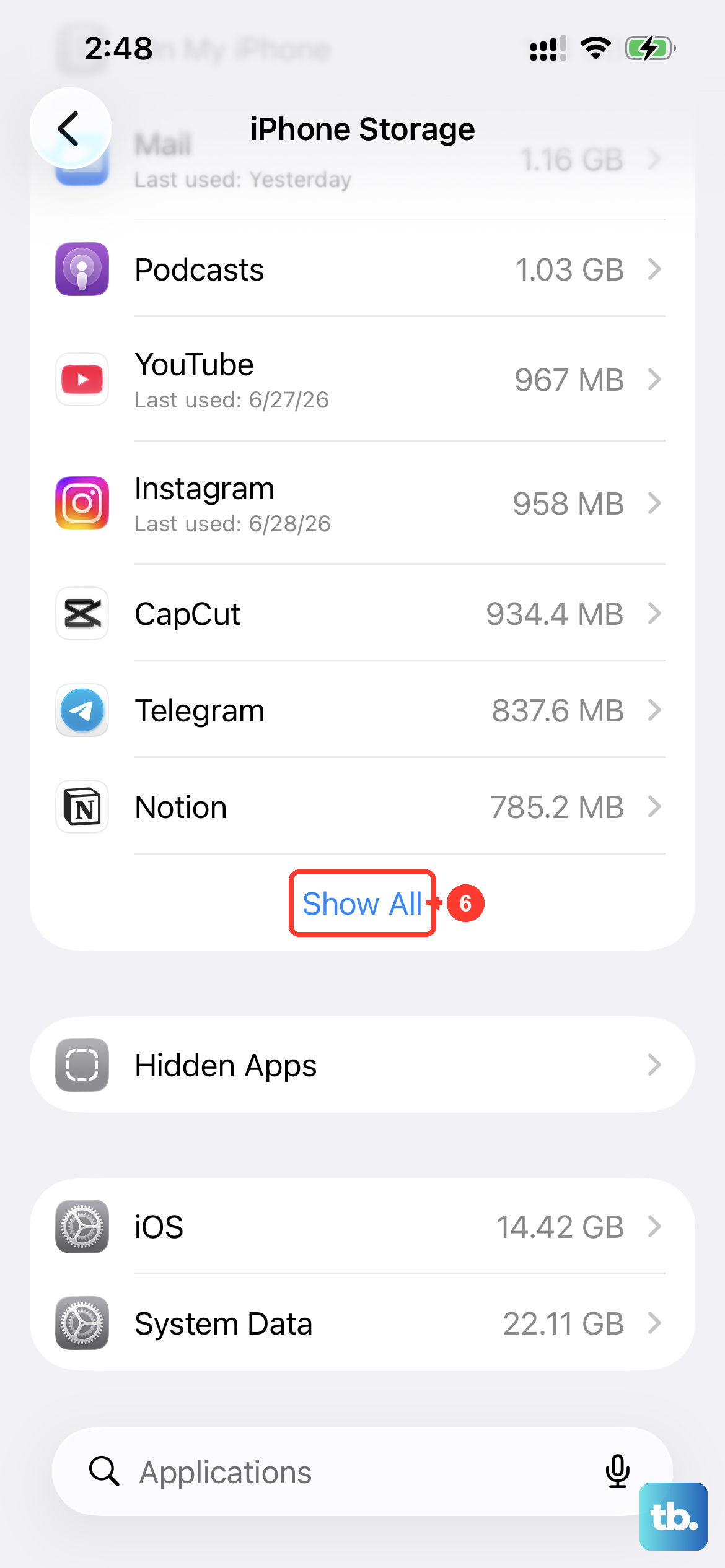
Your iPhone 15 needs available space to download and install an app, even if the app itself is small. If storage is completely full, downloads will fail silently.
Go to Settings > General > iPhone Storage. The bar at the top shows your used and available space. You can offload unused apps (which removes the app but keeps its data) or delete old videos and photos to clear room.
Update the App Store App (If Possible)
While the App Store updates automatically with iOS, you can sometimes manually refresh it. You can't delete the App Store, but you can offload it, which removes the app files and reinstalls the latest version.
Go to Settings > General > iPhone Storage. Find "App Store" in the list and tap it. Choose "Offload App," then confirm. Wait a moment, then tap "Reinstall App."