
If your iPhone 15 camera is acting up, start with a force restart. Press and release the Volume Up button, press and release the Volume Down button, then press and hold the Side button until you see the Apple logo. Restarting can help with a black viewfinder or a frozen camera app.
Key Points
- Fix a Black Screen or Frozen App: Force close the Camera app and restart your iPhone.
- Resolve Blurry or Out-of-Focus Photos: Clean the lenses and check your focus settings.
- Address Camera Crashes or Error Messages: Update to the latest version of iOS.
- Fix Portrait Mode or Night Mode Issues: Ensure you have enough light and the subject is detected properly.
- Restore Missing Camera Features or Modes: Restart, update iOS, and test both cameras if controls have disappeared.
Give your phone a moment to fully reboot, then try opening the Camera app again from the Lock Screen. This quick fix can help with laggy performance or an app that won't open at all.
Fix a Black Screen or Frozen App
If the camera view is just black or the app is completely frozen, force close the app first. Swipe up from the bottom of the screen and pause in the middle to enter the app switcher. Find the Camera app preview and swipe it up and off the top of the screen to close it.
Wait a few seconds, then tap the Camera icon again to relaunch it. If the black screen persists, restart your iPhone using the button sequence above, then test the camera by taking a photo.
Check for any physical obstructions too, like a poorly aligned case or a sticker that might be covering a lens or sensor. Remove any case, film, or accessory that blocks the camera or flash or places a magnet near the camera, then try taking a photo.
Resolve Blurry or Out-of-Focus Photos
First, grab a clean microfiber cloth and gently wipe all the camera lenses on the back of your iPhone. Smudges from fingerprints can cause soft, blurry photos. Pay special attention to the larger main lens and the smaller ultra-wide lens.
When you're taking a photo, tap directly on your subject on the screen. You should see a yellow focus box appear over the area you tapped. If the camera is struggling to focus in low light, try tapping on a brighter area or providing more light to the scene.
Make sure your lens isn't dirty. Even a tiny smudge can scatter light and ruin image clarity, especially in bright conditions where lens flare becomes obvious.
Address Camera Crashes or Error Messages
Software issues can cause crashes. Back up your iPhone, connect it to power and Wi-Fi, then head to Settings > General > Software Update. Tap Download and Install if an update is available, then test the camera again.
If you see an error message saying the camera cannot be used or has failed, try restarting your iPhone. After restarting, open the Camera app again to see if the error clears.
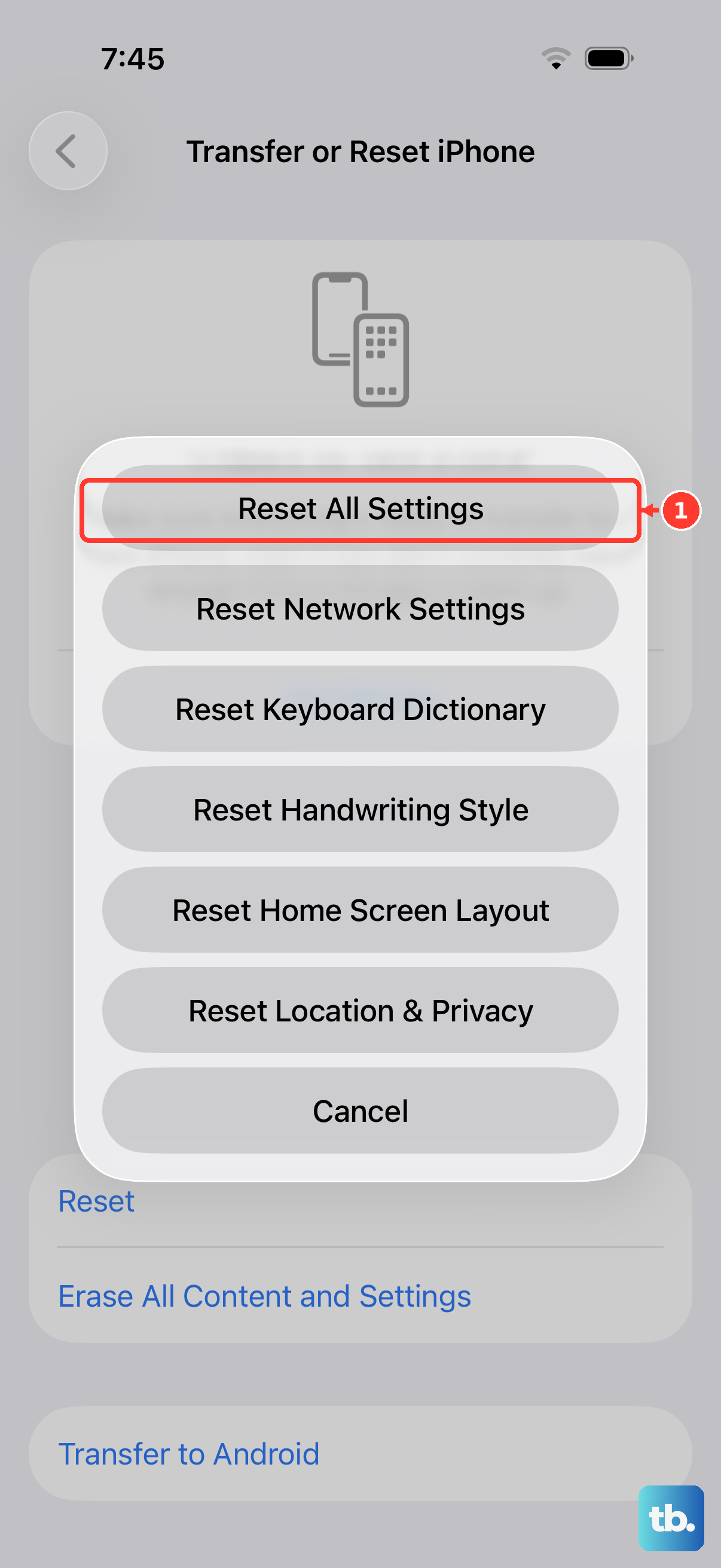
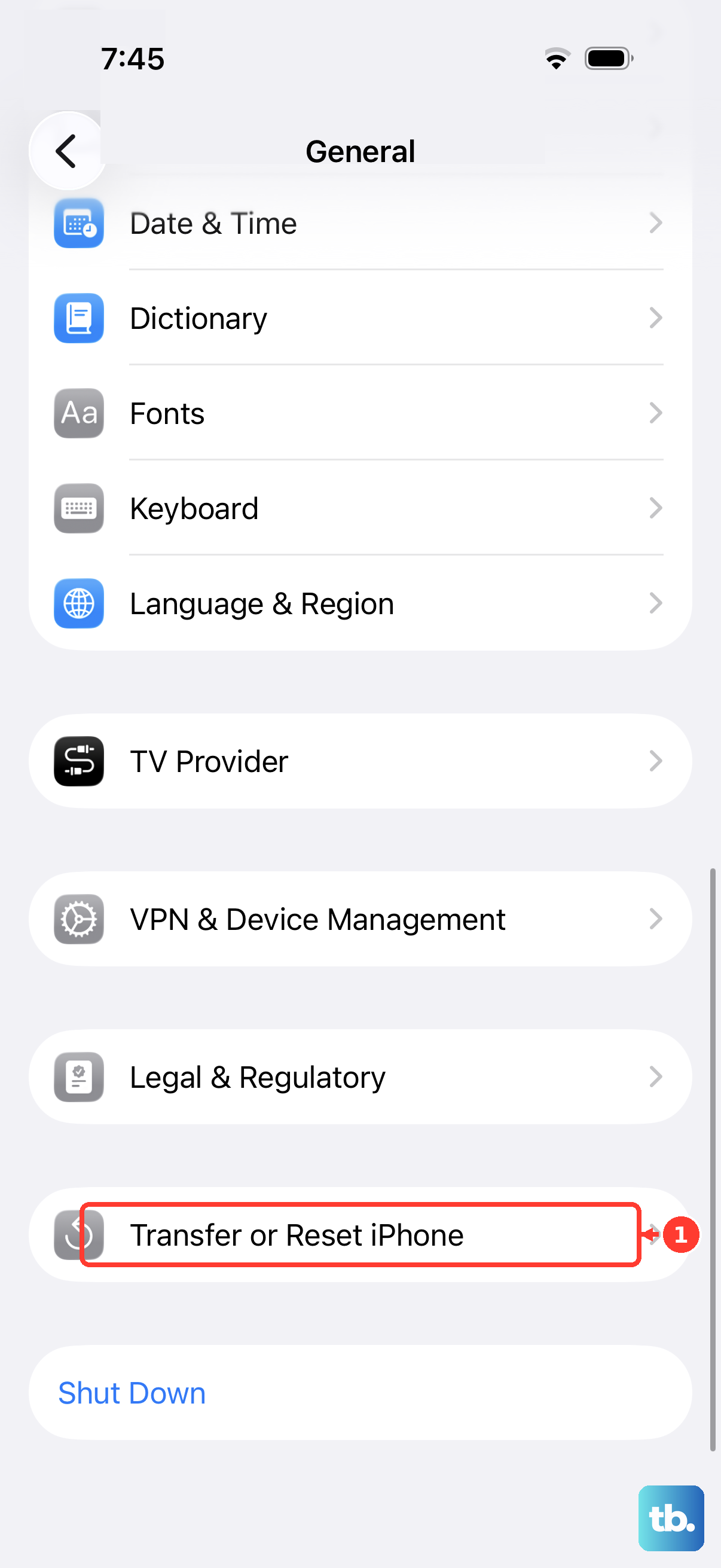
For persistent crashes, you can try resetting all settings. This won't delete your photos or apps, but it will reset display settings and remove saved Wi-Fi passwords, Apple Pay cards, and pairings. You'll need to rejoin Wi-Fi, re-pair Bluetooth devices and your Apple Watch, and set up Face ID again. Go to Settings > General > Transfer or Reset iPhone > Reset > Reset All Settings.
Fix Portrait Mode or Night Mode Issues
Portrait Mode needs to properly detect a person, pet, or object to create the depth effect. Make sure your subject is well-lit and follow any onscreen prompts to adjust your distance from the camera.
If Portrait Mode photos look grainy or the background blur is missing, poor lighting may be the cause. Move to a brighter spot or switch to the standard Photo mode. The same goes for Night Mode, which needs a steady hand and a few seconds of capture time.
Night Mode will activate automatically in low light, indicated by a moon icon with a timer. When Night Mode is on, hold your phone steady against a surface during the capture to help reduce motion blur.
Restore Missing Camera Features or Modes
If camera controls like the flash toggle, Live Photos button, or even entire modes like Video or Portrait have vanished, restart your iPhone and update to the latest version of iOS. Then open the Camera app and try taking a photo.
Tap the rotate button to switch between the front and rear cameras, then take a photo with each to check whether one or both aren't working. If the flash is also affected, swipe down from the upper-right corner to open Control Center and tap the Flashlight button.
If the flash works only sometimes, open the Camera app and tap the flash button to choose a different setting. If the camera or flash still isn't working properly, you might need service.