Press and hold the Power button and Volume Down button together for about 15 to 20 seconds. This force restart works on most Samsung tablets and can fix a frozen or unresponsive device.
I've seen this simple trick resolve more tablet issues than any other single fix.
Key Points
- Check for Physical and Liquid Damage: Start by inspecting your tablet, charger, and USB cable for any visible damage.
- Charge Your Tablet Properly: Using third-party chargers can cause charging problems and may even damage your battery over time.
- Clear Cache and Manage Storage: When your Samsung tablet starts running slow, accumulated cache data is often the culprit.
- Update Your Tablet's Software: Regular software updates fix bugs, improve security, and generally help your tablet work better.
- Troubleshoot Wi-Fi Connection Problems: If your tablet won't connect to Wi-Fi, start by restarting both your tablet and your router.
- Fix an Unresponsive Touchscreen: When your touchscreen freezes or stops responding, a soft reset often helps.
If your tablet doesn't respond to the force restart, the battery might be completely drained. Connect it to the original Samsung charger and let it charge for at least an hour. Sometimes it takes up to 10 minutes for the charging indicator to appear when the battery is completely empty.
Make sure you're plugging directly into a wall outlet, not a power strip or extension cord.
Check for Physical and Liquid Damage
Start by inspecting your tablet, charger, and USB cable for any visible damage. Look for cracks, dents, or signs of liquid exposure. Samsung tablets have a Liquid Damage Indicator inside the SIM card tray slot on newer models or on the removable battery for older devices.
To check the LDI, use the ejector tool that came with your tablet to pop out the SIM card tray. It should be solid white or white with pink or purple X's.
If it's solid pink, purple, or red, your tablet has been exposed to moisture. This kind of damage often requires professional repair.
Charge Your Tablet Properly
Using third-party chargers can cause charging problems and may even damage your battery over time. Samsung doesn't recommend using any chargers other than their official ones, especially uncertified or counterfeit models. These can prevent proper charging and lead to battery issues.
If you're having charging problems, try a different wall outlet first. Sometimes the issue is with the power source rather than your tablet. Also check that the charging cable is securely connected to both the adapter and your tablet.
A loose connection can prevent charging even when everything else seems fine.
Clear Cache and Manage Storage
When your Samsung tablet starts running slow, accumulated cache data is often the culprit. Cache consists of files, scripts, and images saved after you visit websites or use apps. While this helps speed things up initially, too much cached data can overload your tablet's memory.
Go to Settings > Battery and device care > Storage to see how much space you have available. If you're running low, clearing cache can help. For individual apps, go to Settings > Apps, select the app, then tap Storage > Clear cache.
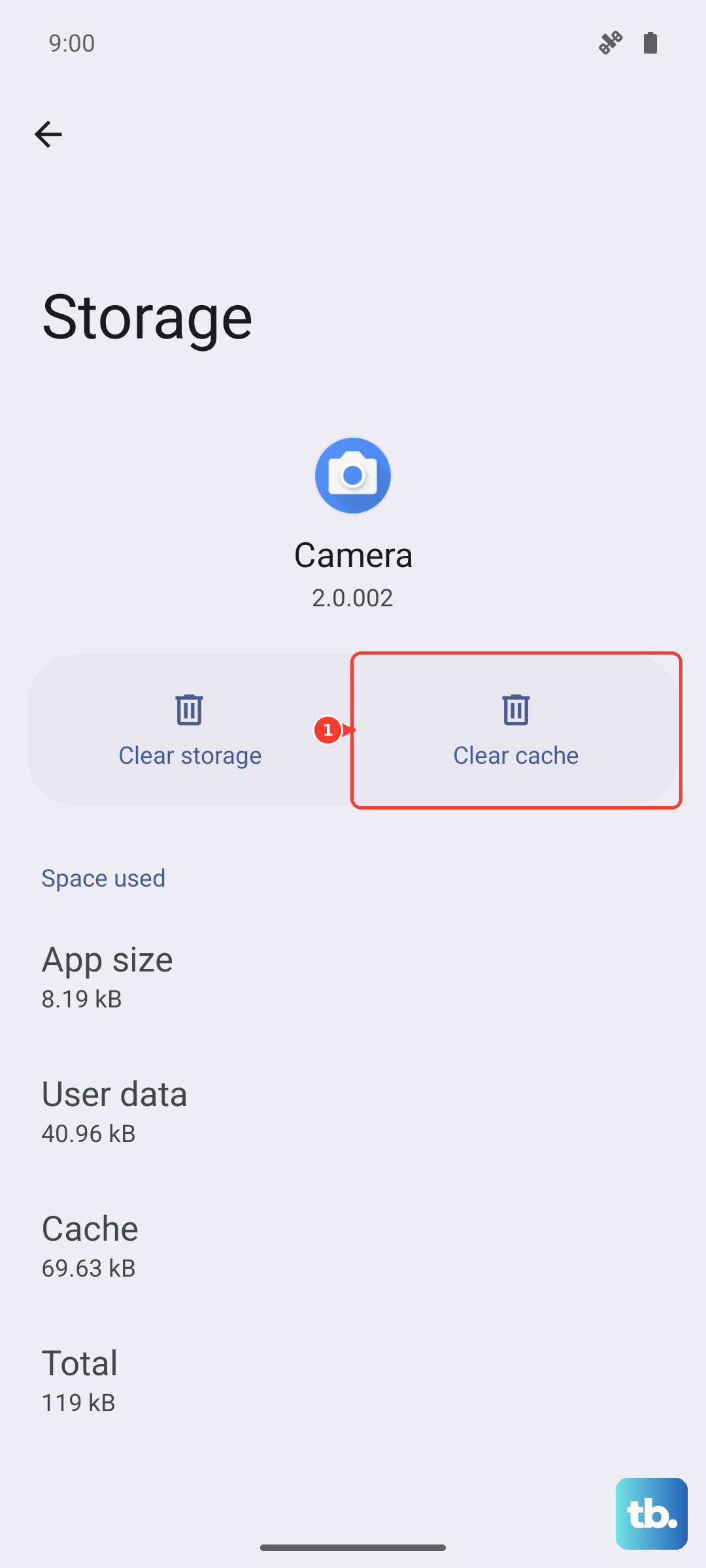
This removes temporary files without affecting your saved data or passwords.
Update Your Tablet's Software
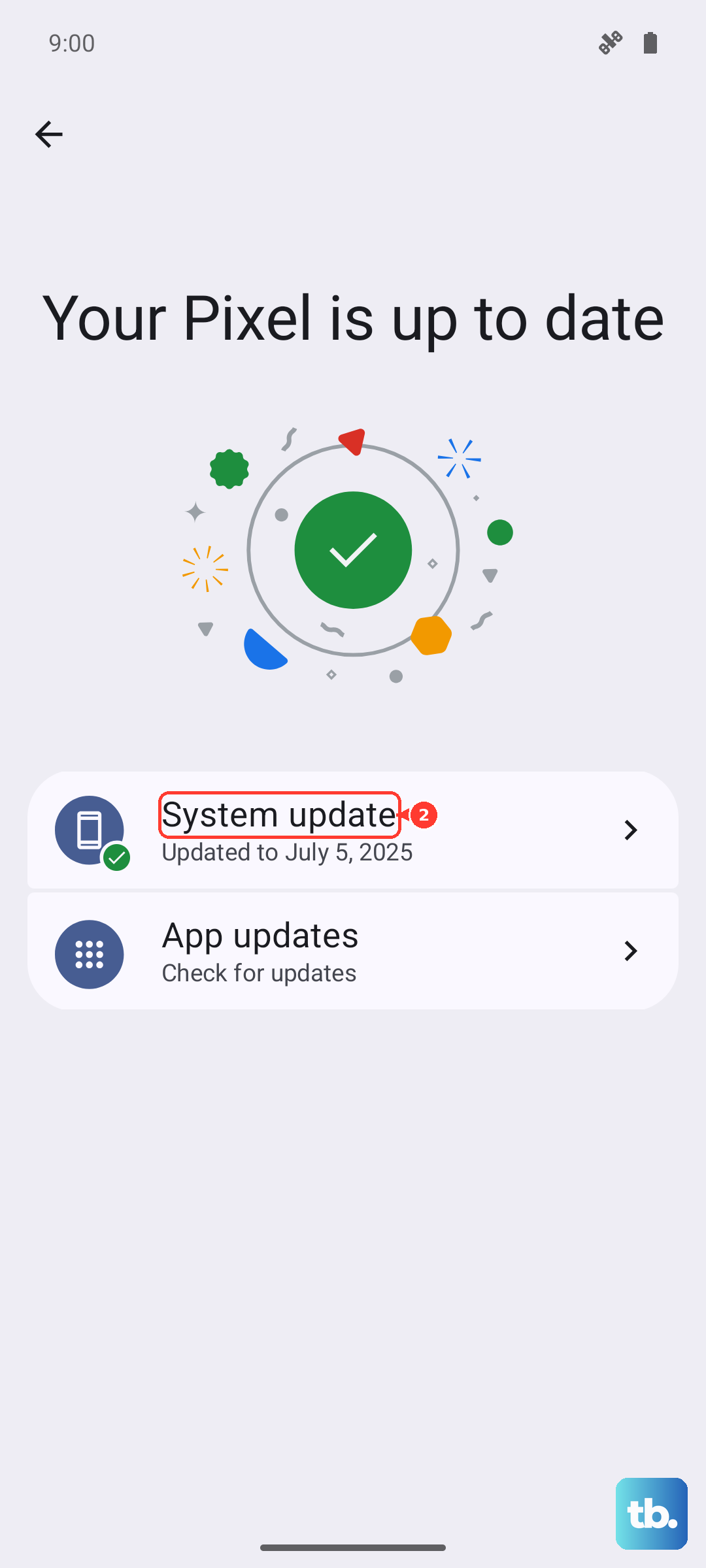
Regular software updates fix bugs, improve security, and generally help your tablet work better. To check for updates, connect to Wi-Fi and go to Settings > Software update > Download and install. If an update is available, follow the on-screen instructions.
Some tablets might show this option as System update instead of Software update. The exact wording varies by model, but the process is essentially the same. I'd recommend keeping your tablet updated even if it seems to be working fine.
Many performance issues get resolved with software patches.
Troubleshoot Wi-Fi Connection Problems
If your tablet won't connect to Wi-Fi, start by restarting both your tablet and your router. Unplug your router for 30 seconds, then plug it back in. On your tablet, press and hold the Power and Volume Down buttons until the screen goes black, then turn it back on.
Make sure you're close enough to your router for a strong signal. Try connecting another device to the same Wi-Fi network to see if the problem is with your tablet or the network itself. If other devices connect fine, go to Settings > Connections > Wi-Fi on your tablet, forget the network, then reconnect with the correct password.
Fix an Unresponsive Touchscreen
When your touchscreen freezes or stops responding, a soft reset often helps. Press and hold the Power button for 1 to 2 minutes until the screen goes completely dark. Wait a few seconds, then turn your tablet back on by pressing the Power button again.
If the touchscreen remains unresponsive, a recently installed app might be causing the problem. Boot your tablet into Safe Mode by turning it off, then turning it back on while holding the Volume Down button when the Samsung logo appears. If your tablet works normally in Safe Mode, uninstall any apps you installed recently.
Address Battery Drain Issues
Several factors can cause your battery to drain quickly. High screen brightness is a common culprit. Try lowering it by swiping down from the top of the screen and adjusting the brightness slider.
Also check for background apps running unnecessarily.
Go to Settings > Battery to see which apps are using the most power. You can close unnecessary apps from there. Enable Power Saving Mode in the same menu to extend battery life when you're running low.
Most Samsung tablet batteries last 2 to 3 years, so if yours is older and not holding a charge, it might need replacement.
Reset App Preferences
Sometimes specific apps cause problems with your tablet's overall performance. Resetting app preferences can fix issues without deleting any of your data. Go to Settings > Apps > Menu (the three dots in the top right) > Reset app preferences > Reset Apps.
This resets all app preferences to their default settings. You'll need to re-grant permissions to apps when you use them again, but your app data remains intact. It's a good middle ground between doing nothing and performing a factory reset, which wipes everything.
Enter Recovery Mode for Advanced Fixes
If your tablet is stuck on the Samsung logo or won't boot properly, Recovery Mode offers more advanced options. To enter Recovery Mode, turn off your tablet completely. Then press and hold the Power, Home (if your model has one), and Volume Up buttons simultaneously until you see a menu appear.
Use the Volume buttons to handle and the Power button to select. You can choose to wipe the cache partition, which clears system cache without affecting your personal data. This often fixes boot loops and other startup problems.
The Wipe data/factory reset option should be your last resort since it erases everything.
Check for Overheating Issues
Tablets can shut down unexpectedly if they get too hot. This is a safety feature to prevent damage to internal components. If your tablet feels warm to the touch or shuts down during heavy use, let it cool down completely before trying to turn it back on.
Avoid leaving your tablet in direct sunlight or in a hot car. Also, remove any cases or covers when charging, as these can trap heat. If overheating happens frequently during normal use, there might be a deeper hardware issue that needs professional attention.
Clean the Charging Port
Dust and lint can accumulate in your tablet's charging port over time, preventing proper connection with the charger. Use a can of compressed air to gently blow out any debris. You can also use a dry toothpick or plastic dental pick to carefully remove visible lint.
Be very gentle when cleaning the port to avoid damaging the delicate pins inside. Never use metal objects or excessive force. If the port feels loose or the charger doesn't stay connected securely, there might be physical damage that requires repair.
Manage Background Apps
Multiple apps running in the background can slow down your tablet and drain the battery. To see what's running, go to Settings > Developer options > Running services (first enable Developer options via Settings > About tablet > Software information, then tap Build number seven times). You can stop individual apps from here if they're not needed.
Some system services will show a warning when you try to stop them. Read these warnings carefully before proceeding. For most user-installed apps, stopping them is safe and can improve performance.
Regular maintenance like this keeps your tablet running smoothly.
Calibrate the Touch Screen
If your touchscreen seems inaccurate or unresponsive in certain areas, calibration might help. While Samsung doesn't include a built-in calibration tool, several apps in the Google Play Store can help. Search for "touch screen calibration" and choose one with good reviews.
These apps guide you through tapping specific points on the screen to improve accuracy. They're particularly useful if you've recently replaced the screen or if certain areas seem less responsive than others. Just be sure to read reviews and choose a reputable app.
Monitor Battery Health
To check your battery's overall health, go to Settings > Battery and device care > Diagnostics. Some models have a battery health section that shows maximum capacity compared to when it was new. If your battery health is significantly degraded, consider replacing it.
A healthy Samsung tablet battery should provide 5 to 6 hours of continuous use on a full charge. If yours lasts much less than that, even after optimizing settings and closing background apps, the battery might be nearing the end of its lifespan. Most batteries last 2 to 3 years with regular use.











