


So your iPhone 14 won't charge. You've plugged it in, maybe even tried a different cable, and the screen stays dark. It's a frustrating spot to be in, but checking the cable, power source, and charging port can help you find the problem before arranging service.
Whether you're dealing with a Lightning port that feels loose, a MagSafe charger that's not snapping into place, or a phone that just sits there showing zero signs of life, start with the charging checks below.
Force Restart Your iPhone 14
First, connect your iPhone to power and let it charge for half an hour. If it still won't turn on or shows only a battery icon, try a force restart while it's connected. For the iPhone 14, the process is straightforward.
Press and quickly release the Volume Up button. Then, press and quickly release the Volume Down button. Finally, press and hold the Side button until you see the Apple logo appear on the screen. Leave it connected to power for another half hour, then check whether it turns on or charges.
Clean the Lightning Port
Debris in the charging port can interfere with the connection. Unlike newer USB-C models, the iPhone 14 uses a Lightning port, which can collect pocket lint and debris. Over time, that gunk can keep your cable from making a proper connection.
Grab a flashlight and take a close look inside the port. If you see any lint or dirt, unplug the cable and turn your phone off before cleaning. Use a soft, dry brush to gently remove loose debris. Don't scrape inside with a toothpick or metal tool, and avoid getting moisture in the opening. Once the port is clear, firmly reconnect the charging cable.
Check Your Cable and Power Source
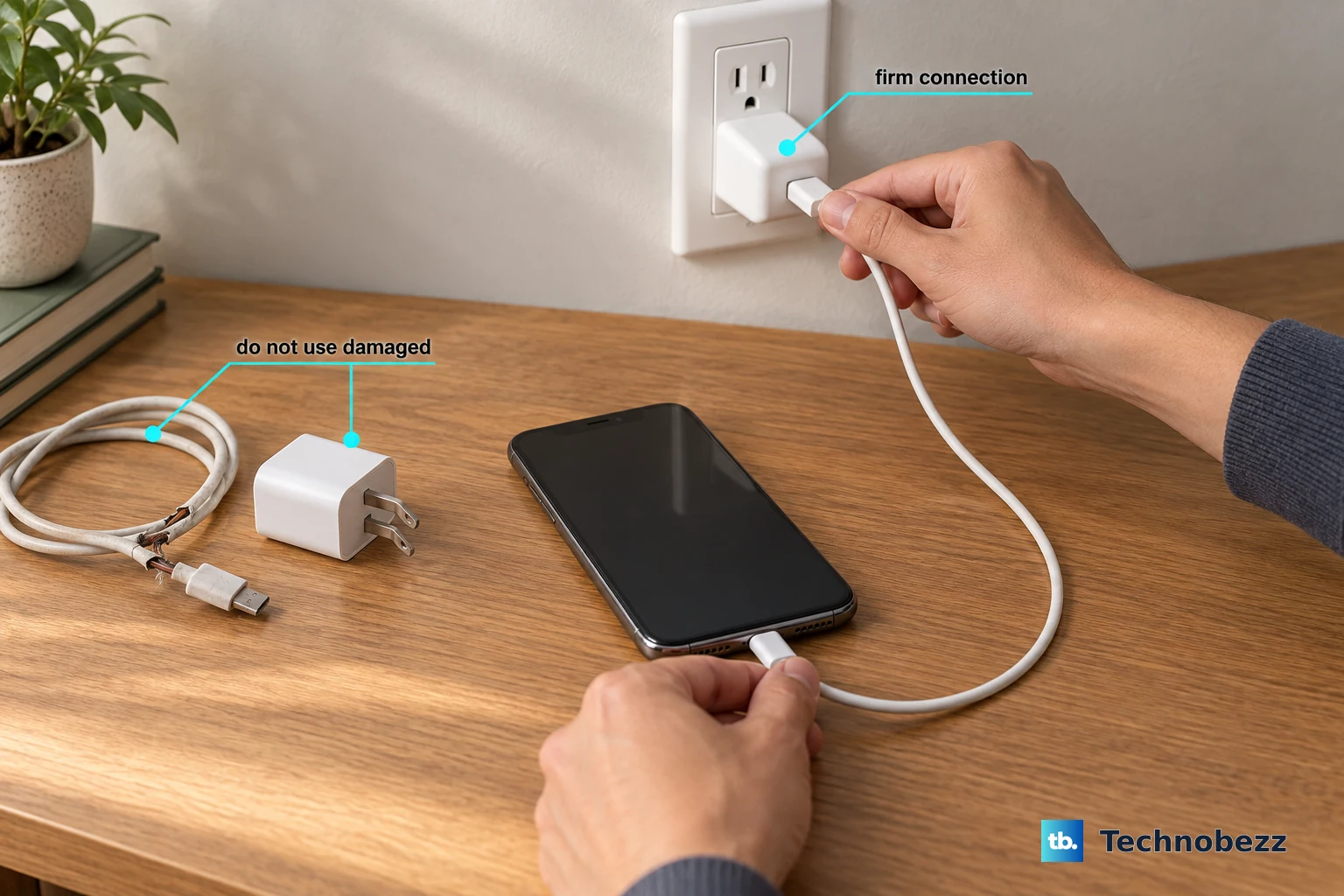
You need to figure out if the problem is with your cable, your wall adapter, or the outlet itself. The best way is to test each component one by one. Start by trying a different Lightning cable, and make sure it's an Apple-certified or MFi one.
Next, test with a different wall adapter. For fast charging on the iPhone 14, use a 20W or higher USB-C power adapter with a USB-C to Lightning cable. You can also try plugging the cable into a computer's USB port to see if it recognizes the connection. Don't forget to try a different wall outlet, too, in case the first one is faulty.
Look for Liquid Detection Alerts
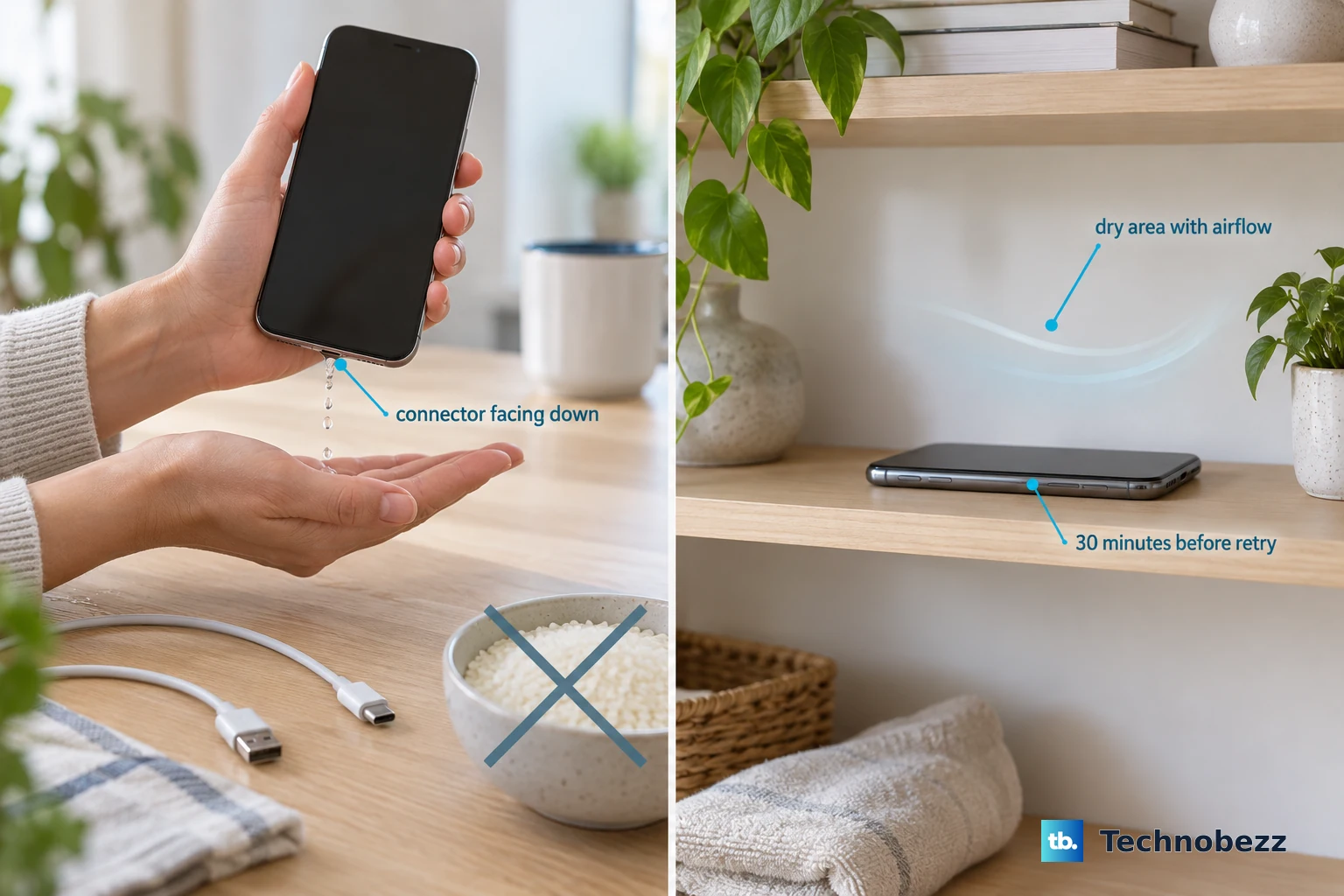
If your iPhone 14 has been exposed to moisture, it might be blocking a charge to protect the hardware. When liquid is detected while connecting a charger, you may see "Charging not available." If you see this, don't reconnect the cable until the phone and cable are dry.
Unplug everything immediately and leave the phone in a dry area with airflow. You can gently tap the phone against your hand with the Lightning connector facing down to help remove droplets. Wait at least 30 minutes before trying the cable again; if the alert returns, drying may take up to 24 hours. In the meantime, you can use a MagSafe or Qi wireless charger if the back of your phone is dry.
Try MagSafe or Wireless Charging
If charging through the Lightning cable isn't working, try wireless charging to see whether your phone can charge another way. The iPhone 14 supports both standard Qi wireless charging and Apple's faster MagSafe charging. Place your phone on a MagSafe charger and let the magnets snap it into alignment.
Keep in mind that wireless charging generates more heat. If your iPhone gets too warm, it will slow down or even pause charging to protect the battery. This is normal, but if it's happening constantly, try charging in a cooler room and remove any thick phone case.
Update to the Latest iOS
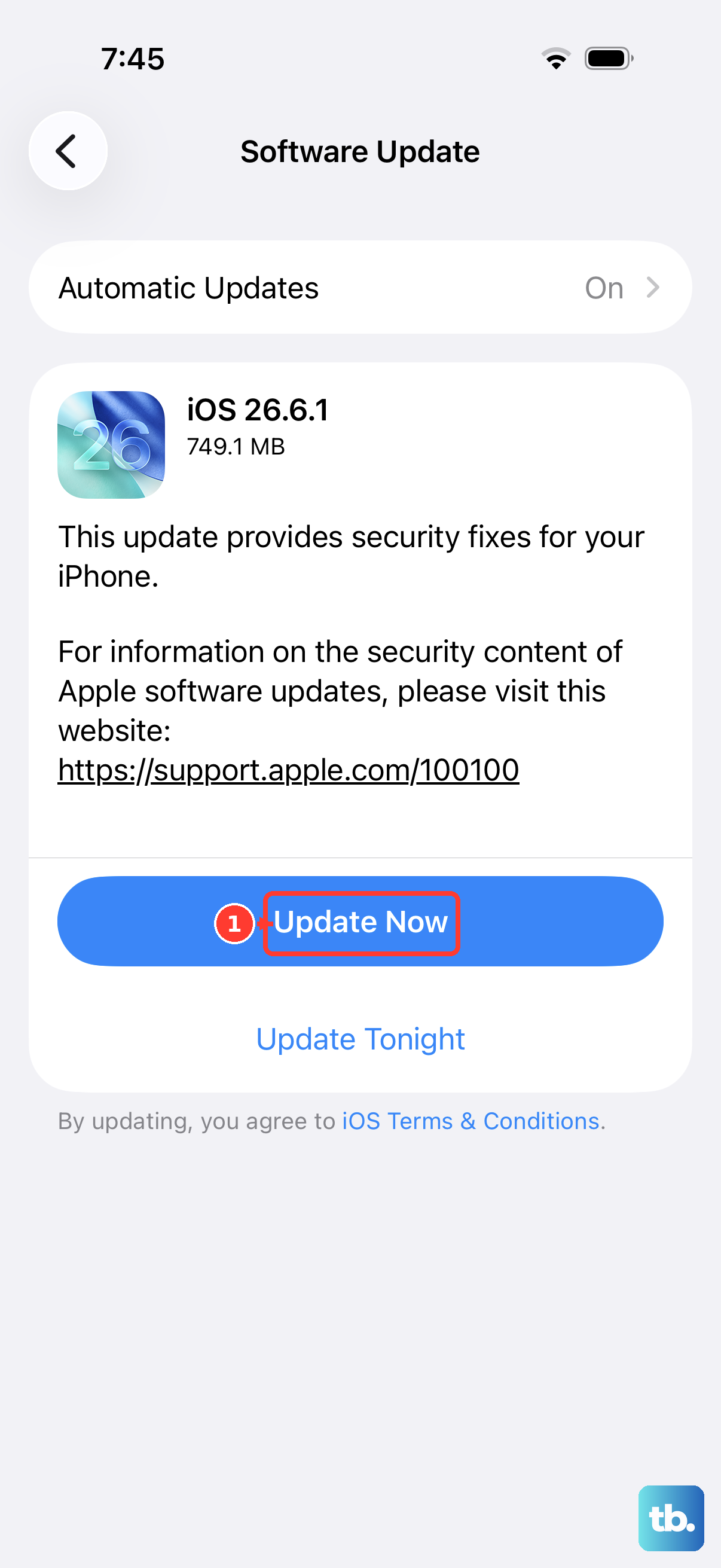
Make sure you're running the latest version of iOS, especially if you see an unsupported-accessory alert. Back up your iPhone first, then connect it to power and Wi-Fi. Go to Settings > General > Software Update and tap Download and Install if an update is available.
If an update won't install on your iPhone, you can try updating it via a computer. Connect your iPhone 14 to a Mac or PC using your Lightning cable. On a Mac with macOS Catalina or later, open Finder. On a PC, use the Apple Devices app or iTunes; on an older Mac, use iTunes. If the computer doesn't recognize your iPhone, follow the recovery mode steps below.
Check for Overheating
Your iPhone 14 has built-in temperature protection. If the device gets too hot, it will stop charging to prevent damage to the battery. This can happen if you're using it in direct sunlight, running intensive apps, or using a wireless charger in a warm environment.
If the phone feels unusually hot to the touch, unplug it and move it to a cooler spot. Let it cool down for a while, then try charging again. Remove any case during charging if overheating is a recurring issue.
Charge with the Phone Turned Off
Using intensive apps while charging can slow charging down. You can turn your iPhone 14 off before connecting it to power. Press and hold the Side button and either volume button, then slide to power off. Once it's off, plug it into your charger.
Leave it connected for half an hour, then check whether it turns on or charges. If it turns on while connected, limit intensive apps and video streaming during charging. If it still won't charge after the force restart and another half hour on power, arrange service.
Examine Battery Health
All batteries degrade over time. If your iPhone 14's battery health has significantly deteriorated, it may struggle to accept a charge properly. You can check this by going to Settings > Battery > Battery Health & Charging.
Look at the "Maximum Capacity" percentage and the message under "Peak Performance Capability." Normal status reads "Your battery is currently supporting normal peak performance." If charging still fails after the cable, power source, and restart checks, contact Apple or an authorized service provider to have the phone assessed.
Restore Your iPhone Using a Computer
If your computer doesn't recognize your iPhone, or it stays on the Apple logo for several minutes without a progress bar, try recovery mode. Choose Update first if you haven't tried it. Restore reinstalls iOS and erases all data on your phone, so ensure you have a recent backup in iCloud or on your computer first.
To enter Recovery Mode on an iPhone 14, connect it to your computer with a Lightning cable and open Finder on a Mac or the Apple Devices app on a PC. Quickly press and release the Volume Up button, then quickly press and release the Volume Down button. Press and hold the Side button until the "Connect to computer" screen appears. Choose Update first if you haven't tried it; use Restore if needed. If recovery mode can't update or restore the phone, arrange service.