


Press and quickly release the volume up button, then press and quickly release the volume down button. Immediately press and hold the side button until you see the Apple logo appear. This force restart is the go-to fix for an unresponsive iPhone 13 screen and can clear up temporary software glitches.
Start with this if the screen is black or frozen. Keep holding the side button until the Apple logo appears; this might take longer than 10 seconds. If touch starts working again, you can try the Settings steps below. If the phone doesn't turn on, try charging it next.
Charge Your iPhone 13 Properly
Plug your phone into a wall outlet using a compatible power adapter and a certified Lightning cable. Check that the cable is connected firmly and the port isn't obstructed by lint. If touch stops working while connected, disconnect the accessory. If touch returns, try a different outlet, cable, or charger.
Let it charge for at least an hour. If the battery was completely drained, you might not see the charging symbol right away. Try using a MagSafe charger as well, as the magnetic connection can sometimes work when the physical port is having issues.
If your iPhone 13 is over two years old, battery degradation is common. You can check its health by going to Settings > Battery > Battery Health & Charging. Check Maximum Capacity and the message under Peak Performance Capability for information about the battery's condition.
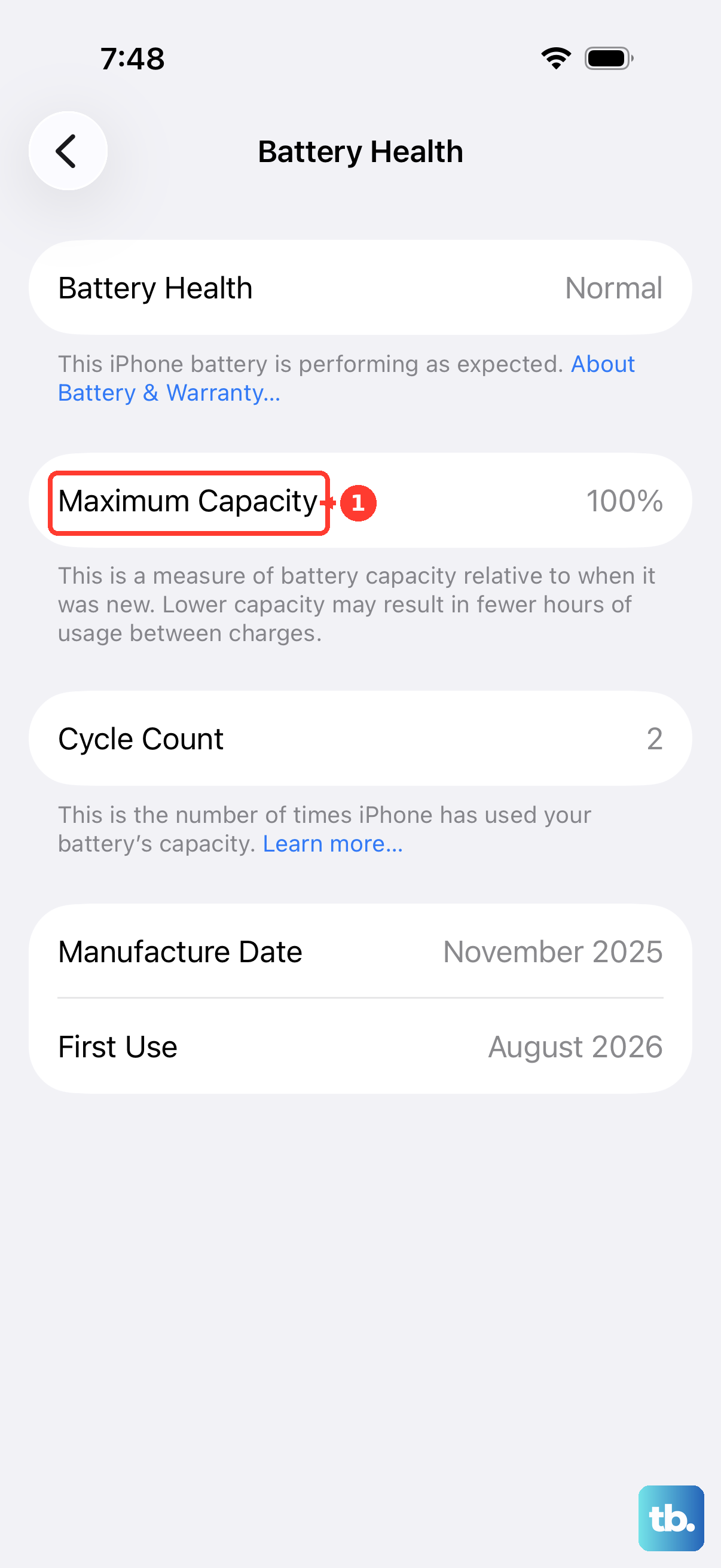
Check for a Software Update
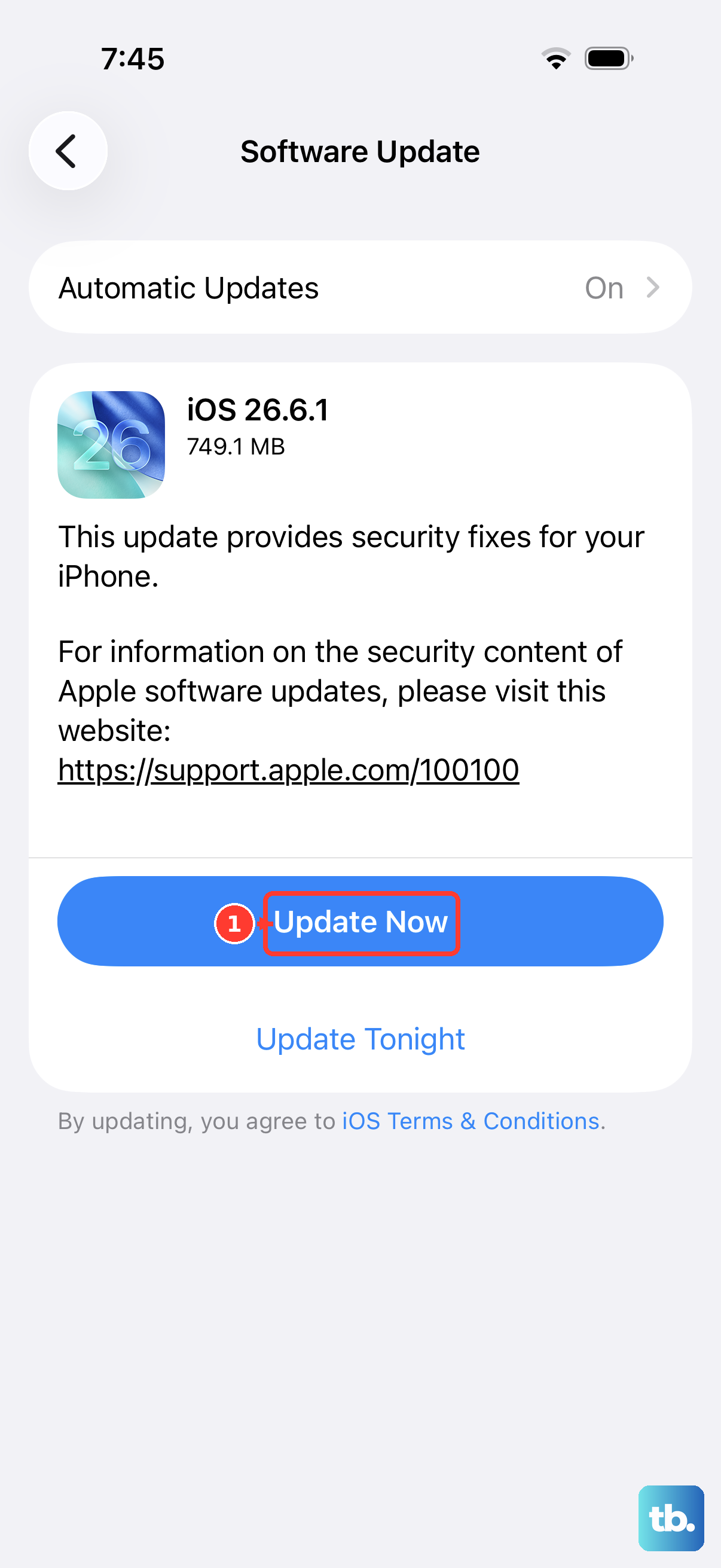
If your screen is working but intermittently unresponsive, a software bug might be the cause. Connect your iPhone to power and Wi-Fi. Go to Settings > General > Software Update.
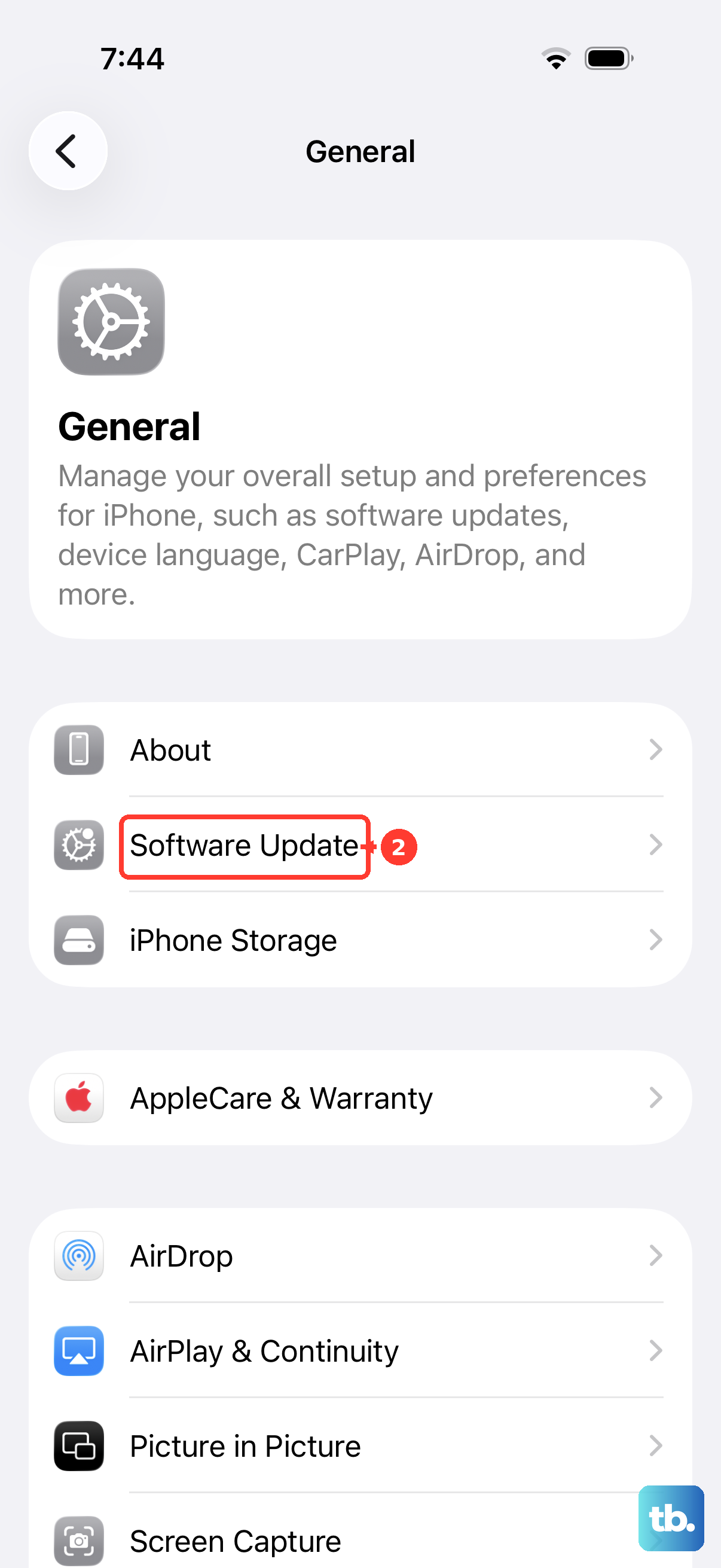
Download and install any available updates. iOS updates can include bug fixes for display and touch sensitivity issues. Keeping your iPhone 13 on the latest version of iOS can help resolve software problems.
Clean the Screen and Remove Any Case or Screen Protector
Turn off your iPhone and wipe the screen clean with a soft, slightly damp, lint-free cloth. Dirt, oil, or moisture can interfere with the touch sensors. Pay special attention to the edges of the display.
Remove your case and any screen protector. A poorly fitted case or a thick, cheap screen protector can sometimes press on the edges of the screen and cause it to stop registering touches. Test the screen's responsiveness with everything off.
Enter and Exit Recovery Mode
Recovery mode lets you update or restore iOS if your iPhone stays on the Apple logo for several minutes without a progress bar, isn't recognized by a computer, or shows the Connect to computer screen. First, update your Mac or the Apple Devices app on Windows. Connect your iPhone 13 with a Lightning cable and open Finder (on Mac) or the Apple Devices app (on Windows).
Quickly press and release the volume up button, then the volume down button. Then, press and hold the side button. Don't release it when you see the Apple logo. Keep holding until you see the recovery mode screen (a cable pointing to a computer icon).
On your computer, you'll get an option to "Update" or "Restore." Choose "Update" first if you haven't tried it; "Restore" reinstalls iOS and erases all data. Keep your phone connected. If the download takes more than 15 minutes and the phone leaves the recovery screen, let the download finish, then repeat the button steps.
Perform a Factory Reset via Find My
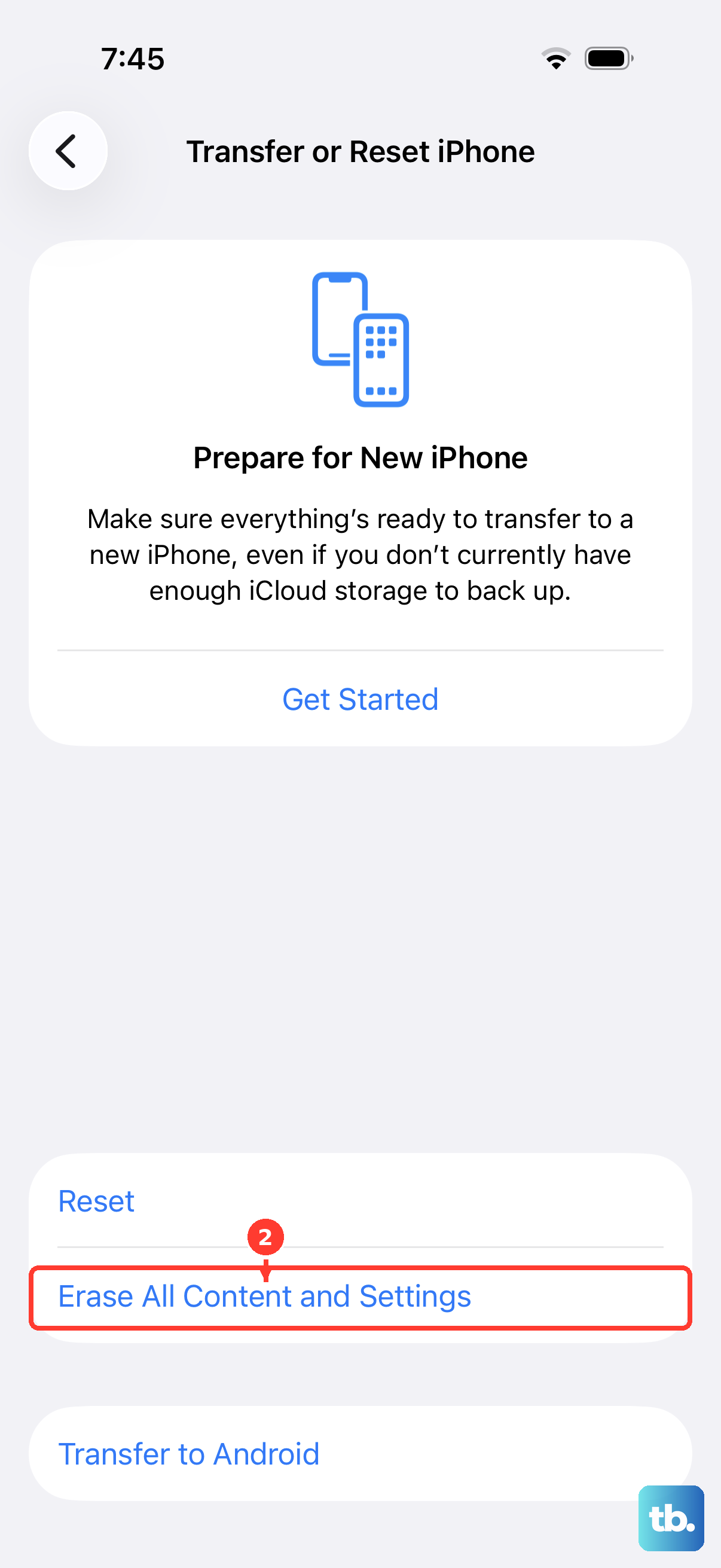
If you can't use the screen at all but know your Apple Account credentials, you can erase the phone remotely. This is a last resort, as it will delete everything on the device. On another device, go to iCloud.com or use the Find My app on another Apple device.
Sign in with your Apple Account, select your iPhone 13 from the list of devices, and choose "Erase This Device." This will wipe the phone back to factory settings over the air. After it's erased, you can set it up again and restore from a recent iCloud backup.
Inspect for Physical or Liquid Damage
Look closely at the screen for any new cracks, even tiny ones, or spots of discoloration. Physical damage can cause the display or its digitizer to fail. If the screen still doesn't respond after restarting, cleaning it, disconnecting accessories, and removing the case or screen protector, arrange service.
Check the Lightning port for any debris or signs of corrosion. Use a dry, soft-bristled brush to carefully clean it out. While the iPhone 13 is water-resistant, that resistance can degrade over time, and liquid damage can cause erratic screen behavior.
If you suspect a hardware fault, especially with an older iPhone 13, the issue could be with the display itself or a failing component. The 60Hz display, while reliable, isn't immune to age-related faults.