
If your iPhone 14 screen is stuck in one orientation and won't flip when you turn the phone, you're dealing with a disabled auto-rotate feature. This is usually a quick software setting to fix, not a sign of a broken phone.
The most common fix is toggling the rotation lock. Swipe down from the top-right corner of your screen to open Control Center. Look for the icon that looks like a lock with a circular arrow around it.
If the icon is highlighted in white with a red background, rotation lock is on. Just tap it once to turn it off. The icon should go gray, and your screen should start rotating again in supported apps.
Check the App's Rotation Support
Not every app is designed to work in landscape mode. If your screen rotates fine in your camera or Messages app but stays locked in, say, your banking app, that's the app's design choice.
Developers can lock their apps to portrait mode for a better user experience. There's no setting on your iPhone to override this. The best way to check is to open a different app, like Safari or Photos, and see if rotation works there.
Restart Your iPhone 14
A simple restart can clear out temporary software glitches that might be confusing the accelerometer, which is the sensor that detects your phone's orientation. It's a good second step if toggling the lock didn't work.
Press and hold the side button and either volume button until the power slider appears. Drag the slider to turn your phone off completely. Wait about 30 seconds, then press and hold the side button again until you see the Apple logo.
Force Restart Your iPhone
If a normal restart doesn't do the trick, a force restart is the next step. This is a bit more thorough and can clear deeper system hiccups without erasing any of your data or settings.
On the iPhone 14, you do this by quickly pressing and releasing the Volume Up button, then quickly pressing and releasing the Volume Down button. Finally, press and hold the Side button. Keep holding it even when you see the Apple logo appear, and only let go once you see the startup screen.
Update to the Latest iOS Version
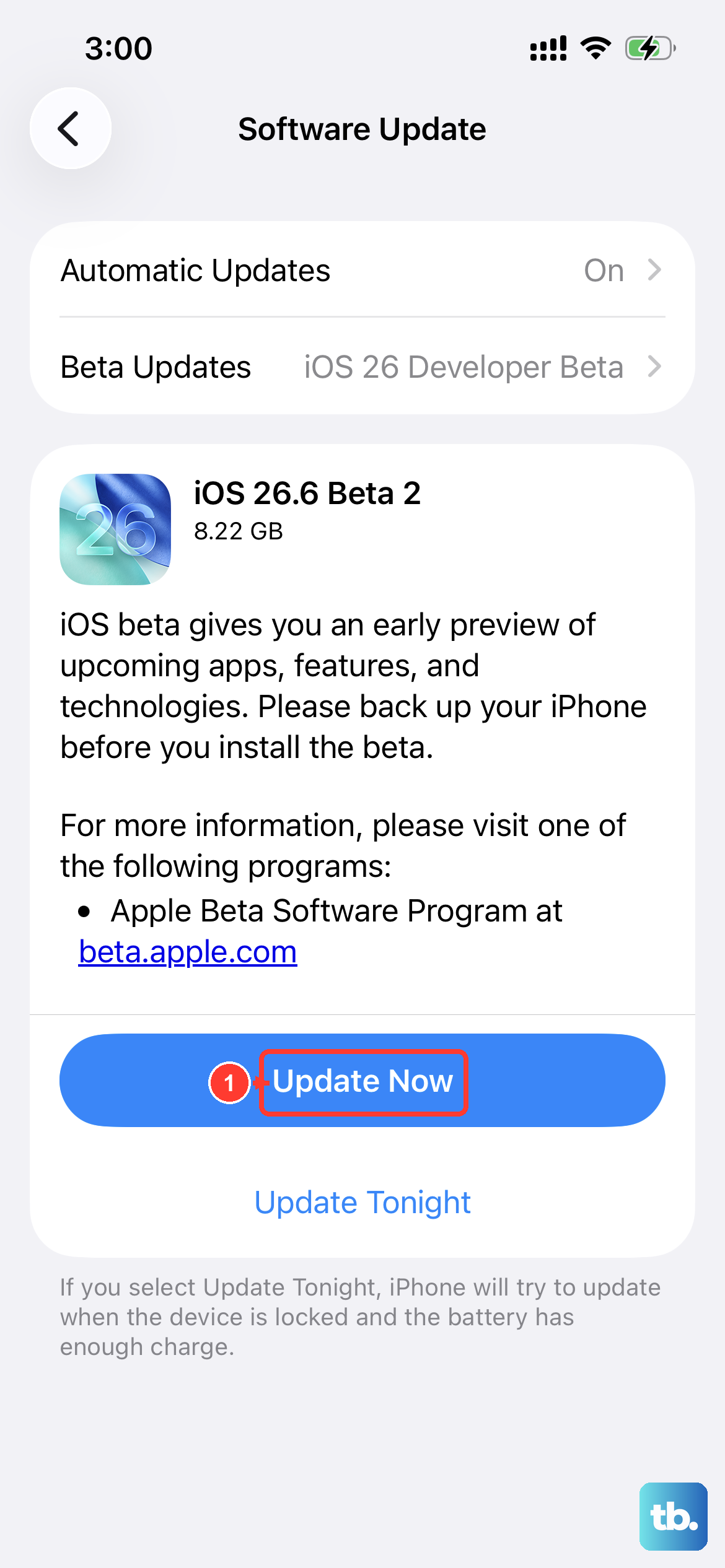
Software bugs in iOS can sometimes cause sensor issues, including problems with auto-rotation. Apple regularly releases updates that fix these kinds of problems.
Go to Settings > General > Software Update. If an update is available, tap "Download and Install." I'd recommend doing this while your phone is connected to Wi-Fi and plugged into power to ensure it completes smoothly.
Check for Physical Obstructions or Cases
Take a close look at your iPhone 14. Is it in a particularly thick or bulky case? Sometimes a case can put pressure on the frame or screen in a way that interferes with the internal sensors.
Try removing the case and see if the screen rotates normally without it. Also, check the screen for any persistent fingerprints or smudges right near the edges, as unlikely as it seems, this has been known to confuse the touch input.
Reset All Settings
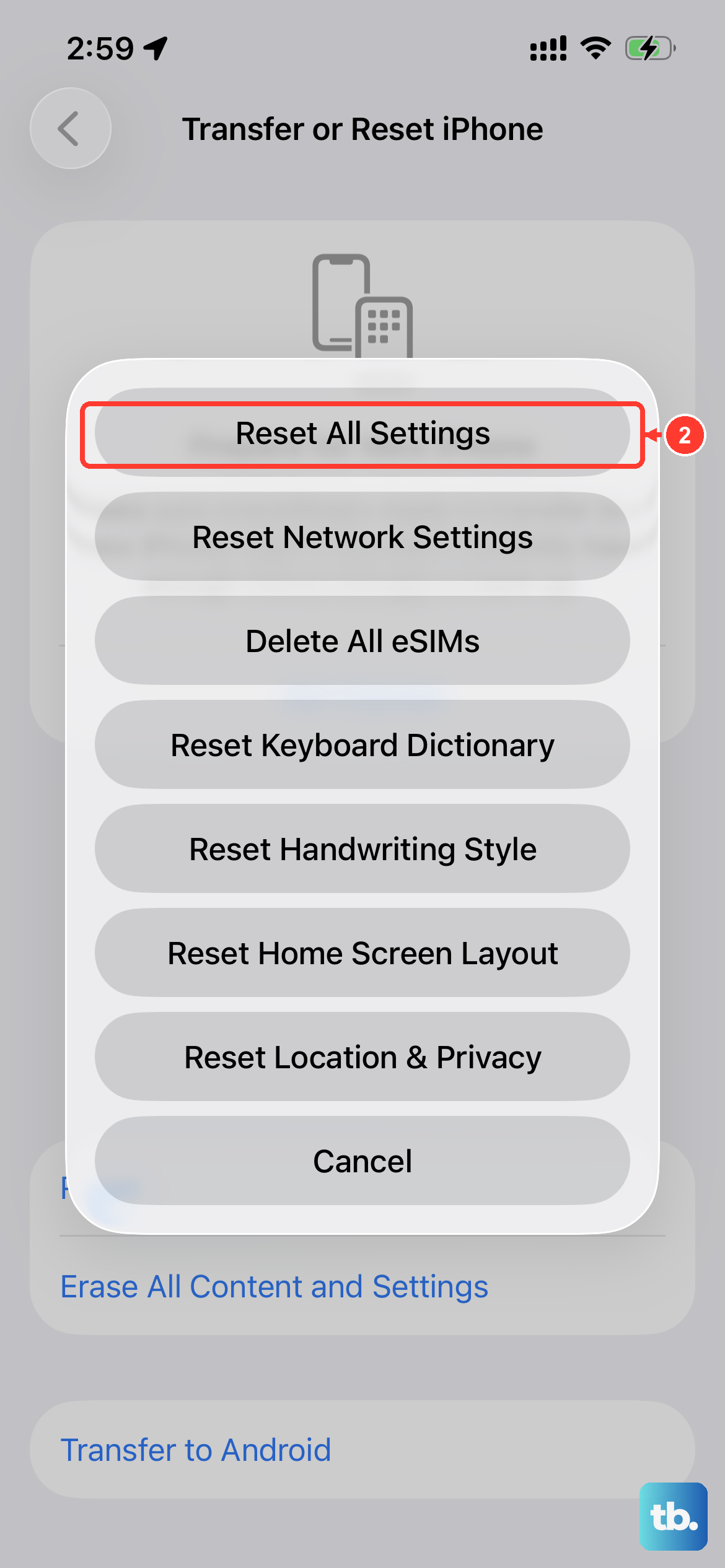
This is a more significant step, but it won't delete your personal data like photos or messages. It will, however, reset all your system settings back to their defaults. That includes Wi-Fi passwords, wallpaper, and display brightness, so you'll have to set those up again.
If the rotation issue is being caused by a corrupted preference file, this will fix it. Go to Settings > General > Transfer or Reset iPhone. Tap "Reset" and then choose "Reset All Settings." Enter your passcode when prompted to confirm.
Test the Sensors in Diagnostics Mode
Your iPhone 14 has a hidden diagnostics mode that can test the gyroscope and accelerometer. To access it, open the Phone app and dial *3001#12345#* and then tap the call button.
This opens the Field Test menu. Look for an option related to "Sensor" or "Accelerometer." The exact layout can vary between iOS versions. If the diagnostic reports a sensor failure, the issue is likely hardware-related.











