
If your iPhone 17 Pro screen is stuck in one orientation and won't rotate when you turn it, you're dealing with a surprisingly common glitch. It usually comes down to a setting that got toggled off or a temporary software hiccup.
I'd start by checking the most obvious fix, which solves this for most people. Swipe down from the top-right corner of your screen to open Control Center and look for the rotation lock icon. If it's highlighted in white with a lock symbol, tap it to turn it off. That's the quickest way to get your screen rotating again.
Check Rotation Lock in Control Center
The rotation lock is the number one culprit. When it's on, your iPhone 17 Pro's screen will stay locked in portrait mode no matter how you hold it. You can find this toggle in Control Center, which you access by swiping down from the top-right notch.
Look for the icon that looks like a circular arrow with a lock in the center. If it's lit up white, that means rotation lock is active. A single tap will turn it off, and the icon should go dim. Try rotating your phone into landscape after disabling it to see if that did the trick.
Verify Auto-Rotate is Enabled in Settings
While the Control Center toggle is the main switch, there's a deeper setting that can sometimes get out of sync. Head into your iPhone's Settings app and navigate to Accessibility > Touch. Scroll down and look for an option called "Shake to Undo."
On iPhone there is no separate rotation switch here. Unlike Android, iOS controls screen orientation only through the Portrait Orientation Lock button in Control Center, and "Shake to Undo" has nothing to do with rotation. So if the Control Center toggle is already off and the screen still won't rotate, there's no hidden Settings switch to change and you can move on to the fixes below.
Force Restart Your iPhone 17 Pro
If the settings look correct but rotation still isn't working, a force restart can clear out any minor software bugs that are interfering with the sensors. This doesn't delete any data, it just gives the system a fresh start.
On the iPhone 17 Pro, you force restart by pressing and quickly releasing the Volume Up button, then quickly pressing and releasing the Volume Down button. Immediately after that, press and hold the Side button. Keep holding it until you see the Apple logo appear, then let go. Wait for your phone to reboot completely before testing rotation again.
Test Rotation in Different Apps
Sometimes the issue isn't with your phone, but with a specific app. Not all apps support landscape mode, and some have their own internal rotation locks. Open a few different apps like Safari, Photos, or Messages to see if the problem is universal.
If rotation works perfectly in Apple's native apps but fails in a third-party app like Instagram or Facebook, the problem is likely with that app. Try checking that app's own settings for a rotation lock, or force-closing and reopening it. Updating the problematic app from the App Store can also resolve compatibility issues with iOS 26.
Update to the Latest iOS Version
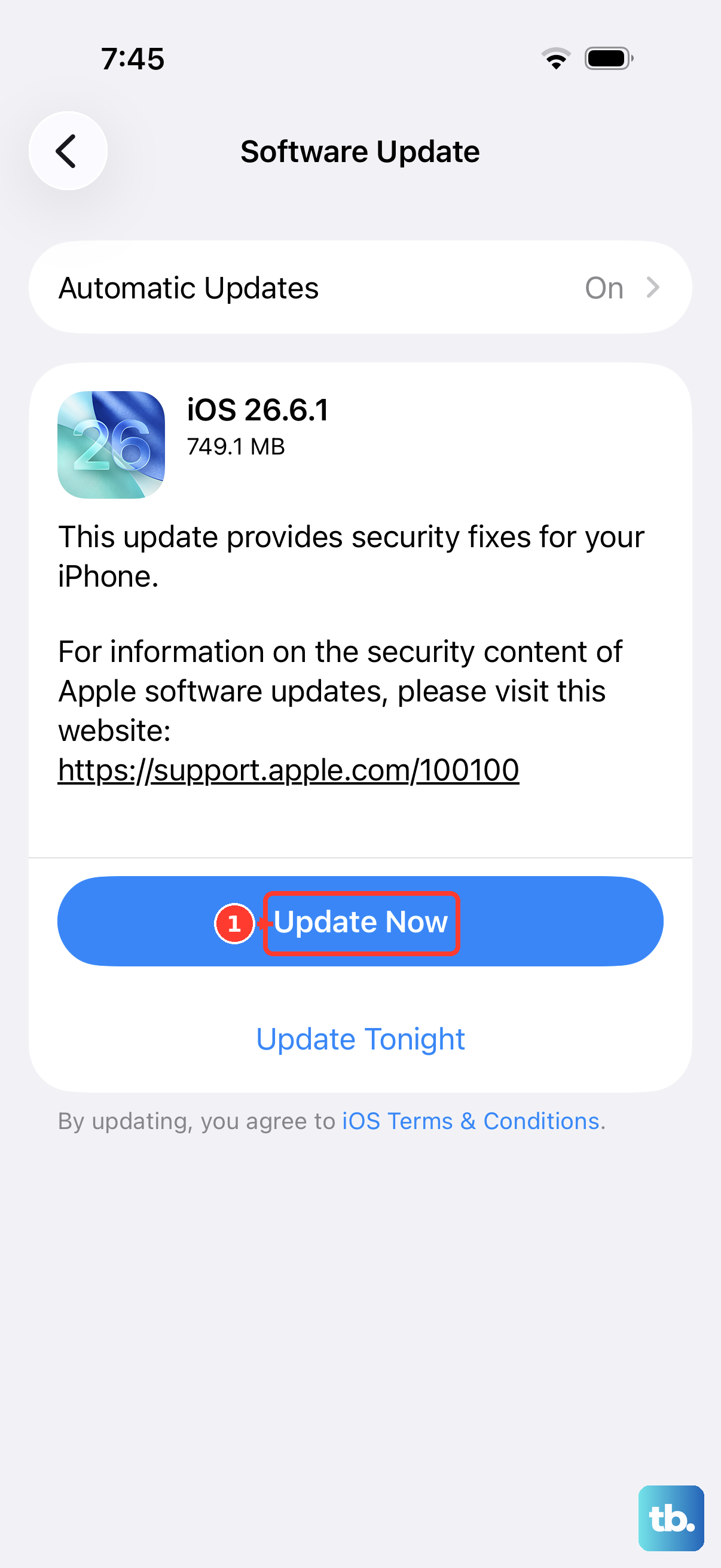
Software bugs in iOS can occasionally break core functions like auto-rotation. Apple is usually quick to patch these in point updates. Make sure your iPhone 17 Pro is running the latest version of iOS 26.
Go to Settings > General > Software Update. Your phone will check for any available updates. If one is listed, tap "Download and Install." It's a good idea to plug your phone into power using your USB-C cable or a MagSafe charger during this process, as some updates won't install without sufficient battery.
Check for Physical Obstructions or Cases
This might sound simple, but it's worth checking. A very thick or poorly designed case can sometimes press against the screen edges or frame in a way that the phone interprets as a constant touch, which can prevent rotation. Try removing your case and see if the screen rotates normally without it.
Also, ensure the screen itself is clean and dry. Moisture or a significant amount of dirt on the screen can confuse the touch sensors. Give your iPhone 17 Pro's display a wipe with a soft, lint-free cloth and try again.
Test the Gyroscope and Accelerometer
Auto-rotation relies on two internal sensors: the gyroscope and the accelerometer. If you've tried everything else and rotation is still broken, there are ways to test these. While iOS doesn't have a built-in diagnostic menu like the old dialer codes, you can use a free sensor testing app from the App Store.
Search for "sensor test" or "gyroscope test" and download a reputable, well-reviewed app. These apps will give you live readings from the sensors. Tilt and rotate your phone; if the values on the screen change responsively, your hardware is likely fine and the issue is purely software-based.
Reset All Settings
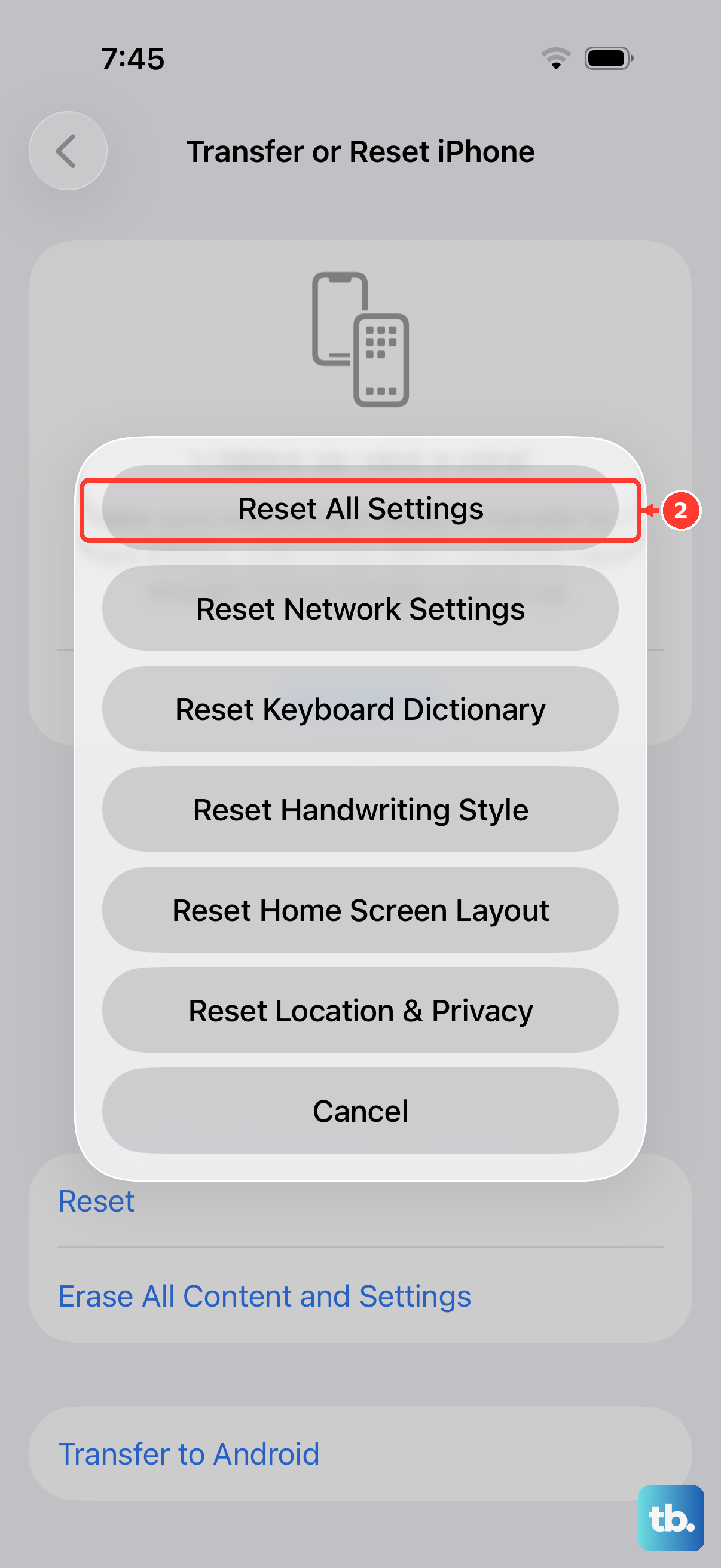
This is a more thorough step if nothing else has worked. Resetting all settings will revert every system preference on your iPhone 17 Pro back to its factory default. This includes network settings, privacy permissions, keyboard dictionaries, and, crucially, display and rotation settings.
It won't delete any of your personal data like photos, messages, or apps. To do this, go to Settings > General > Transfer or Reset iPhone. Tap "Reset" and then choose "Reset All Settings." You'll need to enter your passcode. After the phone restarts, you'll need to reconfigure things like Wi-Fi passwords and wallpaper, but it often clears persistent glitches.











