
If your iPhone 16 Pro screen is stuck and won't rotate when you turn it sideways, you're not alone. This is a common glitch that can happen to any iPhone, and it's usually a quick software setting or a temporary bug.
Let's start with the most likely fix. Pull down from the top-right corner of your screen to open Control Center. Look for the icon that looks like a lock with a circular arrow around it. If it's highlighted in white with a red background, that's Portrait Orientation Lock, and it's preventing rotation.
Just tap that icon once to turn it off. The red background should disappear. Now, try opening an app like Safari or Photos and tilting your phone to see if it rotates. I'd start with this one, as it solves the issue about 90% of the time.
Force Restart Your iPhone 16 Pro
If the lock wasn't on, the next step is a force restart. This clears out any temporary software glitches that might be freezing the sensors. It doesn't delete any of your data or settings.
On the iPhone 16 Pro, you do this by quickly pressing and releasing the Volume Up button, then quickly pressing and releasing the Volume Down button. Immediately after, press and hold the Side button.
Keep holding the Side button until you see the Apple logo appear, then let go. This can take about 10-15 seconds. Once your phone boots back up, test the rotation again in a compatible app.
Check the App Itself
Not every app supports landscape mode. If your screen rotates fine in Safari but stays stuck in portrait in your banking app, that's likely the app developer's choice, not a problem with your phone.
Try a few different apps to see where the issue occurs. If it's just one app, check the App Store for an update, as the developer may have added rotation support in a newer version. Sometimes, closing and reopening the app can also jog it loose.
Update to the Latest iOS
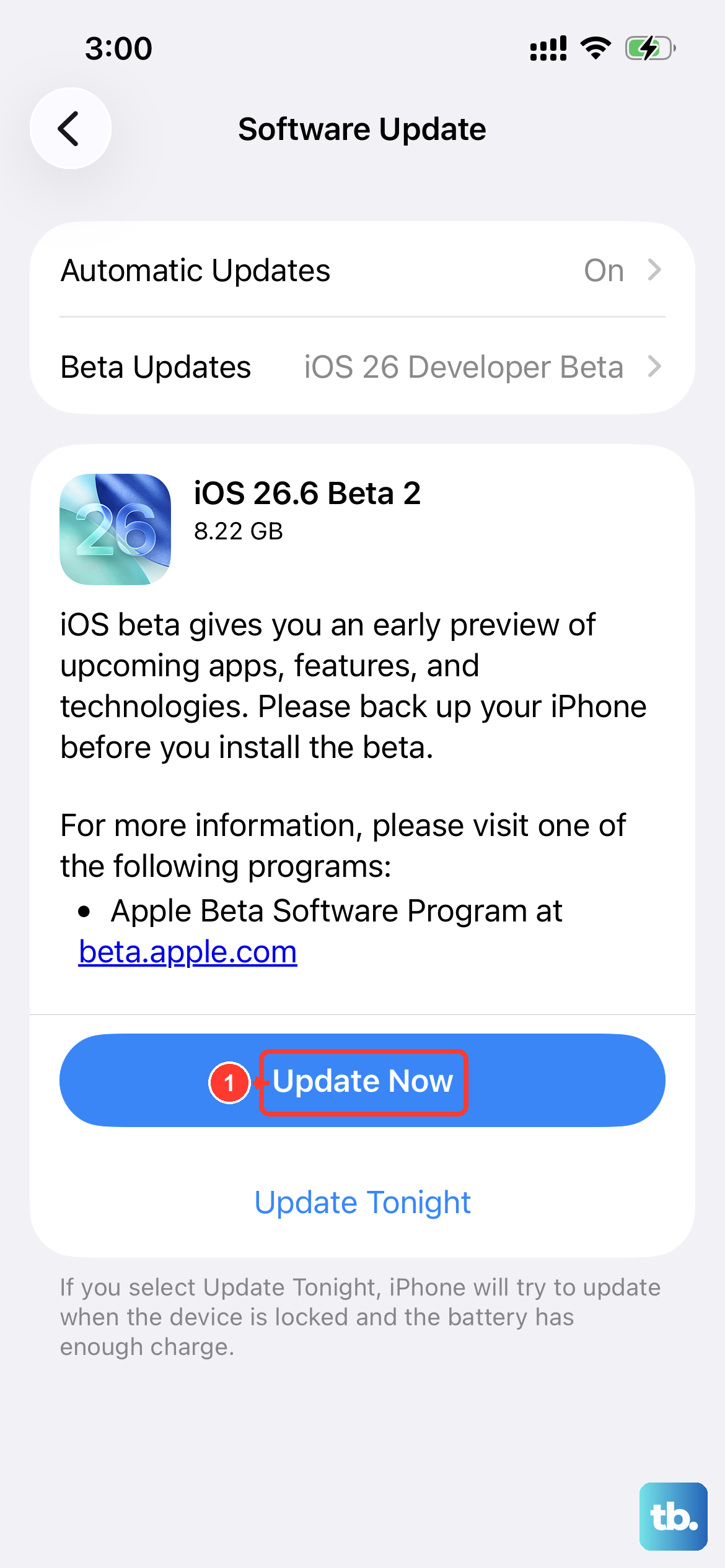
Since you're on iOS 26, Apple is constantly releasing updates that fix bugs. A problem with the gyroscope or accelerometer sensors could be a known issue that's been patched.
Go to Settings > General > Software Update. Your phone will check for any available updates. If one is there, tap "Download and Install." Make sure your iPhone is connected to Wi-Fi and has a good charge, or plug it into power using a certified USB-C cable.
Reset All Settings
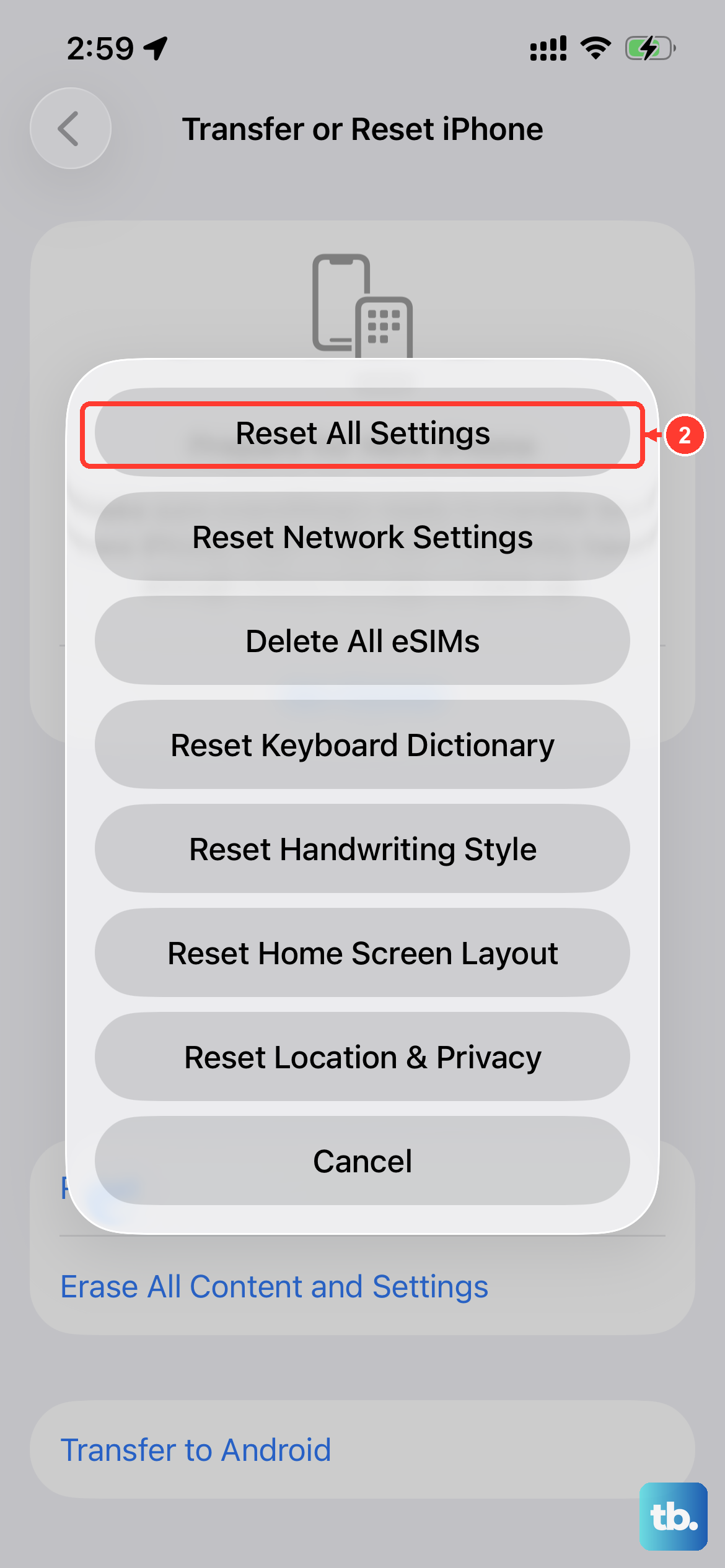
This is a more thorough step if the simple restart didn't work. Resetting all settings will revert your Wi-Fi passwords, wallpaper, and preferences back to default, but it won't touch your photos, messages, or apps.
It can fix deeper configuration conflicts that might be affecting system functions like rotation. To do this, go to Settings > General > Transfer or Reset iPhone.
Tap "Reset" and then choose "Reset All Settings." You'll need to enter your passcode to confirm. After your phone restarts, you'll need to reconnect to Wi-Fi networks and redo some preferences, but it's worth a shot.
Test the Sensors with a Level Tool
Your iPhone uses a gyroscope and accelerometer to detect motion. You can check if these are working by using another app that relies on them. Open the built-in "Measure" app, which uses these sensors.
Switch to the Level tool by swiping along the bottom menu. Place your iPhone on a flat surface; it should read 0 degrees. Now, carefully tilt the phone and see if the measurement changes smoothly.
If the level tool is completely unresponsive or jumps erratically, it could point to a sensor issue. If it works perfectly, the problem is almost certainly software-based.
Check for Physical Obstructions or Cases
This one sounds simple, but it's worth a look. A very thick or poorly designed case can sometimes press against the screen or frame in a way that interferes with the phone's ability to sense its orientation.
Try removing your case and see if the rotation starts working. Also, make sure the screen is clean and that you're not accidentally resting a finger on the edge of the display in a way that the phone interprets as touch input, which can sometimes inhibit rotation.
Consider a Recent Drop or Impact
If your iPhone 16 Pro has taken a recent fall, even a minor one, it's possible the internal sensors were jarred or damaged. The fixes above are all for software, but hardware damage requires a different approach.
If you've tried every step here, including a force restart and resetting all settings, and the sensor test in the Measure app failed, the internal hardware may need service. You can use the Apple Support app to run a remote diagnostic, which can sometimes detect issues with the motion coprocessor.











