


Press and quickly release the volume up button, then quickly press and release the volume down button. Finally, press and hold the side button until you see the Apple logo appear on the screen. This force restart can help with an unresponsive iPhone 15 screen caused by a temporary software freeze.
Try this first if the screen is frozen or black. It doesn't delete any of your data or settings. Keep holding the side button until the Apple logo appears, even if it takes longer than 10 seconds. If the phone still won't turn on, try charging it next.
Charge Your iPhone 15 Properly
Plug your iPhone into its charger using a USB-C cable and a compatible power adapter. A 20W or higher adapter supports fast charging, but isn't required for charging. The iPhone 15 was Apple's first model to switch from Lightning to USB-C, so make absolutely sure you're not trying to use an old Lightning cable by mistake.
If it won't turn on, charge it for one hour, then try the force restart again. If it shows a low-charge battery, check the cable and adapter, then charge it for 30 minutes or until it starts. A completely drained battery can make the screen appear dead even when the phone is trying to turn on. If you have a MagSafe or Qi2 charger, try that as well to see whether the phone charges wirelessly.
If the screen responds again but charging stops at 80%, check the charge limit. Go to Settings > Battery > Charging and see if a charge limit such as "80%" is selected. This limits charging near the selected percentage; it doesn't prevent a drained battery from charging.
Check for and Remove Any Screen Protector or Case
Take off your case and any screen protector. A poorly fitted screen protector, especially a tempered glass one that's lifting at the edges, can interfere with the touch sensors and make the screen seem unresponsive.
If touch responds intermittently, disconnect any USB-C accessories too. If touch works after disconnecting an accessory, try a different outlet, cable, or charger. With the case off, try the force restart sequence again.
Clean the screen itself with a soft, lint-free cloth. Oils, lotion, or moisture on your fingers or the display can sometimes disrupt touch sensitivity, making it feel like the screen isn't working.
Update iOS via a Computer
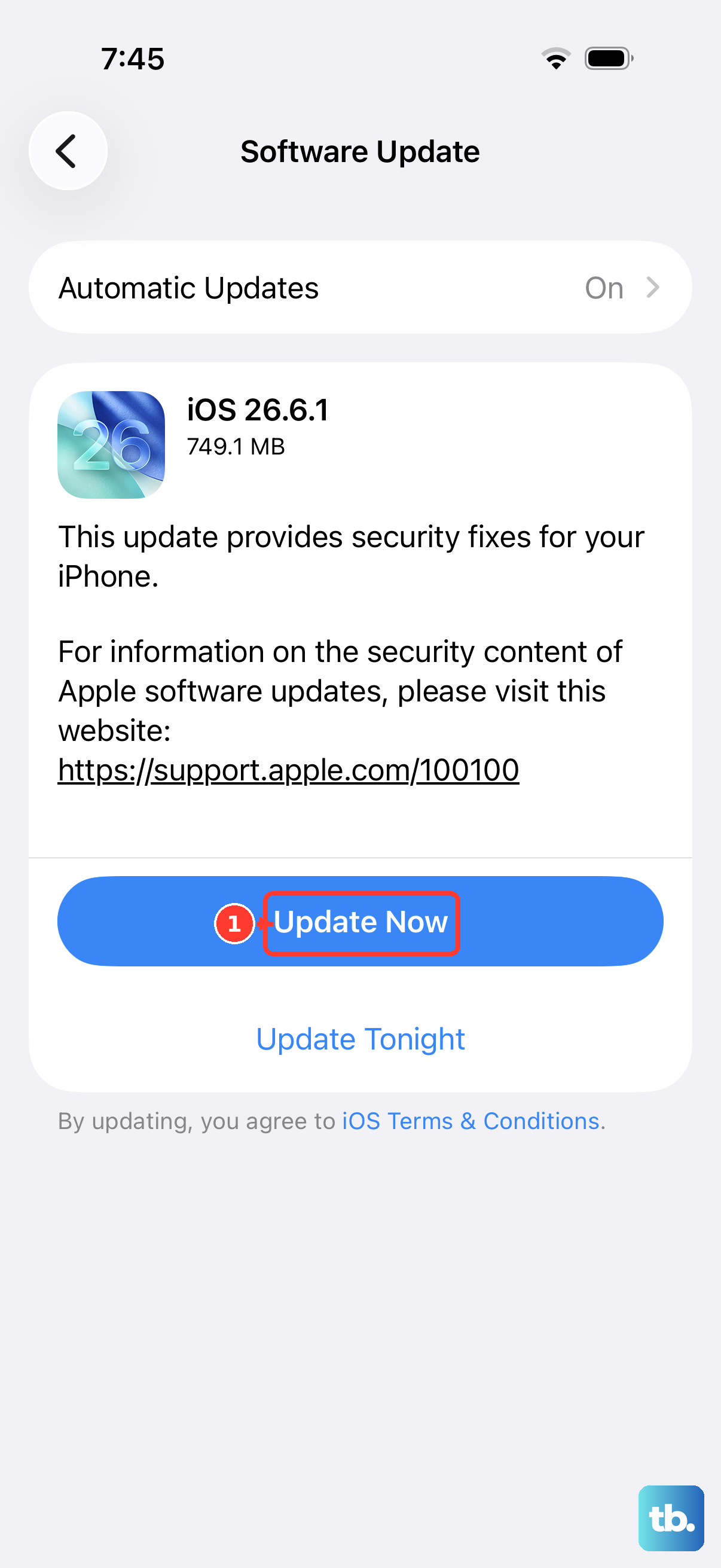
If your screen is partially working, you might be able to update the software. Connect your iPhone 15 to a Mac or Windows PC with a USB-C cable. If prompted, unlock the iPhone and tap Trust; an unresponsive screen may prevent this.
On a Mac with macOS Catalina or later, open a Finder window. On a Windows PC, open the Apple Devices app or iTunes; on an older Mac, open iTunes. Select your iPhone and check for an update. Installing the latest version of iOS can fix software bugs that might be causing the screen to freeze.
If touch works well enough, you can also go to Settings > General > Software Update and tap Download and Install while connected to power and Wi-Fi. Otherwise, a computer update may help if the computer can access your iPhone.
Put Your iPhone Into Recovery Mode and Restore
Restoring will erase your phone, so it's a last resort; entering recovery mode alone doesn't erase it. First, update your Mac or the Apple Devices app on your PC. Connect your iPhone 15 to your computer and open Finder on a Mac or the Apple Devices app on a PC. Then, quickly press and release the volume up button, quickly press and release the volume down button, then immediately press and hold the side button.
Keep holding the side button even after the Apple logo appears. Wait until you see the recovery mode screen (a cable pointing to a computer icon) on your iPhone, then release the button. Your computer will detect a phone in recovery mode.
You'll be given the choice to "Update" or "Restore." Choose "Update" first. This will try to reinstall iOS without erasing your data. If the update fails or isn't available, then you may need to choose "Restore," which will install a fresh copy of iOS and delete everything on the phone.
Inspect the USB-C Port and Cable
If the phone isn't charging, the port is worth a close look. Grab a flashlight and check the USB-C port on the bottom of your iPhone 15. Look for any lint, dust, or debris packed inside.
You can gently clean it out with a dry, soft-bristled brush. Don't use compressed air. Don't use anything metal, as it can damage the delicate pins inside the port. A blocked port can prevent proper charging, leading to a dead battery and black screen.
Also, try a different USB-C cable and power adapter. For a computer update, make sure the cable supports both data and charging. Try the cable that came with your phone, another USB port, or another computer if the iPhone isn't recognized.
Check for Physical or Liquid Damage
Look closely at the screen for any new cracks, even hairline ones, that weren't there before. Internal damage from a drop can disconnect the display cable or damage the digitizer, which controls touch.
Think about whether the phone has been exposed to moisture. While the iPhone 15 is water-resistant, it's not waterproof. Significant liquid exposure can cause corrosion over time that leads to component failure, including an unresponsive screen.
If you see any signs of physical damage or suspect liquid got inside, the issue is likely hardware-related. The checks above cover software freezes, charging problems, and accessories that may interfere with touch. If the screen still isn't working, arrange service.