
When your iPhone 13 doesn't show up on your Windows PC, it can stop you from transferring photos, syncing music, or making a backup. This is a common hiccup, especially with the older Lightning port, but it's almost always something you can fix yourself.
I'd start with the cable and port. Grab a different Lightning cable, preferably an Apple original or an MFi-certified one, and plug it into a different USB port on your computer. If your PC makes a connection sound but nothing appears, the issue is likely software-related on the Windows side.
Check the Connection and Trust Prompt
When you connect your iPhone 13, you should see a "Trust This Computer?" alert on your phone's screen. If you don't, unlock your phone and check for the prompt. If you accidentally tapped "Don't Trust" before, your phone will remember that.
To reset this, go to Settings > General > Transfer or Reset iPhone and tap Reset. Choose Reset Location & Privacy. This will clear all trusted computers, and you'll get the prompt again the next time you connect.
Clean the Lightning Port
The Lightning port on your iPhone 13 can easily collect pocket lint and debris over time, which prevents the cable from seating properly. Shine a flashlight into the port and look for any packed-in dust.
Use a dry, soft-bristled brush or a plastic (not metal) toothpick to gently dislodge any gunk. Be very careful not to damage the delicate pins inside the port. A clean connection often solves the problem immediately.
Restart Your iPhone and Computer
A simple restart can clear out temporary glitches in both devices. First, restart your Windows PC completely. Then, restart your iPhone 13.
For a more thorough reset, try a force restart. Quickly press and release the Volume Up button, then quickly press and release the Volume Down button. Finally, press and hold the Side button until you see the Apple logo appear, then let go. This doesn't erase any data.
Update Your iPhone to the Latest iOS
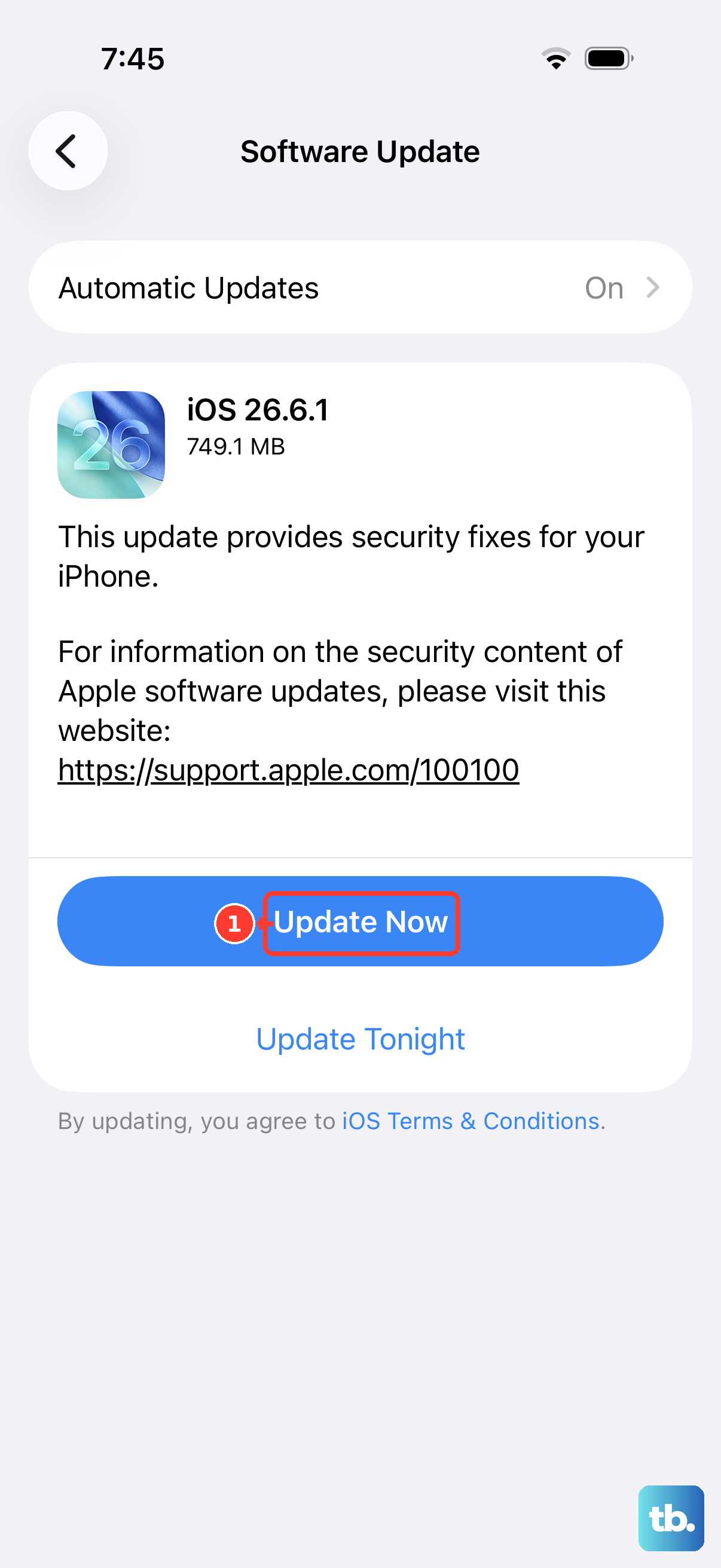
Make sure your iPhone 13 is running the latest version of iOS. Apple frequently releases updates that include bug fixes for connectivity. Go to Settings > General > Software Update.
If an update is available, download and install it. It's a good idea to plug your phone into power during this process. After the update completes, try connecting to your PC again.
Update or Reinstall Apple Mobile Device Support on Windows
Your PC needs the correct Apple driver software to recognize your iPhone. This is usually installed automatically with iTunes or the newer Apple Devices app from the Microsoft Store. Outdated or corrupted drivers are a very common cause.
Open the Device Manager on your Windows PC. Look under "Universal Serial Bus controllers" or "Portable Devices" for any entries related to Apple or your iPhone that have a yellow exclamation mark. Right-click on the device and select "Update driver," then choose "Search automatically for drivers."
If that doesn't work, you can reinstall the support completely. Uninstall any Apple software like iTunes, Apple Devices, or Bonjour from the Windows "Add or remove programs" settings. Then, download and install the latest version of iTunes directly from Apple's website, as this package includes all the necessary drivers.
Try a Different USB Port and Cable
Not all USB ports are created equal. Avoid using USB hubs, keyboard ports, or the front panel ports on a desktop PC. Instead, plug your Lightning cable directly into a USB port on the back of your desktop or a known-good port on your laptop.
As mentioned, the cable itself is a prime suspect. The Lightning connector is notoriously fragile. Try a different cable entirely, and make sure it's capable of data transfer, not just charging. Some cheap third-party cables only handle power.
Check for Windows Updates
Just like your iPhone, your Windows PC needs updates. Major Windows updates can sometimes include important driver or USB subsystem fixes. Open Windows Update and check for any pending updates.
Install all available updates and restart your computer when prompted. After the restart, try connecting your iPhone 13 again before opening any other programs.
Disable Antivirus or Firewall Temporarily
Security software on your PC can sometimes block the connection between Windows and your iPhone. To test if this is the issue, temporarily disable your third-party antivirus or firewall software.
You can usually do this by right-clicking the software's icon in your system tray. Remember to re-enable your protection as soon as you're done testing. If this works, you may need to add an exception for Apple Mobile Device Service in your security software's settings.
Reset Location & Privacy Settings
If the "Trust" prompt isn't appearing, a deeper reset can help. As a reminder, go to Settings > General > Transfer or Reset iPhone > Reset. This time, tap Reset Location & Privacy.
You'll need to enter your passcode. This resets all your location and privacy preferences to factory defaults, so you'll have to re-grant permissions to apps later. Reconnect your phone to the PC, tap "Trust," and see if it appears.
Use the Apple Devices App or iTunes for File Access
If you're just trying to access photos, you might not need your iPhone to show up in File Explorer. Windows should automatically import photos when you connect your phone. Look for a pop-up notification or open the Photos app on your PC.
For full management, using Apple's official software is the most reliable method. Open the Apple Devices app (or iTunes) after connecting your phone. If your iPhone appears there, you can sync, backup, and update it normally, even if it doesn't show as a drive in File Explorer.











