
If your iPhone SE 4 isn't showing up on your PC, the quickest thing to try is a different USB-C cable. Grab one that you know works for data transfer, not just charging, and plug it into a different USB port on your computer. I've seen this simple swap fix the issue more often than not.
After you swap the cable, unlock your iPhone and look for a prompt on the screen asking you to "Trust This Computer." If you don't tap "Trust," your PC won't be able to access your files. This is a common security step that's easy to miss.
Check Your USB-C Cable and Port
Start with the physical connection. The iPhone SE 4 uses a USB-C port, which is more robust than the old Lightning connector, but it can still get clogged with lint. Shine a light into the port on your phone and gently clear out any debris with a dry, soft-bristled brush or a plastic toothpick.
Next, inspect the cable itself. Make sure you're using a cable that supports both power and data. Some cheaper USB-C cables are for charging only. Try the cable that came with your phone, or a certified one from a reputable brand.
Finally, try different USB ports on your computer. Plug directly into a port on the computer's motherboard, usually on the back, instead of a hub or the front panel ports. This ensures a more stable connection.
Restart Your iPhone and Computer
A simple restart can clear out temporary software glitches that are blocking the connection. First, restart your Windows PC or Mac. Then, restart your iPhone SE 4.
If the problem persists, try a force restart on your iPhone. This is different from a normal restart and can resolve deeper issues. On the iPhone SE 4, you press and quickly release the Volume Up button, press and quickly release the Volume Down button, then press and hold the Side button until you see the Apple logo appear.
Trust the Computer on Your iPhone
Every time you connect your iPhone to a new computer, you need to explicitly grant it permission. When you plug in your iPhone SE 4, unlock it and look for a pop-up alert that says "Trust This Computer?" You must tap "Trust" to proceed.
If you accidentally tapped "Don't Trust," you'll need to reset that setting. Disconnect the phone, then go to Settings > General > Transfer or Reset iPhone > Reset. Tap Reset Location & Privacy. The next time you connect, the "Trust" prompt will appear again.
Update Software on Both Devices
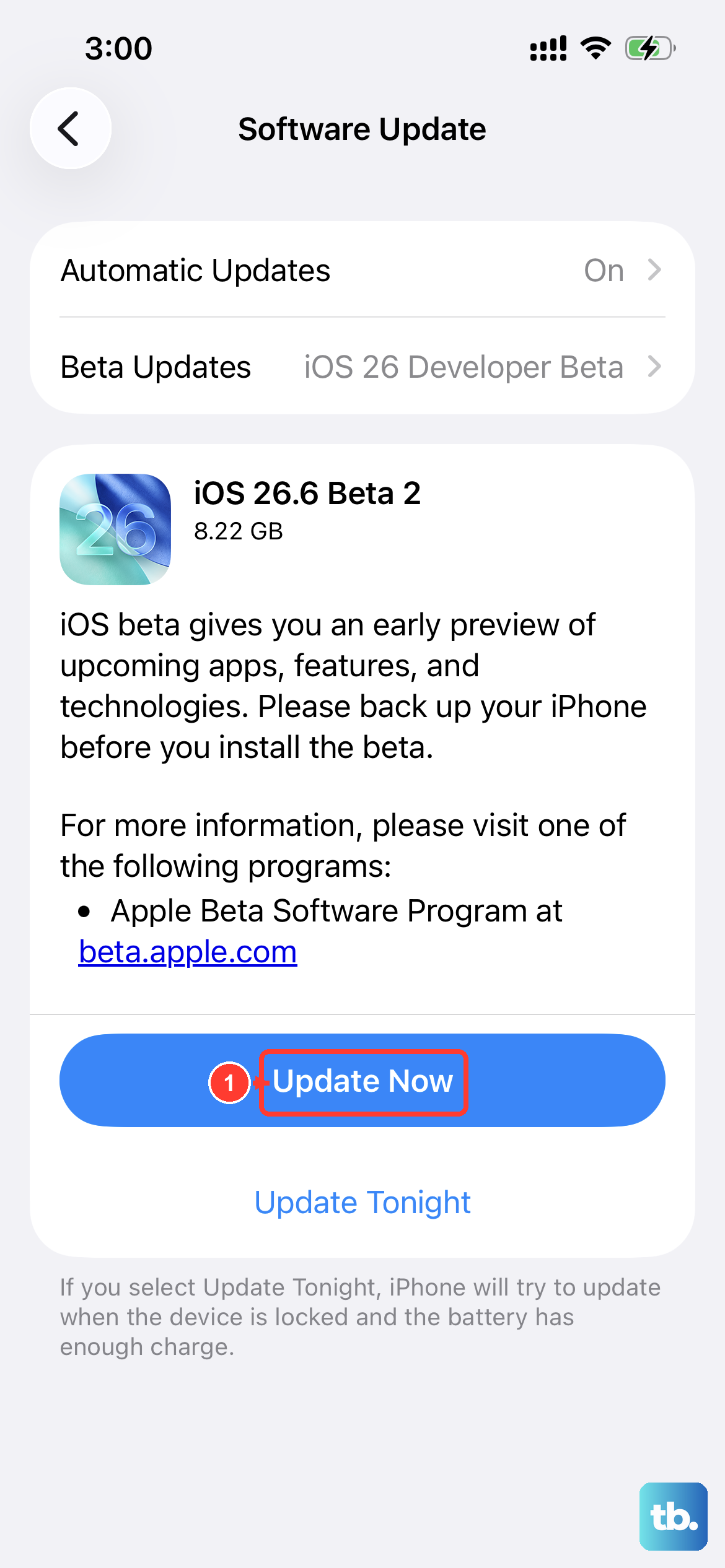
Outdated software is a major cause of compatibility problems. First, check for an iOS update on your iPhone SE 4. Go to Settings > General > Software Update. Install any available updates for iOS 18.
On your Windows PC, make sure you have the latest updates installed. Search for "Check for updates" in the Start menu and run Windows Update. If you're on a Mac, check for updates in System Settings > General > Software Update.
Also, ensure you have the latest version of iTunes if you're on Windows, or the latest version of macOS if you're on a Mac. Apple often releases updates that improve device connectivity.
Check for Driver Issues on Windows
If you're using a Windows PC, outdated or corrupted Apple drivers can prevent your iPhone from being recognized. Open the Device Manager by right-clicking the Start button and selecting it.
Look under "Portable Devices" or "Universal Serial Bus controllers" for your iPhone. If you see a yellow exclamation mark, right-click the device and select "Update driver." Choose "Search automatically for updated driver software."
If that doesn't work, right-click the device again and select "Uninstall device." Then, disconnect and reconnect your iPhone. Windows will attempt to reinstall the driver fresh, which often clears up the problem.
Try a Different Connection Method or App
If direct USB connection is failing, you have other options. For file transfers, you can use iCloud Drive, which syncs files between your iPhone and any computer via a web browser. You can also use AirDrop if you have a Mac.
For a more direct PC-like experience, consider using the Files app on your iPhone. Services like Dropbox, Google Drive, or OneDrive can act as a bridge, letting you upload files from your phone and then download them on your PC.
If you need to create backups or manage media, Apple's official path is through the Finder on Mac (macOS Catalina and later) or iTunes on Windows. Make sure the application is fully updated before you try again.
Reset Location & Privacy Settings
As mentioned earlier, the "Trust This Computer" setting is tied to your location and privacy settings. Resetting them will wipe all trusted computer associations and location-based preferences for apps.
To do this, go to Settings > General > Transfer or Reset iPhone > Reset. Then, select Reset Location & Privacy. You'll need to enter your passcode. After the reset, reconnect your phone and tap "Trust" when prompted.
Check Security Software Interference
Third-party antivirus or firewall software on your PC can sometimes mistakenly block the connection to your iPhone. Try temporarily disabling your security software to see if it's the cause.
In Windows Security, you can turn off real-time protection temporarily. Just remember to turn it back on after testing. If this fixes the connection, you may need to add an exception for Apple Mobile Device Service or iTunes in your security software's settings.
Test with Another Computer
This is a great way to figure out where the problem lies. Try connecting your iPhone SE 4 to a different Windows PC or a Mac. If it connects without issue, then the problem is almost certainly with your original computer's software, drivers, or USB ports.
If your phone won't connect to any computer, then the issue is likely with the iPhone itself, its USB-C port, or its cable. This helps narrow down your troubleshooting focus significantly.











