
When your iPhone 13 won't download apps from the App Store, it can bring your phone to a standstill. You tap the download button and nothing happens, or you get a spinning circle that never finishes. This is a common hiccup, and it's almost always something you can fix yourself without needing a trip to the Apple Store.
Let's go through the most effective fixes, starting with the quickest ones you should try first.
Check Your Internet Connection
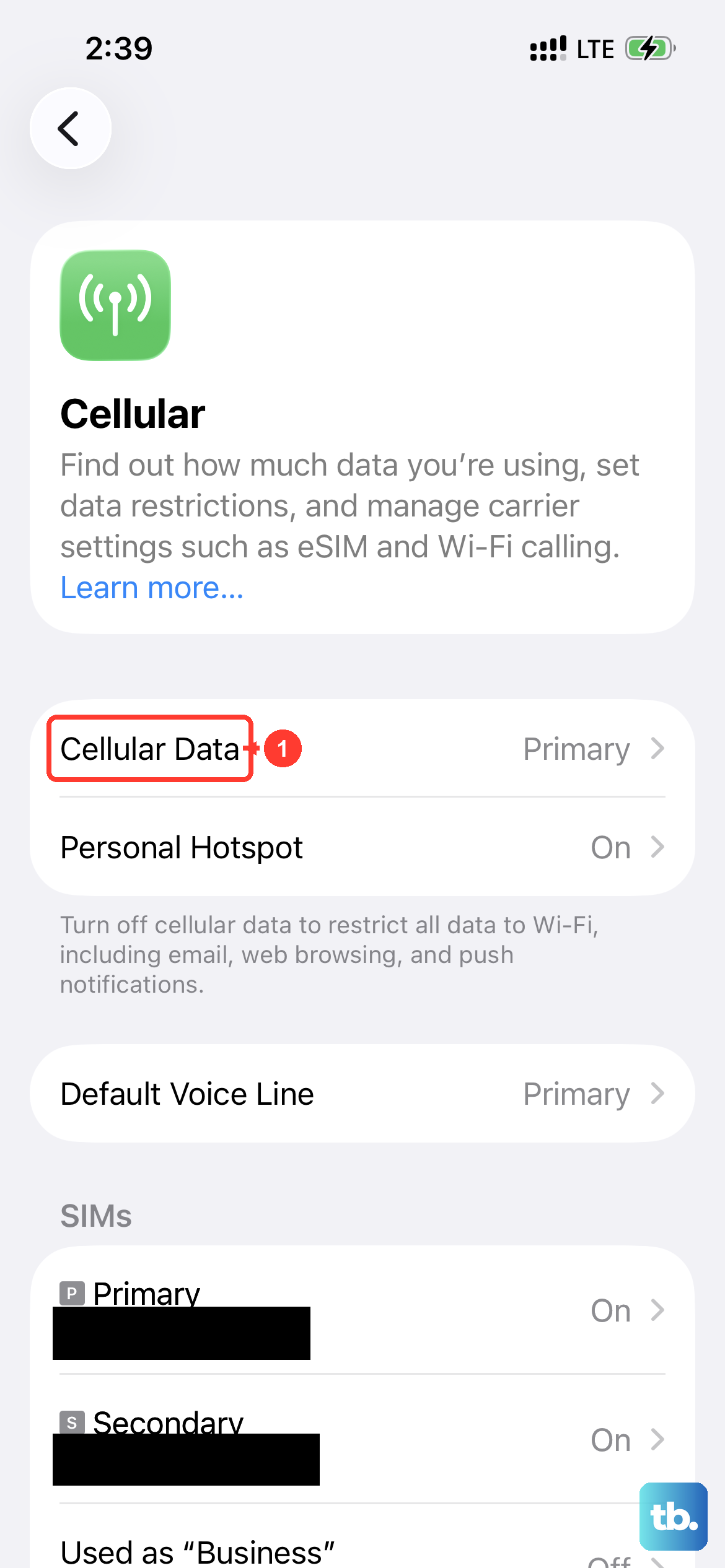
This is the most common reason downloads get stuck. The App Store needs a stable connection, whether you're on Wi-Fi or cellular. First, try opening a website in Safari to see if your internet is actually working.
If you're on Wi-Fi, try toggling it off and back on. Go to Settings > Wi-Fi and tap the switch. For cellular data, go to Settings > Cellular and make sure it's enabled and that you have a strong signal.
Sometimes, a network issue is on Apple's end. You can check Apple's System Status page on another device to see if there are any ongoing outages with the App Store.
Force Restart Your iPhone 13
A simple restart clears out temporary software glitches that can freeze the App Store. For the iPhone 13, a force restart is a bit more specific than just turning it off and on.
Quickly press and release the Volume Up button. Then quickly press and release the Volume Down button. Finally, press and hold the Side button until you see the Apple logo appear on the screen, then let go.
This doesn't delete any of your data or settings. It just gives the system a fresh start, which often gets downloads moving again.
Check Your Date and Time Settings
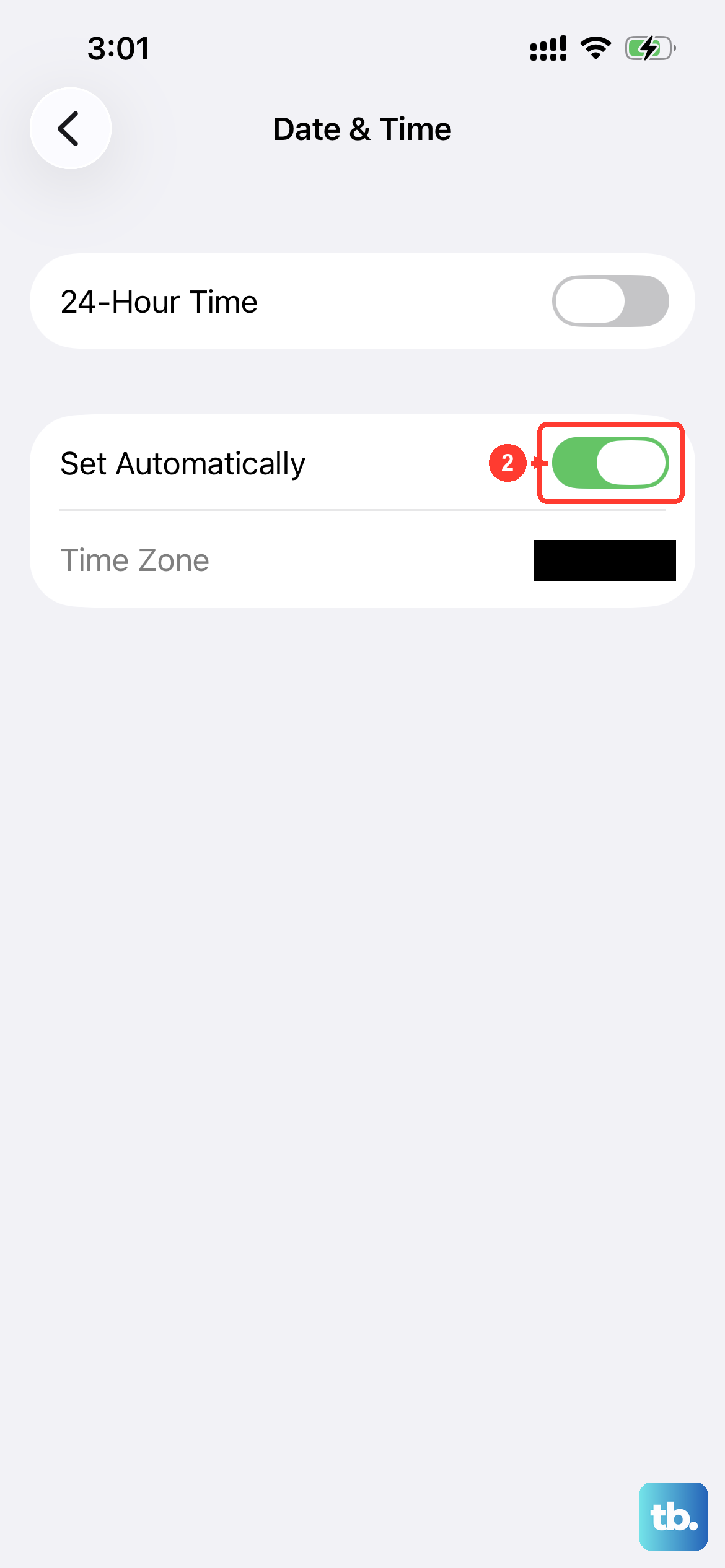
This one catches a lot of people off guard. If your iPhone's date and time are incorrect, it can prevent secure connections to the App Store servers. Your phone needs to know the correct time to verify security certificates.
Go to Settings > General > Date & Time. Make sure the "Set Automatically" option is turned on. If it's already on, try turning it off for a moment, then turn it back on.
This forces your phone to re-sync with the time servers. I've seen this fix work when nothing else would, especially after traveling across time zones.
Sign Out and Back Into Your Apple ID
Your Apple ID is the key to the App Store. If there's a temporary authentication hiccup, signing out can clear it up. Go to Settings and tap your name at the top.
Scroll all the way down and tap "Sign Out." You'll be asked if you want to keep a copy of your keychain, contacts, and calendars on the phone. It's usually fine to leave these on.
After signing out, restart your iPhone 13 using the force restart method above. Then go back to Settings, sign back in with your Apple ID password, and try the App Store again.
Check Your Available Storage Space
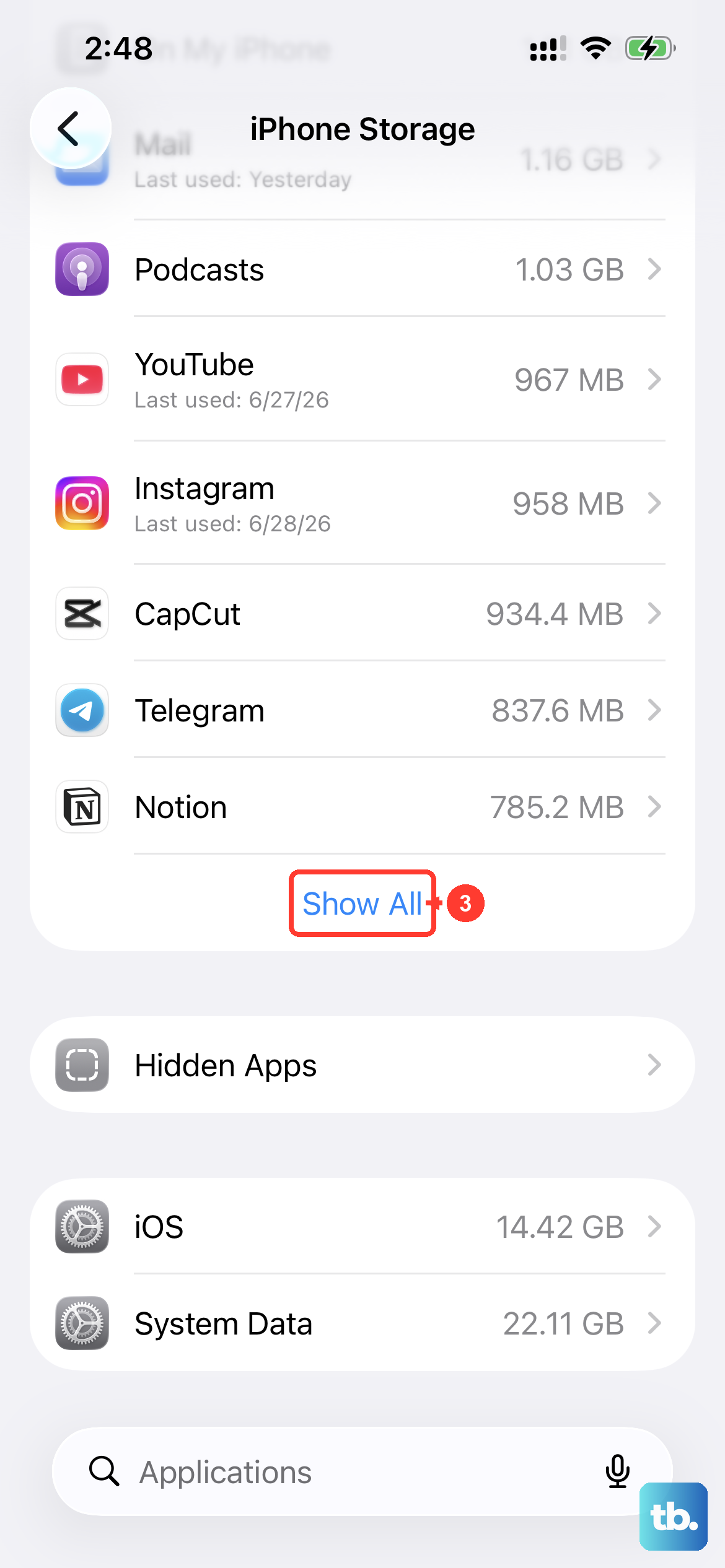
The iPhone 13 can run into slowdowns when storage is nearly full, which can affect downloads. Go to Settings > General > iPhone Storage.
Look at the top of the screen. If you have less than 1GB of space free, you'll likely run into problems. The system needs room to download and unpack the app files.
You can offload unused apps (which removes the app but keeps its documents and data) or delete old messages and photos to free up space quickly.
Update iOS to the Latest Version
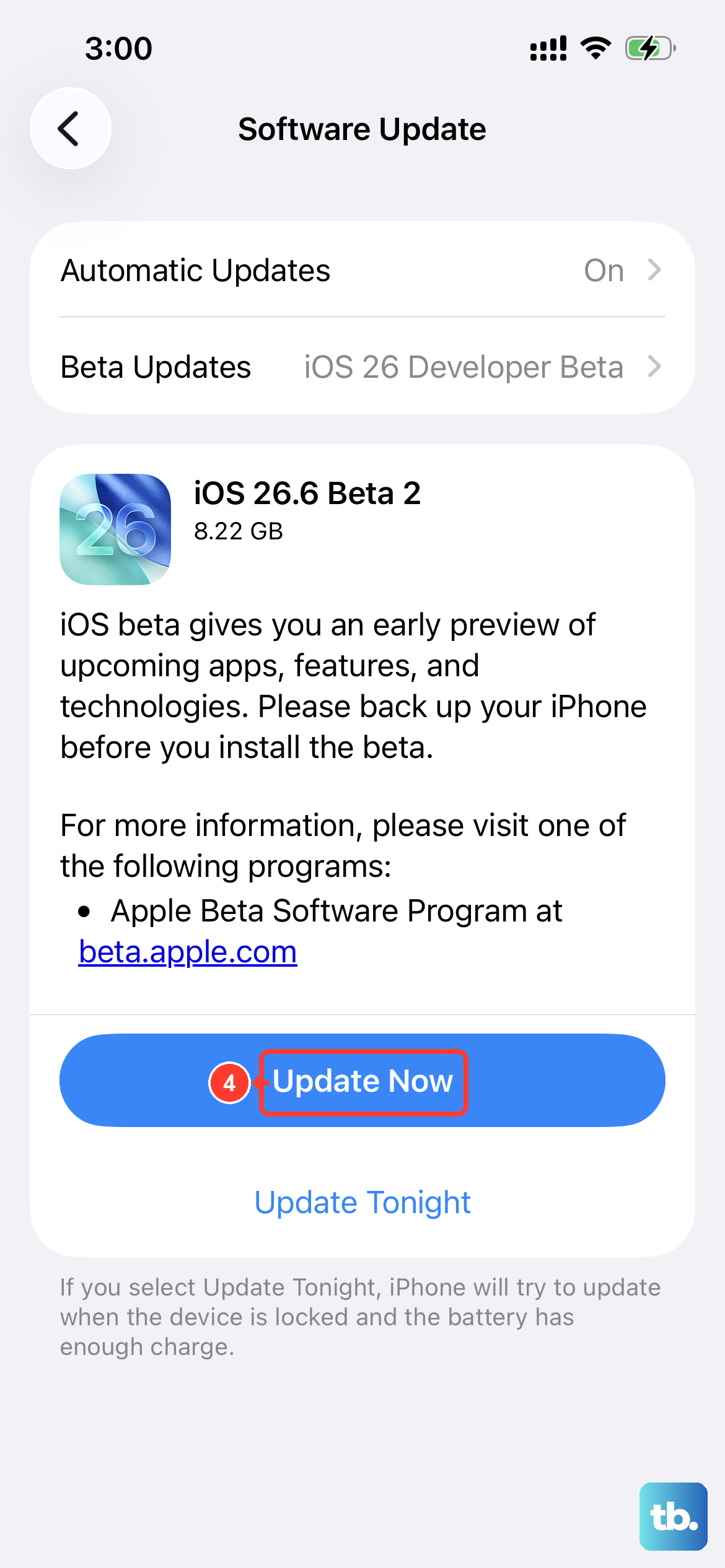
Running an old version of iOS can cause compatibility issues with the App Store. Apple frequently releases updates that include bug fixes for the store itself.
Go to Settings > General > Software Update. If an update is available, tap "Download and Install." Make sure your phone is connected to Wi-Fi and has at least a 50% charge, or plug it into a charger.
Since your iPhone 13 can run iOS 26, it's important to keep it updated. Newer app versions are often built with the latest iOS features in mind.
Reset Your Network Settings
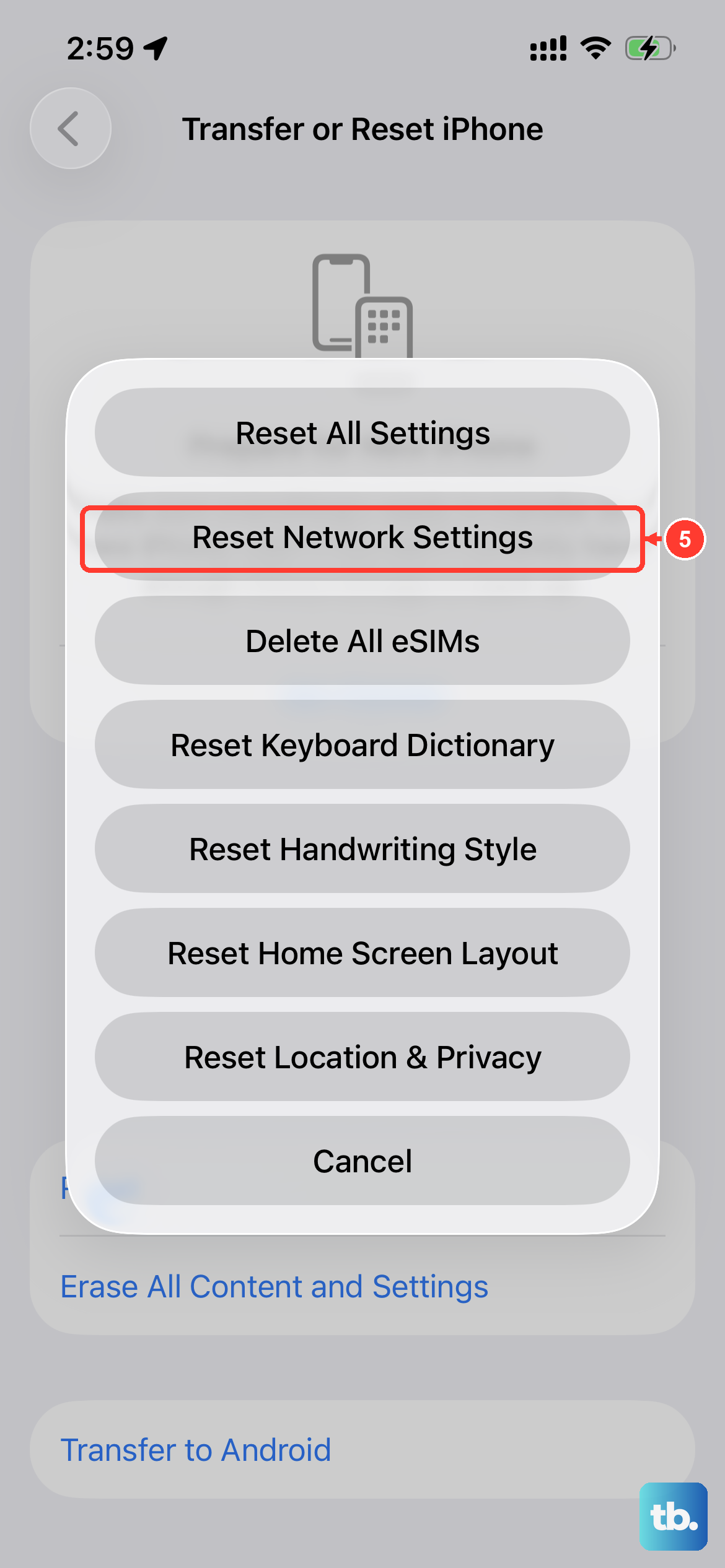
This is a stronger step for connection-related issues. It will erase all your saved Wi-Fi passwords, Bluetooth pairings, and VPN settings, so you'll need to re-enter them.
Go to Settings > General > Transfer or Reset iPhone. Tap "Reset" and then choose "Reset Network Settings." Enter your passcode if prompted and confirm.
Your iPhone will restart. After it boots up, reconnect to your Wi-Fi network and try downloading an app again. This clears out any corrupted network configuration data.
Check Screen Time and Content Restrictions
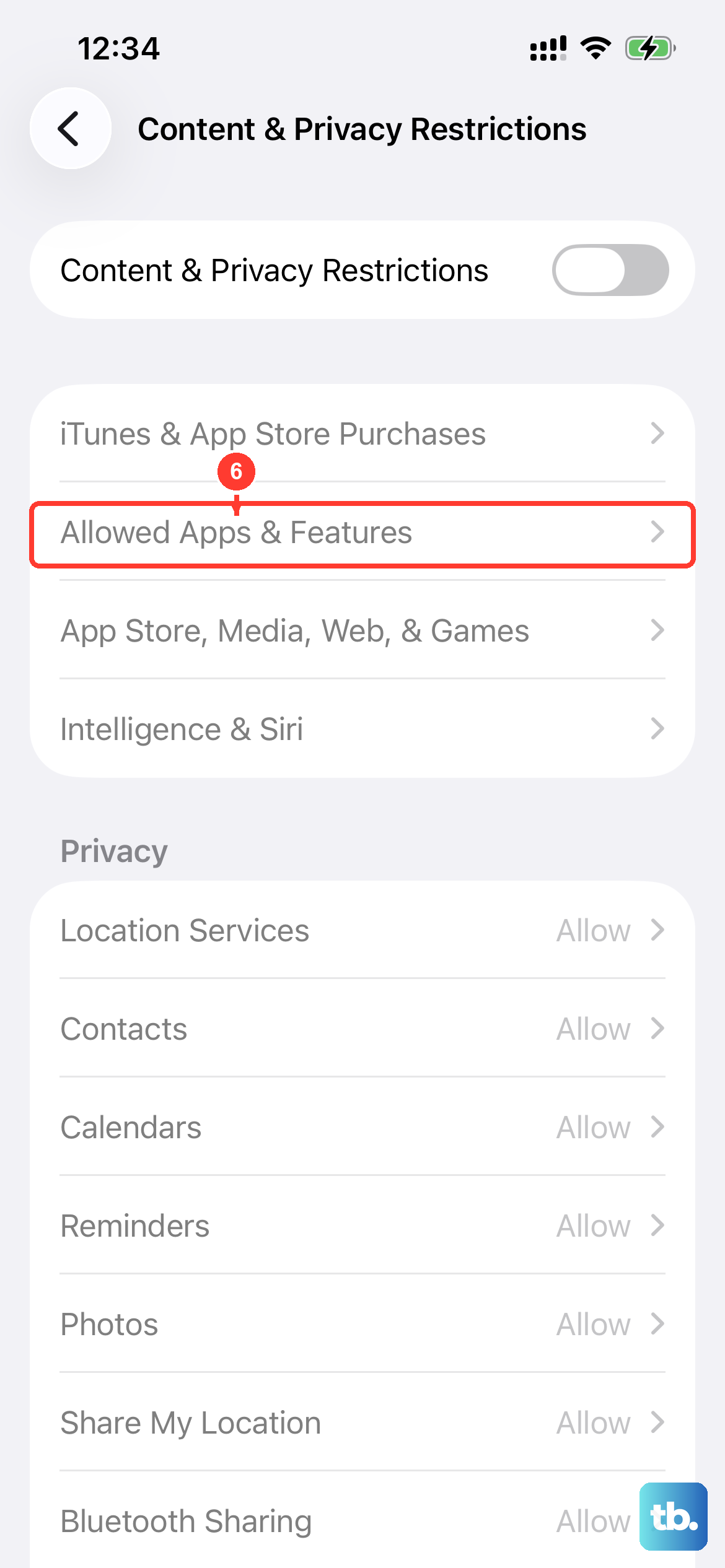
If you have Screen Time enabled, a restriction might be blocking app downloads. This is common on family-shared devices or if restrictions were set up previously.
Go to Settings > Screen Time. Tap "Content & Privacy Restrictions." If it's on, enter your Screen Time passcode.
Tap "iTunes & App Store Purchases." Make sure "Installing Apps" is set to "Allow." Also, check "Allowed Apps" to ensure the App Store isn't toggled off.
Force Quit and Relaunch the App Store
The App Store app itself can sometimes freeze. To force quit it, swipe up from the bottom of the screen and pause in the middle (or double-click the Side button on older gestures) to see the app switcher.
Find the App Store card and swipe it up and off the top of the screen to close it. Wait a few seconds, then tap the App Store icon on your home screen to relaunch it.
This is different from just switching away from the app. Force quitting ensures it starts fresh the next time you open it.
Update Your Payment Method
An issue with your payment information can block all downloads, even for free apps. The App Store needs a valid payment method on file for your Apple ID, even if you're not being charged.
Go to Settings > [Your Name] > Payment & Shipping. Tap your payment method to make sure the details are current and haven't expired.
If there's a problem, you can tap "Add Payment Method" to enter new info, or select "None" if you only want free apps (this option isn't available in all regions). After updating, try your download again.











