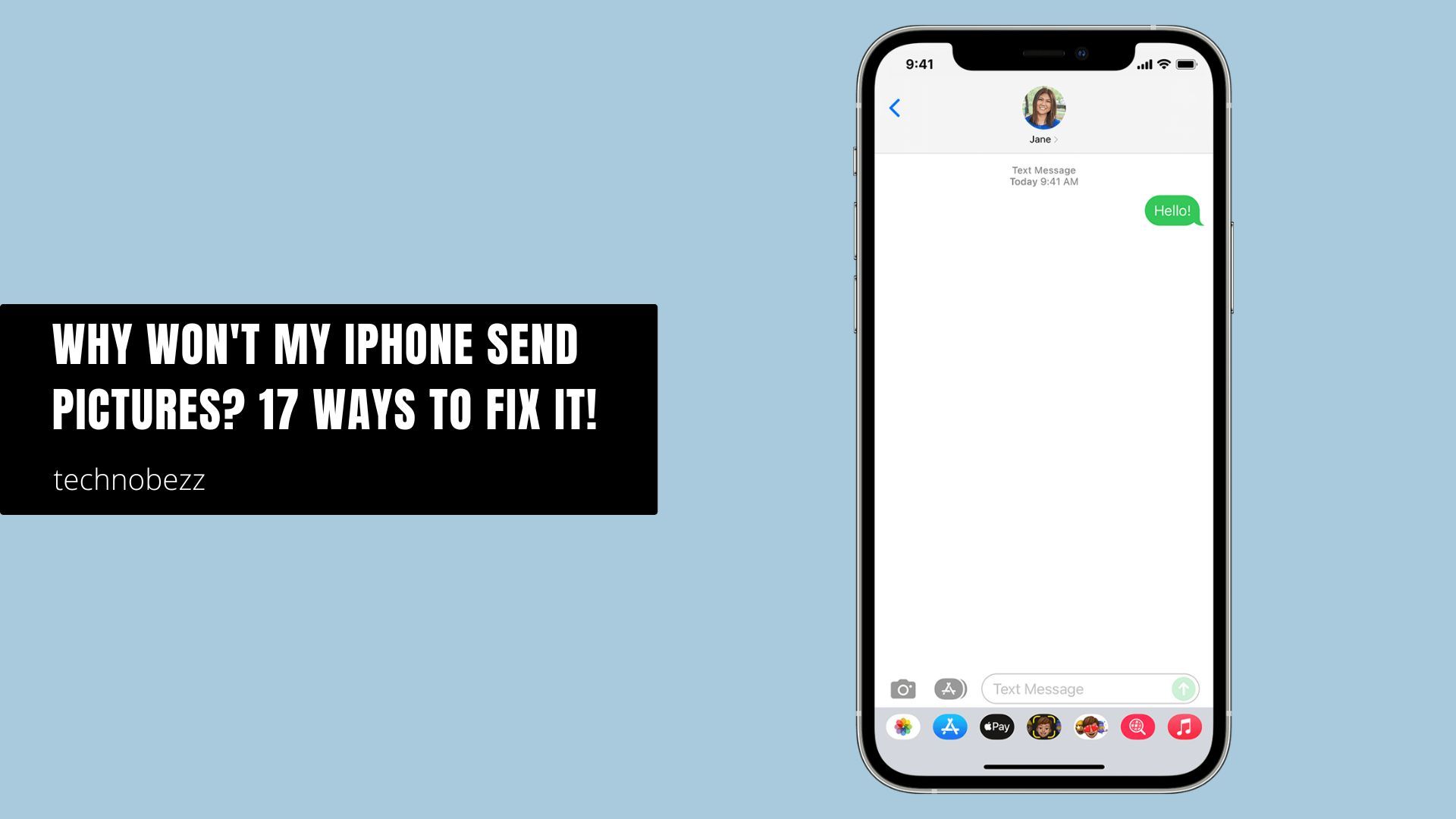
It is frustrating when your iPhone refuses to send a photo. You might see a red Not Delivered warning, watch the progress bar freeze halfway, or have the picture quietly fail when you text someone on Android.
Most picture-sending problems come down to three things: a setting that turns off MMS or RCS, a weak data connection, or an iMessage hiccup. This guide walks through every fix in order of how often it works, updated for iOS 26.
Start at the top and stop as soon as your photo goes through. The first handful of steps resolve the vast majority of cases.
Quick Fixes By Symptom
Use this table to jump straight to the fix that matches what you are seeing. Each symptom points to the step most likely to clear it.
| What you see | Most likely cause | Try this first |
|---|---|---|
| Photo to an Android phone fails or is tiny | MMS or RCS is off | Enable MMS and RCS (Steps 1 and 2) |
| Red Not Delivered on a green message | Carrier or data issue | Send as Text Message, check data (Steps 3 and 6) |
| Picture stuck loading halfway | Slow or dropped connection | Verify your network (Step 4) |
| Message is green when it should be blue | iMessage not active | Toggle iMessage (Step 5) |
| Group photo fails for everyone | Group MMS disabled | Enable MMS Messaging (Step 1) |
| Nothing sends after a recent move or trip | Network settings glitch | Reset Network Settings (Step 17) |
How iPhone Picture Sending Actually Works
Your iPhone has three ways to send a photo, and each has its own requirement. iMessage sends blue messages between Apple devices over Wi-Fi or cellular data. MMS sends pictures as green messages and needs a cellular data connection. RCS is the newer green-bubble standard that sends high-resolution photos to Android phones.
If the person you are texting does not use an Apple device, your photo cannot go through as a blue iMessage. It has to fall back to RCS or MMS, which is why those two settings matter so much.
If someone switched from iPhone to Android but kept their number, ask them to deregister that number from iMessage. Until they do, your iPhone may keep trying to send a blue message that never arrives.
Read also - iPhone Not Receiving Texts From Android Try These Solutions
1. Enable MMS Messaging
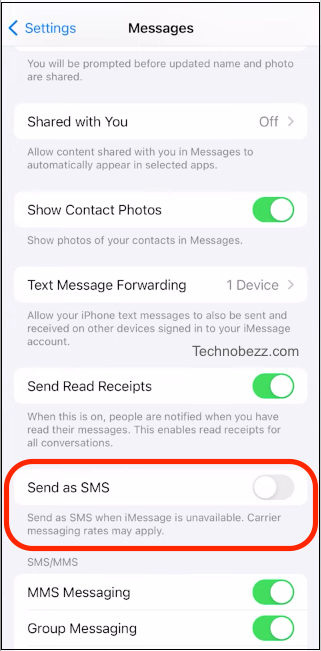
MMS is what carries pictures inside a green text message, including group photos and any photo sent to an Android phone. If it is off, those pictures will not send.
Go to Settings > Apps > Messages and make sure MMS Messaging is toggled on. On older iOS versions the path is simply Settings > Messages.
If the MMS Messaging toggle is missing entirely, your cellular data is usually turned off, since MMS depends on it. Turn cellular data on first using Step 3, then return here.
2. Turn On RCS Messaging
RCS lets your iPhone send high-resolution photos and videos to Android phones in a green bubble, a big upgrade over old MMS. It arrived for iPhone in iOS 18 and is offered through your carrier.
Go to Settings > Apps > Messages and turn on RCS Messaging. If you do not see the option, your carrier may not support it yet.
With RCS active, photos you send to Android contacts arrive at full quality instead of being heavily compressed by MMS.
3. Check Cellular Data For Messages
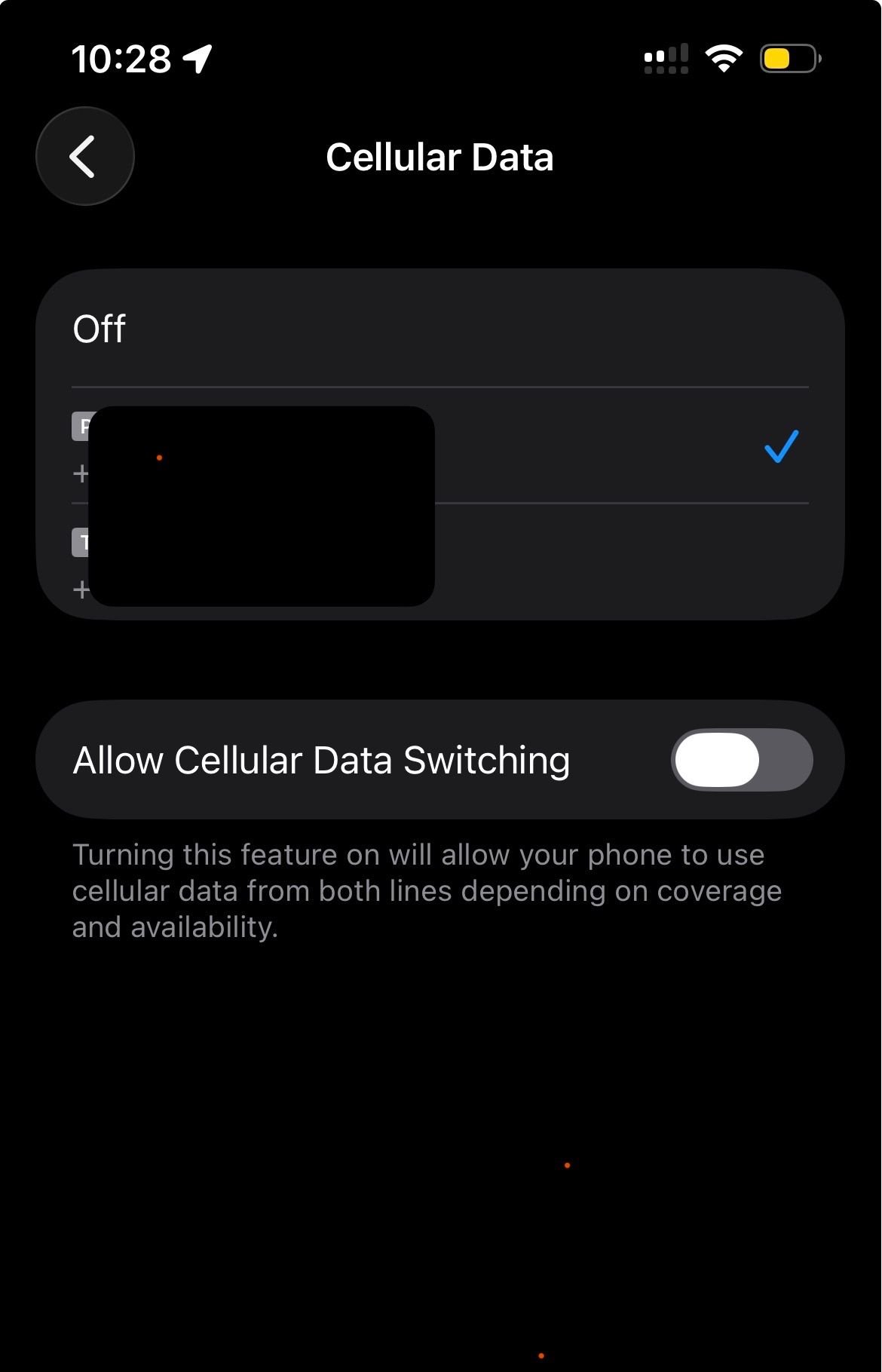
MMS and RCS both need cellular data even when you are on Wi-Fi, so this setting trips up a lot of people. Confirm data is on for the phone overall and for the Messages app.
Go to Settings > Cellular and make sure Cellular Data is toggled on at the top. Scroll down to the list of apps and confirm the switch next to Messages is also green.
If you turned cellular data off to save your plan, picture messages cannot send until you turn it back on.
4. Verify Your Network Connection
A photo that hangs halfway is almost always a weak or dropped connection. iMessage works over Wi-Fi or cellular, but MMS pictures need a solid signal.
If you are on Wi-Fi, check that the Wi-Fi icon shows in the status bar and reconnect if it dropped. Restarting your router by powering it off for a minute can clear a stalled connection.
If you are on cellular, look at your signal strength and move to a spot with better reception. A single bar is often not enough to push a large image through.
5. Make Sure iMessage Is Active
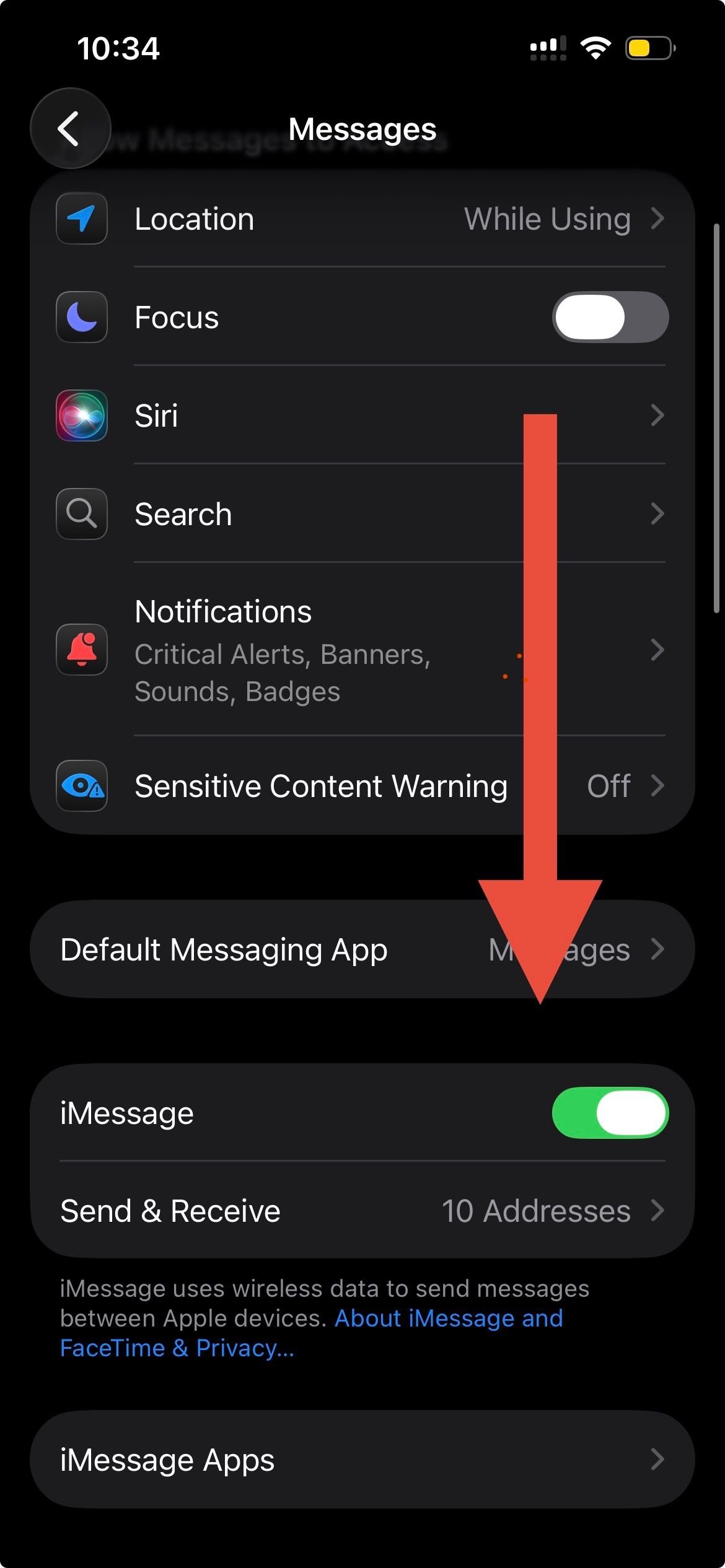
When messages turn green that you expect to be blue, iMessage may have switched off or lost its connection. Toggling it refreshes the link with Apple's servers.
Go to Settings > Apps > Messages, tap iMessage off, wait a few seconds, then turn it back on. It may take a minute to reactivate.
If iMessage stays stuck on Waiting for activation, confirm your date, time, and network are correct, then restart the phone.
6. Send As Text Message When iMessage Fails
If a blue message shows Not Delivered, the recipient may be offline or not on iMessage. You can push it through as a regular text instead.
Tap the red exclamation point next to the failed message and choose Try Again. If it fails a second time, tap the exclamation point again and select Send as Text Message.
This sends the photo over MMS, which is why Steps 1 and 3 need to be set up first.
7. Check Your Date And Time Settings
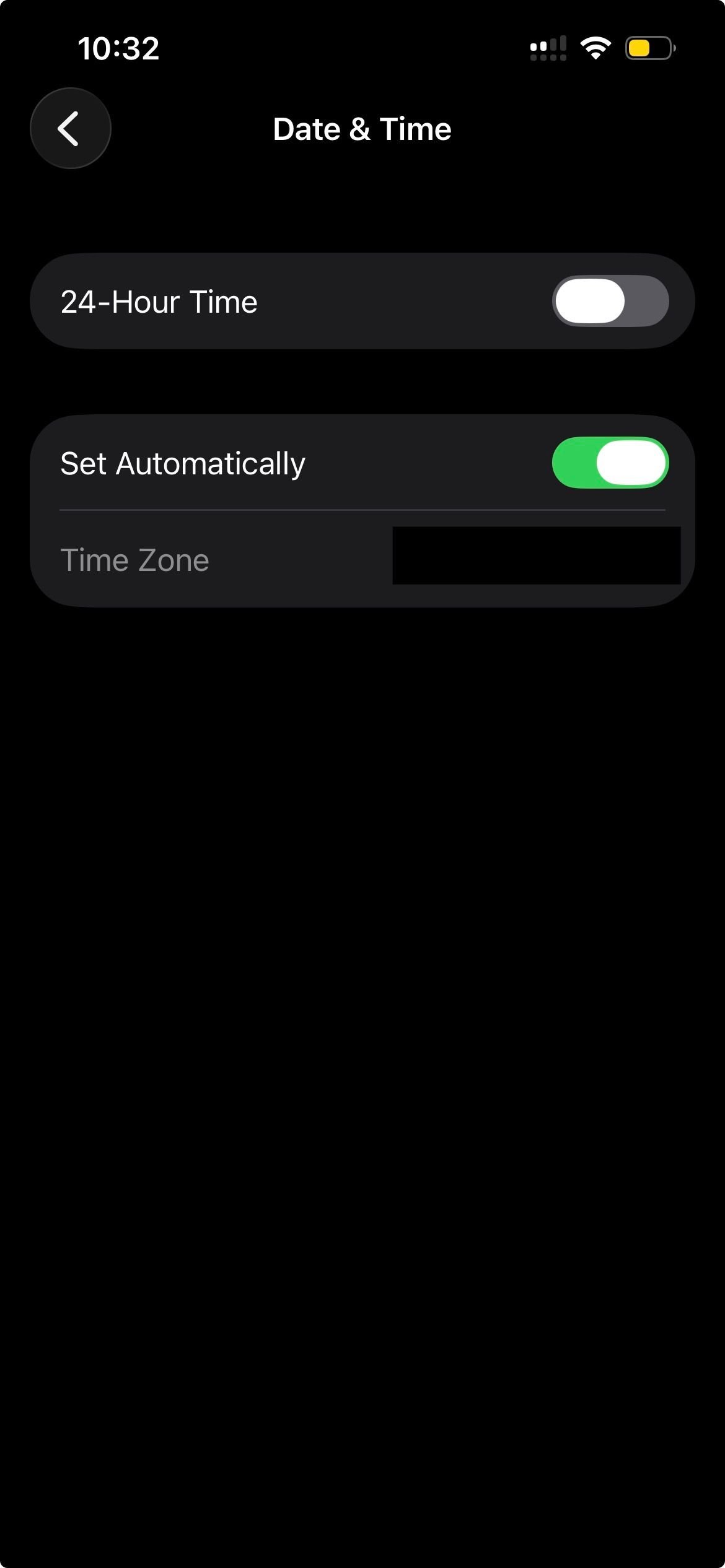
An incorrect clock can break the secure handshake iMessage relies on, leading to failed sends. Letting the phone set the time automatically usually fixes it.
Go to Settings > General > Date & Time and turn on Set Automatically. Make sure your time zone looks correct afterward.
If the toggle is already on but the time is wrong, turn it off and back on so the phone re-syncs.
8. Restart Your iPhone
A restart clears temporary software glitches that quietly block messaging. It is quick and resolves more sending problems than people expect.
Press and hold the side button and either volume button, then drag the slider to power off. Wait about 30 seconds and hold the side button again to turn it back on.
Try sending the photo again once the phone is fully booted.
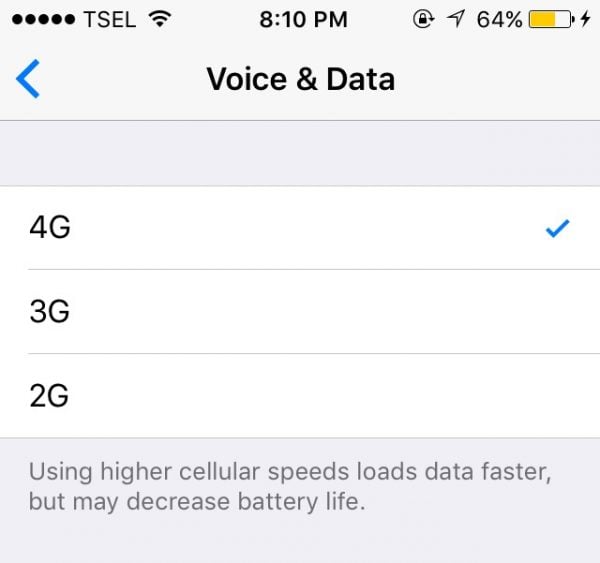
9. Switch Your Voice And Data Mode
Forcing your phone between network types can shake loose a stubborn data connection. Many carriers default to 5G, and stepping down to LTE can be more reliable for MMS in weak-signal areas.
Go to Settings > Cellular > Cellular Data Options > Voice & Data. Switch from 5G to LTE, or the reverse, and wait for the signal to settle.
Send a test photo, then change the setting back if it made no difference.
10. Force Quit The Messages App
Closing and reopening Messages clears a frozen session that can stop photos mid-send. It does not delete any conversations.
Swipe up from the bottom of the screen and pause to open the app switcher. On older iPhones, double-click the Home button instead.
Swipe the Messages card up to close it, then reopen the app and try your photo again.
11. Lower The Image Quality You Send
Large, full-resolution photos can stall on slow connections or hit a carrier size limit. Sending a lighter version often gets the picture through.
Go to Settings > Apps > Messages and turn on Low Quality Image Mode. This shrinks the file so it transmits faster.
You can switch the setting back off later once your connection is stronger.
12. Update Your Carrier Settings
Carrier settings tell your iPhone how to send messages on your network, and an outdated version can break MMS. Updates are small and quick to install.
Connect to Wi-Fi, then go to Settings > General > About. If an update is available, a prompt to update your carrier settings appears within a few seconds.
Install it if offered, then test sending a picture again.
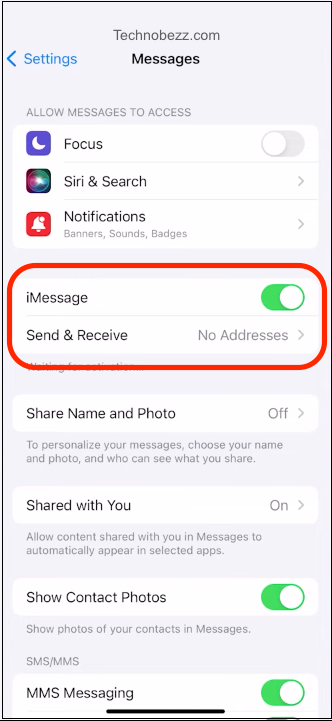
13. Confirm Your Send And Receive Address
iMessage can be set to send from your email instead of your number, which causes some pictures to fail or arrive oddly. Pointing it at your phone number is the safest choice.
Go to Settings > Apps > Messages > Send & Receive. Under the addresses listed, make sure your phone number is selected so others receive your messages reliably.
Selecting both your number and email can also help if recipients reach you on different addresses.
14. Sign Out And Back Into Your Apple Account
Refreshing your Apple Account connection clears deeper iMessage glitches that toggling alone does not fix. Your data stays intact through this process.
Go to Settings and tap your name at the top, then scroll down and tap Sign Out. Restart your iPhone, then sign back in with the same Apple Account.
Once signed in, open Messages and send a test photo.
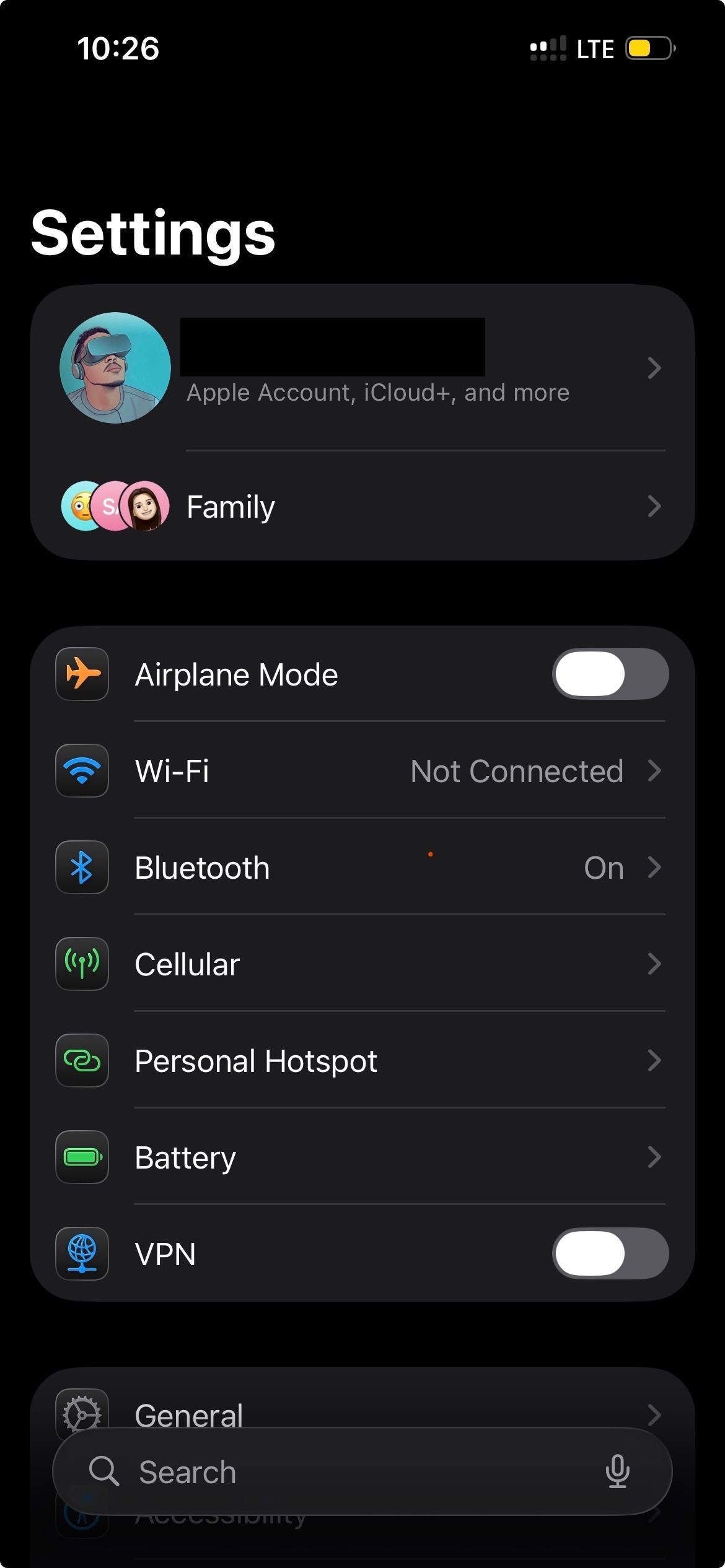
15. Turn Off Low Data Mode
Low Data Mode limits background data and can starve picture messages of the bandwidth they need. Turning it off restores full data for Messages.
Go to Settings > Cellular > Cellular Data Options and turn off Low Data Mode. If you are on Wi-Fi, check the same setting under your Wi-Fi network's details.
Try the photo again with the restriction removed.
16. Enable Data Roaming When Traveling
If pictures stopped sending after you crossed into another country, roaming may be off. MMS needs data, and roaming controls that data abroad.
Go to Settings > Cellular > Cellular Data Options and turn on Data Roaming. Be aware your carrier may charge extra for roaming data.
Once enabled, your iPhone can use the local network to send your photos.
17. Reset Network Settings
When nothing else works, resetting your network settings clears any corrupted cellular or Wi-Fi configuration behind the failure. This is a strong fix for problems that started after a move, a new SIM, or a network outage.
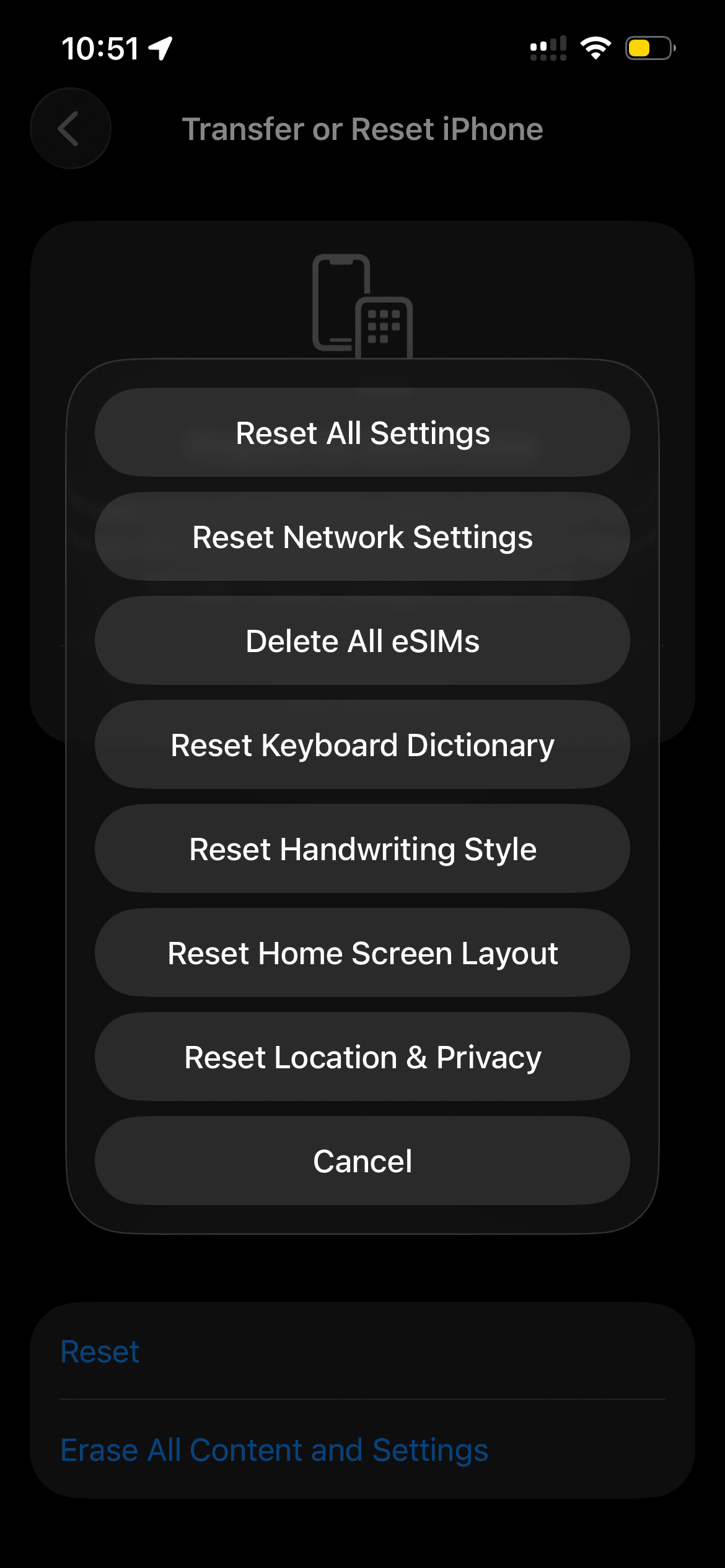
Go to Settings > General > Transfer or Reset iPhone, then tap Reset and choose Reset Network Settings. Enter your passcode and confirm.
This erases saved Wi-Fi passwords, so reconnect to your networks afterward. If you would rather wipe all preferences without deleting your data, Reset All Settings is the broader option on the same screen.
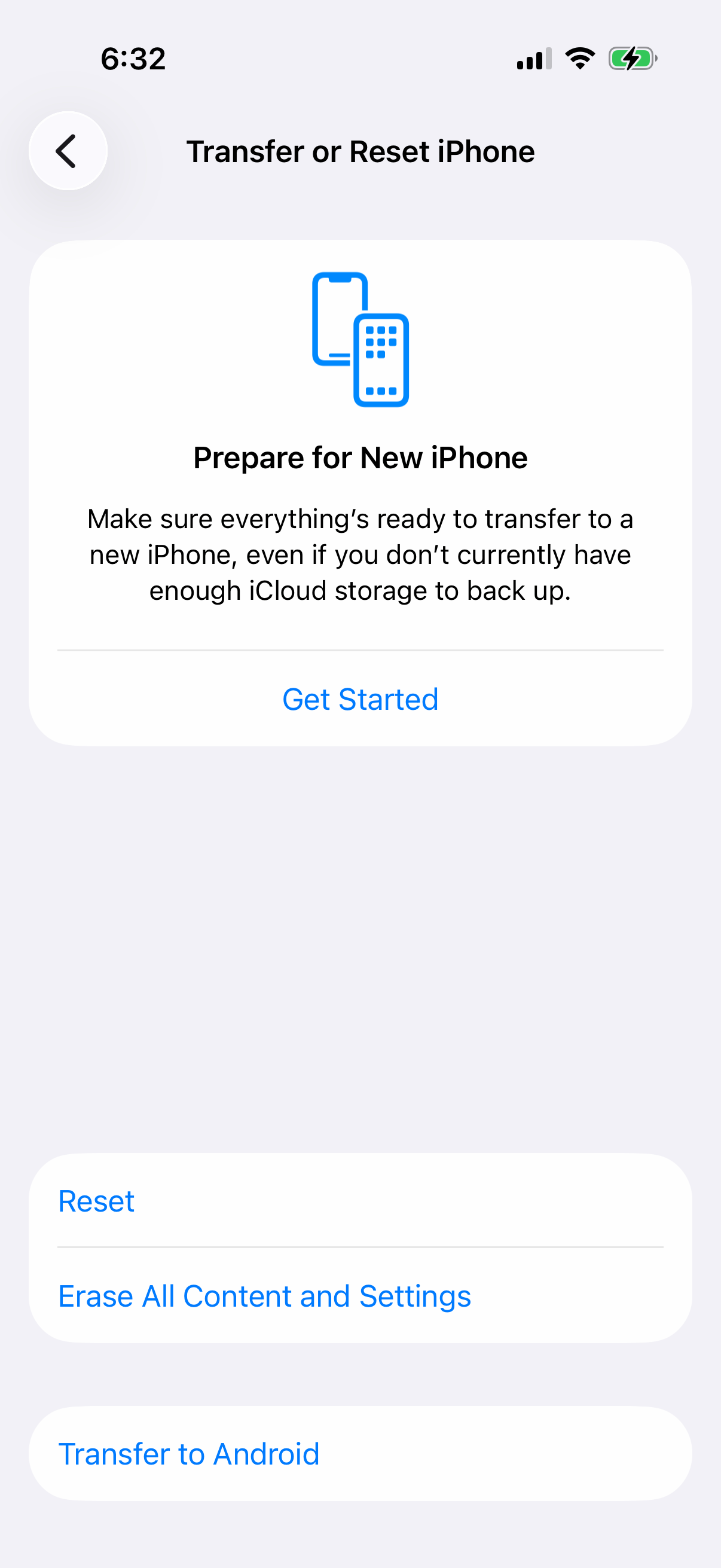
After you choose Reset Network Settings and enter your passcode, iPhone asks you to confirm once more.
Frequently Asked Questions
Why does my iPhone say Not Delivered when I send a picture?
A Not Delivered warning usually means the message could not reach the recipient over iMessage. Tap the red exclamation point, choose Try Again, and if it still fails select Send as Text Message so it goes through over MMS instead.
Why won't my iPhone send pictures to Android phones?
Photos to Android go over RCS or MMS, not iMessage. Turn on both MMS Messaging and RCS Messaging under Settings > Apps > Messages, and make sure cellular data is enabled, since those services require it.
Do I need cellular data to send photos?
iMessage photos can send over Wi-Fi alone, but MMS and RCS pictures need cellular data even when you are on Wi-Fi. Confirm Cellular Data is on under Settings > Cellular and that Messages is allowed to use it.
Why are my photos sending as green texts instead of blue iMessages?
Green means the message is going as RCS, MMS, or SMS rather than iMessage. This happens when the recipient is not on an Apple device, when iMessage is turned off, or when iMessage cannot connect, so toggle iMessage off and on to refresh it.
Why does my picture get stuck halfway when sending?
A photo that freezes mid-send points to a weak or dropped connection. Move to a stronger signal, switch between 5G and LTE, or turn on Low Quality Image Mode so the smaller file transmits faster.
How do I send full quality photos to an Android user?
Enable RCS Messaging under Settings > Apps > Messages. With RCS active and supported by your carrier, photos and videos sent to Android phones arrive in high resolution instead of being compressed by MMS.