
If your iPhone 13 feels unusually warm, it's often a temporary thing during heavy use or charging. But if it's getting hot during normal tasks or staying warm for a long time, there are a few specific things you can check. I'd start with the simplest fix first, which is usually related to what's running on your phone.
The quickest thing to try is closing all your apps and giving your phone a restart. Swipe up from the bottom of the screen (pausing briefly in the middle of the screen to open the App Switcher) and swipe away every app. Then, force restart your iPhone 13 by quickly pressing and releasing the Volume Up button, then the Volume Down button, and finally holding the Side button until you see the Apple logo.
This clears out any stuck processes that might be making the processor work overtime. If the heat started after you installed a new app or game, that's a likely culprit, so try removing it to see if things cool down.
Check for Rogue Apps and Background Activity
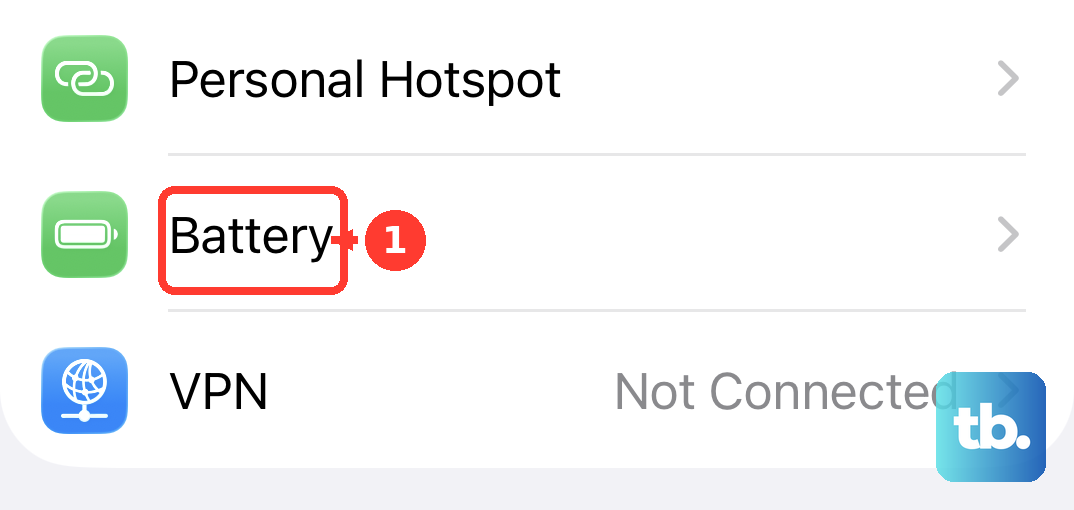
Go to Settings > Battery. Scroll down and look at the battery usage by app over the last 24 hours or 10 days. If you see an app using a surprisingly high percentage of battery, especially with background activity noted, that app is probably the source of the heat.
You can manage this by going to Settings > General > Background App Refresh. You can turn this off entirely or just for the specific apps that are causing problems. For social media, navigation, or weather apps that constantly fetch new data, this can be a major source of background heat.
Also, check your location services. Go to Settings > Privacy & Security > Location Services. See which apps are using your location "Always" and consider changing them to "While Using" or "Ask Next Time." Constant GPS use is a notorious battery and heat drainer.
Manage Your Charging Setup
Your iPhone 13 is designed to get a bit warm while charging, especially if you're using it at the same time. But excessive heat can point to a problem with your accessories. Always use an original Apple charger or a reputable MFi-certified Lightning cable and power adapter.
Cheap, uncertified cables and chargers can deliver power inconsistently, causing your phone to heat up more than it should. If you're using MagSafe, make sure you're using an authentic MagSafe charger. While convenient, wireless charging generates more heat than wired charging, so it's normal for the back of the phone to feel warmer.
Try charging with the phone out of its case, especially if you have a thick, rugged case. Cases can trap heat. Also, avoid charging on soft surfaces like a bed or couch, which can block heat dissipation. A hard, flat surface is best.
Update iOS and Review Display Settings
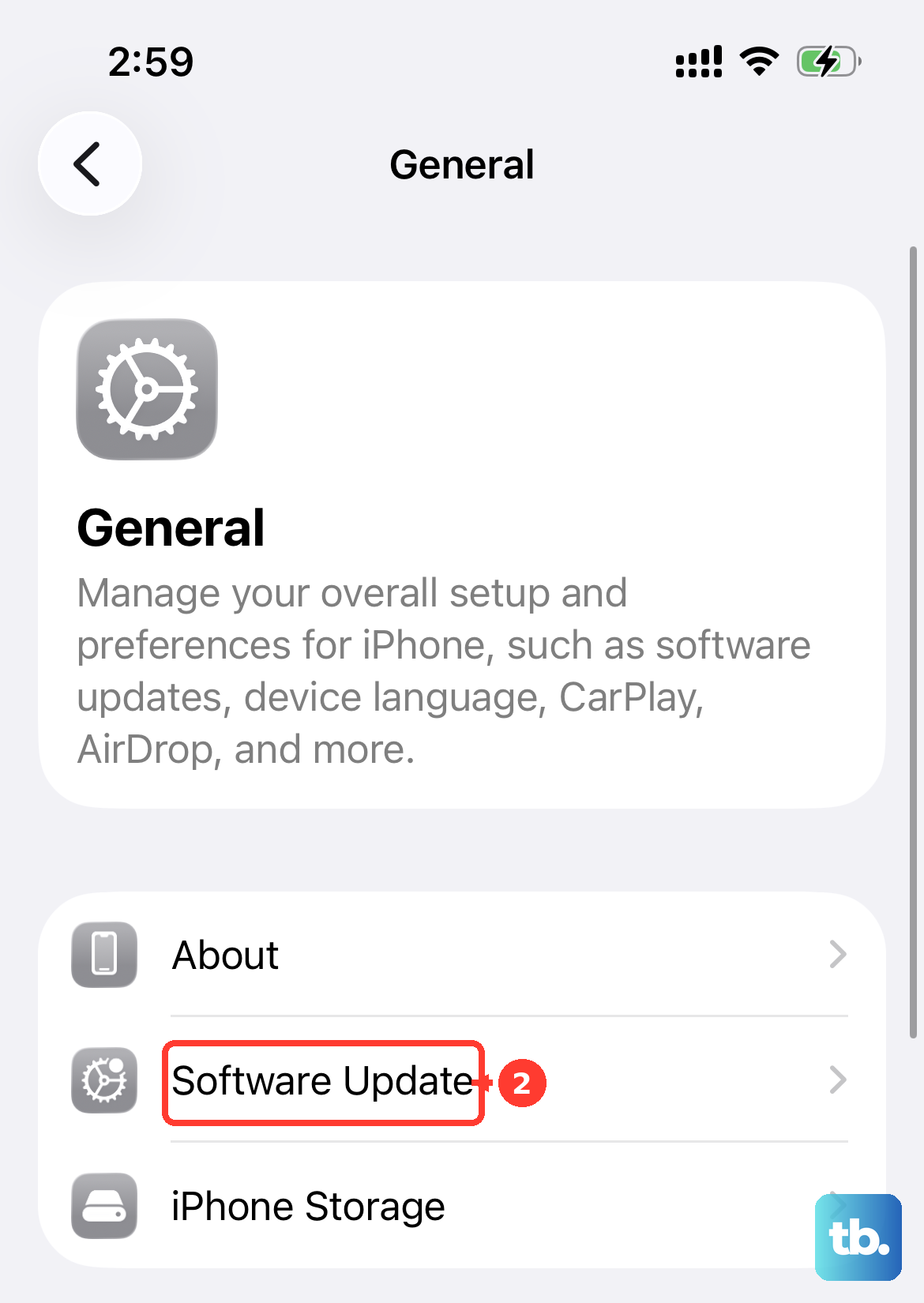
Apple frequently releases iOS updates that include performance optimizations and bug fixes. A software glitch can sometimes cause the CPU to work inefficiently, generating excess heat. Go to Settings > General > Software Update to install any available updates.
Your display is another big source of heat. The brightness level has a direct impact. Try lowering your brightness manually or ensure Auto-Brightness is enabled in Settings > Accessibility > Display & Text Size. Also, consider reducing your Auto-Lock time to turn the screen off sooner when not in use.
While the iPhone 13 has a standard 60Hz display, features like True Tone and rich graphics in games still demand power. Turning on Low Power Mode (which you can add to Control Center) is a great way to temporarily reduce background activity and processor speed, which will cool things down quickly.
Assess Your Battery Health
For an iPhone 13 from 2021, battery health is a real factor. As lithium-ion batteries age and degrade, they become less efficient and can cause the phone to heat up more during charging and use. Go to Settings > Battery > Battery Health & Charging.
Look at the "Maximum Capacity" percentage. If it's significantly below 80%, the battery is considered worn and may struggle to supply power efficiently, leading to more heat. This is a strong sign you should consider an official battery replacement.
Also, check if "Clean Energy Charging" or "Optimized Battery Charging" is causing any unusual behavior by pausing charging at certain times, which might feel like heat-related slowdowns. You can temporarily turn these off to diagnose.
Reset All Settings
If you've tried everything else and your iPhone 13 is still running hot, a deeper software reset can help. This won't erase your photos, messages, or apps, but it will reset all your system settings to their defaults.
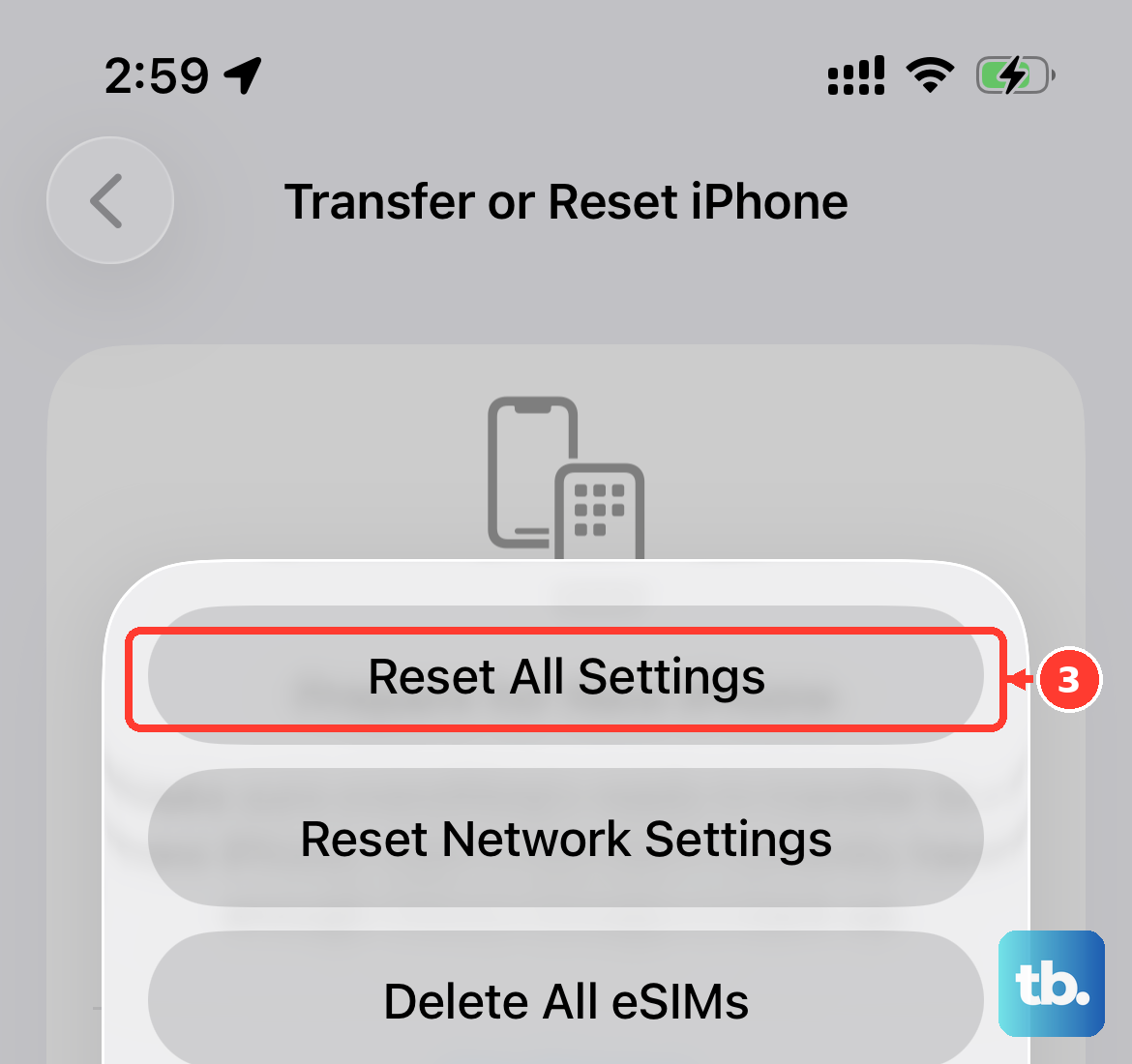
Go to Settings > General > Transfer or Reset iPhone > Reset. Then, choose "Reset All Settings." You'll need to re-enter Wi-Fi passwords and reconfigure things like display brightness and notifications, but it can clear out any corrupted settings causing system strain.
This is a common fix for persistent overheating that isn't tied to a single obvious app. After the reset, set your phone up fresh and monitor the temperature for a day before restoring all your custom preferences.











