
Seeing "Not Registered on Network" on your iPhone 13 means it can't connect to your carrier's cell service. You won't be able to make calls, send texts, or use mobile data. This is a common but frustrating issue that can pop up after an iOS update, when you travel, or sometimes for no clear reason at all.
Before you do anything drastic, the quickest thing to try is toggling Airplane Mode. Swipe down from the top-right corner of your screen to open Control Center and tap the airplane icon. Wait about 15 seconds, then tap it again to turn it off. This forces your iPhone 13 to completely re-establish its connection to the nearest cell tower and often clears up the error right away.
Restart Your iPhone 13
If Airplane Mode didn't work, a full restart is your next best step. This clears out any temporary software glitches in iOS 18 that might be interfering with the cellular modem. To restart, press and release the Volume Up button, press and release the Volume Down button, then press and hold the Side button until you see the Apple logo appear.
Let the phone boot up completely. Once you're back at your home screen, check the status bar in the top-left corner. You should see your carrier's name and some signal bars if the restart fixed the registration problem.
Check for a Carrier Settings Update
Carriers push small configuration files to your phone that tell it how to connect to their network. If these settings are outdated or corrupted, your iPhone 13 won't register properly. To check, go to Settings > General > About.
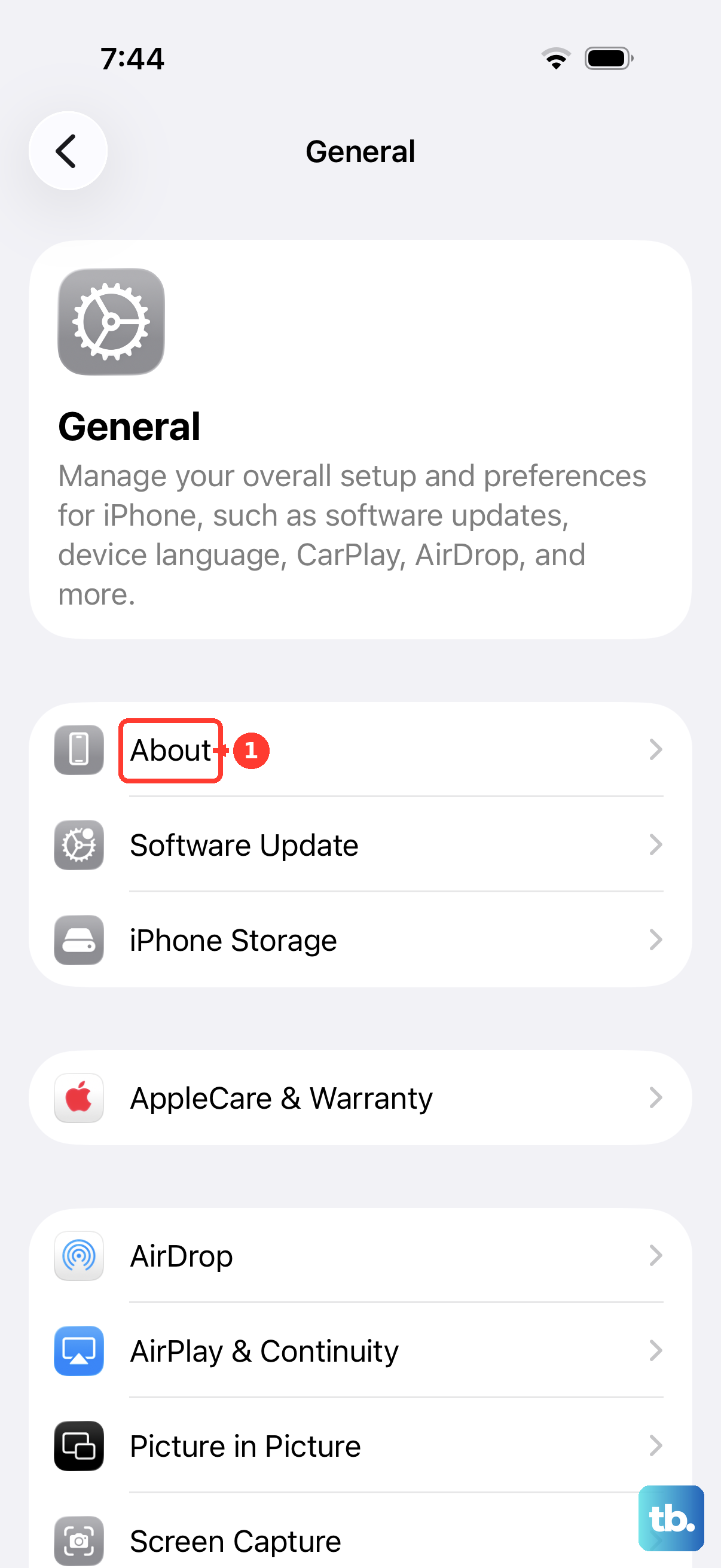
If an update is available, a prompt will appear on this screen. Just tap "Update" when it shows up. The update installs in seconds and your phone will reboot automatically. This is a very common fix that many people overlook.
Reinsert Your SIM Card
The SIM tray on the iPhone 13 is on the left side. Even if it feels snug, the SIM card inside can shift slightly and lose a good connection. You'll need a SIM eject tool or a small paperclip. Turn off your iPhone first.
Insert the tool into the tiny hole on the SIM tray to pop it out. Carefully remove the SIM card, give both the card and the slot a gentle blow to dislodge any dust, and then reseat everything firmly. Power your phone back on and give it a minute to search for the network.
Reset Your Network Settings
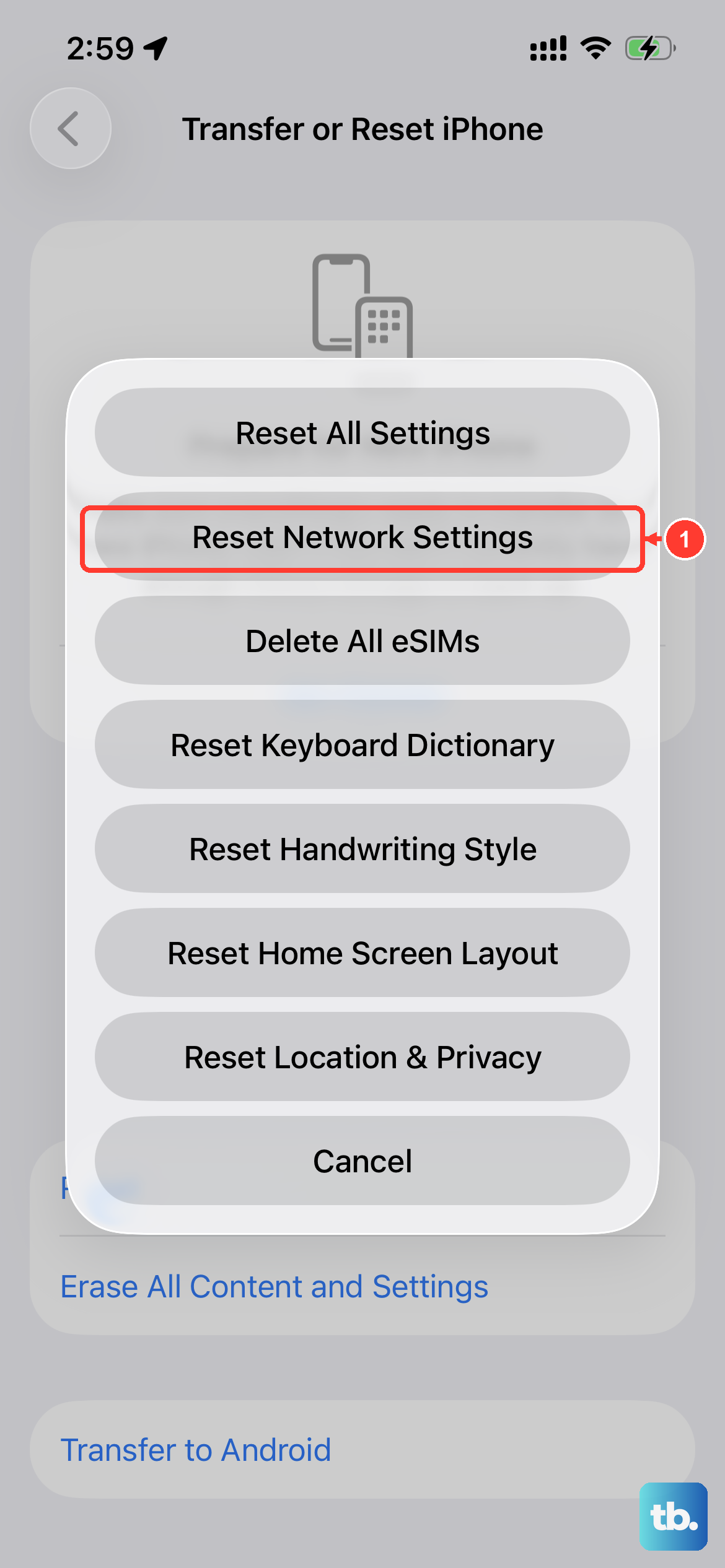
This is a more thorough step that wipes all your saved network information. It deletes your Wi-Fi passwords, Bluetooth pairings, and VPN configurations, but it also clears any corrupted cellular settings causing the registration error.
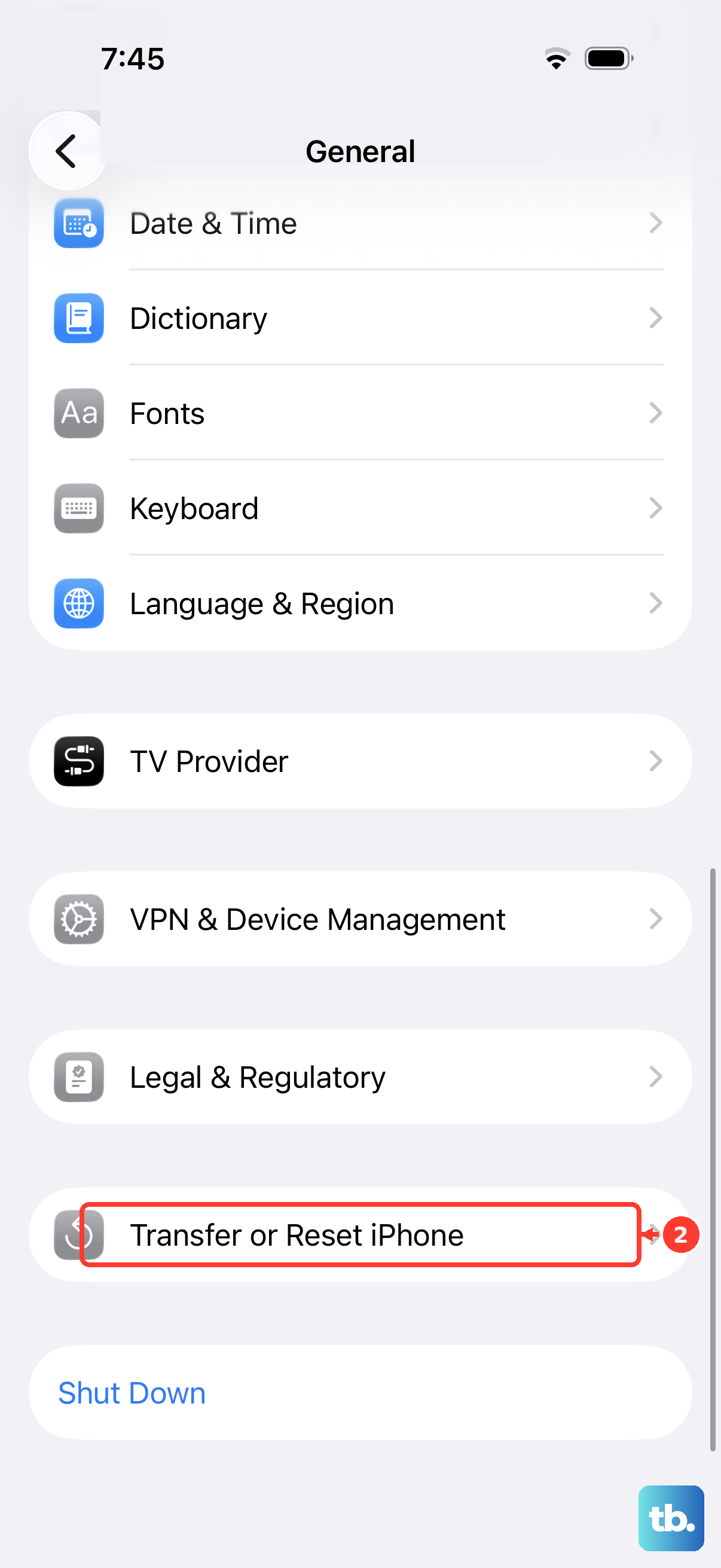
To do this, open Settings > General > Transfer or Reset iPhone. Tap on Reset at the bottom, and then select Reset Network Settings. You'll need to enter your passcode to confirm. Your iPhone 13 will restart and you'll have to reconnect to Wi-Fi networks afterward, but it often solves stubborn cellular issues.
Update iOS to the Latest Version
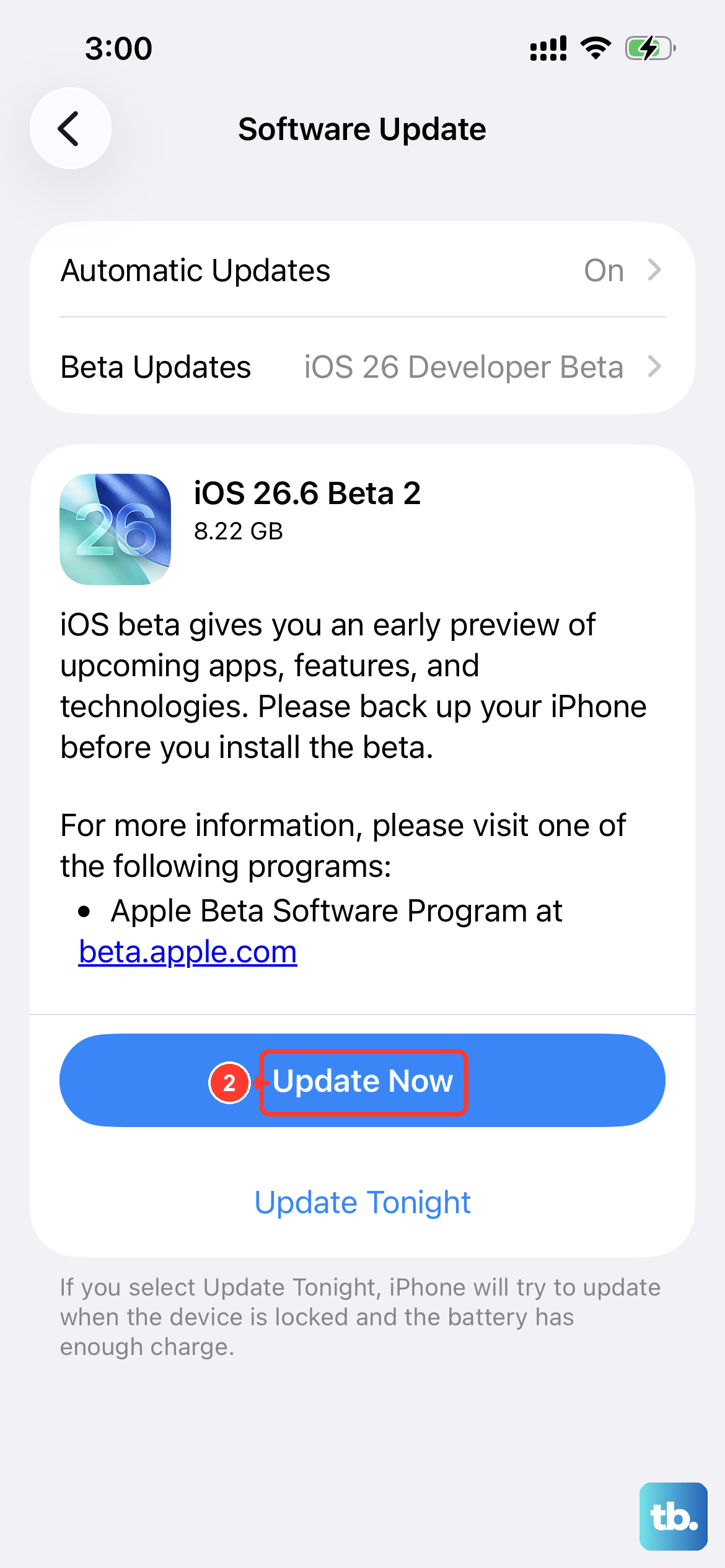
Apple frequently releases iOS updates that include bug fixes for cellular connectivity. Since you're on iOS 18, make sure you have the very latest version installed. Go to Settings > General > Software Update.
Your phone will check for updates. If one is available, tap "Download and Install." I'd recommend doing this over Wi-Fi and making sure your battery is above 50%. An update can patch a known software bug that's preventing your iPhone 13 from registering on the network.
Try a Different SIM Card
At this point, it's worth figuring out if the problem is with your SIM card or the phone itself. If you can borrow a working SIM card from a friend or family member (even from a different carrier), pop it into your iPhone 13.
If the new SIM card connects to a network without any "Not Registered" message, then your original SIM is likely faulty or deactivated. You'll need to contact your carrier for a replacement. If the borrowed SIM also fails, the issue is almost certainly with your iPhone's hardware or software.
Contact Your Carrier
It's possible there's an outage or a problem with your account specifically. Your carrier might need to reprovision your line on their network, which is a common fix they can do remotely. Call their support from another phone or use Wi-Fi Calling if you have it set up.
Ask them to check if your line is active and if there are any known service issues in your area. They can also walk you through refreshing your network connection from their end, which sometimes does the trick when nothing on the device itself works.
Restore Your iPhone via a Computer
If you've tried everything else, a full restore using a Mac or PC is the final software step. This installs a completely fresh, clean copy of iOS 18. Make sure you have a recent backup in iCloud or on your computer first.
Connect your iPhone 13 to the computer using a Lightning cable. Open Finder (on Mac) or iTunes (on Windows), select your device, and choose "Restore iPhone." This process will erase everything and install the latest iOS. After it's done, you can set it up as new to test the network connection immediately, before restoring your backup.











