
Slow WiFi or cellular data on your iPad Pro (M4) can really put a damper on streaming, browsing, or getting work done. The M4 chip is incredibly fast, so when the internet feels sluggish, it's almost always a network or software issue you can fix yourself.
I'd start with the quickest solutions first, as they often clear up the problem in under a minute.
Restart Your iPad and Network Equipment
This is the classic first step for a reason. A simple restart clears temporary software glitches that can bog down network performance. First, power cycle your WiFi router and modem by unplugging them for 30 seconds.
Then, restart your iPad Pro. If it's completely unresponsive, you can force restart it. Press and quickly release the Volume Up button, then quickly press and release the Volume Down button. Finally, press and hold the Power button until you see the Apple logo appear on screen.
Check and Toggle Airplane Mode
This quickly resets all the iPad's radio connections. Swipe down from the top-right corner to open Control Center and tap the Airplane Mode icon to turn it on. Wait about 10 seconds, then tap it again to turn it off.
This forces both your WiFi and cellular modems to reconnect fresh, which can often resolve a slow or stuck connection. You'll see the WiFi icon disappear and reappear as it searches for networks again.
Forget and Rejoin Your WiFi Network
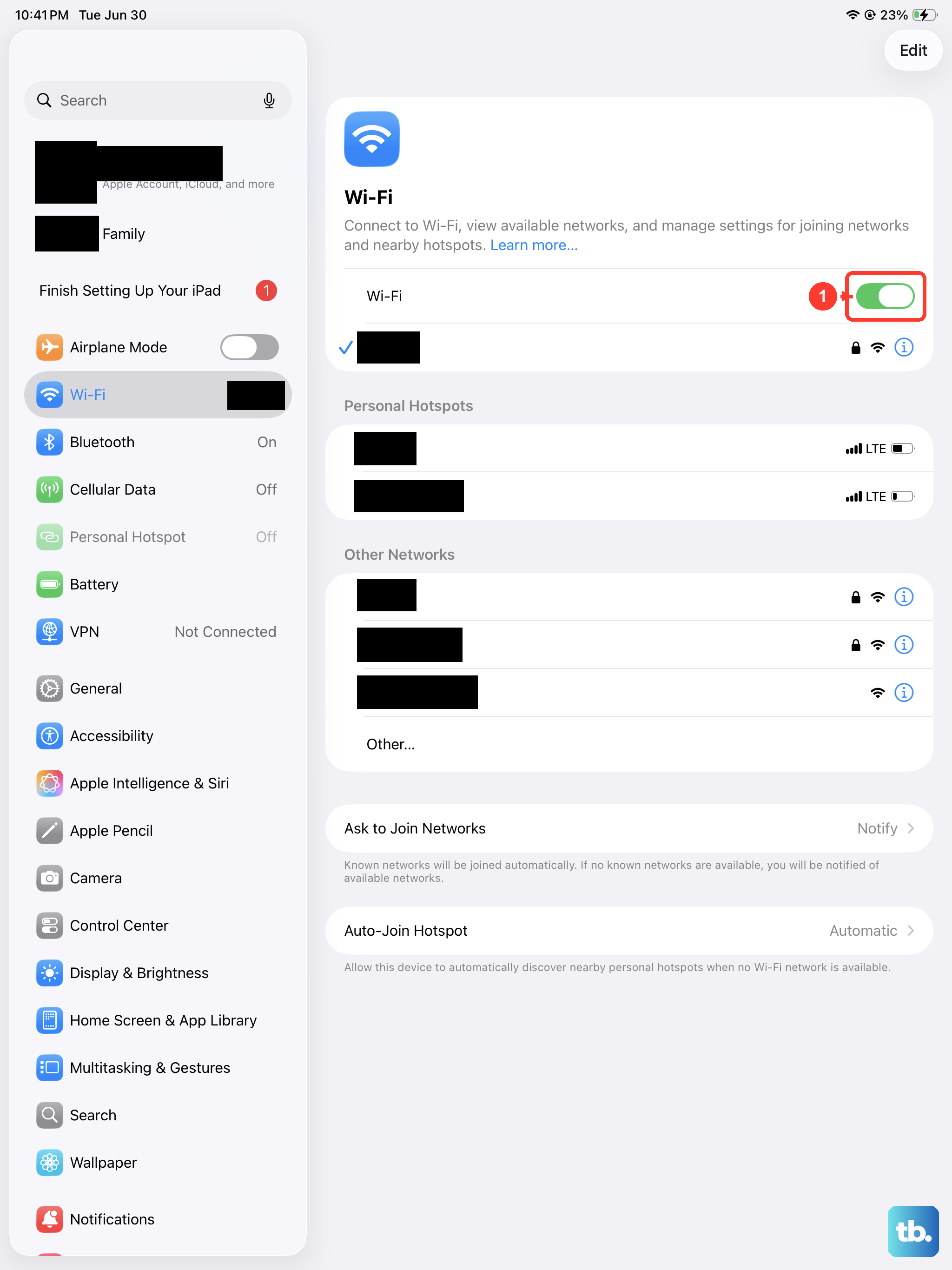
If your iPad is clinging to a weak WiFi signal or has corrupted connection data for that network, this will clear it. Go to Settings > WiFi and tap the information (i) icon next to your network name.
Tap Forget This Network and confirm. This removes the network's password and all its settings from your iPad. Then, go back to the WiFi list, select your network again, and re-enter the password to join fresh.
Disable Low Data Mode on WiFi
Low Data Mode is designed to reduce background network activity to save data, but it can also intentionally slow things down. Make sure it's not accidentally enabled on your WiFi connection.
Go to Settings > WiFi and tap the information (i) icon next to your connected network. Look for the Low Data Mode toggle. If it's on, switch it off. This allows apps and services to use the full bandwidth of your connection.
Update iPadOS and Your Apps
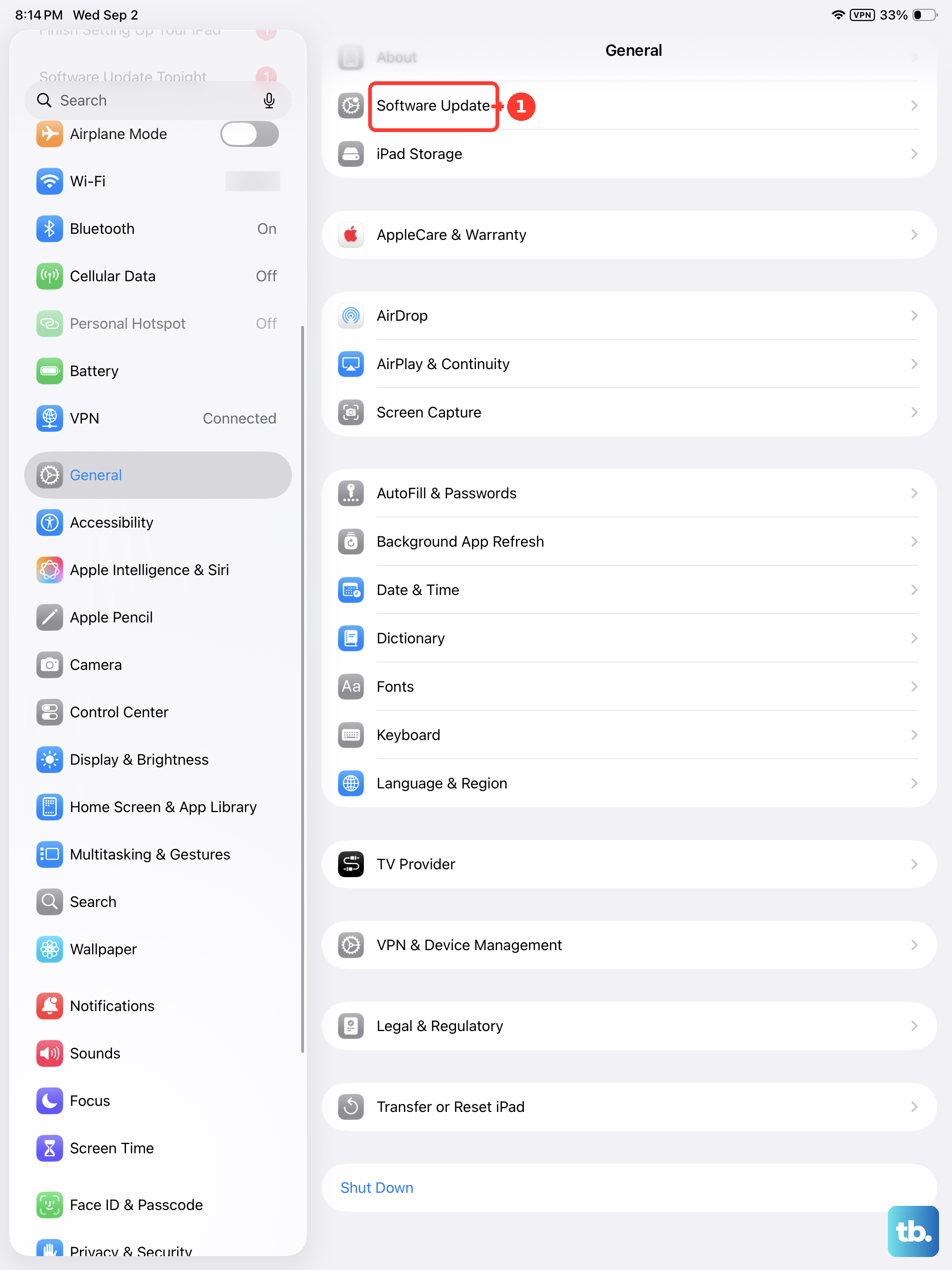
Apple frequently releases updates that include fixes for connectivity and performance. Go to Settings > General > Software Update to check for and install any available iPadOS updates.
Also, check the App Store for app updates. Outdated apps can sometimes have bugs that affect network performance, especially streaming or cloud-based apps. Keeping everything current ensures you have the latest optimizations for the M4 chip.
Reset Your iPad's Network Settings
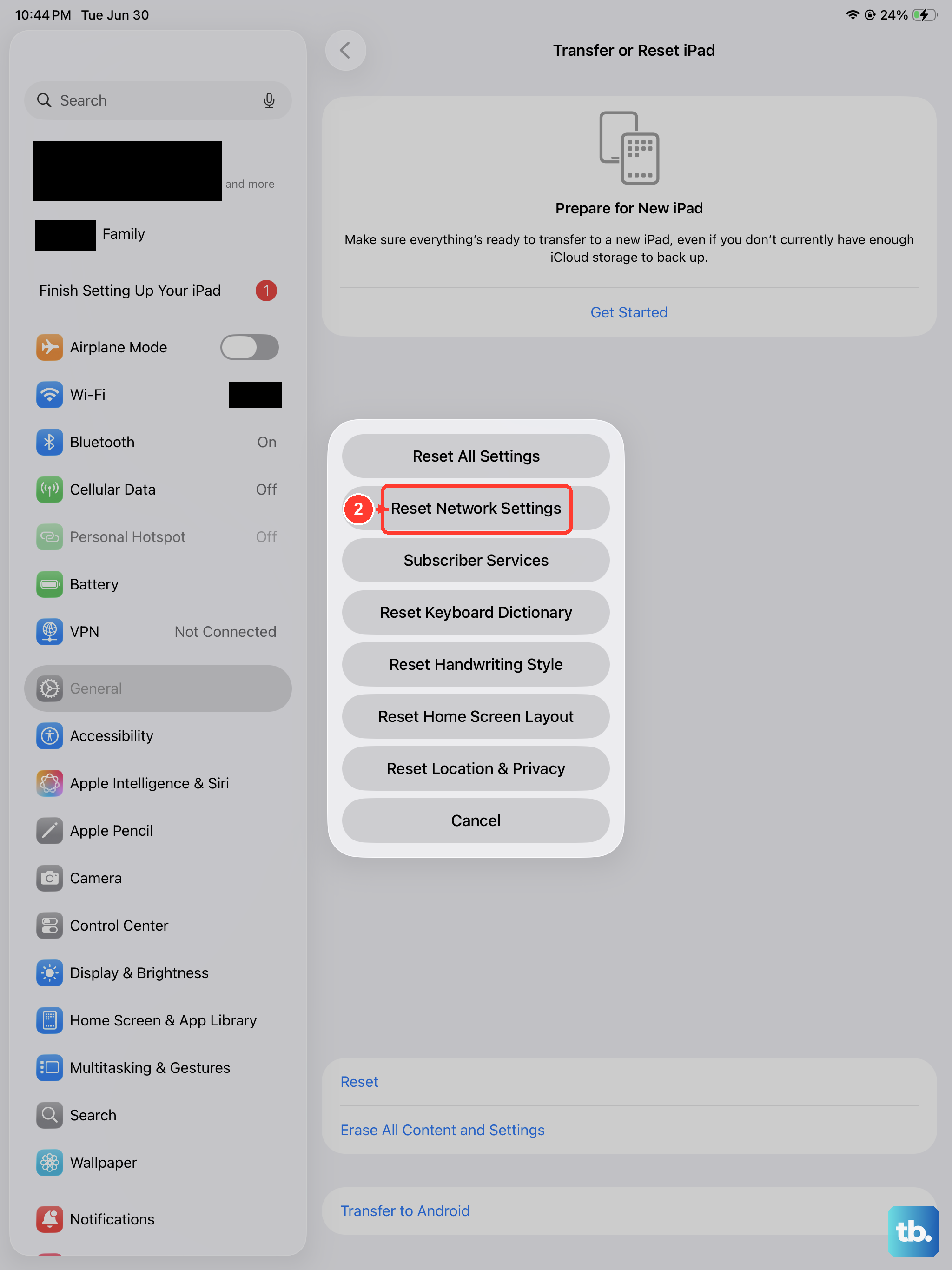
This is a more thorough step if the simpler ones haven't worked. Resetting network settings will erase all saved WiFi passwords, cellular settings, and VPN configurations, so you'll need to re-enter them.
Go to Settings > General > Transfer or Reset iPad. Tap Reset and then choose Reset Network Settings. Your iPad will restart. After it boots up, you'll need to reconnect to your WiFi and re-pair any Bluetooth devices.
Check for VPN or Content Blocker Interference
If you use a VPN app or a Safari content blocker, try temporarily disabling them. VPNs route your traffic through another server, which can significantly slow down your connection speed depending on the server load.
For VPNs, you can usually toggle them off from within the app or from Control Center. For content blockers, go to Settings > Apps > Safari > Extensions and toggle them off to test your speed.
Clear Safari's Website Data and Cache
Over months of use, Safari stores a lot of website data that can become bloated and slow down page loading. Clearing this cache can give browsing a fresh start.
Go to Settings > Apps > Safari. Scroll down and tap Clear History and Website Data. Confirm your choice. This will log you out of most websites, so have your passwords handy. It only takes a moment and can make a noticeable difference.
Manage Background App Refresh
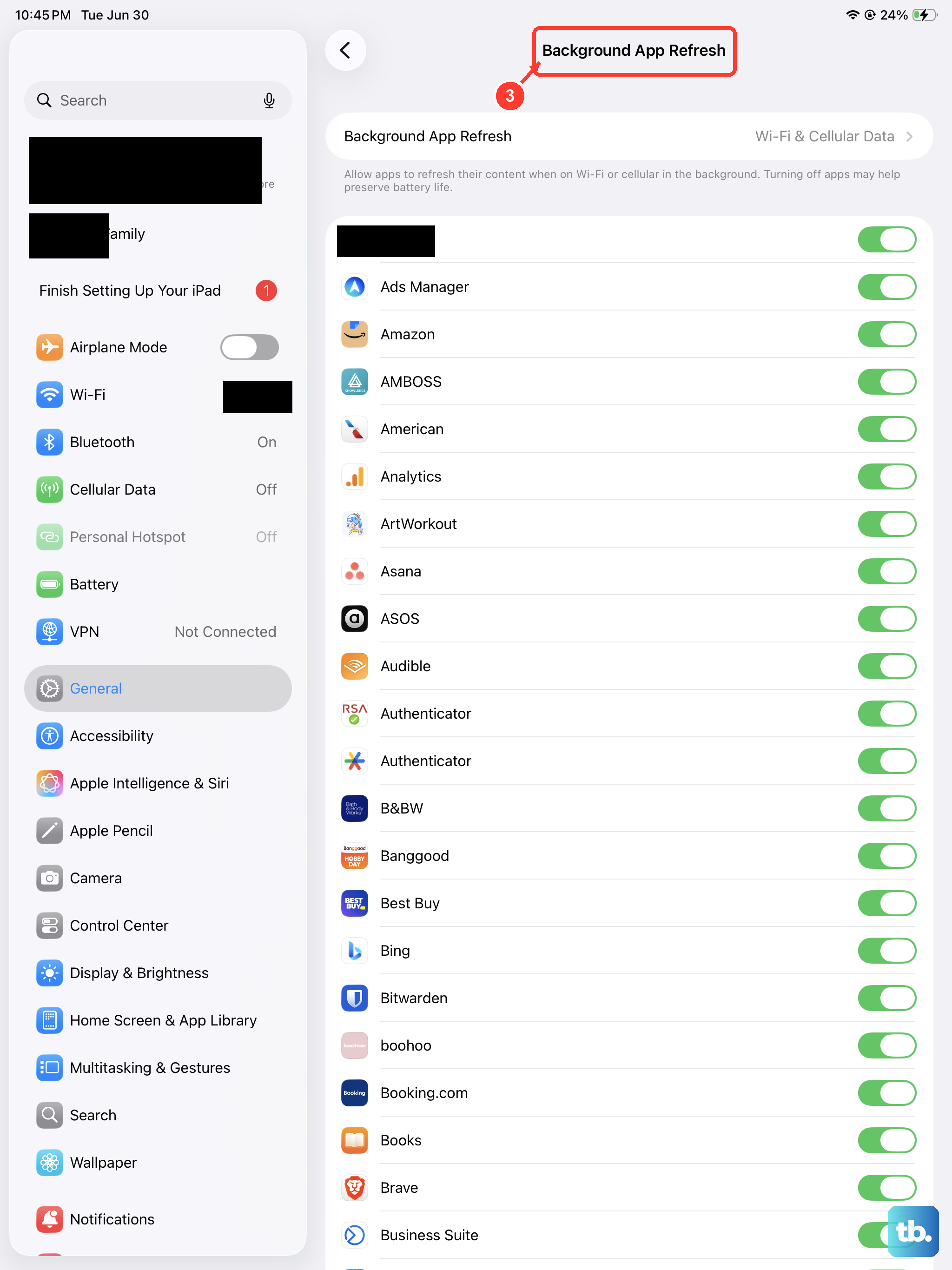
Apps refreshing content in the background use network resources, which can contribute to a feeling of overall slowness. You can control which apps are allowed to do this.
Navigate to Settings > General > Background App Refresh. You can set it to Off entirely, or WiFi only, or go through the list and toggle off refresh for specific apps you don't need updating constantly in the background.
Test Your Connection and Contact Your ISP
If speeds are still slow after trying everything on the iPad, the issue might be with your internet service itself. Try using another device on the same WiFi network to run a speed test from a site like speedtest.net.
If all devices are slow, the problem is with your internet provider or router. I'd recommend contacting your ISP at that point, as there may be an outage, a line issue, or you might need a router upgrade to handle the demands of your new iPad Pro.