
When your iPad Pro (M4) (M4) hotspot stops working, it leaves your MacBook or other gadgets without a crucial internet link. Whether the hotspot isn't appearing in the Wi-Fi list, devices can't connect, or the connection keeps dropping, there are a few straightforward steps to get your personal network back online.
Toggle Personal Hotspot Off and On
Head to Settings > Personal Hotspot on your iPad. Turn the Allow Others to Join switch off, wait a moment, and then turn it back on. This quick refresh can clear out minor software glitches that are preventing the hotspot from broadcasting properly. It's the first thing I'd try, and it often solves the problem right away.
Restart Your iPad Pro
A full restart can fix a surprising number of issues. To restart your iPad Pro (M4), press and quickly release the Volume Up button, then press and quickly release the Volume Down button. Finally, press and hold the Power button until you see the Apple logo appear. This forces all network services, including the hotspot, to restart cleanly.
Verify Your Cellular Data Connection
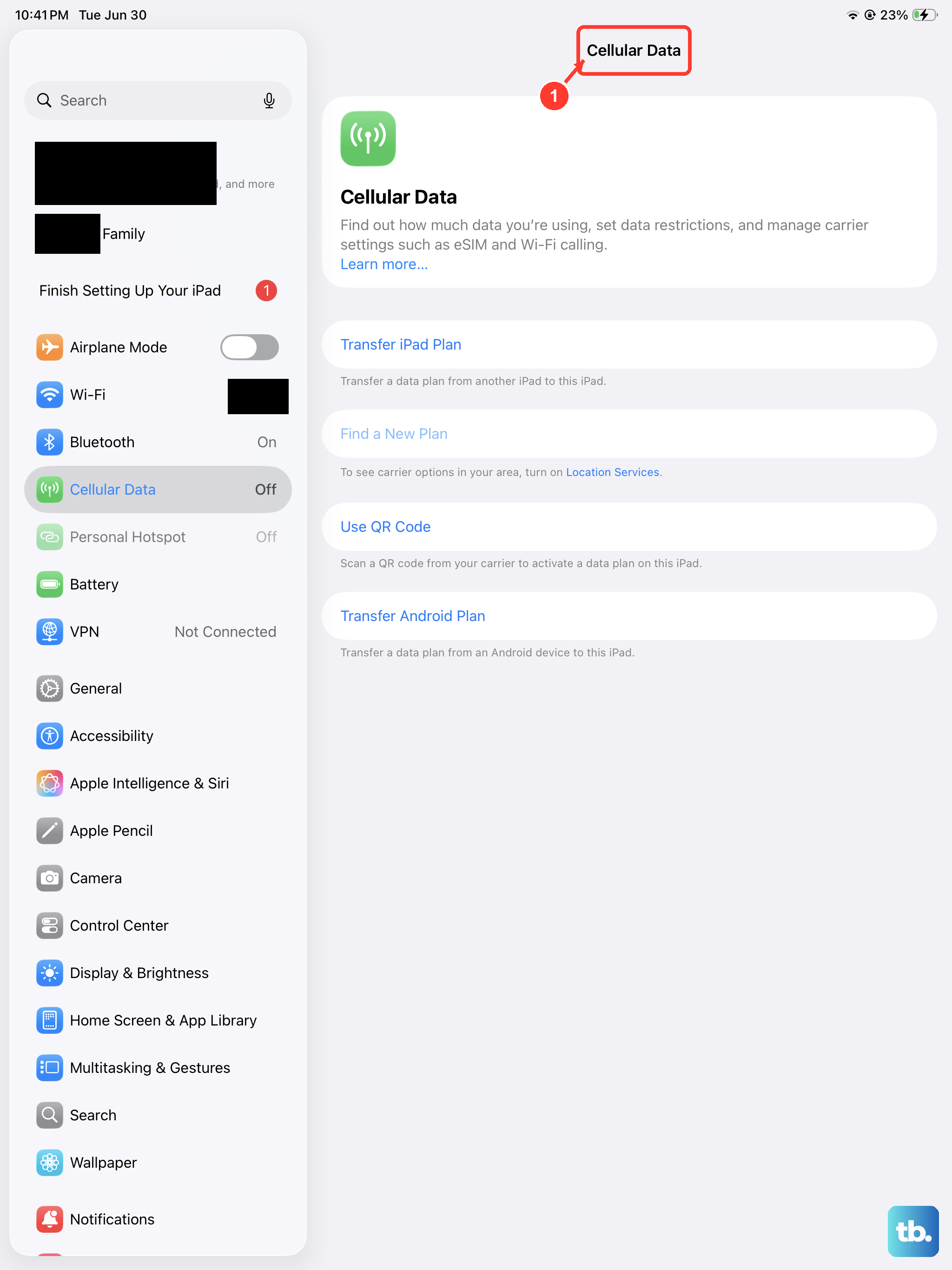
Your Personal Hotspot relies entirely on your iPad's cellular data. Open Settings > Cellular Data and make sure it's enabled. Check the signal strength indicator in the top corner of your screen. If you're in an area with just one or two bars, the hotspot may be too weak or unstable to function. Also, double-check with your carrier that your specific mobile plan includes hotspot or tethering capabilities, as some data-only plans restrict this feature.
Update Your iPadOS Software
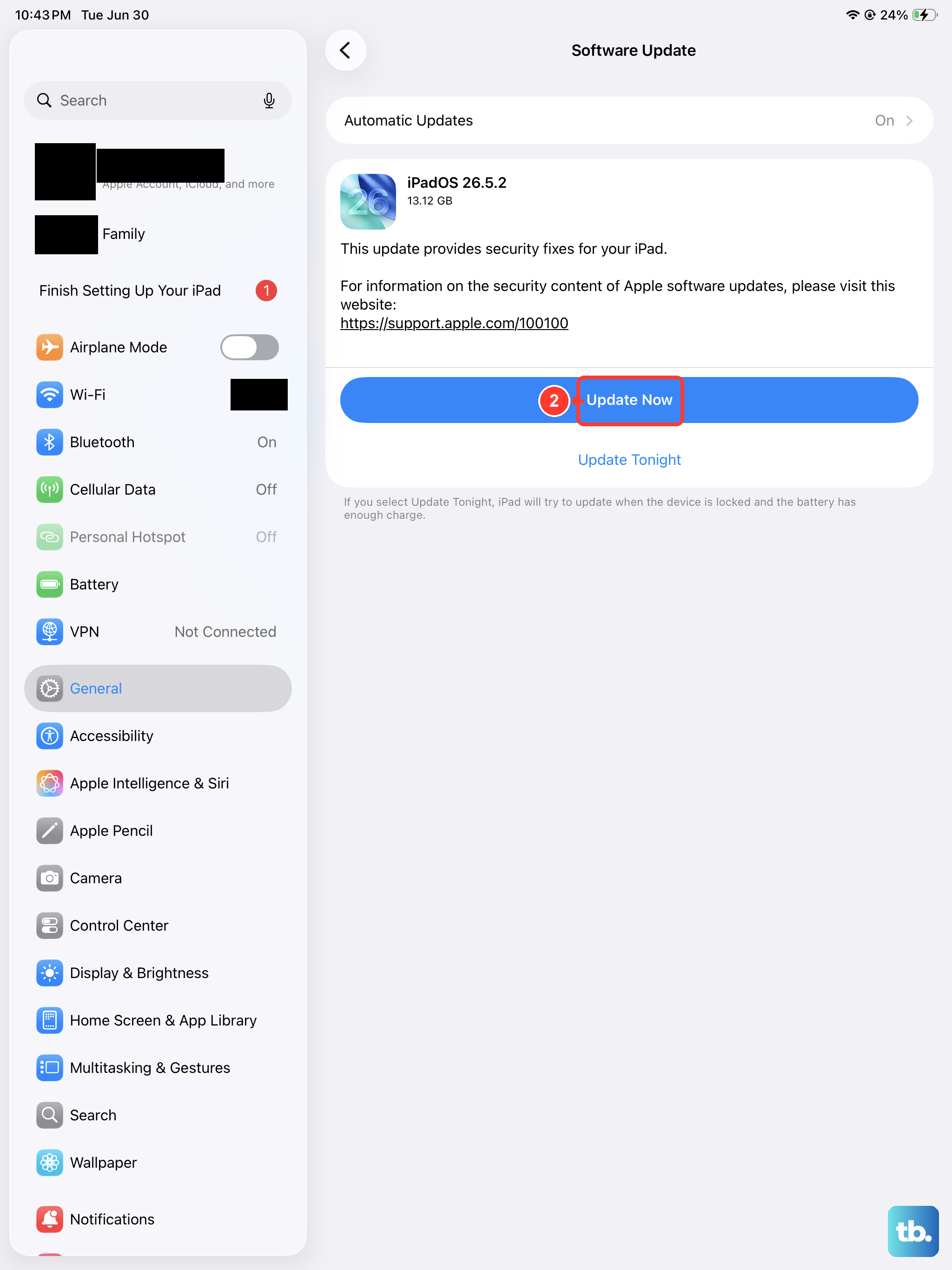
Go to Settings > General > Software Update. Apple frequently releases iPadOS updates that patch bugs, including ones related to connectivity and Personal Hotspot. If an update for iPadOS 26 is available, download and install it. It's a good practice to keep your device updated to avoid known software issues that could be affecting your hotspot.
Reset Your Network Settings
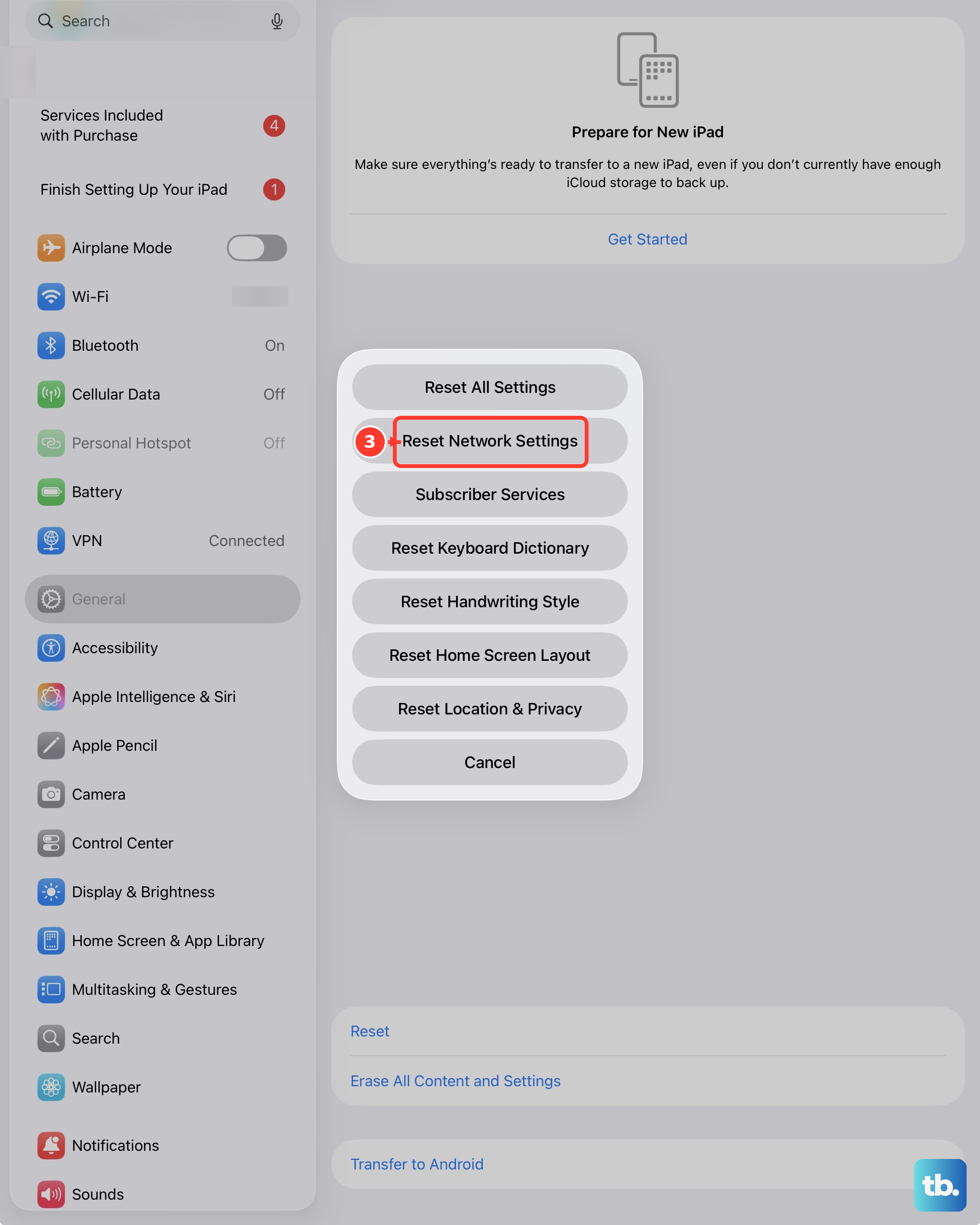
If the problem persists, a network settings reset is a powerful next step. Navigate to Settings > General > Transfer or Reset iPad > Reset > Reset Network Settings. This will erase all your saved Wi-Fi networks, VPN configurations, and cellular settings, then reinstall them fresh. You'll need to rejoin your Wi-Fi networks afterward, but this process resolves many deep-seated connectivity conflicts that can stop the hotspot from working.
Forget and Reconnect on the Other Device
The issue might be with the device trying to connect, not your iPad. On your laptop or other gadget, go into its Wi-Fi settings and find your iPad's hotspot network name. Choose to "Forget" or remove this network. Then, search for available Wi-Fi networks again, select your iPad's hotspot, and enter the password from scratch. This creates a brand new connection profile, which can fix authentication errors.
Change Your Hotspot's Wi-Fi Password
Sometimes the security handshake between devices gets stuck. On your iPad, go to Settings > Personal Hotspot > Wi-Fi Password. Change the password to something new and tap Done. Now, go back to your other device and try connecting again using this new password. This forces a completely fresh authentication process.
Check for a Carrier Settings Update
Carrier updates provide important configuration files for your cellular connection. To check for one, open Settings > General > About. If an update is available, a prompt will appear on this screen. These updates are small and install in seconds, but they can fix specific network and hotspot issues related to your mobile provider.
Try a Wired or Bluetooth Connection
If the Wi-Fi hotspot is being difficult, you can tether your iPad to a computer using the USB-C port or Bluetooth. For a USB connection, use a cable to plug your iPad directly into your Mac or PC. Ensure Personal Hotspot is enabled on your iPad, and your computer should recognize it as a network source. For Bluetooth, you'll need to pair the two devices first in their Bluetooth settings before enabling the hotspot.