
If your iPad 10th generation's camera app is black, frozen, or crashes when you open it, start with a force restart. This clears the device's memory and can fix temporary software glitches. Press and quickly release the Volume Up button, then press and quickly release the Volume Down button, and finally press and hold the Top button until you see the Apple logo appear.
A browser based online camera test is the fastest way to check whether the camera works at all. It shows a live preview along with the detected resolution and frame rate.
Key Points
- Restart and Force Quit the App: A simple restart or force quitting the Camera app is the most common fix.
- Check for Software Updates: Outdated iPadOS can cause camera malfunctions, especially after a major update.
- Check App Permissions and Settings: The camera won't work if it's disabled in Screen Time or if another app is using it.
- Clean the Camera Lens and Check for Obstructions: A smudged lens or a poorly fitted case can block the camera.
- Reset All Settings: This can resolve deeper software conflicts without erasing your personal data.
Give your iPad a moment to reboot, then try opening the Camera app again from the Home Screen. I'd start with this one, as it resolves the issue in most cases where the camera was working before.
Restart and Force Quit the App
Sometimes the Camera app itself gets stuck. To force quit it, swipe up from the bottom of the screen and pause in the middle to enter the App Switcher. Find the Camera app preview and swipe it up and off the top of the screen to close it completely. Wait a few seconds, then tap the Camera icon on your Home Screen to relaunch it.
If you're using iPadOS 18's Stage Manager, you can also click the red close button on the Camera app window or swipe it away from the recent apps view on the left side. This is a good quick check before moving on to more involved steps.
Check for Software Updates
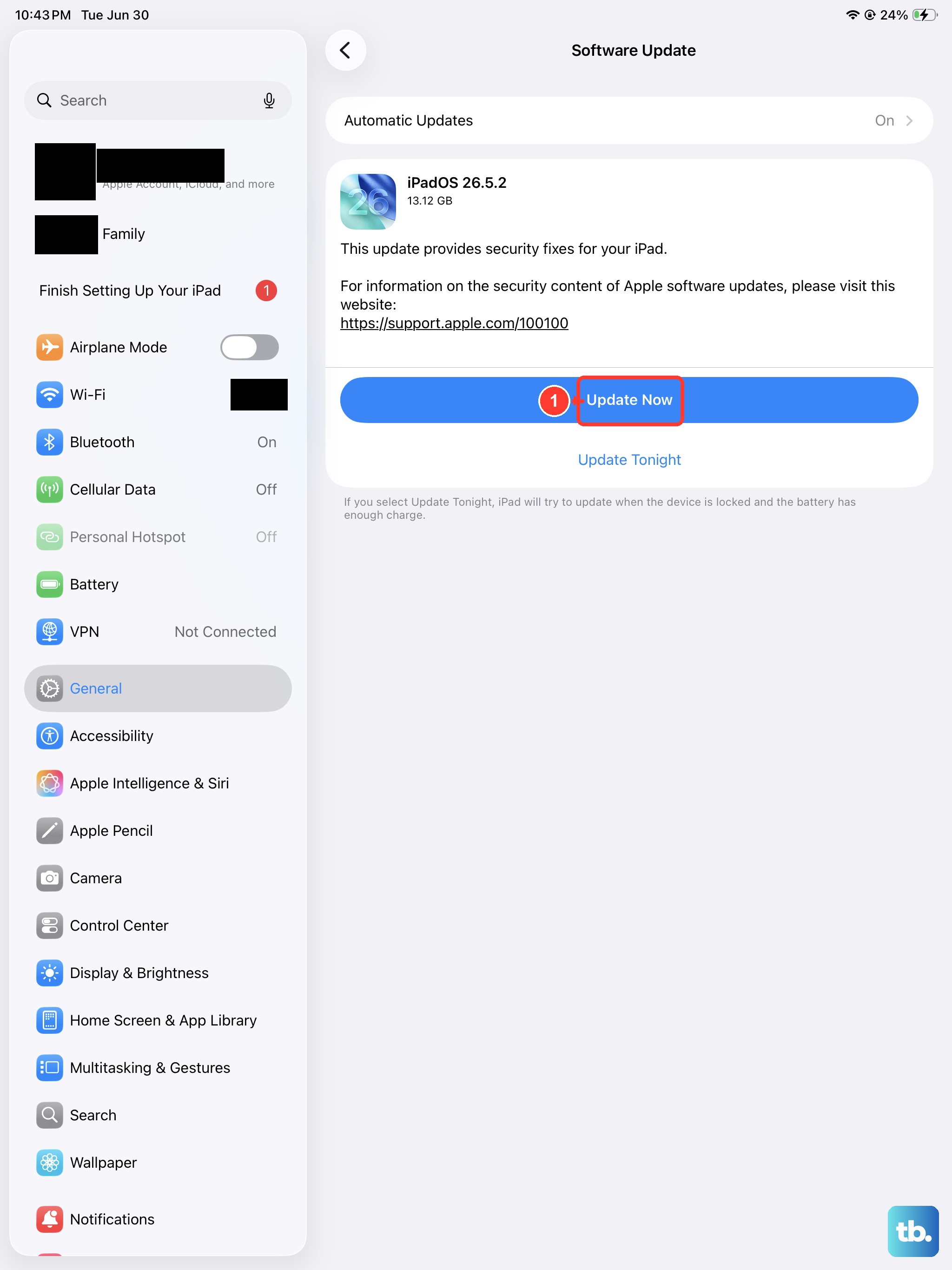
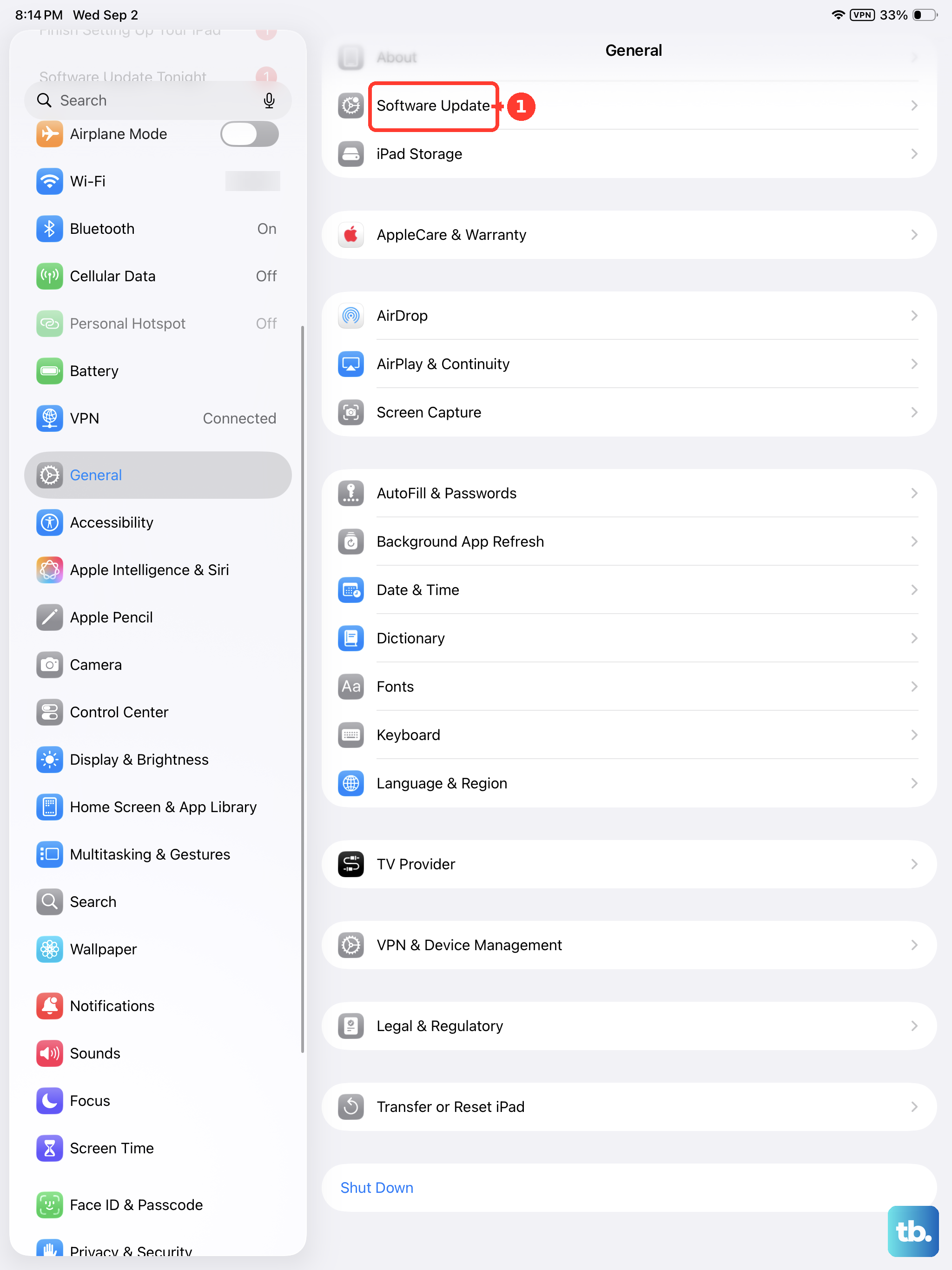
Outdated system software is a common culprit for hardware features like the camera stopping work. Apple regularly releases updates that include bug fixes for the camera and image processing system. Open the Settings app, then go to General > Software Update.
If an update is available, connect your iPad to power using a 20W or higher USB-C charger and tap Download and Install. It's a good idea to back up your iPad to iCloud before installing major updates, just to be safe. After the update finishes, restart your iPad and test the camera again.
Check App Permissions and Settings
Go to Settings > Privacy & Security > Camera. Make sure the toggle for the Camera app is switched on (green). While you're there, check if any other apps you recently used have camera access that might be interfering.
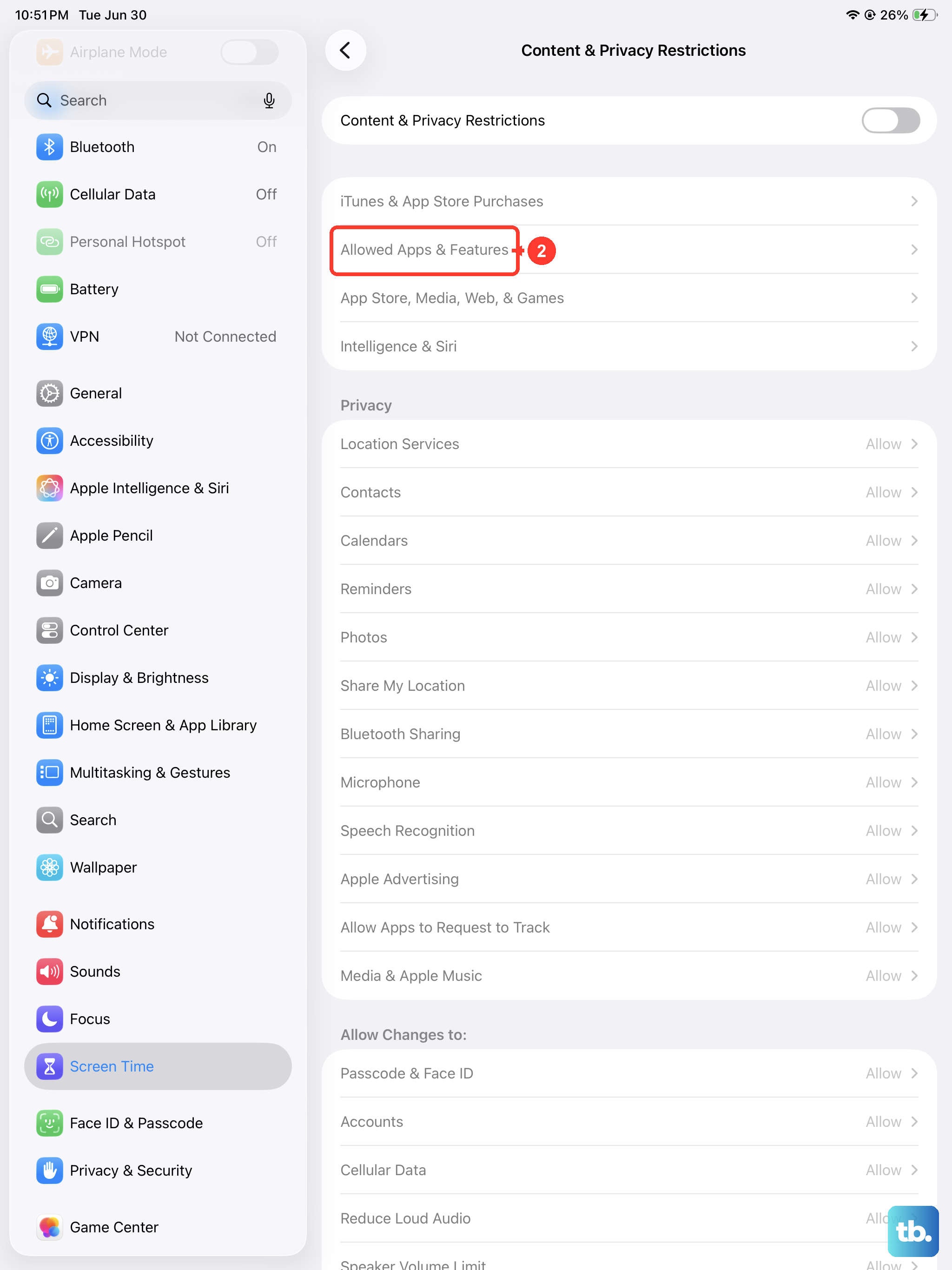
Also, check your Screen Time restrictions. Navigate to Settings > Screen Time > Content & Privacy Restrictions. Tap Allowed Apps and ensure the Camera is not restricted. If another app like Zoom or FaceTime is actively using the camera, it will lock it out from the main Camera app. Close any video calling apps completely and try again.
Clean the Camera Lens and Check for Obstructions
It sounds simple, but a fingerprint or smudge on the lens can cause blurry images or make the camera seem like it's not focusing. Use a soft, lint-free microfiber cloth to gently wipe the camera lens on the back of your iPad. Avoid using any liquids or abrasive materials.
Take a look at your iPad case, too. Some cases, especially if they are not designed specifically for the 10th generation model, can partially cover or press against the camera lens. Try removing the case entirely and see if the camera starts working normally without it.
Reset All Settings
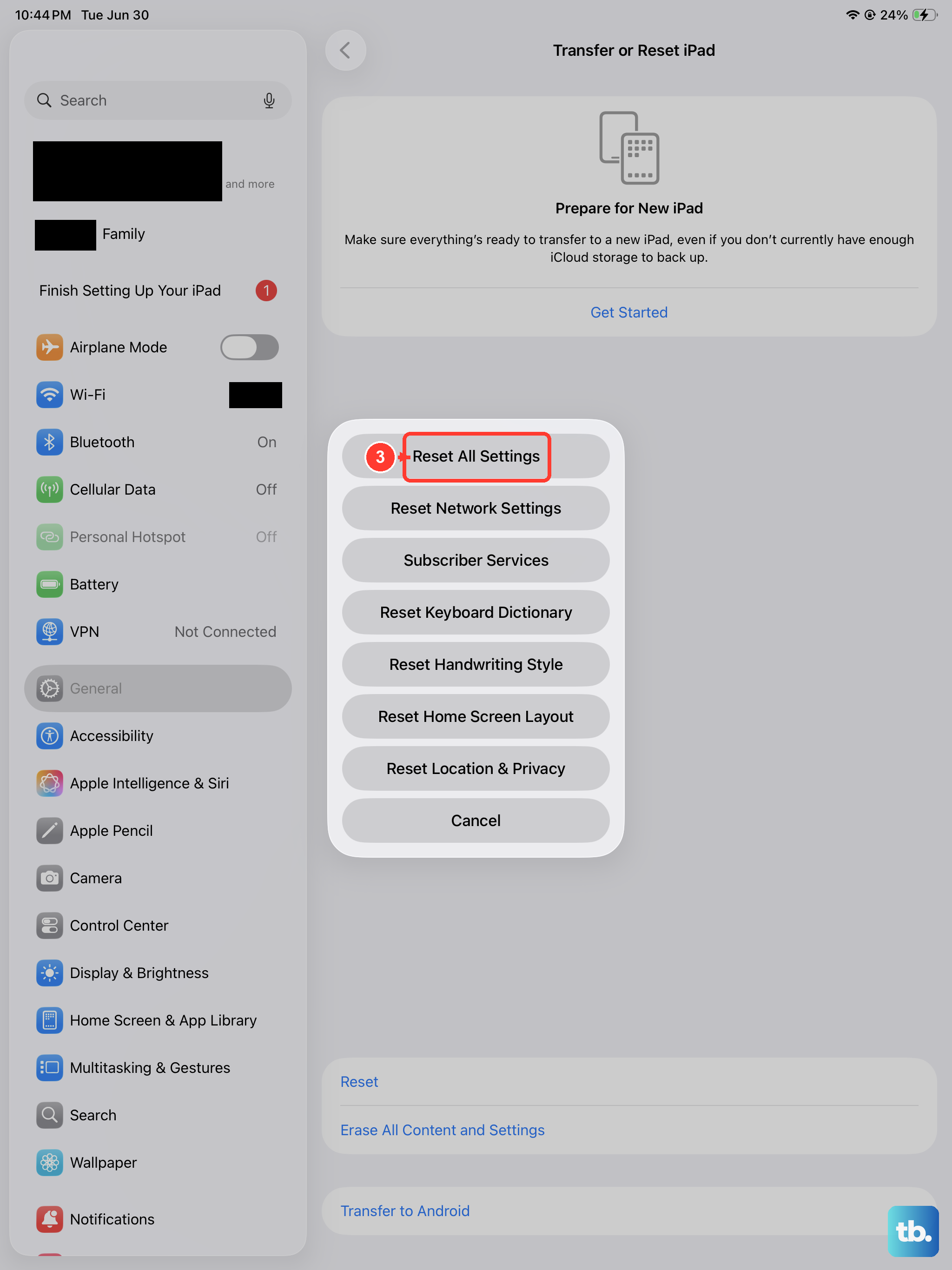
If the camera is still not working, a deeper software reset can help. This will revert all your preferences, like Wi-Fi passwords, wallpaper, and display settings, back to their defaults, but it won't delete any of your photos, apps, or personal data. Go to Settings > General > Transfer or Reset iPad.
Tap Reset and then choose Reset All Settings. You'll need to enter your passcode to confirm. Your iPad will restart, and you'll have to reconfigure things like Face ID and notifications, but this often clears up persistent conflicts that prevent the camera from functioning. After the reset, open the Camera app for a fresh start.