
When your iPad Pro (M4) won't show up on your computer, it stops you from transferring photos, backing up files, or even just charging efficiently. This is a common hiccup, but it's almost always something you can fix yourself with a few targeted checks.
The issue usually comes down to a simple cable problem, a software setting that needs a nudge, or a temporary glitch on either device. I'd start by working through the most likely fixes first, as one of them typically does the trick.
Check Your USB-C Cable and Port
This is the absolute first place to look. A faulty or low-quality cable is the single most common reason an iPad won't connect. Grab a different USB-C cable, preferably one that's Apple-certified or from a reputable brand, and try it. Make sure both ends are plugged in firmly.
Also, try a different USB port on your computer. If you're using a hub or adapter, try connecting directly to the computer's port instead. Sometimes the port on the iPad itself can get clogged with lint. Shine a light into the USB-C port and gently clear any debris with a dry, soft-bristled brush or a can of compressed air.
Restart Your iPad and Computer
A simple restart can clear out temporary software conflicts that are blocking the connection. First, restart your computer. Then, restart your iPad Pro by holding the power button and using the slide to power off option.
If the problem persists, try a force restart. On the iPad Pro (M4), you do this by pressing and quickly releasing the Volume Up button, then pressing and quickly releasing the Volume Down button, and finally pressing and holding the Power button until you see the Apple logo. This doesn't erase any data.
Check the Connection Prompt on Your iPad
When you plug your iPad into a computer, a prompt should appear on the iPad's screen asking if you "Trust This Computer." You must tap "Trust" and enter your passcode to allow data transfer. If you accidentally tapped "Don't Trust," the computer will be blocked.
To reset this, unplug the iPad, restart it, and then plug it back in. The trust prompt should appear again. If it doesn't, the computer might not be properly recognizing the device at all.
Update Your Software
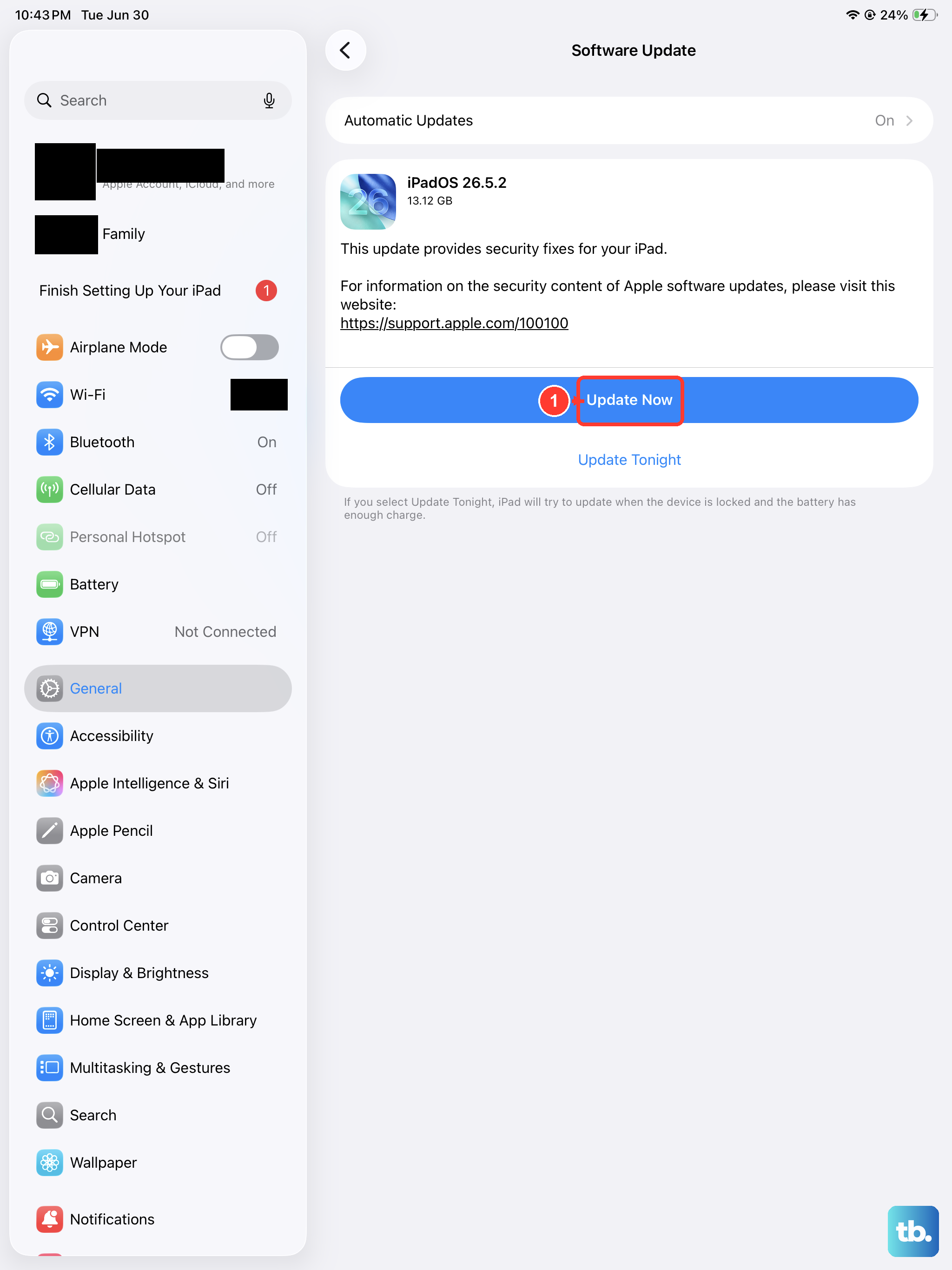
Outdated software on either end can cause communication failures. On your iPad Pro, go to Settings > General > Software Update to install any available iPadOS updates.
On your Mac, check for updates by going to System Settings > General > Software Update. If you're on a Windows PC, make sure you have the latest Windows updates and, crucially, the latest version of iTunes or the Apple Devices app from the Microsoft Store, which provides the necessary drivers.
Try a Different Computer or Cable
This step helps isolate the problem. If you have access to another computer, try connecting your iPad Pro to it. If it works, the issue is likely with your primary computer's software or USB ports.
Similarly, if you've only tried one cable, testing with another known-good, high-quality USB-C cable is essential. I've seen many connection issues resolved simply by swapping out the cable for a better one.
Check Finder or iTunes on Your Computer
On a Mac running macOS Catalina or later, your iPad should appear in the Finder sidebar under "Locations." If you don't see it, make sure your iPad is unlocked and the trust prompt has been accepted. You may also need to select your iPad in Finder preferences to have it show up.
On Windows or an older Mac, you'll use iTunes or the Apple Devices app. Make sure the application is fully updated and open when you connect the iPad. Sometimes, just having the correct app open is enough to establish the connection.
Reset Location & Privacy Settings
If the "Trust This Computer" prompt is malfunctioning, resetting the related settings can help. On your iPad, go to Settings > General > Transfer or Reset iPad > Reset.
Then tap Reset Location & Privacy. This will reset all your location and privacy preferences, meaning you'll have to re-grant permissions to apps, but it will also clear any stuck computer trust settings. After the reset, reconnect your iPad and look for the trust prompt again.