
When your iPad Pro (M4) keeps dropping its GPS signal, it can leave you stranded in the middle of navigation or cause location-based apps to fail. This usually happens because of a temporary software glitch, incorrect settings, or environmental interference. The good news is you can almost always fix it yourself without needing a trip to the Apple Store.
Let's start with the quickest solutions that work most of the time. If your GPS just started acting up, try these in order.
Refresh Location Services
The fastest way to jolt your GPS back to life is to toggle the location services off and on. Swipe down from the top-right corner of the screen to open Control Center. Tap the location services icon (it looks like a compass arrow) to turn it off, wait about ten seconds, then tap it again to turn it back on. This simple reset clears minor software hiccups that can block the GPS receiver.
If that doesn't do it, a force restart is your next best bet. On the iPad Pro (M4), you press and quickly release the Volume Up button, then quickly press and release the Volume Down button. Finally, press and hold the Power button until you see the Apple logo appear. This is more thorough than a standard restart and can clear deeper system glitches affecting the GPS chip.
Check Your iPadOS Location Settings
Sometimes the issue isn't with the GPS hardware, but with how apps are allowed to use it. Open the Settings app and go to Privacy & Security > Location Services. First, make sure the main Location Services switch at the top is green and turned on.
Scroll down and look at the list of apps. Tap on the app you're having trouble with, like Apple Maps or Google Maps. Make sure the permission is set to "While Using the App" or "Always," depending on what the app needs. If it's set to "Never," the app won't be able to access your location at all, which will look like a GPS failure.
Disable Low Power Mode
Low Power Mode on iPadOS is great for extending battery life, but it does so by limiting background processes. This can include throttling the GPS antenna or reducing how often apps can ping for your location. If you're navigating and your signal keeps dropping, turn Low Power Mode off.
You can find it in Settings > Battery. Just tap the switch to turn it off. I'd recommend doing this before any long trip where you'll be relying on GPS heavily, as it ensures the system gives location services full priority.
Toggle Airplane Mode
This is an old trick that still works wonders. Enabling Airplane Mode shuts down all the iPad's wireless radios, cellular, Wi-Fi, and Bluetooth. When you turn it back off, each radio re-initializes from scratch, which can resolve conflicts that might be stopping the GPS from working properly.
Swipe into Control Center and tap the airplane icon. Wait for about 15 seconds to let everything fully power down, then tap the icon again to disable it. Give your iPad a moment to reconnect to networks before trying your navigation app again.
Update Your Apps and iPadOS
An outdated app or operating system can have bugs that break GPS functionality. Head to the App Store and tap your profile icon in the top right to check for pending app updates, especially for your maps or navigation software.
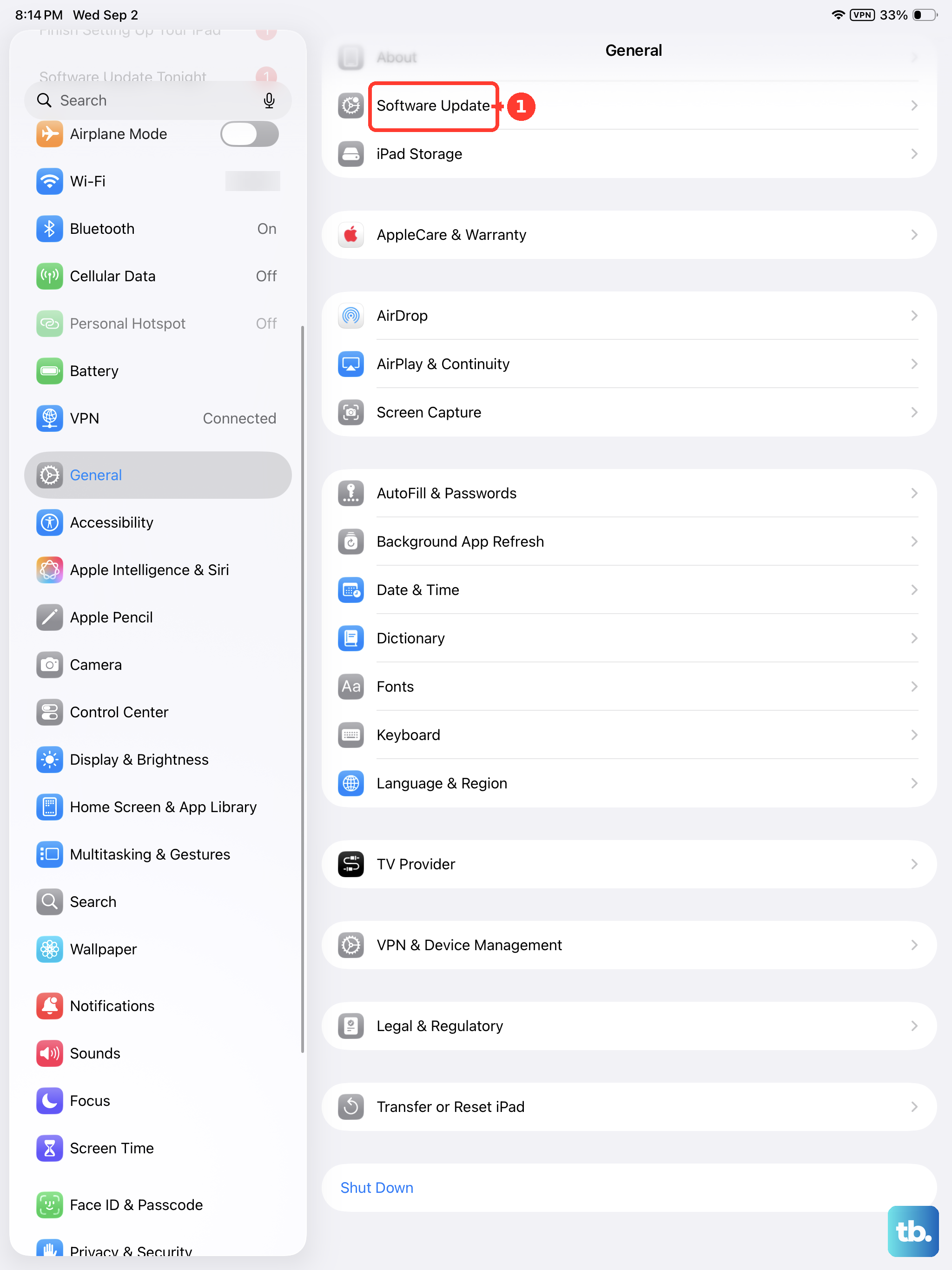
Next, check for a system update. Go to Settings > General > Software Update. If there's an update available for iPadOS, install it. These updates often contain fixes for connectivity issues, including problems with the Global Navigation Satellite System (GNSS) chip that the iPad uses for positioning.
Reset Your Network Settings
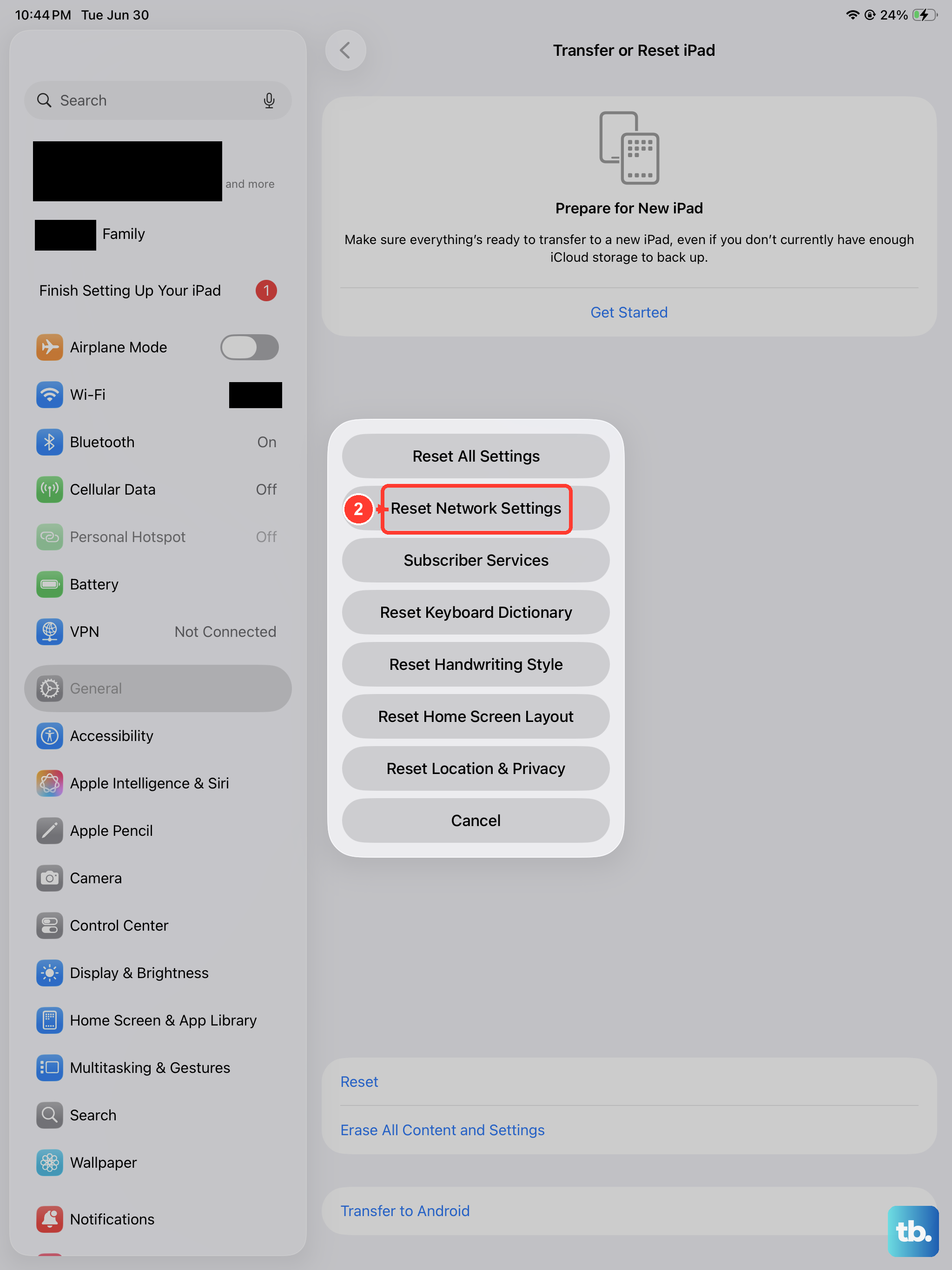
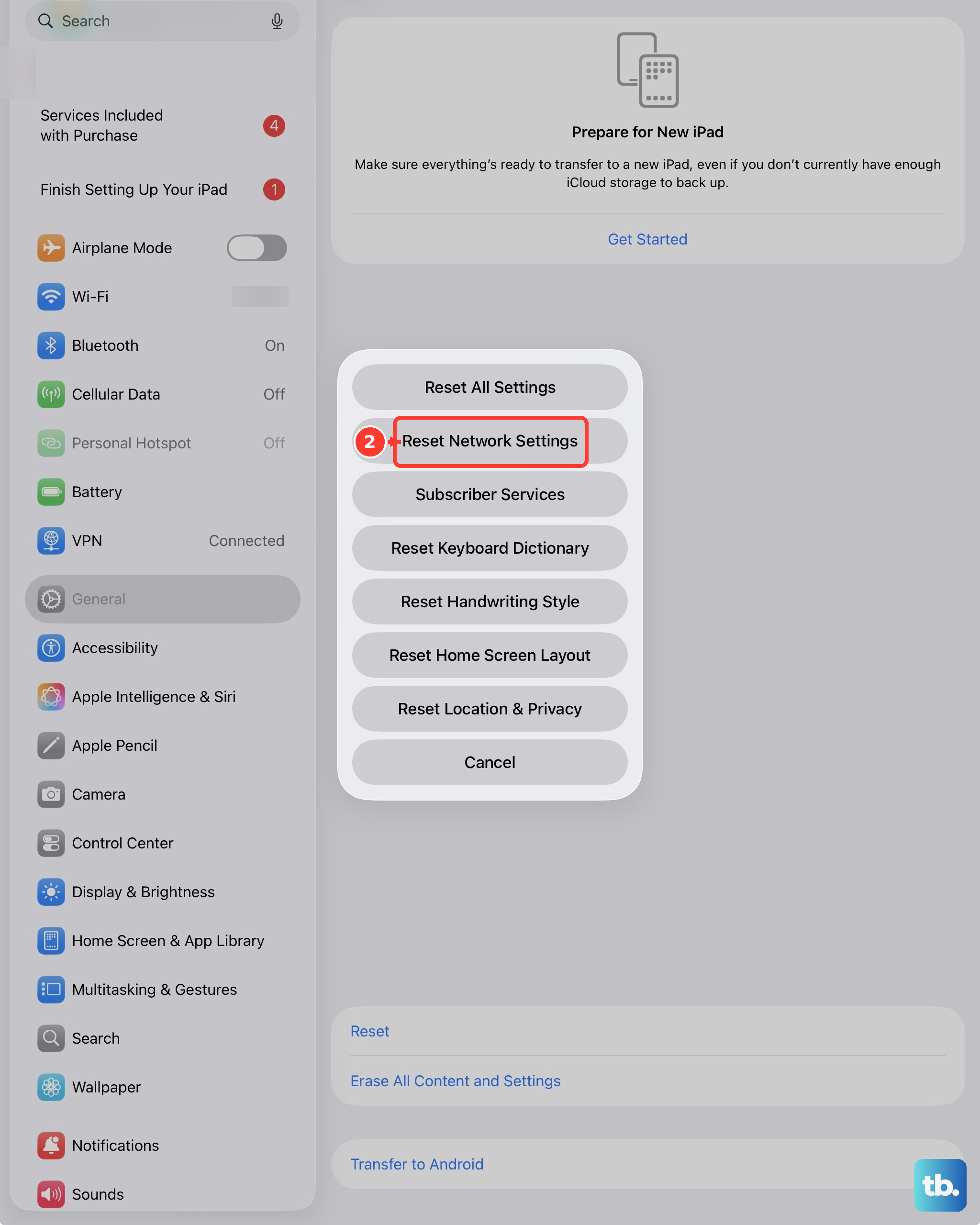
This is a bit more involved but can fix persistent location problems tied to network-assisted GPS. Resetting network settings will erase all your saved Wi-Fi passwords, Bluetooth pairings, and VPN configurations, so be prepared to re-enter those.
To do it, go to Settings > General > Transfer or Reset iPad. Tap Reset and then choose Reset Network Settings. Your iPad will restart. This clears out any corrupted network data that might be confusing the location services.
Check for Physical and Environmental Blockages
The iPad Pro's GPS antenna is designed to be sensitive, but it's not magic. It needs a relatively clear line of sight to the sky. If you're inside a building with thick walls, in a basement, or in a car with a metallic tint on the windows, the signal will be weak or nonexistent.
Move closer to a window or, better yet, step outside. Also, consider any accessories. A very thick, metal, or magnetic case could potentially interfere with the antenna. Try removing the case temporarily to see if your GPS signal becomes more stable.
Review Significant Locations and System Services
iPadOS has background system services that help improve location accuracy. Sometimes these can get misconfigured. Go back to Settings > Privacy & Security > Location Services. Scroll all the way to the bottom and tap System Services.
Here, make sure options like "Compass Calibration" and "Setting Time Zone" are enabled. These help your iPad understand its position better. You can also tap "Significant Locations" at the bottom of this menu to review or clear that history, which sometimes helps if location data seems stuck or inaccurate.
Test with a Different App
To rule out a problem with one specific app, try using a different navigation tool. If Apple Maps is losing signal, open Google Maps or Waze. If the GPS works perfectly in the second app, then the issue is isolated to the first app.
In that case, the fix is usually to delete and reinstall the problematic app. Press and hold its icon on the Home Screen, tap "Remove App," then choose "Delete App" to remove it entirely. Reinstall it fresh from the App Store, which will clear out any corrupted data it was storing.
Consider a Full Settings Reset
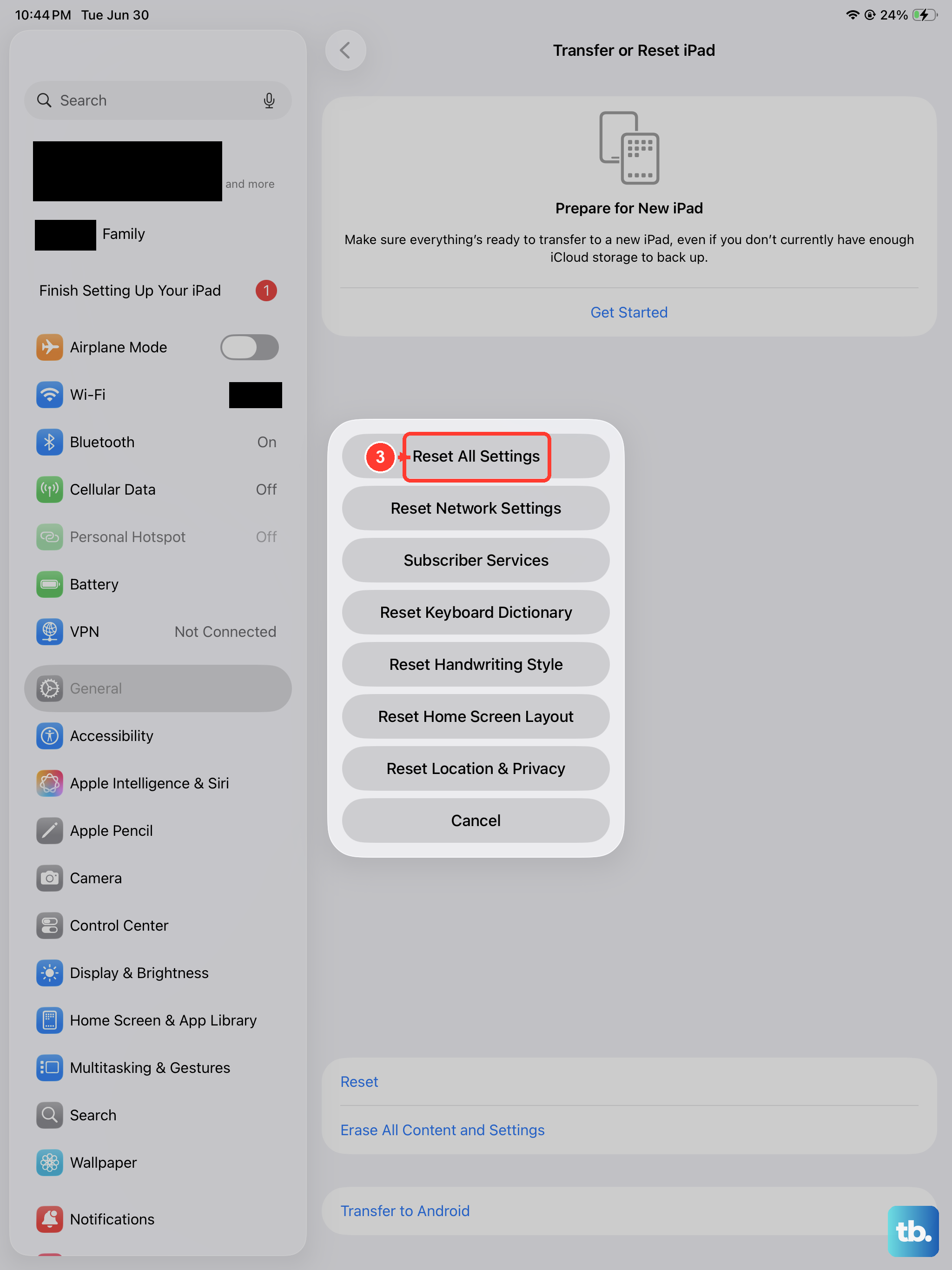
If you've tried everything else and the GPS is still unreliable, a last resort before thinking about hardware is to reset all settings. This won't erase your personal data like photos or documents, but it will wipe all your preferences, wallpaper, sounds, privacy permissions, and network settings.
Go to Settings > General > Transfer or Reset iPad > Reset. Choose Reset All Settings. After the iPad restarts, you'll need to reconfigure your preferences, but this gives the entire location services framework a clean slate. In my experience, this resolves the vast majority of stubborn software-related GPS issues on iPads.