Your iPad has stopped dead. Maybe the screen is stuck on one image and ignores every tap, maybe an app froze and dragged the whole tablet down with it, or maybe the display has gone black and nothing you press wakes it. A frozen iPad is alarming, but in the vast majority of cases it is a temporary software hiccup, not a broken device, and you can usually clear it yourself in a few minutes.
The fixes below are ordered from the gentlest and safest to the most drastic. Start at the top and only move down if the previous step does not bring your iPad back. The button sequences differ depending on whether your iPad has a Home button or is a Face ID model with no Home button, so each step spells out both where it matters.
Close just the app that locked up
If the iPad itself still responds but one app has frozen, you do not need to restart the whole tablet. Apple advises closing an app only when it is unresponsive, then reopening it, so this is the right move when everything else on screen still works. The gesture depends on your model.
On an iPad with no Home button, from the Home Screen, swipe up from the bottom of the screen and pause in the middle.
Swipe right or left to find the frozen app.
Swipe up on the app's preview to close it.
On an iPad with a Home button, double-click the Home button to show recently used apps.
Swipe right or left to find the app.
Swipe up on the app's preview to close it.
Reopen the app afterward. If it behaves, you are done. If the freeze returns or the whole screen is affected, move on.
Power it off and then back on
When the iPad as a whole feels sluggish rather than completely locked, a normal restart often clears it. Power the iPad off, wait a moment, then turn it back on. This standard power-off and power-on cycle closes everything running in the background and gives iPadOS a clean start, which is enough to resolve a surprising number of slowdowns and minor glitches.
If the iPad is so frozen that it will not respond to the normal power-off steps at all, you need the stronger version in the next section.
Force restart when the screen will not respond
A force restart is the go-to fix when the iPad is frozen, unresponsive to touch, or stuck and a normal restart will not work. It forces the hardware to reboot even when the screen is ignoring you, and it does not erase any of your data. The exact sequence depends on your model, and the order of presses matters, so follow it precisely.
On an iPad with no Home button (Face ID model):
- 1.Press and quickly release the volume button nearest to the top button.
- 2.Press and quickly release the volume button farthest from the top button.
- 3.Press and hold the top button.
- 4.When the Apple logo appears, release the top button.
On an iPad with a Home button, press and hold the top button and the Home button at the same time.
When the Apple logo appears, release both buttons.
The first two presses on a Face ID iPad are quick taps, not holds; only the final top-button press is held. If nothing happens on the first try, repeat the sequence carefully, since the timing of those quick presses is easy to miss.
Give a dead-looking screen time on the charger
If the iPad will not turn on at all and the screen stays completely black, the problem may simply be a fully drained battery rather than a freeze. Connect the iPad to power using its cable and a power adapter and let it charge. Apple notes that you may need to charge for up to an hour before the iPad responds, so do not give up too soon.
Use the cable and adapter that came with your iPad, or another Apple-certified set. If your iPad charges over USB-C, a higher-wattage USB-C adapter such as the one from a Mac laptop can be used for faster charging if you want the battery to recover more quickly. Once a charging indicator appears or the Apple logo shows up, try a force restart from the previous step if the screen is still stuck.
Rule out the cable, adapter, and port
If time on the charger does not revive the iPad, the issue may be with the charging accessories rather than the tablet itself. Confirm that the charging icon actually appears when you plug in, which tells you power is reaching the device.
Use an Apple-certified cable and adapter, since a damaged or uncertified accessory can fail to deliver a charge. Inspect the charging port for debris or damage, because lint and dust pack into the port over time and block a solid connection. If swapping the cable, adapter, or cleaning the port restores power, the iPad was never broken.
Install the latest iPadOS once it responds
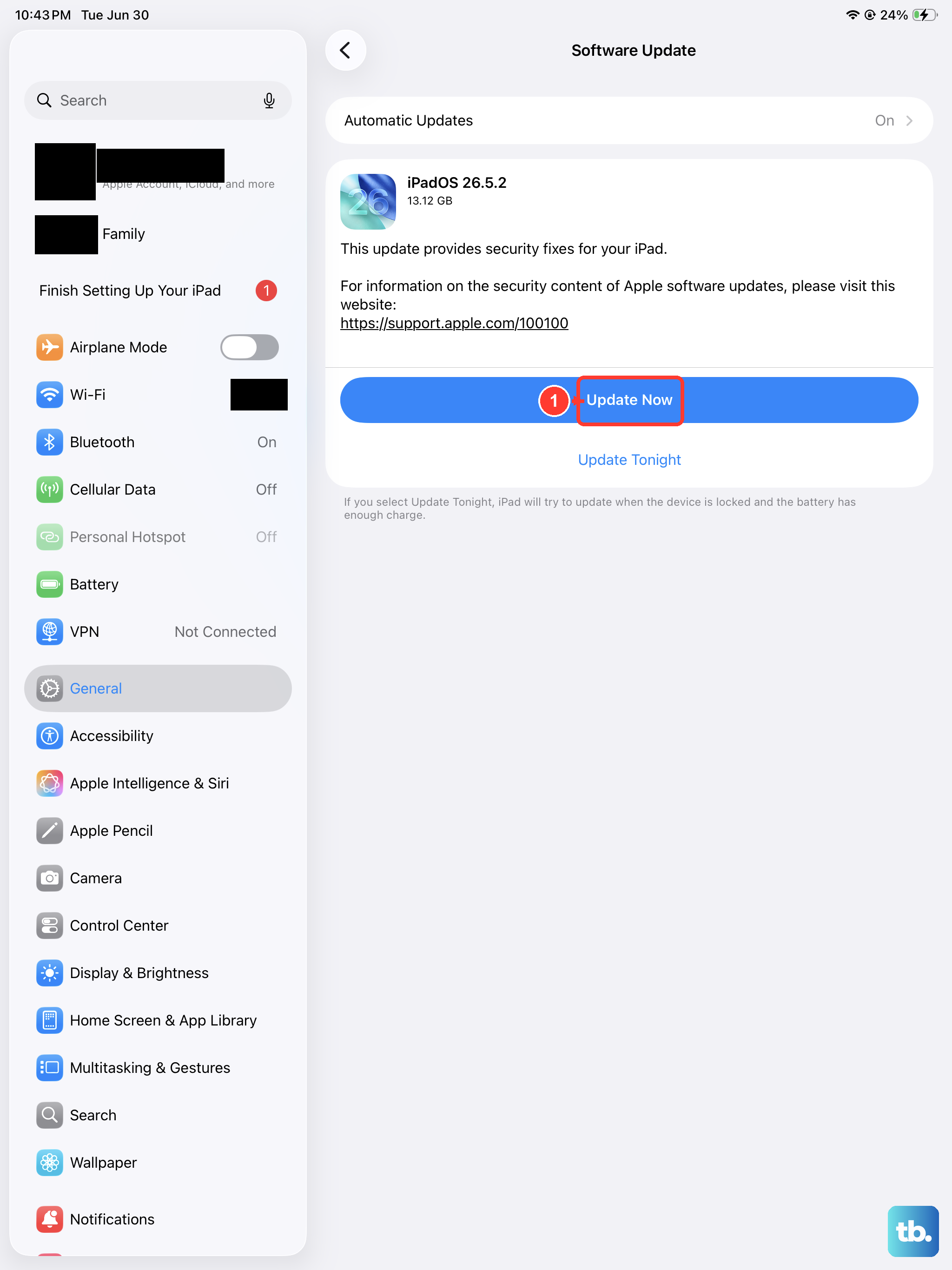
Once your iPad is responsive again, installing any available software update is worth doing, because updates frequently fix the bugs that cause freezing in the first place. Keeping iPadOS current is one of the simplest ways to prevent the problem from returning.
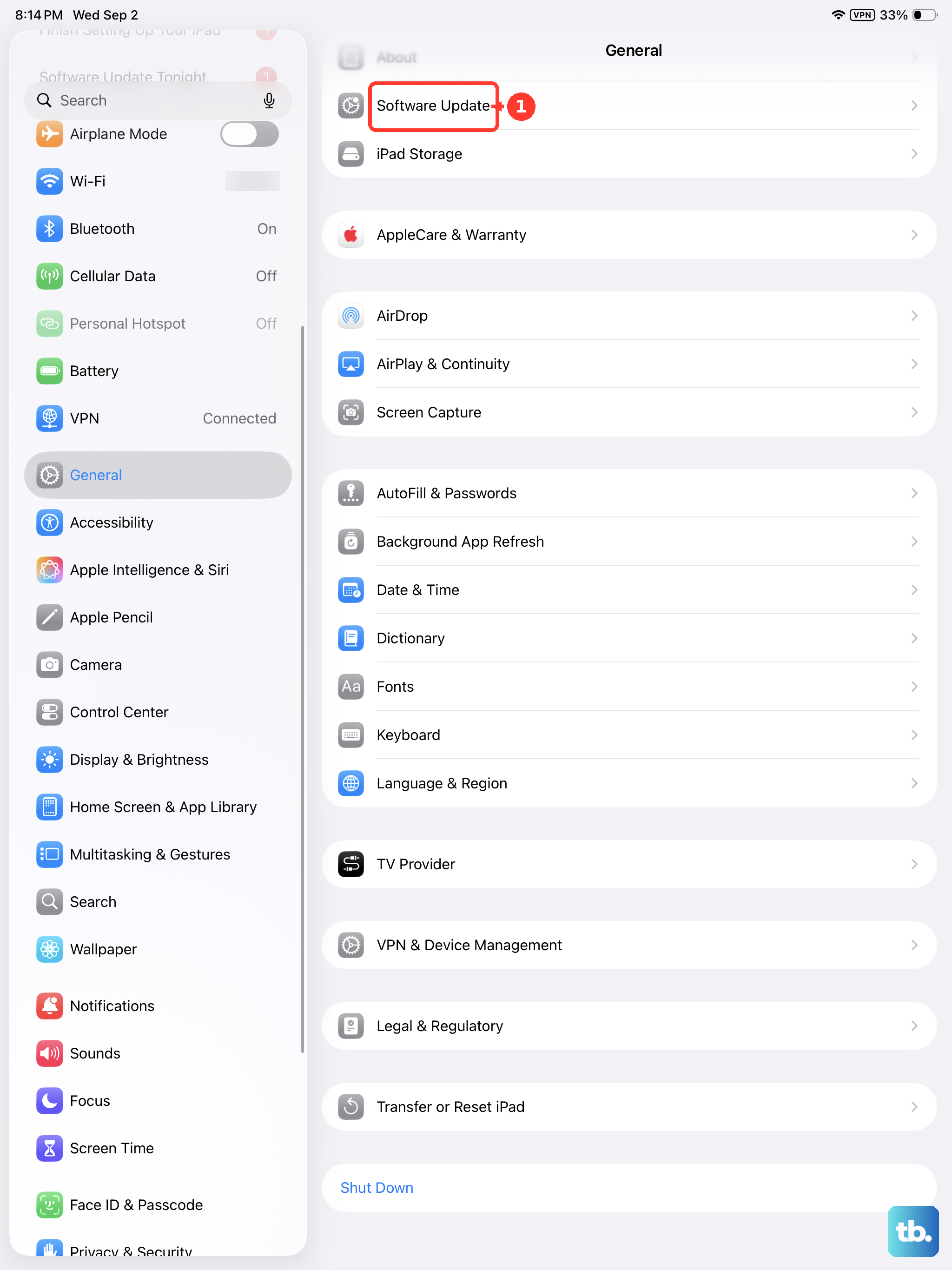
Open Settings.
Tap General.
Tap Software Update.
Tap Download and Install and follow the onscreen instructions.
The current major release is iPadOS 26. The version your iPad offers will depend on the model, so let the screen tell you what is available rather than expecting a specific number. Keep the iPad connected to power and Wi-Fi while it updates so the process is not interrupted.
Recover or restore through a computer
If the iPad still will not start or stays stuck on the Apple logo no matter what you try, the next step is to connect it to a computer and use recovery mode. On a Mac running macOS Catalina 10.15 or later you will use the Finder; on an older Mac you will use iTunes; on a Windows PC you will use the Apple Devices app, or iTunes if the Apple Devices app is not installed. Connect the iPad to the computer first, then put it into recovery mode. The button sequence depends on your model.
On an iPad with no Home button (Face ID model), press and quickly release the volume button closest to the top button.
Press and quickly release the volume button farthest from the top button.
Press and hold the top button until you see the recovery-mode screen.
On an iPad with a Home button, press and hold both the Home button and the top button at the same time.
When the iPad turns off, release the top button but keep holding the Home button.
Keep holding the Home button until you see the recovery-mode screen.
When the computer offers the choice, select Update. Choosing Update reinstalls iPadOS while keeping your data, so it is the safer of the two options the computer presents. The other option, Restore, reinstalls iPadOS but erases everything on the iPad, so use it only if Update does not work and you have a backup you trust. If the download takes more than 15 minutes, the iPad exits recovery mode on its own; if that happens, let the download finish, then repeat the steps.
Erase everything as the final self-service step
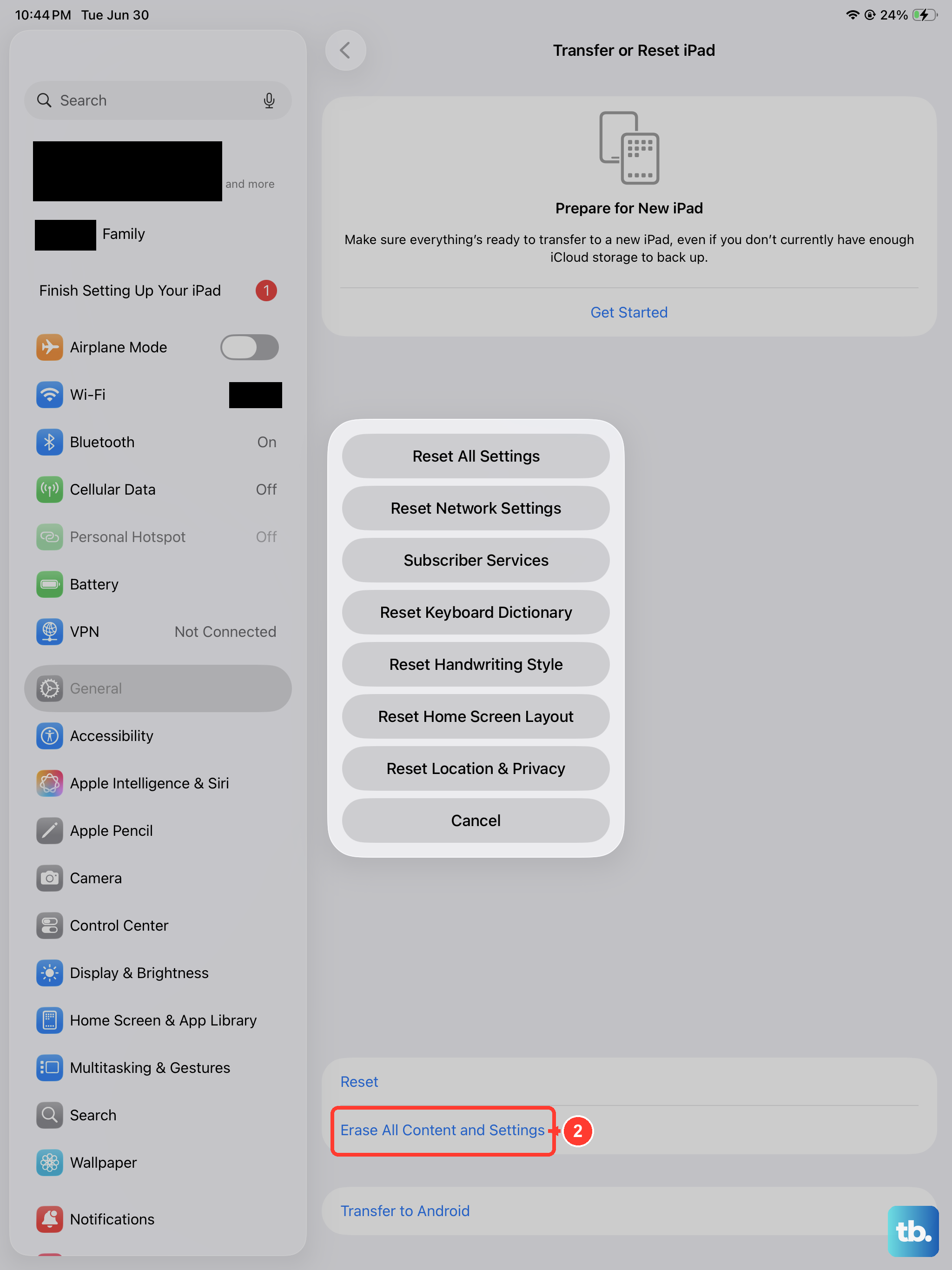
If the iPad is usable but keeps freezing despite everything above, a full erase is the last fix you can do yourself. This is a serious step. Erasing permanently deletes all of your data, so back up your iPad first and only proceed once you have a backup you trust.
Open Settings.
Tap General.
Tap Transfer or Reset iPad.
Tap Erase All Content and Settings.
If asked, enter your iPad passcode or Apple Account password.
Tap Continue.
If your iPad has an eSIM, you may be given the option to keep or erase it. Erasing the eSIM means you will need to contact your carrier to reactivate it, so keep it unless you have a specific reason to remove it. After the erase finishes, set the iPad up fresh and restore your backup to see whether the freezing is gone.
When it is time to book a repair
If the iPad still will not turn on, stays frozen, or refuses to restore after you have worked through these steps, the issue may be beyond a software fix. At that point the device may need service. Contact Apple Support to describe what you have already tried and to arrange a repair, rather than continuing to cycle through the same steps. A consistent failure to restore is a strong sign that hands-on service is the right call.
Frequently Asked Questions
Will a force restart delete my data?
No. A force restart only reboots the iPad's hardware; it does not erase your apps, photos, or settings. It is safe to use whenever the screen is frozen or unresponsive. The only step in this guide that deletes data is Erase All Content and Settings, which warns you clearly before it runs.
My iPad screen is completely black. Is it broken?
Not necessarily. A black, unresponsive screen is often just a drained battery. Connect the iPad to power and let it charge; Apple notes it can take up to an hour before the device responds. If it still shows nothing after charging, try a force restart, then check your cable, adapter, and charging port.
What is the difference between a normal restart and a force restart?
A normal restart powers the iPad off and back on using the standard controls, which works when the iPad still responds. A force restart uses a specific button sequence to reboot the device even when the screen ignores your taps, making it the right choice for a fully frozen iPad.
Should I update or restore my iPad in recovery mode?
If recovery mode offers both options, choose Update first, because it reinstalls iPadOS while keeping your data. A full restore reinstalls iPadOS but erases everything on the iPad, so use it only if updating does not fix the problem and you have a backup. Remember that the download must finish within 15 minutes or the iPad will exit recovery mode and you will need to repeat the steps.
How do I stop my iPad from freezing again?
Keep iPadOS up to date in Settings > General > Software Update, since updates often fix the bugs behind freezing. Closing apps that become unresponsive and restarting the iPad occasionally also help. If freezing keeps happening after an erase and restore, contact Apple Support, as it may point to a hardware issue.