
When your iPad Air M3 stops fetching emails, it throws off your whole day. Whether you're missing work messages or personal updates, the fix is usually simpler than you think. Let's work through the most likely culprits in order.
Before anything else, check the basics. Make sure your iPad is connected to Wi-Fi or cellular data. Open a browser and try loading a webpage to confirm. Also, verify your email password hasn't changed recently. A quick login test on a computer or another device can rule out account issues.
Check Your Mail Fetch Settings
Your iPad Air M3 can push new emails as they arrive or fetch them on a schedule. If the setting is off, you won't see new messages unless you manually refresh.
Head to Settings > Apps > Mail. Tap Mail Accounts, then Fetch New Data. Turn on Push if your email provider supports it. If not, choose Automatically or set a specific interval like every 15 minutes. Keep in mind that Fetch only works in the background when your iPad is charging and connected to Wi-Fi.
Switch Between Wi-Fi and Cellular
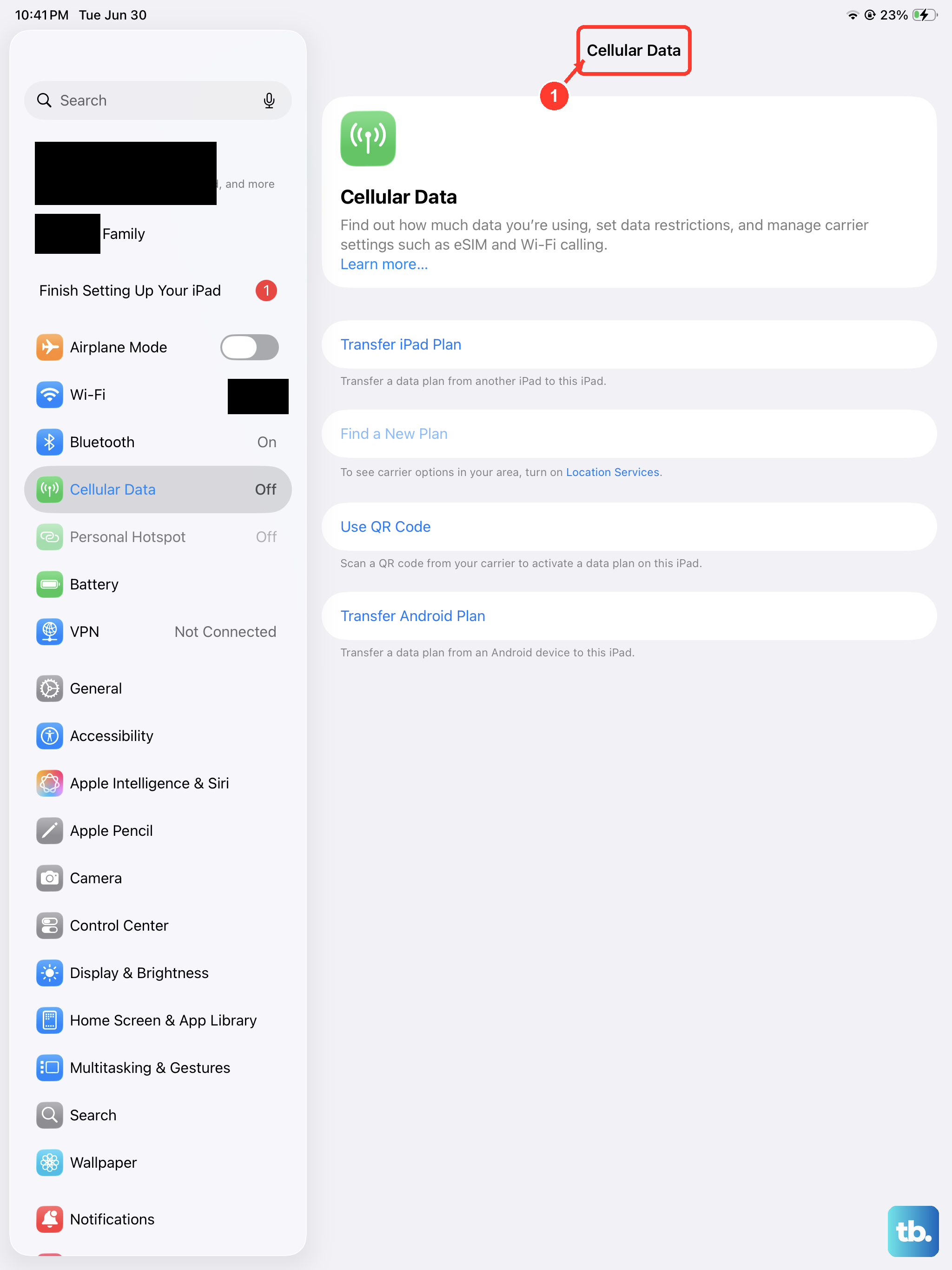
Sometimes email hangs because of a weak or glitchy network connection. If you're on Wi-Fi, toggle it off in Control Center and use cellular data instead. If that works, the issue is with your Wi-Fi network. Try forgetting the network and reconnecting, or restart your router.
If you're on cellular data, make sure the Mail app has permission to use it. Go to Settings > Cellular Data and scroll down to confirm Mail is toggled on.
Toggle Airplane Mode
A quick network reset can clear up minor connectivity hiccups. Swipe down from the top-right corner to open Control Center, tap the Airplane Mode icon, wait about 30 seconds, then tap it again to turn it off. Your iPad will reconnect to Wi-Fi and cellular, and email should start flowing again.
Restart the Mail App
If the Mail app itself is acting up, a force-quit and relaunch can do the trick. Swipe up from the bottom of the screen and pause to open the App Switcher. Find the Mail app card and swipe it up to close it. Wait a few seconds, then tap the Mail icon to reopen.
Enable Background App Refresh
Mail needs Background App Refresh to check for new messages when you're not actively using it. Go to Settings > General > Background App Refresh. Make sure it's set to Wi-Fi & Cellular Data or Wi-Fi, and verify Mail is toggled on.
Verify Your Email Credentials
An incorrect password is one of the most common reasons email stops working. Try logging into your email via a browser on your iPad or another device. If you can't get in, reset your password. Then update it on your iPad by going to Settings > Apps > Mail > Mail Accounts, selecting your account, and entering the new password.
Set Date and Time Automatically
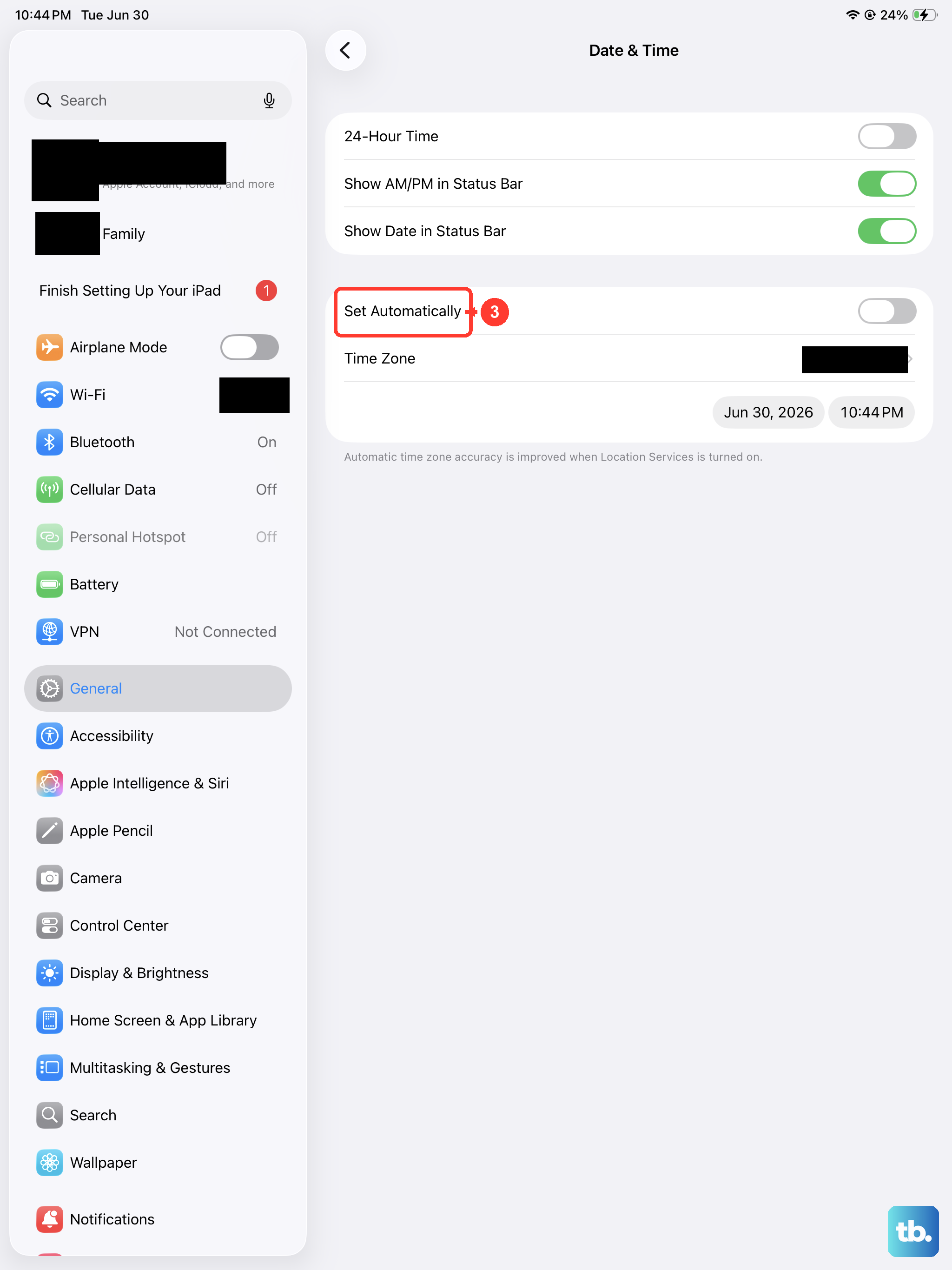
Your iPad uses the correct date and time to sync with email servers. If those are wrong, authentication can fail. Go to Settings > General > Date & Time and toggle on Set Automatically. Make sure your iPad is connected to Wi-Fi long enough to get the correct time.
Check for Service Outages
Your email provider might be experiencing downtime. Visit their status page or search for "Gmail down" or "Outlook outage" to see if others are reporting issues. If the service is down, you'll have to wait it out.
Disable VPN Connections
VPNs can interfere with email connections, especially with certain server configurations. Go to Settings > General > VPN & Device Management and toggle off any active VPN. Try fetching email again. If it works, consider adding an exception for your email provider in the VPN app.
Update the Mail App (or Third-Party Apps)
If you use a third-party email app like Gmail or Outlook, make sure it's updated. Open the App Store, tap your profile picture, and scroll to see available updates. For the built-in Mail app, its updates come with iPadOS, so check for a system update next.
Force Restart Your iPad Air M3
A force restart clears temporary system glitches without erasing your data. Press and quickly release the Volume Up button, then press and quickly release the Volume Down button. Then press and hold the Top button until the Apple logo appears. This can resolve stubborn software hiccups that affect email.
Update iPadOS
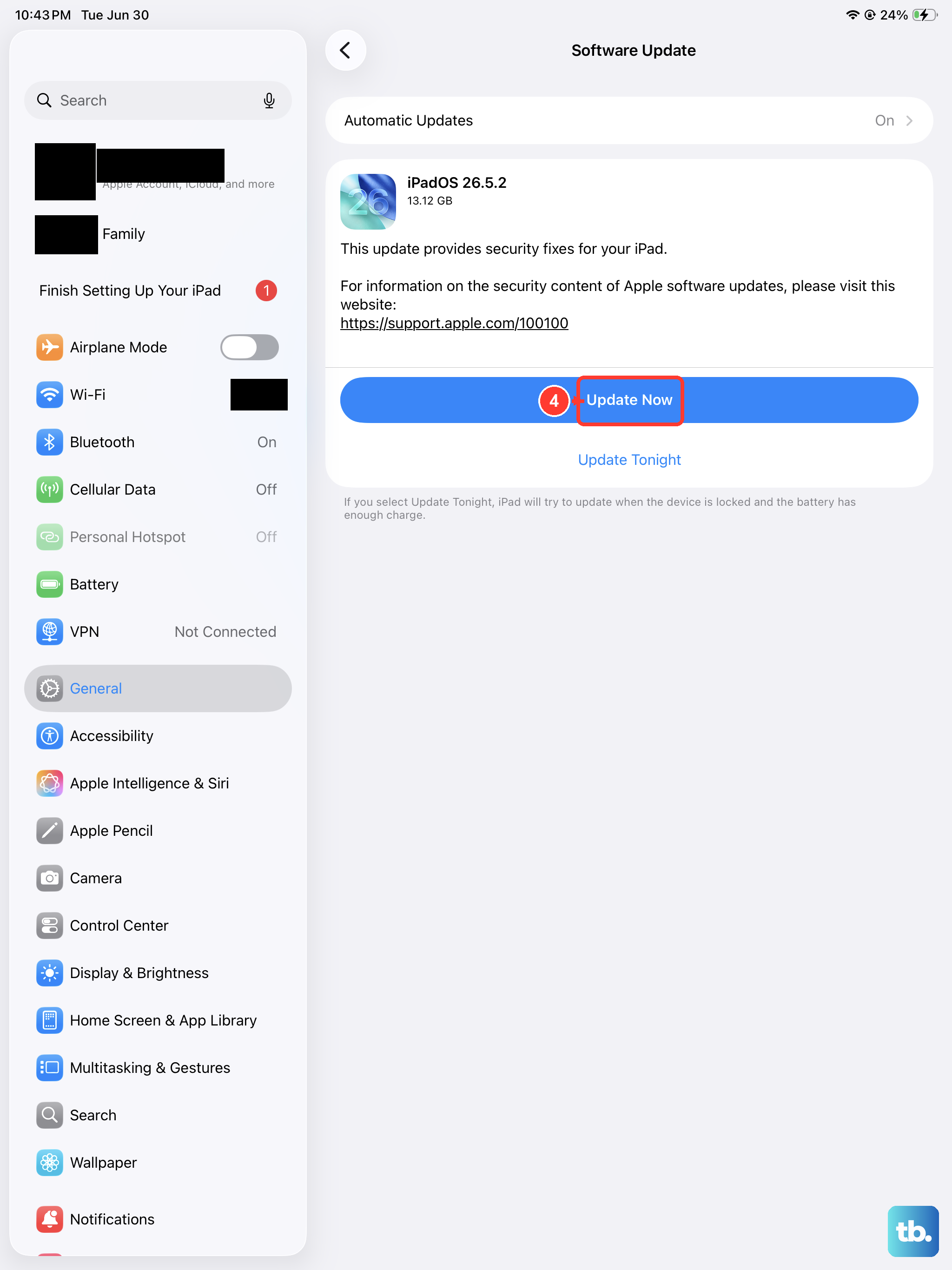
Apple frequently releases updates that fix bugs, including email-related ones. Go to Settings > General > Software Update. If an update is available, tap Download and Install. Make sure your iPad is plugged in and connected to Wi-Fi before starting.
Delete and Re-add Your Email Account
If nothing above works, removing and setting up your email account from scratch can reset any corrupted settings. Go to Settings > Apps > Mail > Mail Accounts. Tap your email account and choose Delete Account. Then tap Add Account and enter your credentials again.
Reset All Settings
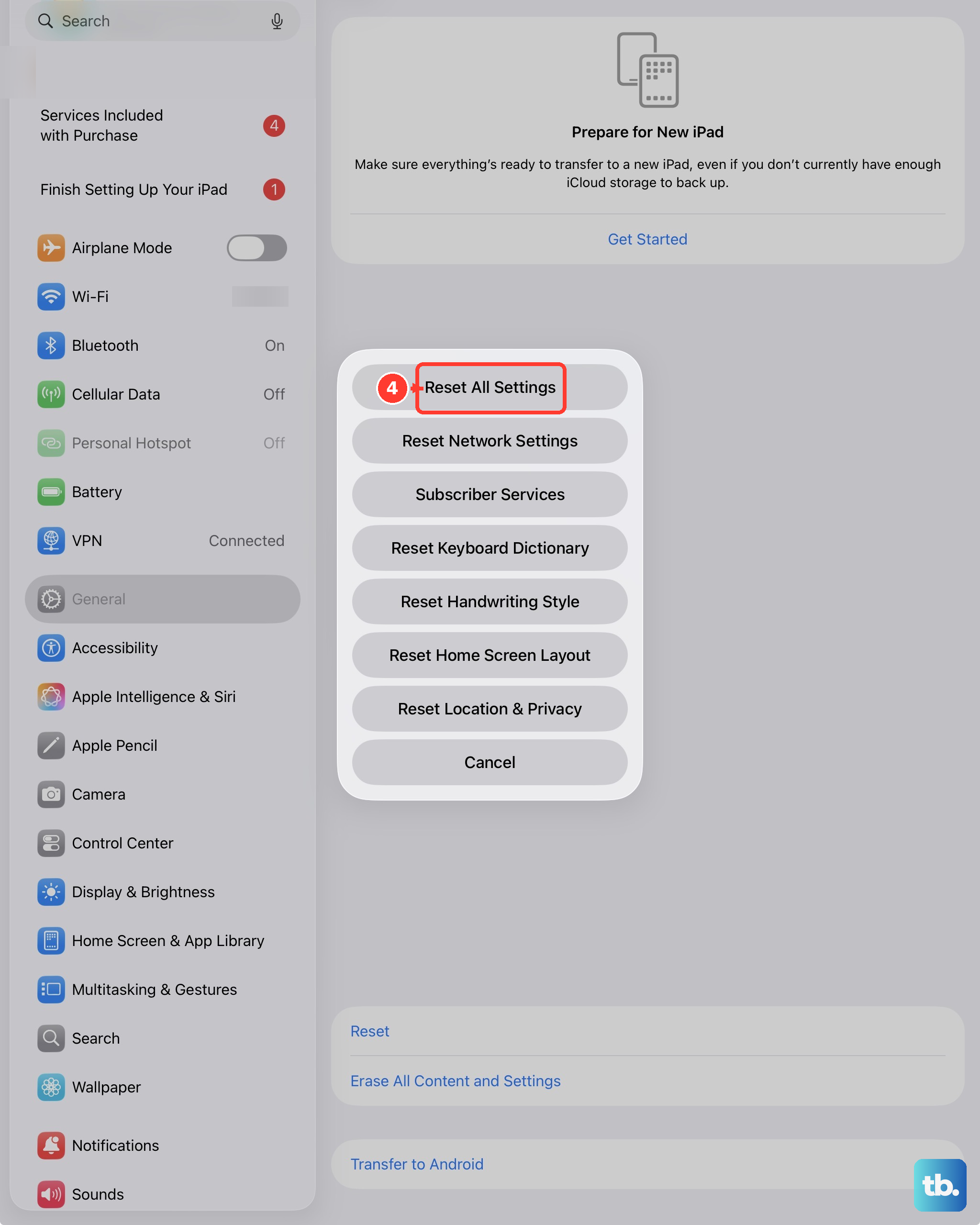
This is a more drastic step, but it won't erase your photos, apps, or data. It does reset Wi-Fi passwords, wallpapers, and system preferences. Go to Settings > General > Transfer or Reset iPad > Reset > Reset All Settings. Confirm the action and let your iPad restart. You'll need to re-enter Wi-Fi passwords and reconfigure some settings, but email often starts working again afterward.
Most email issues on the iPad Air M3 come down to a misconfigured fetch setting, a network hiccup, or a simple password problem. Start with the easiest checks and work your way up. In nearly every case, one of these steps will get your inbox flowing again.