
Your iPad Air M3 charges through USB-C and supports up to 30W for faster top-ups, but sometimes the speed drops way below what it should be. A few common issues usually explain the slow charging, and most of them are easy to check.
Start With the Power Adapter
The iPad Air M3 needs a USB-C PD adapter rated at 20W or higher for decent charging speed. Plugging it into an old 5W phone brick or a lower-wattage adapter will result in painfully slow charging. Check the wattage printed on your charger's body. Apple's 20W or 30W adapters work perfectly, and so do third-party USB-C PD adapters as long as they're from a reputable brand.
Check the Cable You're Using
Not all USB-C cables are created equal. A USB-A to USB-C cable will be noticeably slower regardless of the adapter wattage. Stick with a USB-C to USB-C cable, ideally the one that came with your iPad or a certified third-party option. Non-certified cables are a known cause of charging issues on this model, so avoid cheap knockoffs.
Give the iPad a Force Restart
A software hiccup can sometimes mess with charging speed management. Press and quickly release the volume button closest to the Top button, then the one farthest from it, then press and hold the Top button until the Apple logo appears. This clears out temporary glitches without erasing any data. Takes about 30 seconds.
Watch for Overheating
The iPad Air M3 slows its charging speed when internal temperatures climb. If you're using it on a soft surface like a bed or couch, or charging in direct sunlight, move it to a cool, hard surface like a table. Gaming or video streaming while charging also generates heat that triggers thermal throttling. For the fastest charge, leave the iPad alone.
Clean the USB-C Port
Lint and pocket debris in the USB-C port can block the connection and limit power delivery. Take a look inside with a flashlight. If you see anything, gently clean it out with a wooden toothpick or a soft brush. Avoid metal objects. Compressed air works well too. A clean port keeps the connection solid for maximum charging speed.
Take Off the Case
Thick or insulated cases trap heat during charging, which makes the iPad reduce power delivery to protect the battery. Pop the case off while you're charging, especially if the device feels warm to the touch. It's a simple thing that makes a real difference.
Skip Using It While Charging
Running demanding apps while the iPad is plugged in generates extra heat and competes for power. iOS throttles charging speed when it detects high load or temperature. For the fastest charge, close out apps, dim the screen, or put the iPad in Airplane Mode. You'll see the percentage climb noticeably faster.
Handle the 'Not Charging' Message
If your iPad Air M3 shows a 'Not Charging' message on the lock screen, the cable and adapter combination is likely the issue. Try a different USB-C cable and a different 20W+ adapter. This message typically appears when the iPad doesn't recognize the accessory as capable of delivering enough power. Swap in known-working parts and it usually clears right up.
Deal With a Deep Discharge
If the battery has been completely drained for a while, the iPad may report an incorrect percentage and seem to charge very slowly at first. Plug it in with a 20W or higher adapter and leave it connected for 10 20 minutes without touching it. The percentage will eventually correct itself as the battery wakes up. Don't panic if it shows 1% for a while.
Check Optimized Battery Charging
iPadOS 18 includes Optimized Battery Charging, which intentionally slows charging past 80% to preserve long-term battery health. If you need a full charge faster right now, go to Settings > Battery > Battery Health & Charging and toggle off Optimized Battery Charging temporarily. Turn it back on when you're done to keep the battery in good shape.
Update iPadOS
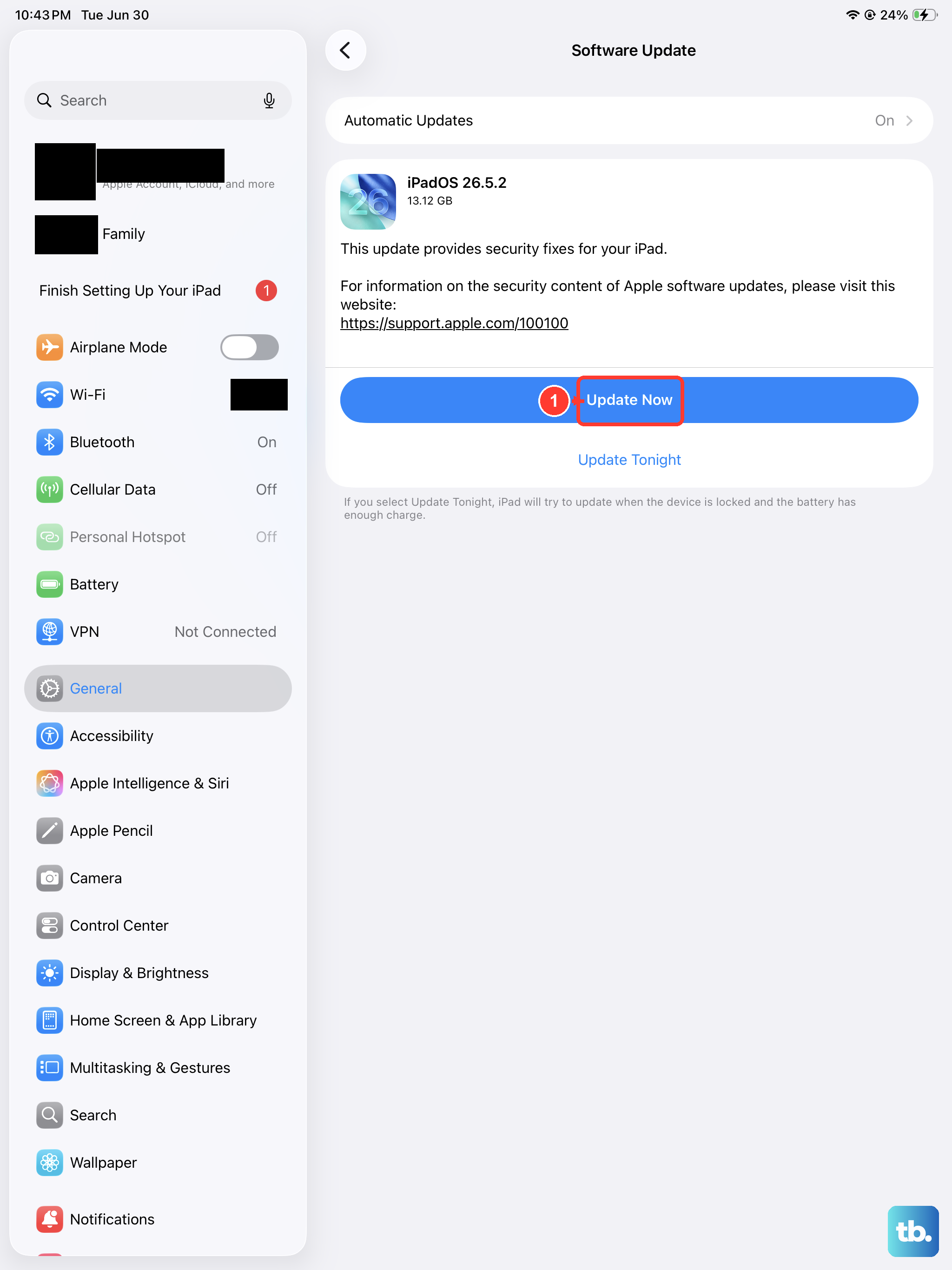
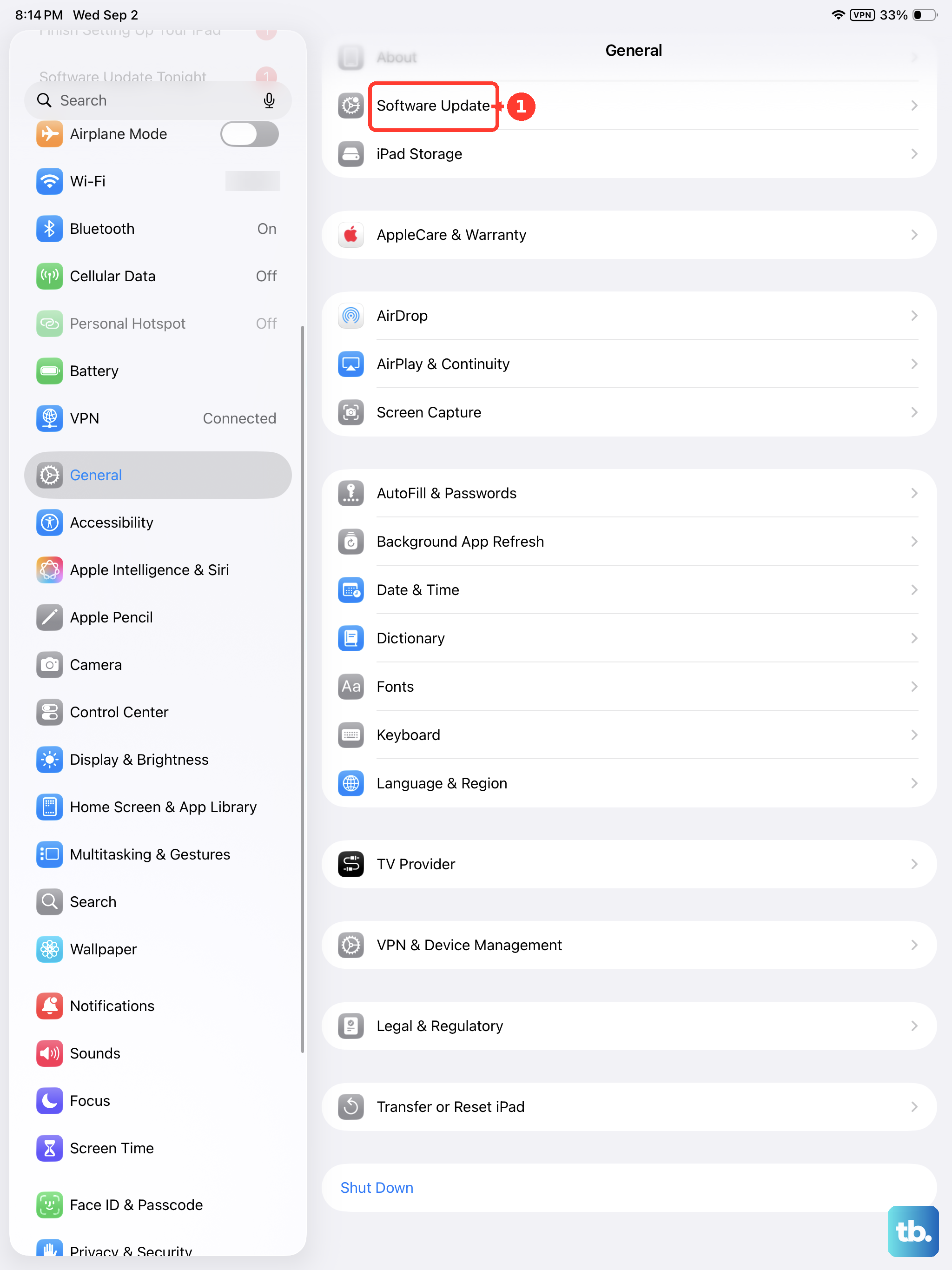
Apple occasionally tweaks charging behavior in software updates. Go to Settings > General > Software Update and install any available updates. Running the latest version of iPadOS ensures your charging algorithms are current.
Test a Known-Good Setup
Cables go bad over time, especially near the connector ends where they flex. Try a different USB-C cable with a different 20W+ adapter. If charging speed improves, the old cable or adapter was the weak link. Frayed, bent, or loose connectors can't deliver full power.