
When your iPad mini's Personal Hotspot stops working, it can leave your laptop or other devices stranded without internet. Whether other devices can't see the hotspot, fail to connect, or get dropped, the issue is usually something you can fix yourself without too much trouble.
The quickest thing to try is just turning the hotspot off and back on. Head to Settings > Personal Hotspot and toggle it off. Wait about ten seconds, then switch it on again. Make sure Allow Others to Join is enabled. This simple reset clears out any temporary software hiccups and often gets things working right away.
Restart Your iPad mini
If toggling doesn't help, a full restart is the next logical step. Press and quickly release the Volume Up button, then do the same with the Volume Down button. After that, press and hold the Top button until you see the Apple logo appear. This force restart can clear up deeper system processes that might be interfering with the hotspot function.
Verify Your Cellular Connection
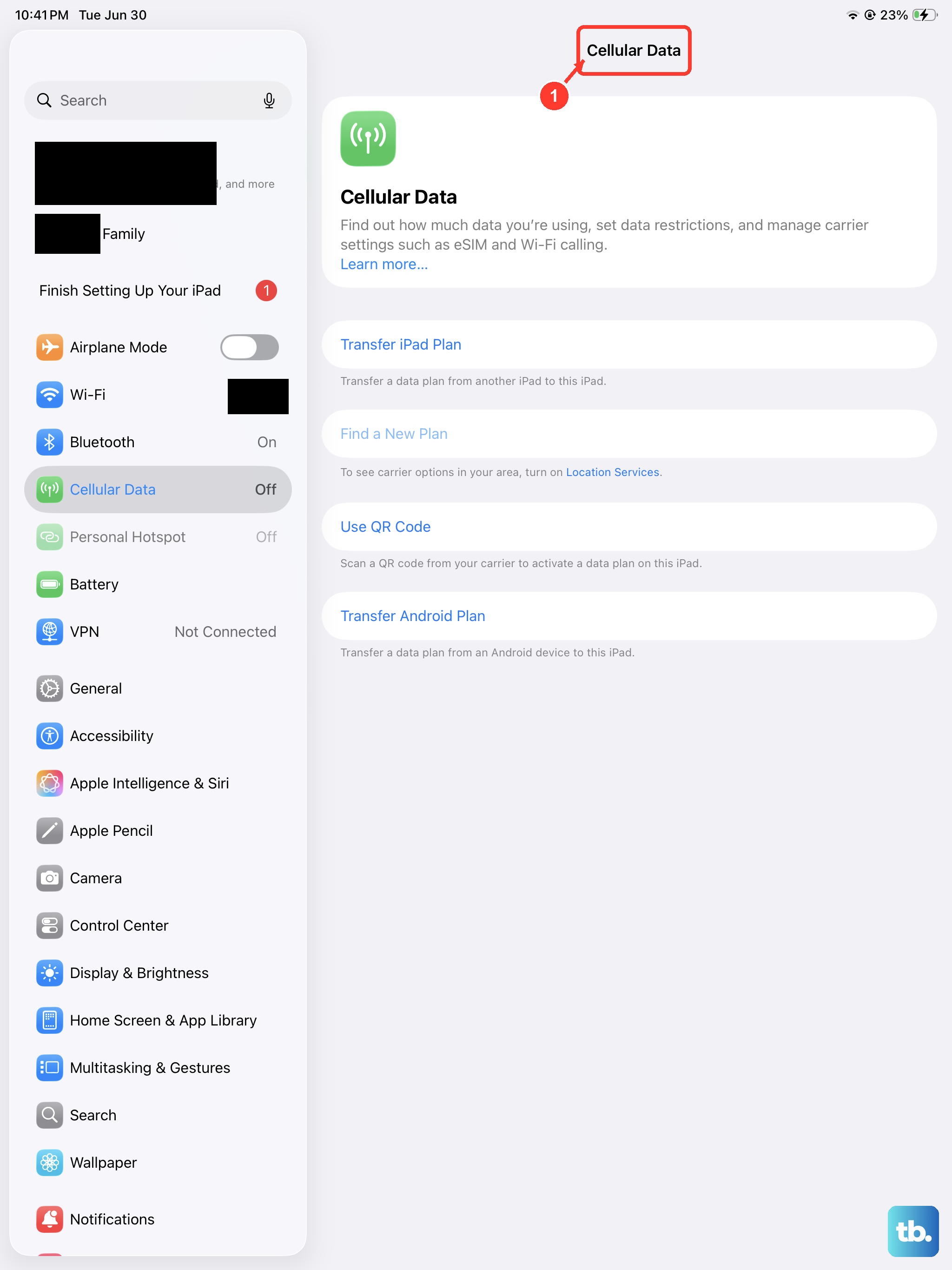
Your hotspot relies entirely on your iPad's cellular data connection. Open Settings > Cellular and confirm that Cellular Data is turned on. Check your signal strength in the status bar, too. A weak signal will lead to a weak or non-functional hotspot. It's also worth double-checking with your carrier that your specific data plan includes tethering, as some older or budget plans don't.
Update iPadOS and Carrier Settings
Software bugs are a common culprit for hotspot problems. Go to Settings > General > Software Update and install any available update for iPadOS 26. These updates frequently include fixes for connectivity issues. While you're there, go to Settings > General > About. If a carrier settings update is pending, a prompt will appear. These small updates fine-tune how your iPad communicates with your carrier's network.
Reset the Network Configuration
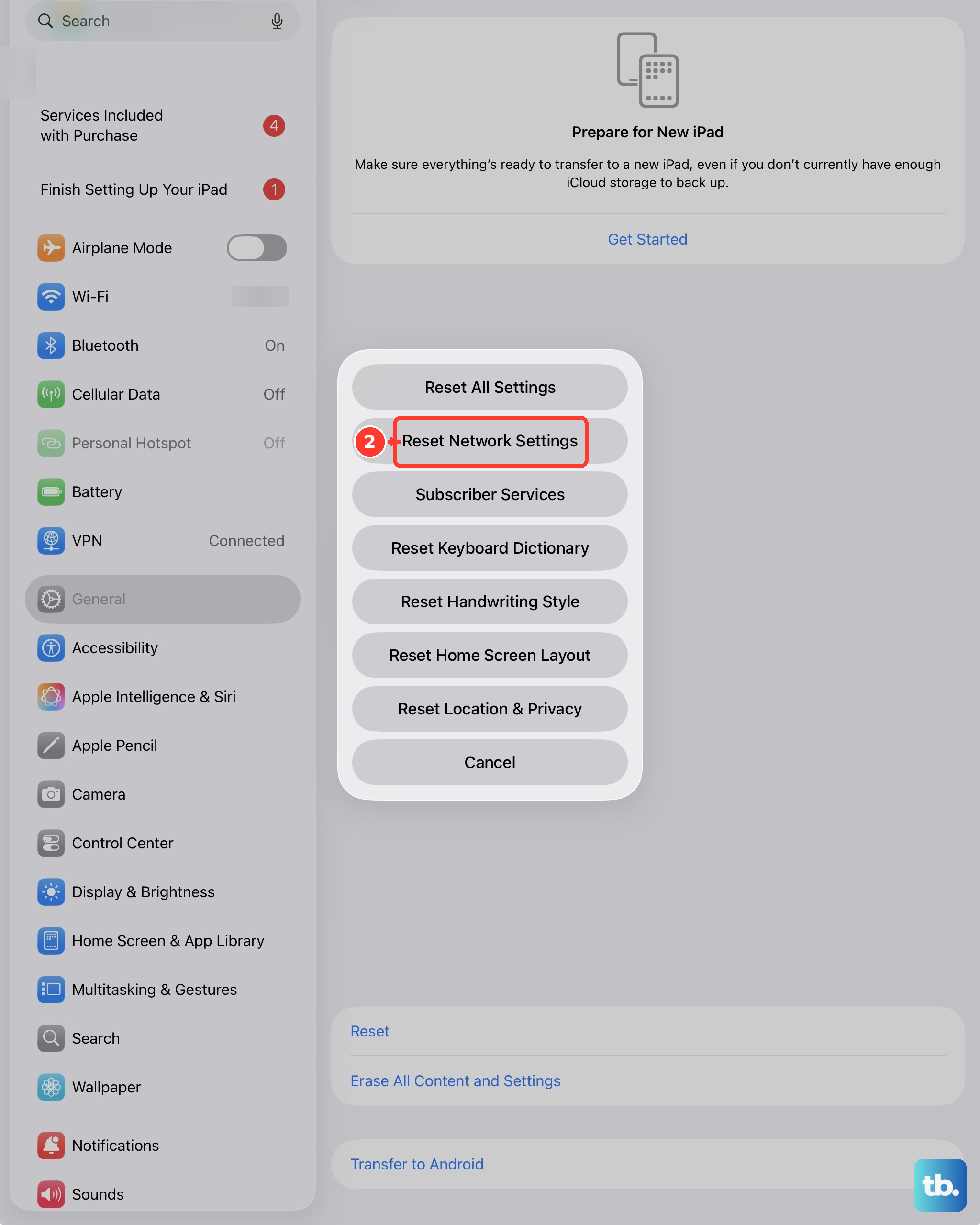
For more persistent problems, resetting network settings is a powerful step. Navigate to Settings > General > Transfer or Reset iPad > Reset > Reset Network Settings. This will erase all your saved Wi-Fi networks, Bluetooth pairings, and VPN settings, then rebuild them from scratch. You'll need to rejoin your Wi-Fi networks afterward, but it resolves a lot of stubborn cellular and hotspot glitches.
Manage the Connection on the Other Device
Sometimes the issue isn't with your iPad mini, but with the device trying to connect to it. On that laptop or phone, go into its Wi-Fi settings and "forget" your iPad's hotspot network. Then, search for available networks again, select your iPad, and enter the password fresh. This creates a new, clean connection profile.
Change Your Hotspot's Wi-Fi Password
If reconnecting doesn't work, try changing the password itself. Go to Settings > Personal Hotspot > Wi-Fi Password and create a new password. After you tap Done, try connecting your other device using this new password. This forces a completely new authentication process between the devices, which can bypass connection errors.
Use a USB Cable or Bluetooth
If the Wi-Fi hotspot is being particularly difficult, try sharing your connection through a physical cable or Bluetooth. Connect your iPad mini to your computer using a USB-C cable. On the iPad, make sure Personal Hotspot is on, and your computer should recognize it as a network source. For Bluetooth, you'll need to pair the two devices first in the Bluetooth settings before the tethering option will appear.
I've found that in many cases, the problem is a simple setting that got out of sync or a minor software bug. Starting with the toggles and restart usually points you in the right direction. If you've tried all these steps and your hotspot still won't cooperate, your final step is to contact your cellular provider. There might be an account-level restriction or a service outage in your area that only they can identify and fix.