
When your iPad's voice assistant stops listening, it can feel like you've lost a helpful sidekick. Whether you rely on Siri for quick tasks or use Google Assistant for your smart home, getting them to respond again is usually a matter of checking a few key settings. Let's start with the most common fix.
First, make sure the feature is actually enabled. Open the Settings app and tap on Siri & Search. For Siri, ensure the switch next to Listen for "Hey Siri" is turned on. If you're using Google Assistant, open the Google Assistant app, tap your profile picture, go to Settings, then under the Assistant tab, make sure Hey Google is enabled. It's a simple check, but it solves the problem more often than you'd think.
Retrain the Voice Model
If the assistant is on but still ignoring you, the voice model might need a refresh. Background noise, different speaking patterns, or even a software update can confuse it. For Siri, go to Settings > Siri & Search and toggle Listen for "Hey Siri" off and then back on. You'll be prompted to go through the setup process again, speaking a few phrases so your iPad can learn your voice.
For Google Assistant, the process is similar. Open the Google app, go to your profile > Settings > Voice > Voice Match. You can tap on Retrain voice model to teach it your voice again. I've found this especially helpful if you've been in a noisy environment or if the assistant has started responding to other people's voices too easily.
Check for Audio Conflicts
Your iPad has several features that can accidentally block the microphone. One to look at is Sound Recognition in iPadOS. This accessibility feature, designed to listen for things like alarms or doorbells, will automatically disable "Hey Siri" when it's active. To check, go to Settings > Accessibility > Sound Recognition and make sure it's turned off.
Also, take a look at any Bluetooth devices. While Siri and Assistant should work through connected headphones or speakers, a glitchy connection can sometimes cause a conflict. Try disconnecting any Bluetooth audio devices from your iPad's settings and test the voice command again directly on the tablet's speakers.
Review Microphone and Audio Settings
If the assistant hears you but you can't hear the response, check your iPad's physical mute switch and volume buttons. Make sure the side switch isn't set to mute, and press the volume up button a few times. You can also configure Siri to always speak responses. Go to Settings > Siri & Search > Siri Responses and select Always.
It's also worth checking the microphone itself. The iPad (11th generation) has multiple microphones. If you're using a thick case or a keyboard folio, make sure it isn't covering the microphone ports. A quick visual check and a gentle clean with a dry, soft-bristled brush can remove any lint or dust that's causing an issue.
Ensure a Stable Internet Connection
While Siri on newer iPadOS versions handles many commands directly on the device, more complex requests still need the internet. Google Assistant relies heavily on a connection. If you're on Wi-Fi, try toggling it off and on in Control Center. For cellular models, ensure you have a strong signal.
You can test this by asking a simple, device-based question like "set a timer for one minute," and then a web-based one like "what's the weather tomorrow?" If only the web-based one fails, your connection is likely the culprit. A quick restart of your router might help if you're at home.
Update Your iPadOS Software
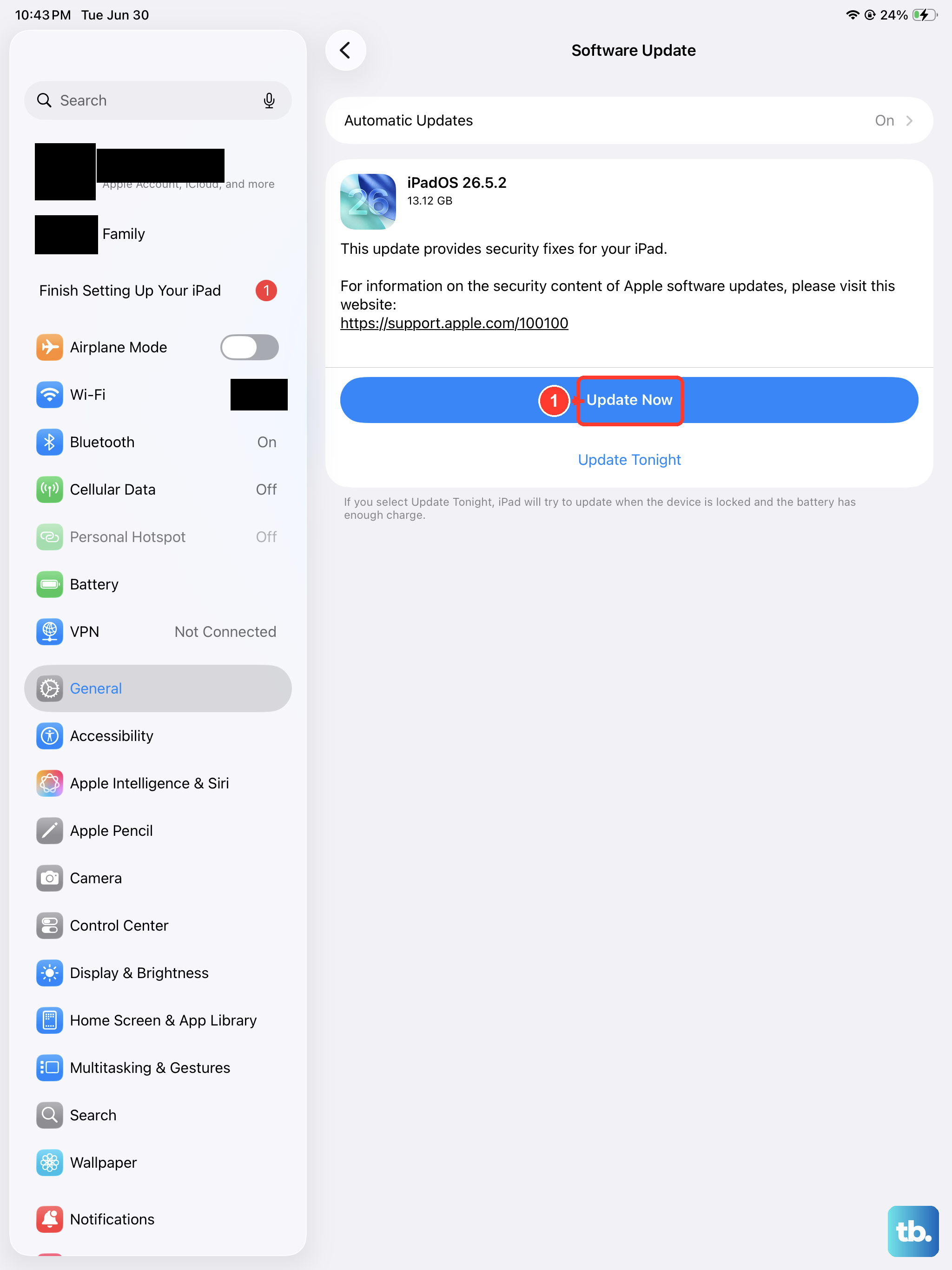
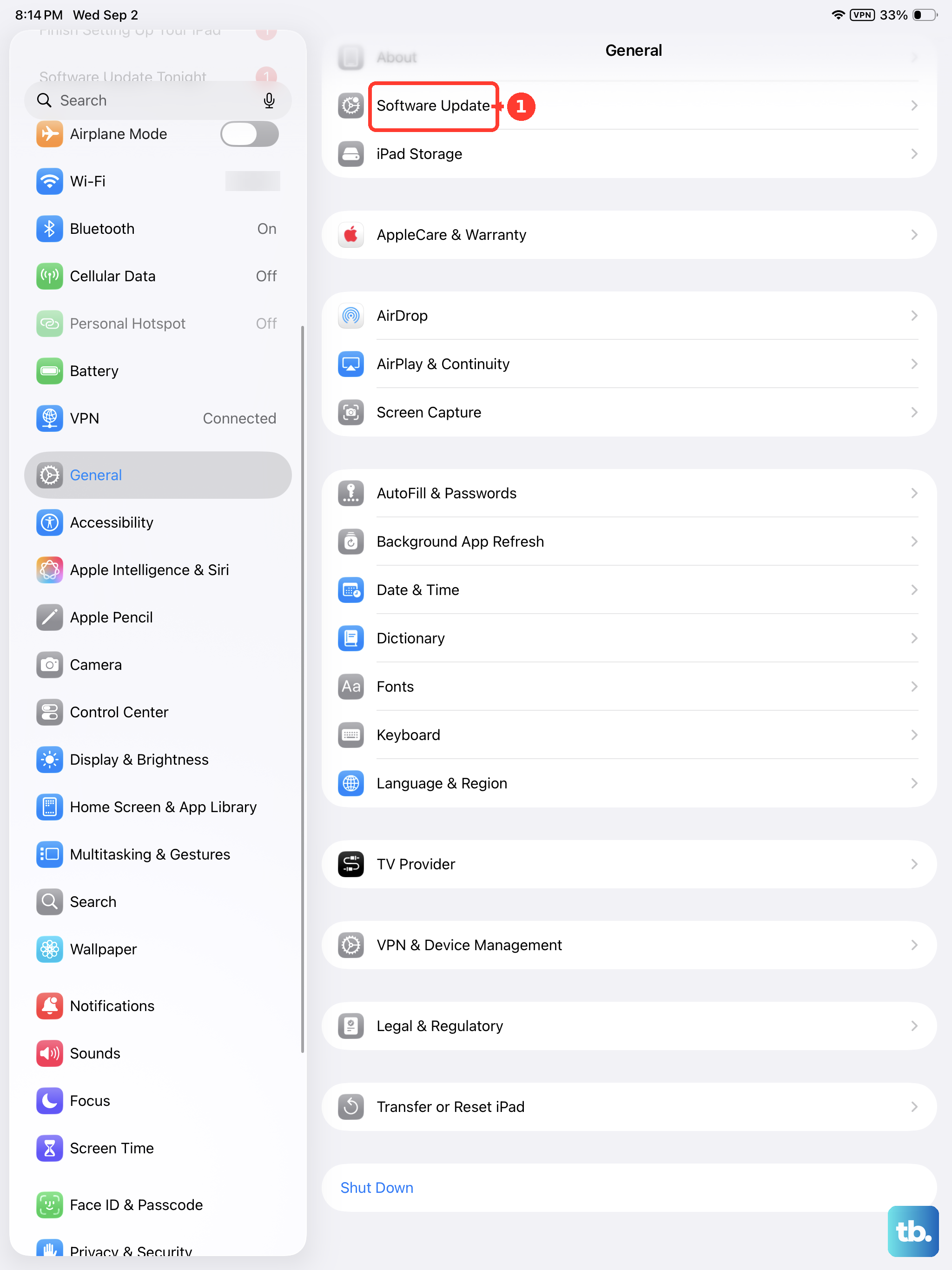
Software bugs can occasionally break voice features, and Apple (or Google, via app updates) releases fixes for these issues. Keeping your system up to date is one of the best ways to maintain performance. Go to Settings > General > Software Update to see if a newer version of iPadOS is available.
For Google Assistant, updates come through the App Store. Open the App Store, tap your profile icon, and see if there's an update pending for the Google or Google Assistant app. Installing the latest updates ensures you have all the current stability patches and feature improvements.
Restart Your iPad
A simple restart clears out temporary software glitches that can affect microphone access and background services. To restart your iPad (11th generation), press and quickly release the Volume Up button, press and quickly release the Volume Down button, then press and hold the Top button until you see the Apple logo appear.
This force restart method is useful if the device is being unresponsive. After it boots back up, try using "Hey Siri" or "Hey Google" again. It's a quick step that takes less than a minute and often resolves the problem immediately.
Check App Permissions and Language
Voice assistants need the proper permissions to work. For Siri, this is system-level, but for Google Assistant, you should verify the app has microphone access. Go to Settings > Privacy & Security > Microphone and ensure the Google app is toggled on.
Also, confirm your language settings match how you speak. For Siri, go to Settings > Siri & Search > Language. For Google Assistant, check in the Google app under Settings > Voice > Languages. If the language is set incorrectly, the assistant won't recognize your wake words or commands.
Reset All Settings
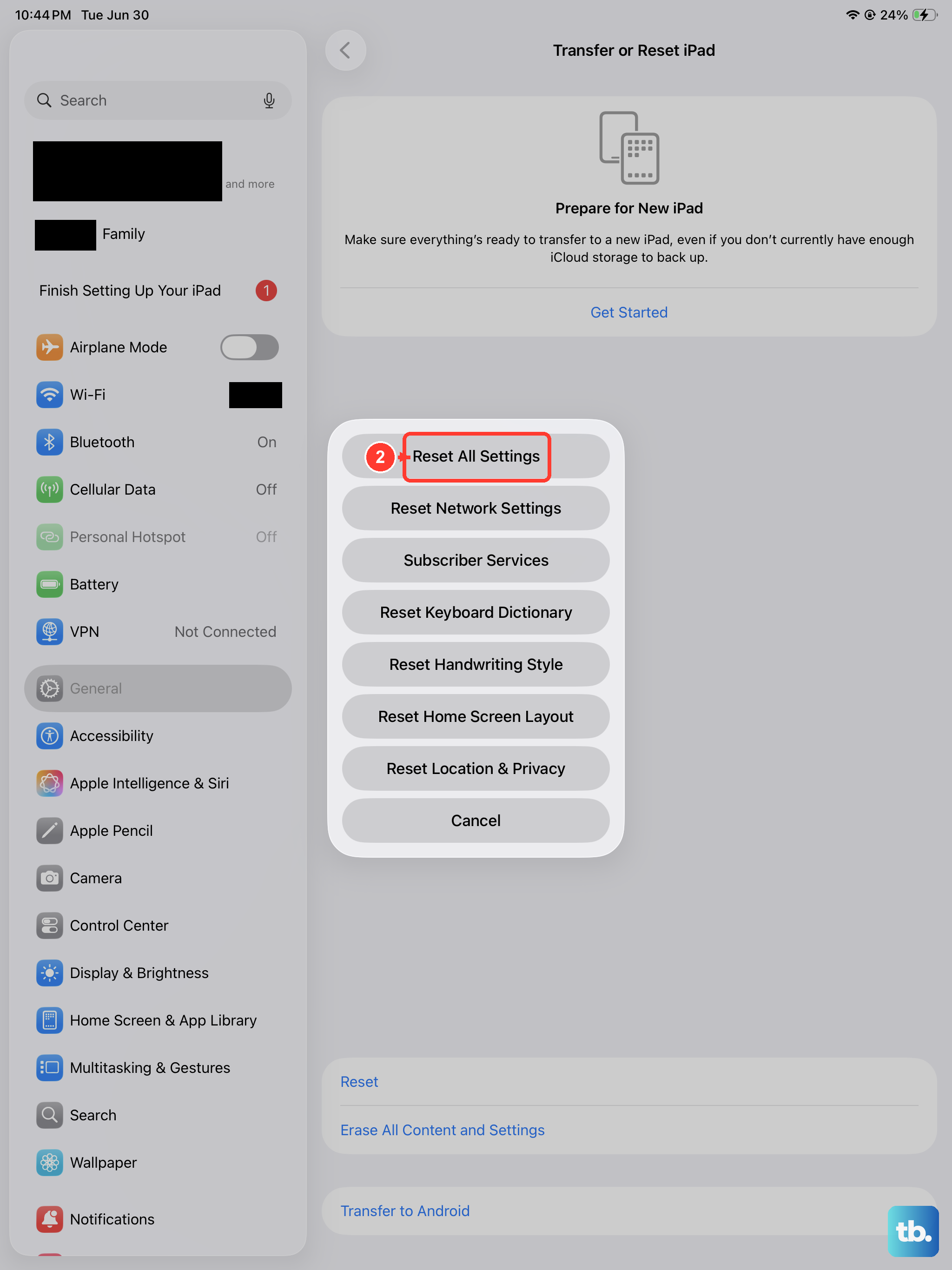
If you've tried everything else, a deeper reset can help. This will revert all your system preferences, like Wi-Fi passwords, wallpaper, and privacy settings, back to default without deleting your personal data or apps. Go to Settings > General > Transfer or Reset iPad > Reset > Reset All Settings.
You'll need to re-enter Wi-Fi passwords and reconfigure some preferences afterward, but it can clear out any corrupted settings that are preventing the microphone or voice services from working correctly. It's a more involved step, but it often fixes persistent, odd behavior.
Consider Background App Activity
Sometimes, other apps using the microphone in the background can create a conflict. If you've recently used video calling, voice memo, or recording apps, try fully closing them. Swipe up from the bottom of the screen and pause in the middle to enter the app switcher, then swipe up on any recent audio or video apps to close them.
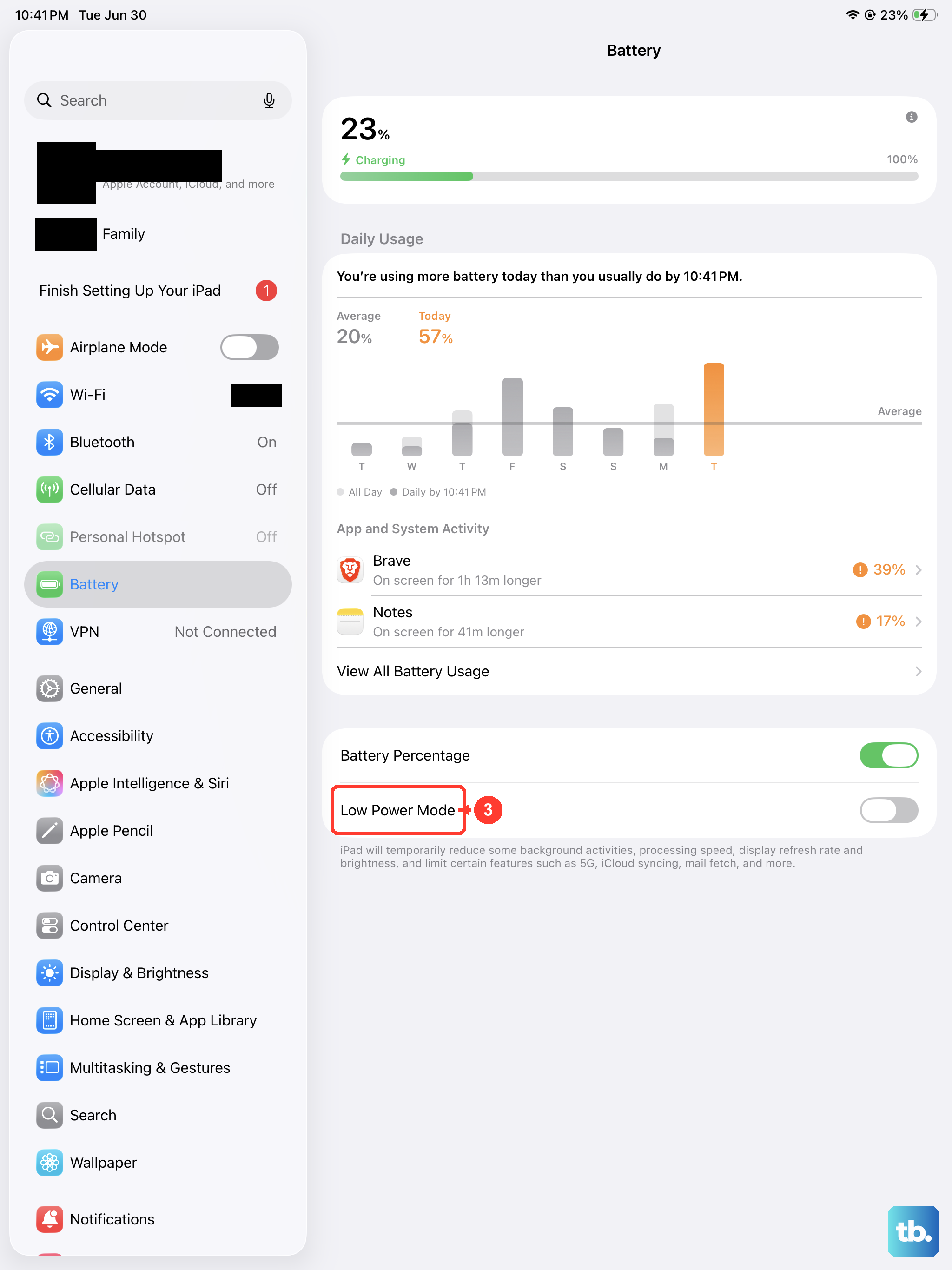
Also, Low Power Mode can limit some background processes. While it shouldn't disable "Hey Siri," it's worth checking if turning it off makes a difference. You can find it in Settings > Battery. Giving the system full resources can sometimes improve responsiveness.