
When the microphone on your iPad mini stops picking up your voice, it can turn video calls, voice notes, and dictation into a frustrating experience. The good news is that most of the time, it's a simple software hiccup or setting that needs adjusting. Let's start by figuring out exactly which microphone is affected.
Test Your iPad mini Microphone
Your iPad mini has multiple microphones. The main ones are typically near the top edge and sometimes by the rear camera. Open the Voice Memos app and record a quick message. Speak normally, then play it back. If it sounds muffled or silent, you've confirmed the issue.
You can also test with Siri. Press and hold the Top button and ask, "What time is it?" If Siri doesn't respond or says "I didn't get that," your microphone likely isn't working. For a more thorough check, open the Camera app, switch to video mode, and record a short clip with audio.
Remove Any Case or Cover
This is the easiest fix and often the culprit. Some cases, especially rugged or folio-style ones, can partially cover the microphone ports. Take your iPad mini completely out of its case and run the Voice Memos test again. I've seen thick silicone cases cause this exact problem.
Disconnect Bluetooth Audio Devices
If you have AirPods, headphones, or a speaker paired, your iPad might be routing all audio through them, including the microphone input for calls and recordings. Swipe down from the top-right corner to open Control Center, tap the Bluetooth icon to turn it off temporarily, and test your mic again.
Force Close and Reopen the App
If the microphone only fails in a specific app like Zoom, FaceTime, or Discord, the app itself might be glitching. Swipe up from the bottom of the screen and pause in the middle to see your open apps. Swipe up on the problematic app's preview to close it completely, then relaunch it from your Home Screen.
Check Microphone Permissions in Settings
Apps need your explicit permission to use the microphone. Go to Settings > Privacy & Security > Microphone. You'll see a list of all apps that have requested access. Make sure the toggle is switched on (green) for the app where the mic isn't working.
Restart Your iPad mini
A simple restart clears out temporary software bugs that can affect hardware like the microphone. Press and hold the Top button and either volume button until the "slide to power off" slider appears. Slide it, wait about 30 seconds, then press the Top button again to turn it back on.
Update to the Latest iPadOS
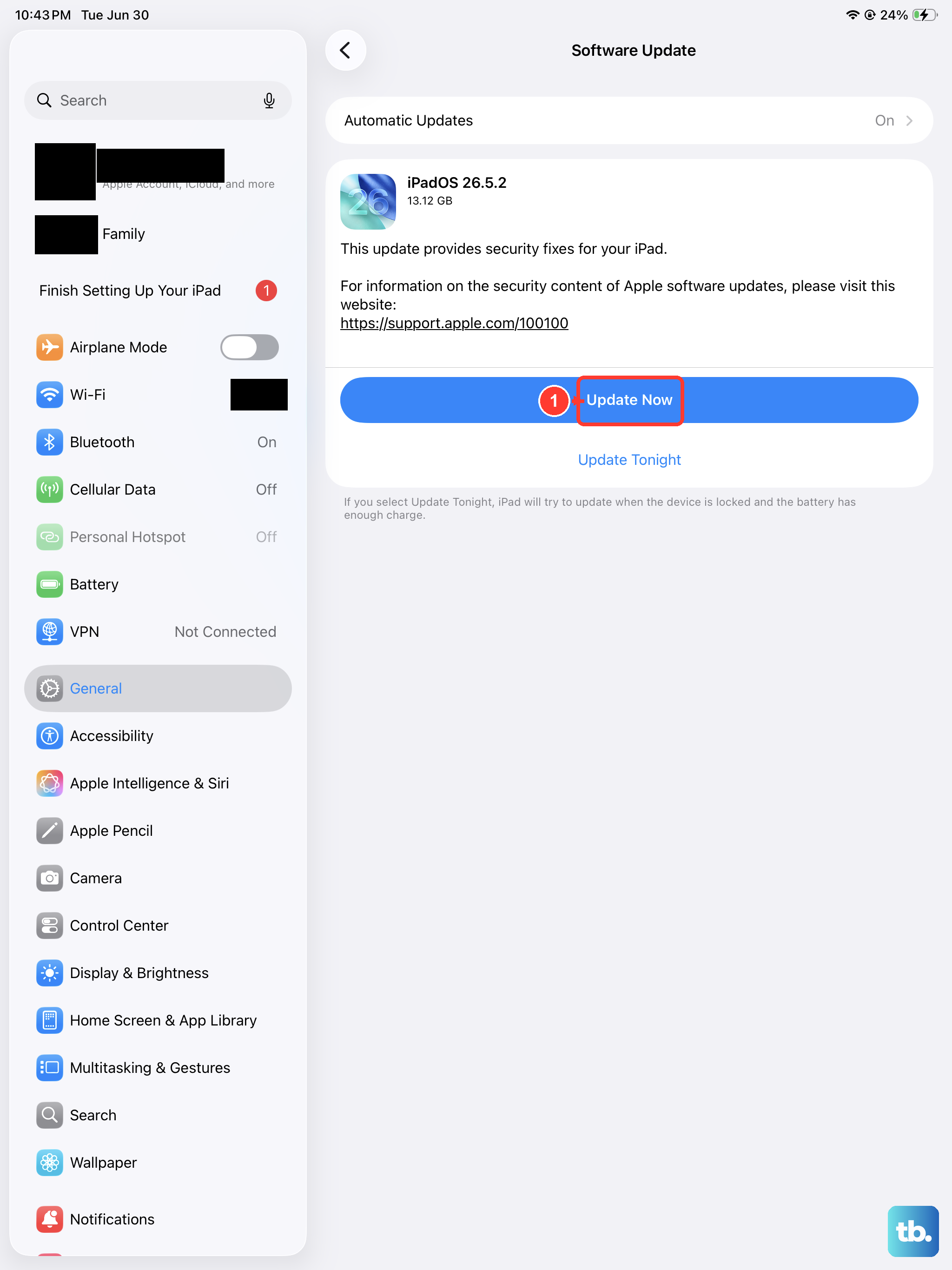
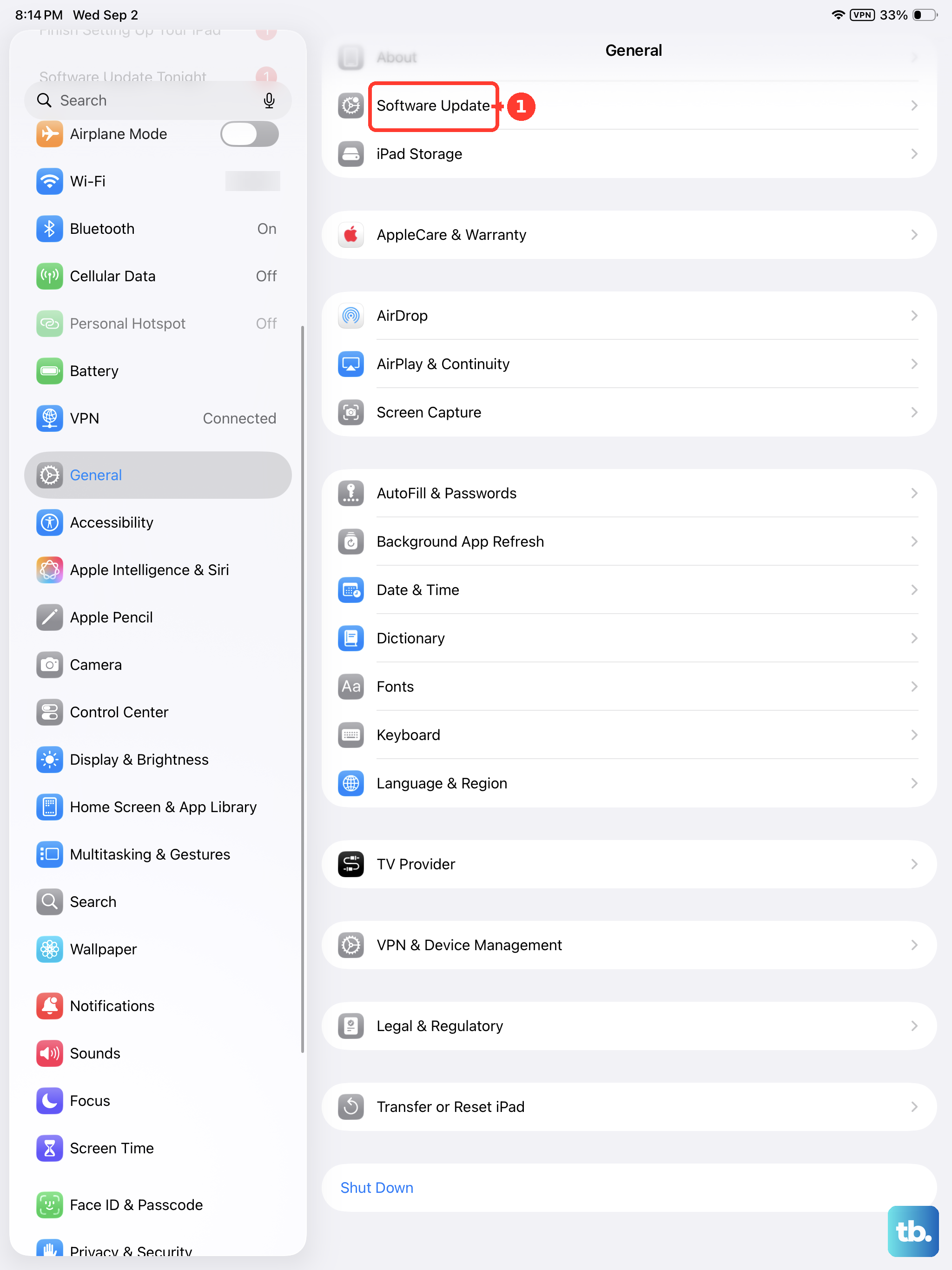
Apple frequently releases updates that fix audio and microphone bugs. Go to Settings > General > Software Update. If an update for iPadOS 26 (or newer) is available, tap "Download and Install." Make sure your iPad is plugged in and connected to Wi-Fi first.
Clean the Microphone Openings
Over time, lint, dust, or pocket debris can clog the tiny microphone ports. Carefully inspect the small holes along the top edge and near the camera. Use a soft, dry, clean brush, like a new makeup brush or a soft-bristled toothbrush, to gently dislodge any visible particles. Never use compressed air or insert anything sharp like a pin.
Reset All Settings
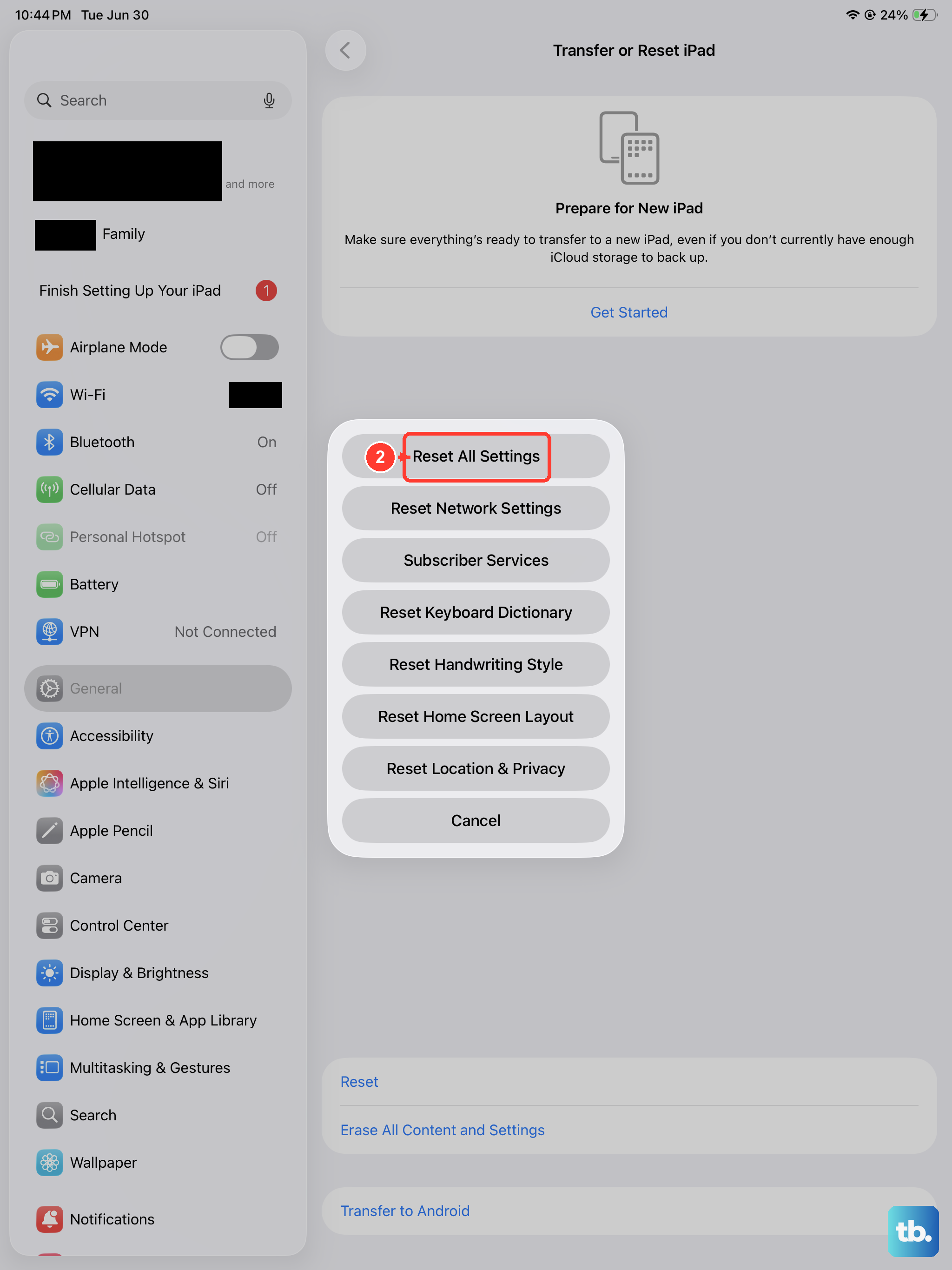
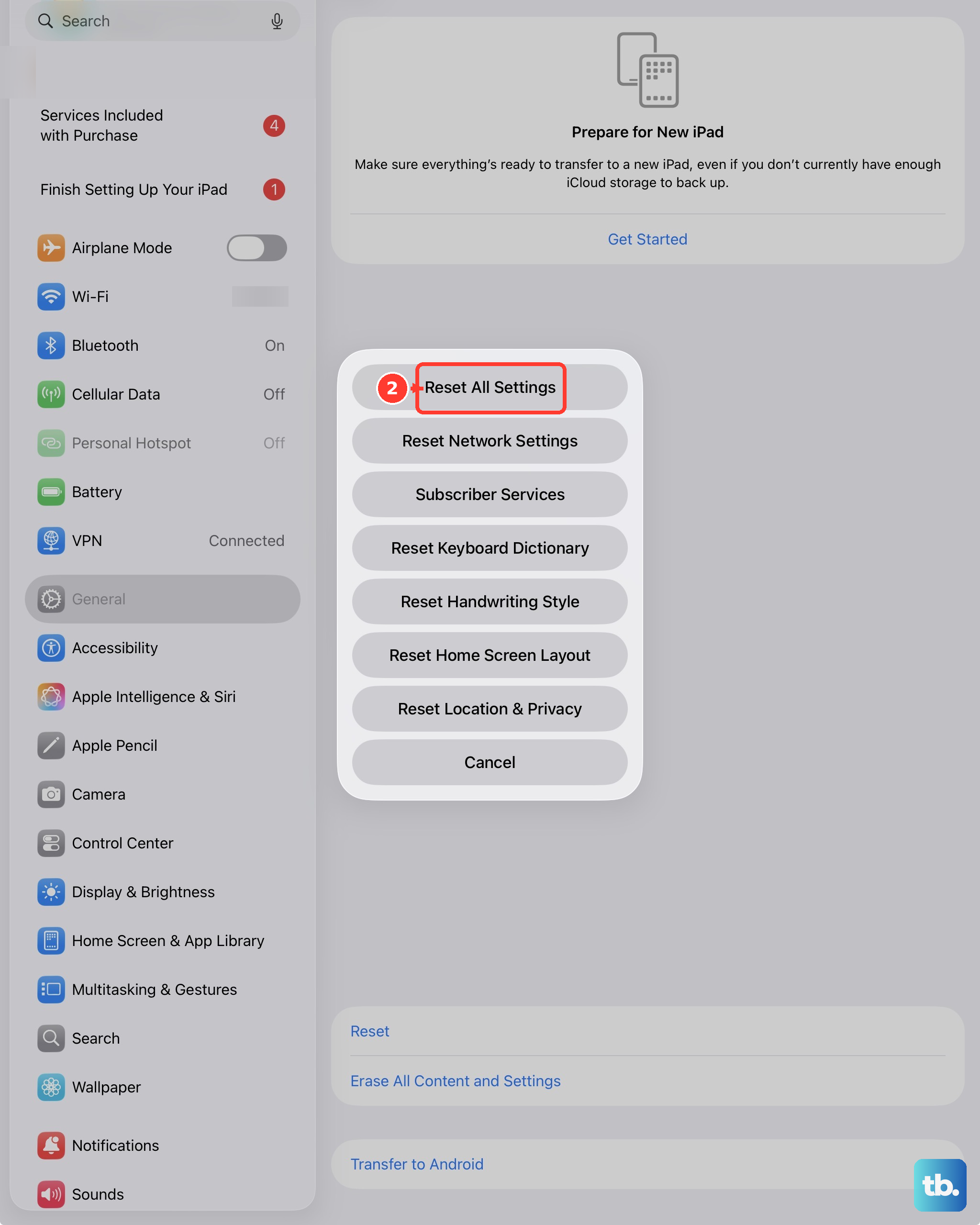
This will revert all your preferences (like Wi-Fi passwords and wallpaper) back to default without deleting any of your personal data. It can fix deeper configuration conflicts. Go to Settings > General > Transfer or Reset iPad > Reset > Reset All Settings. You'll need to enter your passcode to confirm.
Perform a Force Restart
Different from a standard shutdown, a force restart can clear more stubborn glitches. On your iPad mini (7th generation), quickly press and release the Volume Up button, then quickly press and release the Volume Down button. Immediately after, press and hold the Top button. Keep holding it until you see the Apple logo appear, then let go.
Restore Your iPad Using a Computer
If you're still having issues, restoring the iPadOS software via a computer can eliminate persistent corruption. Connect your iPad to a Mac or PC using a USB-C cable. On a Mac with macOS Catalina or later, open Finder. On a PC or older Mac, open iTunes. Select your iPad, choose "Restore iPad," and follow the prompts. This will erase everything, so ensure you have a recent backup in iCloud or on your computer first.