
When your iPad mini starts restarting on its own, it's more than just an annoyance. You could be in the middle of reading, sketching, or watching something, and suddenly the screen goes black. This kind of random restarting is usually a software hiccup, but it can sometimes point to a deeper issue with the device itself.
Before you try anything, it's a good idea to make sure your data is safe. If you have iCloud Backup turned on, you can check its status in Settings > [Your Name] > iCloud > iCloud Backup. A quick backup to your computer via Finder (on a Mac) or iTunes (on a PC) is also a solid safety net.
Perform a Force Restart
This is almost always the first thing I'd try. A force restart clears the iPad's memory and can shut down any misbehaving processes without deleting your data. For the 7th generation iPad mini, the process is straightforward.
Press and quickly release the Volume Up button. Then, press and quickly release the Volume Down button. Finally, press and hold the Top button. Keep holding it until you see the Apple logo appear on the screen, then you can let go.
Check for App Problems
Third-party apps are a common source of instability. If the restarts started after you installed a new app or game, that's a big clue. Start by closing all your open apps. Swipe up from the bottom of the screen and pause in the middle to bring up the app switcher, then swipe up on each app preview to close it.
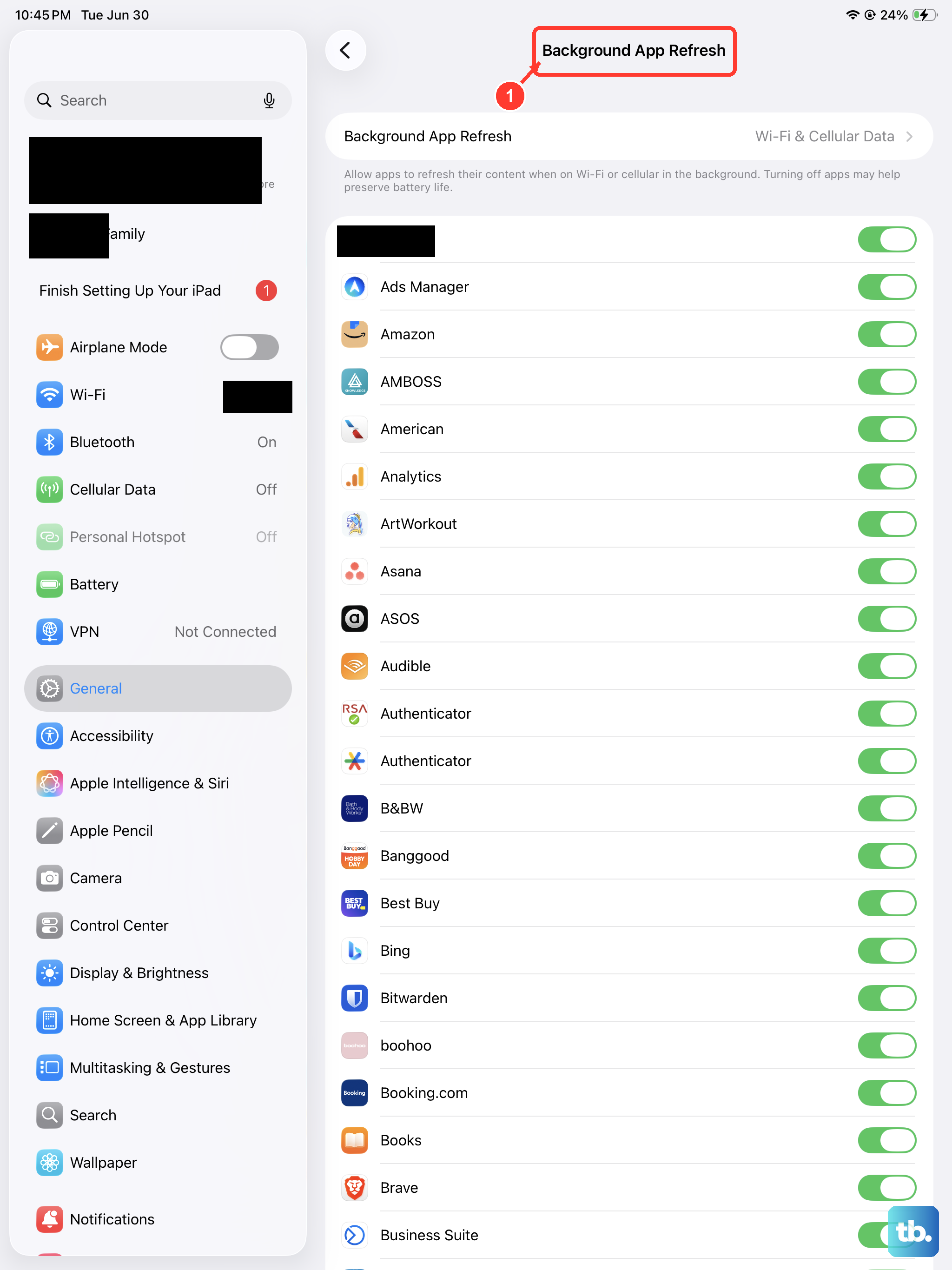
Next, take a look at Background App Refresh. This feature lets apps update content in the background, which can sometimes cause conflicts. You can find it in Settings > General > Background App Refresh. You can turn it off entirely or just for specific apps you suspect.
Update Everything
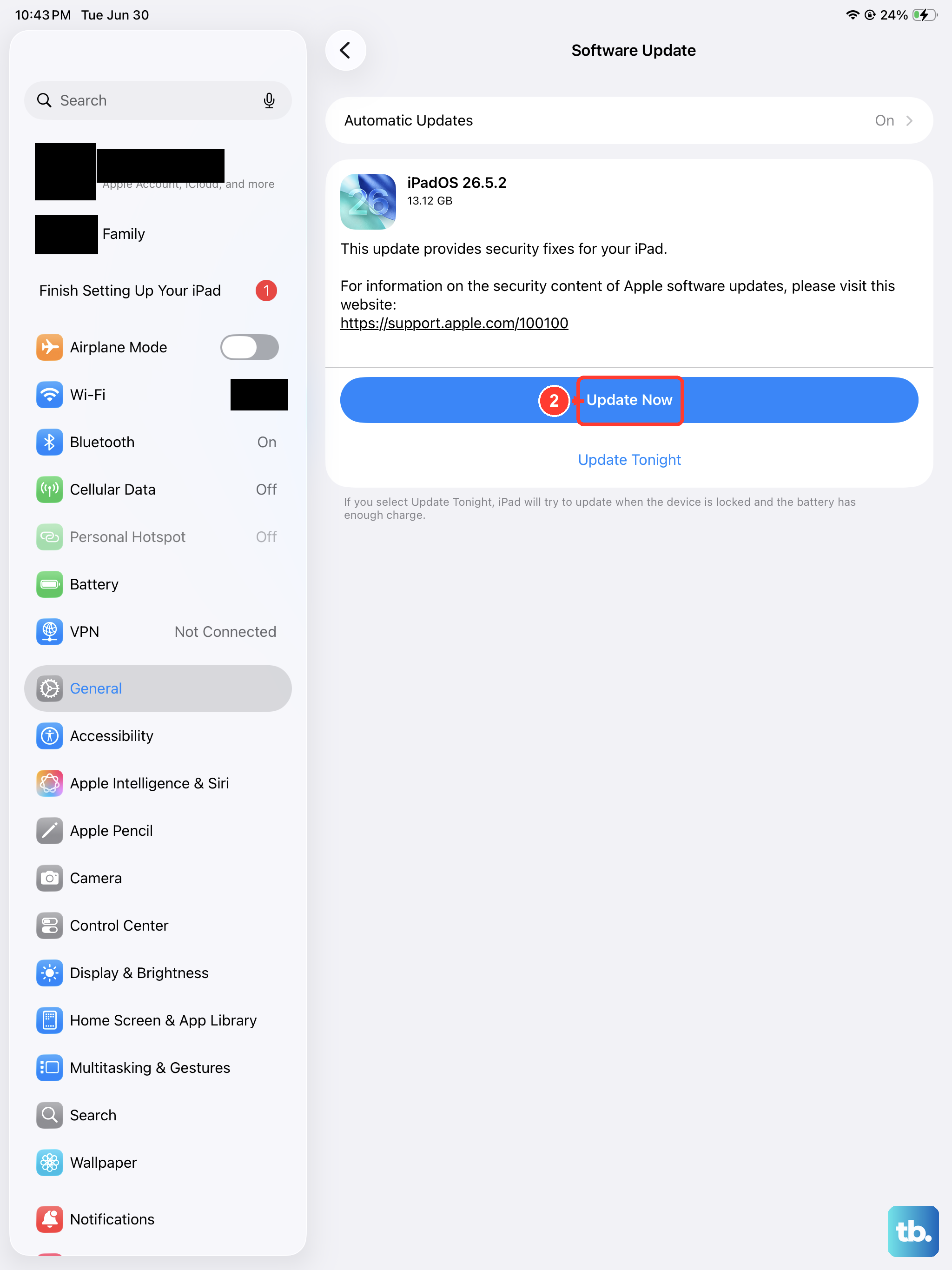
Running outdated software is a classic cause of random restarts. Apple and app developers are constantly releasing updates to fix bugs and improve stability. First, check for any iPadOS updates by going to Settings > General > Software Update.
If an update is available, plug your iPad into power and connect to Wi-Fi to install it. After that, open the App Store, tap your profile icon in the top corner, and scroll down to see if any of your apps have pending updates. Installing all available updates often clears up these kinds of glitches.
Review iPad Analytics Logs
Your iPad keeps detailed diagnostic logs that can tell you exactly what's crashing. To access them, go to Settings > Privacy & Security > Analytics & Improvements > Analytics Data.
Look through the list for entries that start with "panic-full" or "ResetCounter". These logs indicate a full system crash. You might also see logs named after specific apps, which can pinpoint a problematic piece of software. You don't need to understand everything in them, just seeing a pattern can be helpful.
Free Up Storage Space
When your iPad's storage is critically full, the system doesn't have room to operate properly, which can lead to crashes and restarts. Check your available space by going to Settings > General > iPad Storage.
The system will show you a breakdown and often provide recommendations, like offloading unused apps (which removes the app but keeps its documents and data) or reviewing large attachments. Keeping at least a few gigabytes free is a good practice for overall system health.
Reset All Settings
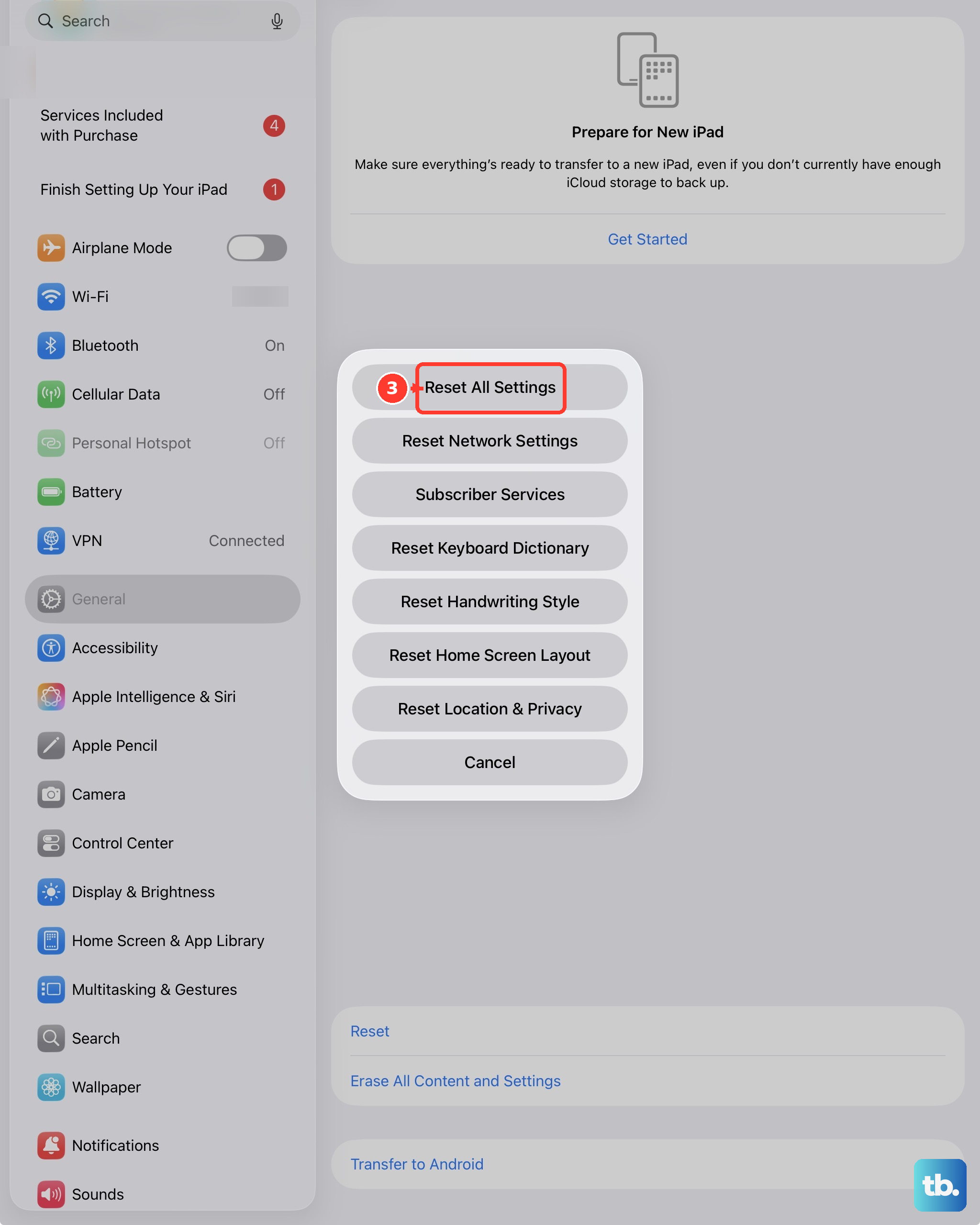
If the problem persists, the next step is to reset all your settings. This will not erase your personal data like photos or messages, but it will revert all system settings back to their defaults.
Things like your Wi-Fi passwords, wallpaper, and privacy permissions will need to be set up again. To do this, navigate to Settings > General > Transfer or Reset iPad > Reset, and then tap Reset All Settings. You'll need to enter your passcode to confirm.
Check for Charging Issues
While the iPad mini doesn't have wireless charging, its USB-C port can still be a source of trouble. Using a charger that doesn't provide enough stable power, or one that isn't MFi-certified, can cause system instability.
Apple recommends using at least a 20W USB-C power adapter for optimal charging. Also, take a close look at the USB-C port on the bottom of your iPad. Lint and debris can get packed in there, preventing a good connection. Use a dry, soft-bristled brush or a can of compressed air to gently clean it out.
Restore via Recovery Mode
For a persistent restart loop that won't stop, you'll need to use recovery mode. This is a more thorough restore process that requires a computer. First, make sure you have the latest version of Finder (on Mac) or iTunes (on Windows) installed on your computer.
Connect your iPad to the computer with a USB-C cable. Then, quickly press and release the Volume Up button, press and release the Volume Down button, and immediately press and hold the Top button. Keep holding the Top button even after the Apple logo appears, until you see the recovery mode screen on your iPad.
Your computer will then give you the option to Update or Restore. Choose Update first, as it will reinstall iPadOS without erasing your data. If that fails, you may need to choose Restore, which will install a fresh copy of iPadOS and erase your iPad completely.
Erase All Content and Settings
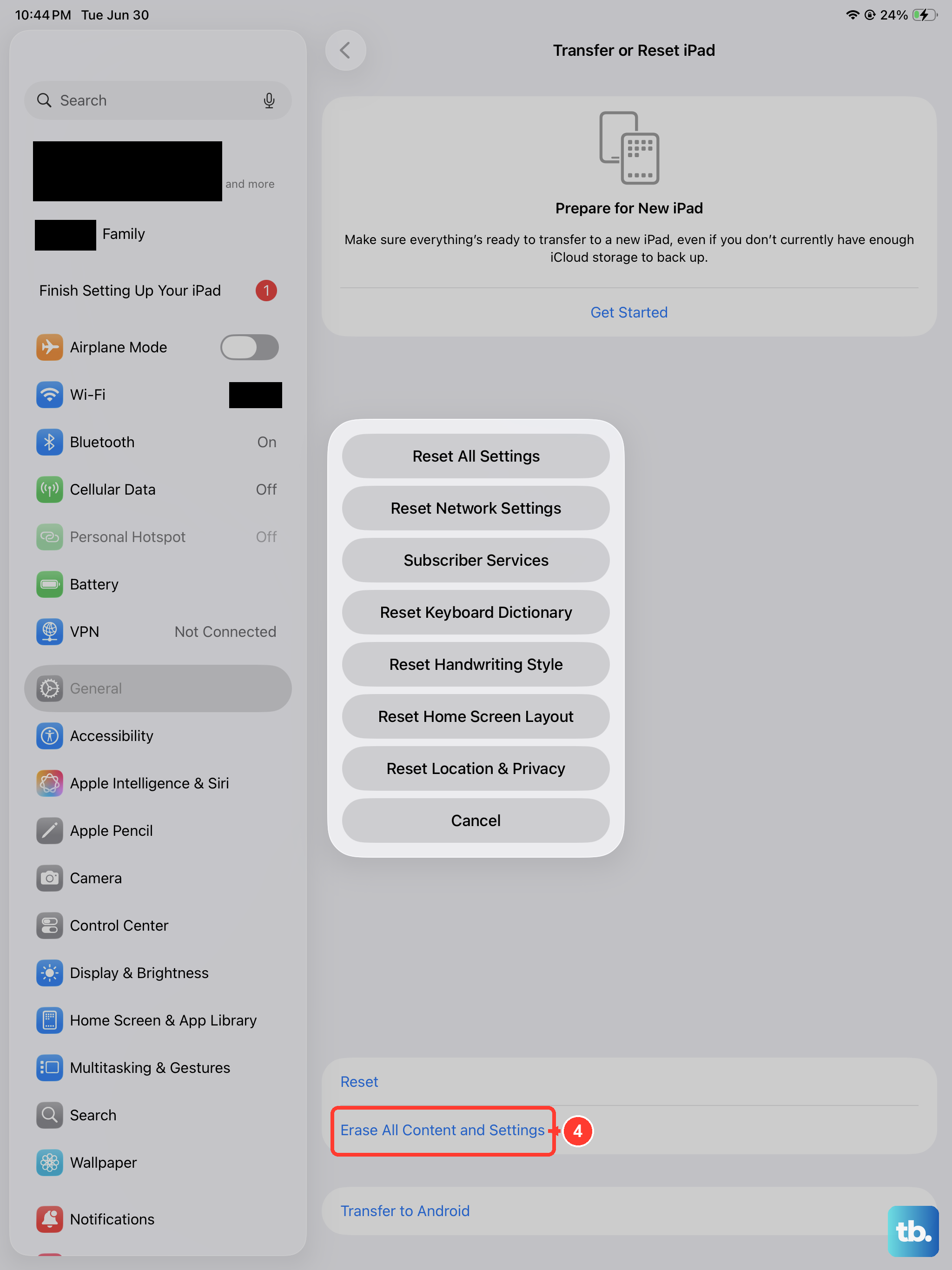
If you've tried everything else and the random restarts continue, a full factory reset is the final software step. This will wipe your iPad clean, returning it to the state it was in when you first took it out of the box. Ensure you have a complete backup before proceeding.
Go to Settings > General > Transfer or Reset iPad and tap Erase All Content and Settings. After entering your passcode and Apple ID password, the process will begin. Once it's done, you can set it up as new to test, or restore from your backup.