Is your iPad (11th generation) screen stuck in one orientation and refusing to flip when you turn it? It's a common hiccup where the screen rotation lock gets enabled or a temporary software glitch interferes. The good news is it's usually a quick fix.
Let's start with the most common solution. Swipe down from the top-right corner of the screen to open Control Center. Look for the icon that looks like a lock with a circular arrow around it. If it's highlighted or looks "on," tap it to turn off the rotation lock.
Check for a Physical Side Switch
First, check if your iPad has a physical side switch above the volume buttons. In iPadOS, this switch can be set to either mute the iPad or lock screen rotation. Go to Settings > General > Side Switch to see what it's configured for.
If it's set to "Lock Rotation," simply flick the switch on the side of your iPad. You should see a small rotation lock icon appear briefly on the screen when you toggle it. This is an easy one to miss if you've bumped the switch by accident.
Verify Rotation Lock in Control Center
Even if the side switch is set to mute, you can still lock rotation digitally. Open Control Center by swiping down from the top-right edge of the screen. Find the Rotation Lock button, it looks like a padlock with a circular arrow.
If the icon is highlighted in white or has a background, it means rotation is locked. A quick tap will turn it off, and the icon should become less prominent. I've found this gets toggled on accidentally more often than you'd think, especially when pulling the iPad out of a bag or case.
Force Restart Your iPad
If the lock isn't on, a simple force restart can clear out any temporary software bugs affecting the gyroscope or accelerometer. This won't delete any of your data or settings. On the iPad (11th generation), press and quickly release the Volume Up button, then press and quickly release the Volume Down button.
Immediately after, press and hold the Top button. Keep holding it until you see the Apple logo appear on the screen, then let go. This process takes about 10-15 seconds. Once it boots back up, try rotating the iPad again.
Test Rotation in Different Apps
Some apps simply don't support landscape or portrait mode. Open a few different apps like Safari, Mail, or the native Photos app to test. If rotation works perfectly in Safari but not in your notes app, the issue is likely with that specific app, not your iPad.
Try closing the problematic app completely by swiping it away from the App Switcher. Then reopen it and test again. If it's a third-party app, check the App Store for any pending updates, as developers often fix orientation bugs in patches.
Update iPadOS
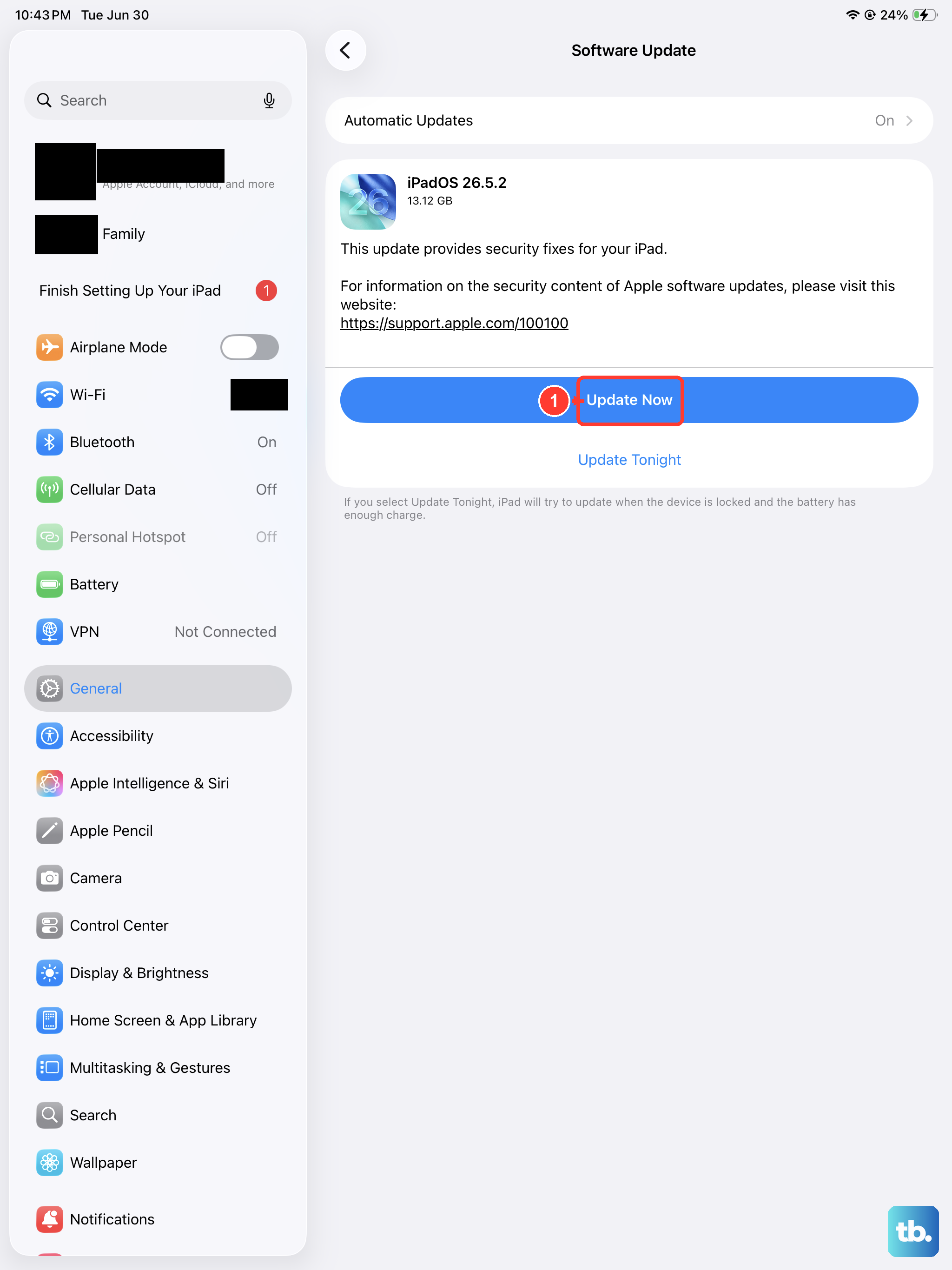
An outdated version of iPadOS can sometimes have bugs that affect system functions like auto-rotation. It's a good habit to keep your iPad updated. Connect to Wi-Fi and plug in your iPad using the USB-C port and a 20W or higher adapter to ensure the update completes smoothly.
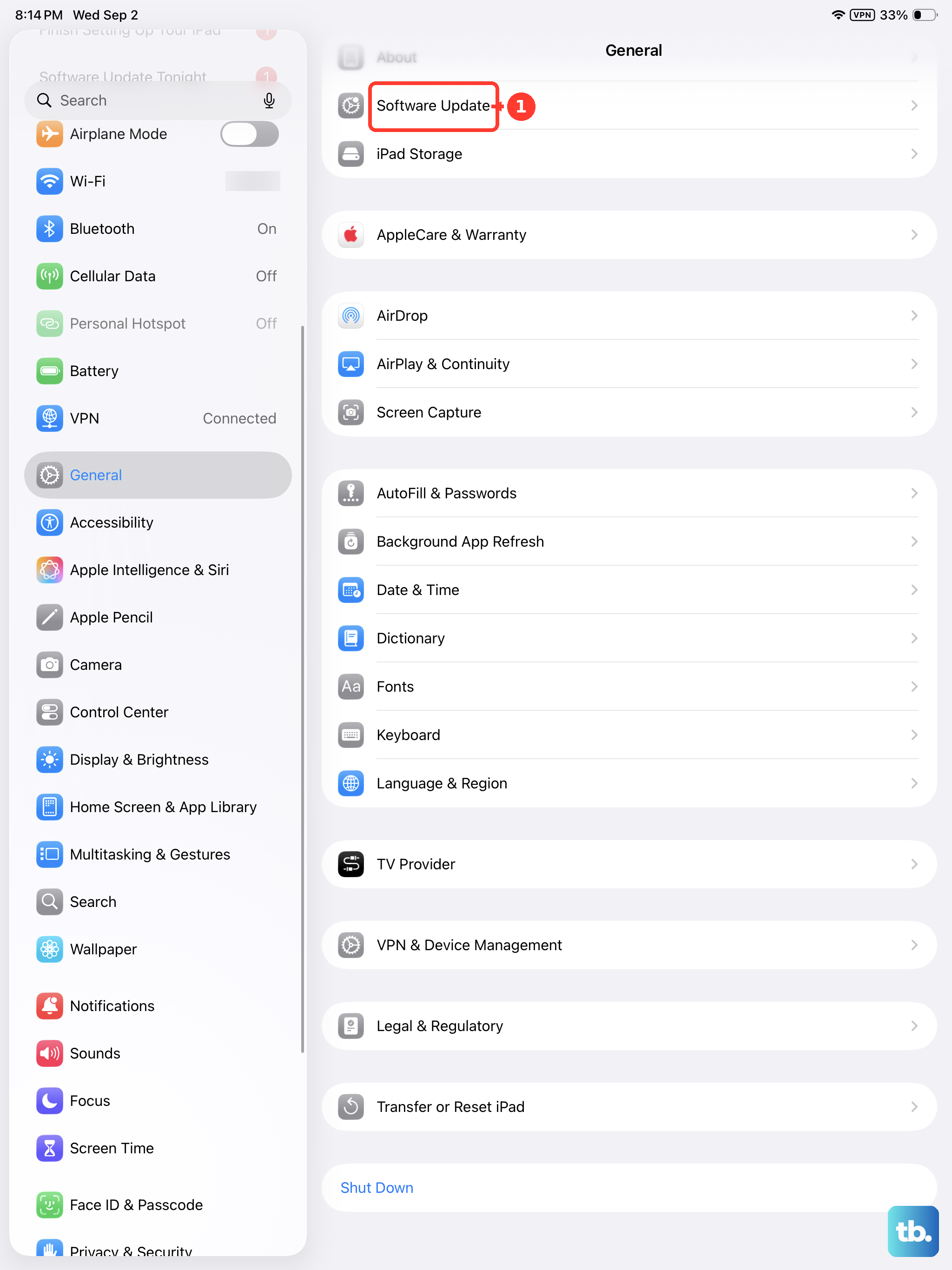
Go to Settings > General > Software Update. If an update is available, tap "Download and Install." Installing the latest iPadOS ensures you have all the latest performance and stability fixes from Apple.
Check for Display Zoom or Accessibility Settings
Certain accessibility features can interfere with screen rotation. Go to Settings > Accessibility. Look under the "Physical and Motor" section for "Touch" and ensure "AssistiveTouch" is turned off, as this floating menu can sometimes cause conflicts.
Also, go to Settings > Display & Brightness. Scroll down and look at "Display Zoom." Make sure it's set to "Standard" and not "Zoomed," as the zoomed view can limit rotation in some contexts.
Reset All Settings
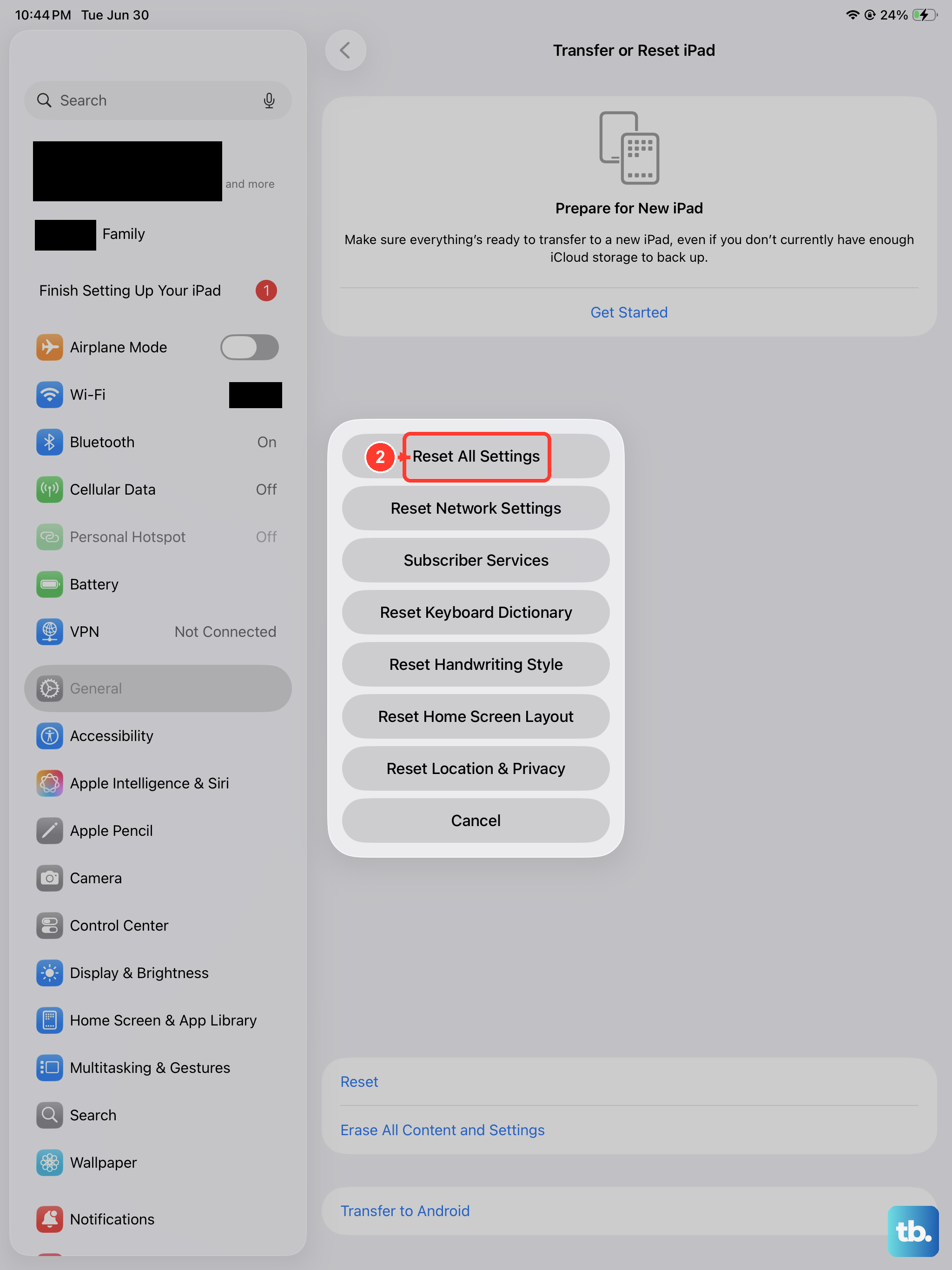
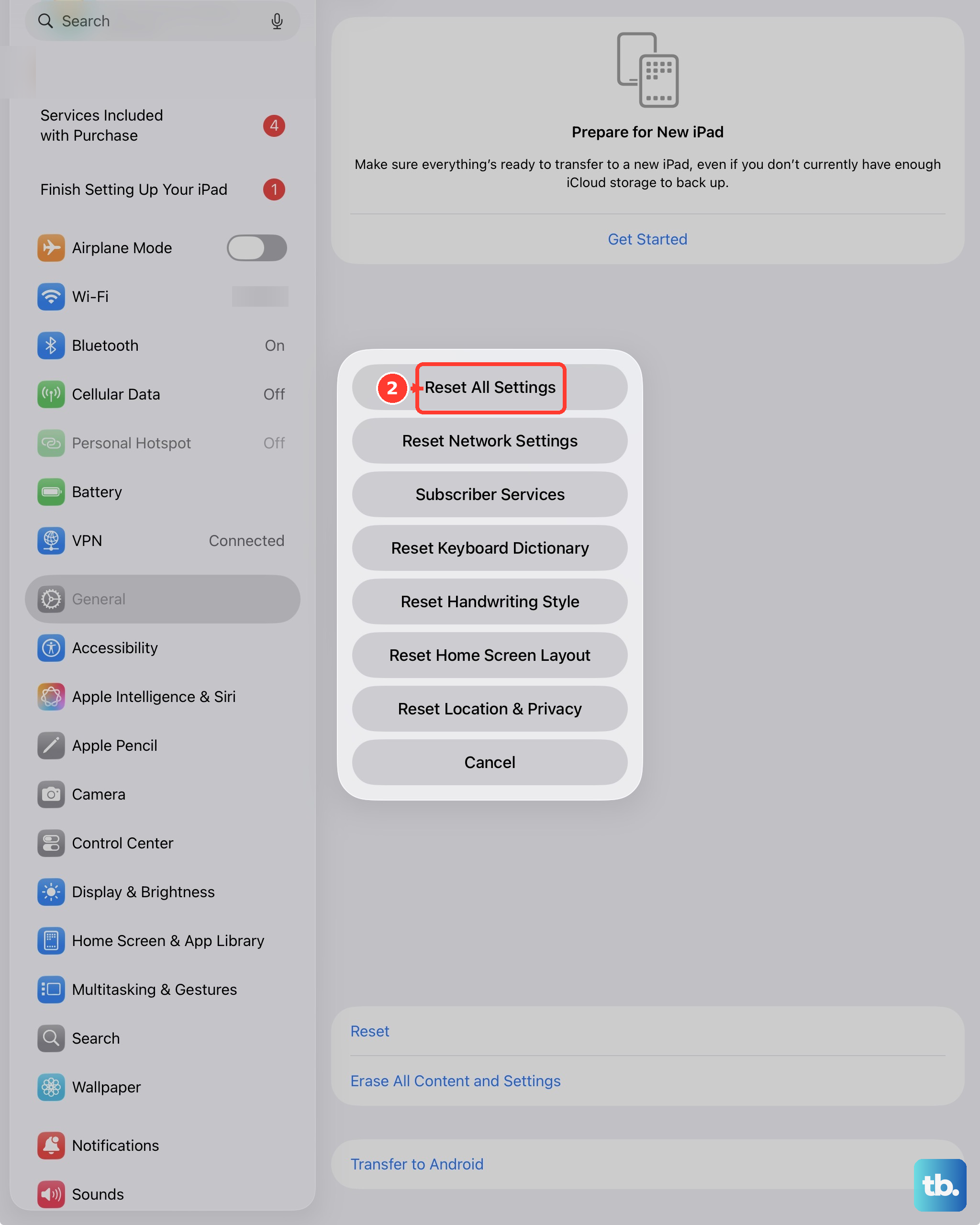
If nothing else has worked, you can try resetting all settings. This will revert all your preferences, like Wi-Fi passwords, wallpaper, and privacy settings, back to factory defaults, but it won't touch your personal data or apps. It can resolve deeper configuration conflicts.
Go to Settings > General > Transfer or Reset iPad. Tap "Reset" at the bottom, then choose "Reset All Settings." You'll need to enter your passcode and confirm. After the iPad restarts, you'll need to reconfigure things like Face ID and notifications, but rotation should be back to normal.