
If your iPad 10th Generation shows a "Not Registered on Network" or "No Service" error, it can't connect to cellular data or make calls. This happens when your iPad can't properly identify itself to your carrier's cell towers. Before you do anything drastic, the quickest thing to try is toggling Airplane Mode. Swipe down from the top-right corner to open Control Center and tap the airplane icon. Wait about 15 seconds, then tap it again to turn it off. This forces your iPad to re-establish a fresh connection with the network.
I've seen this fix a lot of temporary glitches. If that doesn't work, don't worry. There are several other steps you can take, and most of them are pretty straightforward.
Restart Your iPad
A full restart clears out any temporary software bugs that might be interfering with the cellular modem. It's a simple step that often gets overlooked. Go to Settings > General > Shut Down, slide to power off, and wait a minute before turning it back on. Once it boots up, give it a moment to search for the network again.
Check Your SIM Card
For cellular models, a loose or dirty SIM card is a common culprit. You'll need the SIM eject tool that came with your iPad. Turn the iPad off first, then gently push the tool into the small hole on the SIM tray to pop it out.
Remove the SIM card and take a look at the gold contacts. If you see any dust or debris, wipe them gently with a soft, dry cloth. Blow into the SIM tray slot as well to clear it out. Carefully reinsert the SIM, making sure it's seated correctly, and push the tray back in until it clicks. Power your iPad back on.
Verify Your Carrier Plan
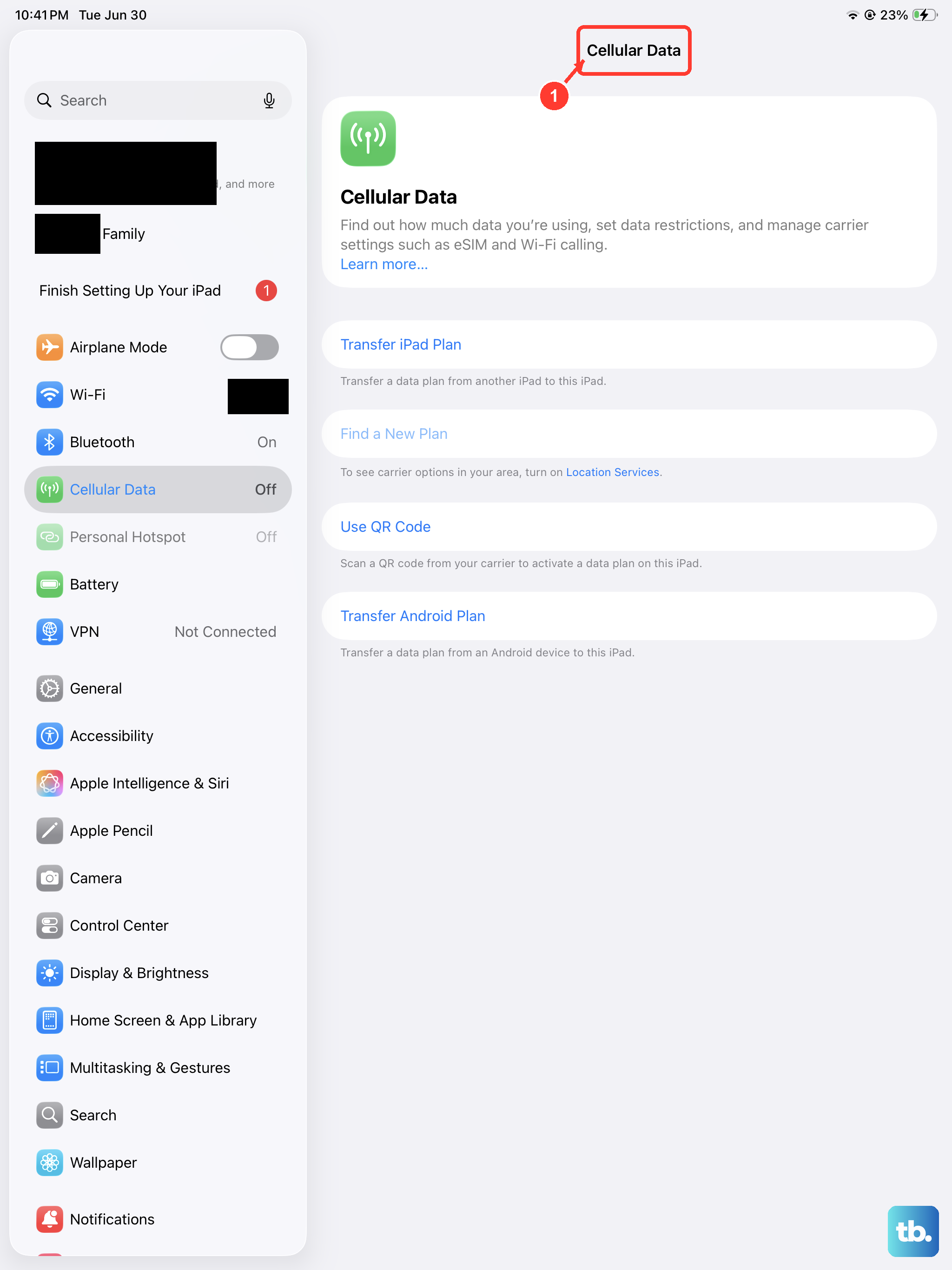
Sometimes the issue isn't with your iPad at all. An unpaid bill, an expired prepaid plan, or a carrier account problem will prevent registration. I'd recommend checking this before diving deeper into settings.
Use another device to log into your carrier's website or app. You can also call their customer support from a different phone. Confirm that your account is active and that cellular data is enabled for your iPad's line.
Update iPadOS
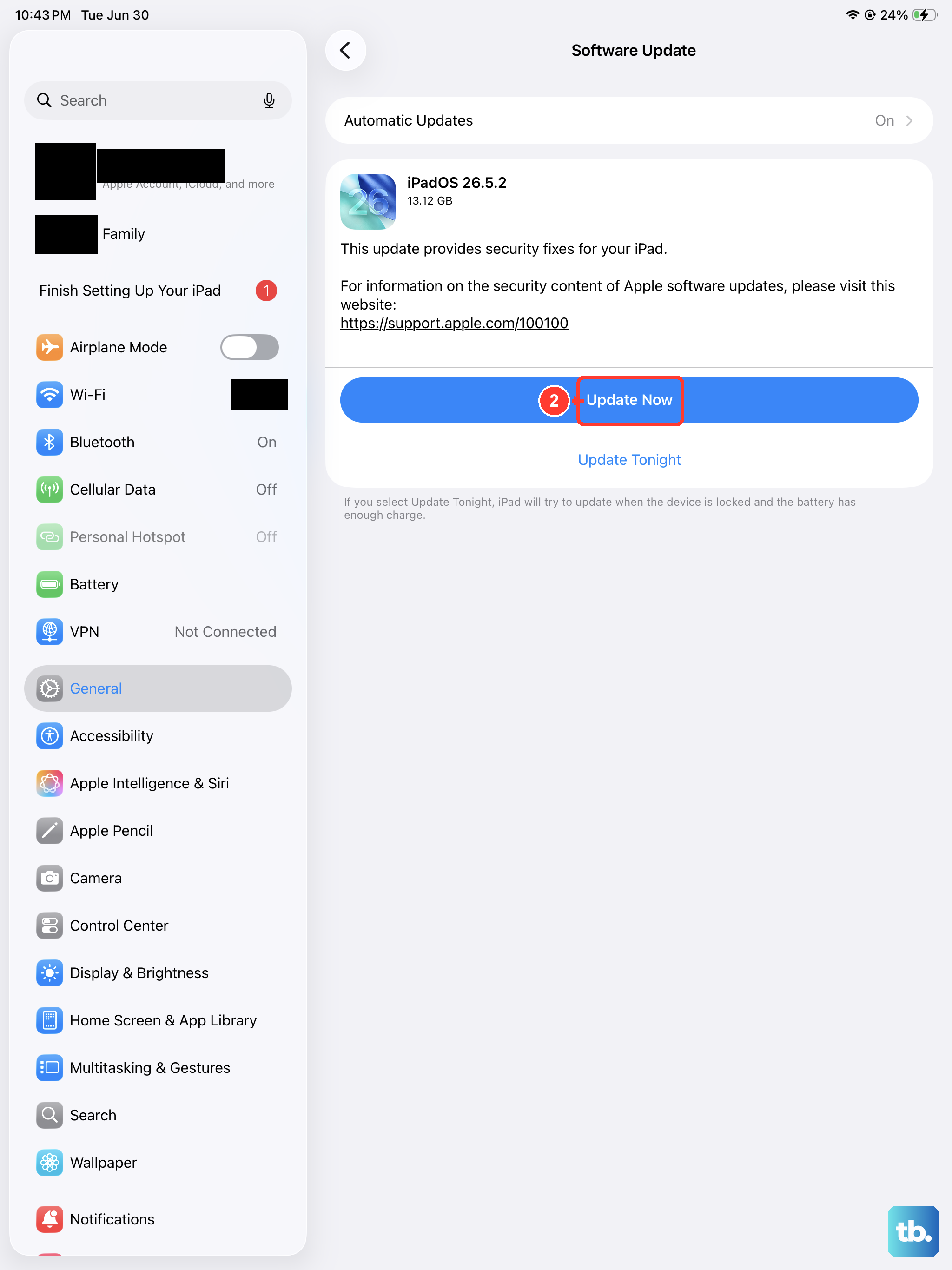
Apple releases updates that frequently include fixes for connectivity issues. Running an outdated version of iPadOS could be the root of your problem. Make sure your iPad is connected to Wi-Fi, then go to Settings > General > Software Update.
If an update is available, tap Download and Install. It's a good idea to plug your iPad into power using a 20W or higher USB-C PD charger during the update, as the process can take a little while on the 10th Gen's large battery.
Reset Network Settings
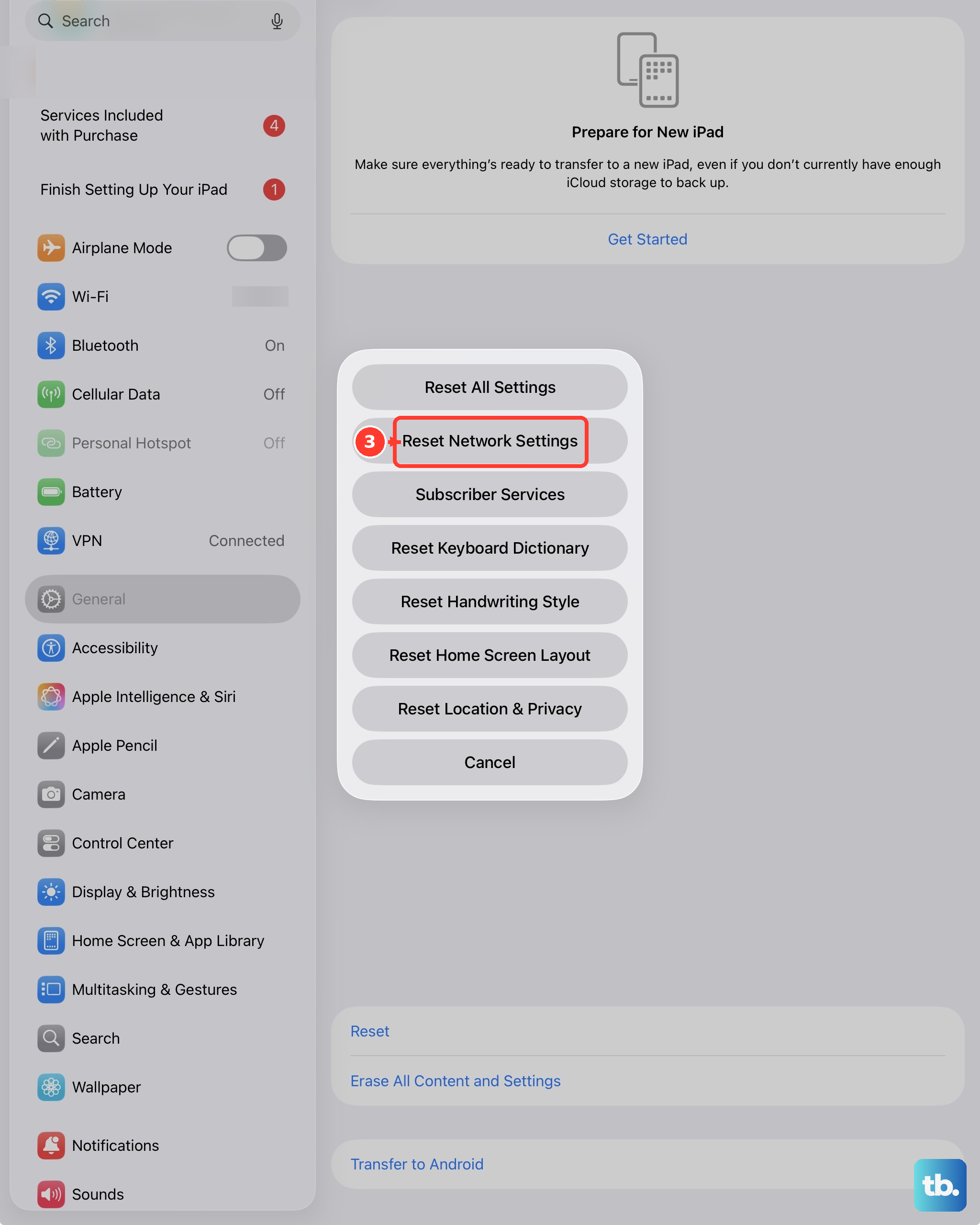
This step clears all your saved network information, including Wi-Fi passwords, Bluetooth connections, and cellular settings. It's very effective for persistent network errors. Go to Settings > General > Transfer or Reset iPad > Reset.
Tap Reset Network Settings. You'll need to enter your passcode and confirm. Your iPad will restart, and you'll have to rejoin your Wi-Fi networks and re-pair Bluetooth devices, but it often resolves corrupted carrier profiles.
Manually Select Your Carrier
Your iPad might be trying to latch onto a weak or incorrect network. You can tell it to search for and choose your carrier manually. Go to Settings > Cellular > Network Selection.
Turn off the "Automatic" toggle. Your iPad will search for available networks. After a moment, a list will appear. Select your carrier's name from the list. Wait a few minutes to see if the registration completes.
Try a Different SIM Card
If you're still having trouble, the SIM card itself could be faulty. The easiest way to test this is to borrow a known-working SIM card from a friend or family member (one that's active on a compatible network).
Insert their SIM into your iPad. If it connects to the network without any issues, then your original SIM is likely damaged or deactivated. You'll need to contact your carrier for a replacement SIM card.
Force Restart Your iPad
A force restart is different from a normal shutdown. It can clear more stubborn software hiccups that a regular restart might miss. On the iPad 10th Generation, you press and quickly release the Volume Up button, then press and quickly release the Volume Down button.
Finally, press and hold the Top button. Keep holding it until you see the Apple logo appear on the screen, then you can let go. This won't delete any of your data or settings.
Check for a Carrier Settings Update
Carrier settings are small files that help your iPad work optimally with your specific mobile network. Updates to these files are pushed out by Apple and your carrier independently of iPadOS updates.
To check, make sure you have a Wi-Fi connection. Go to Settings > General > About. If an update is available, a pop-up notification will appear on this screen. Just follow the prompts to install it.
Contact Your Carrier for Support
If you've tried everything here and the error persists, your carrier's technical support team should be your next call. They can check for network outages in your area, reprovision your line on their end, or check if your iPad's IMEI is properly registered in their system.
Have your iPad and account information ready when you call. They may have specific troubleshooting steps for their network that can finally get you connected.