
Seeing "No Service" in the corner of your iPad 10th Generation can be a real headache, especially if you rely on cellular data on the go. This error means your iPad can't connect to your carrier's network for data, calls, or texts. The good news is that it's usually a temporary glitch with a simple fix.
I'd start with the most common solution, which often works right away.
Toggle Airplane Mode and Restart
First, swipe down from the top-right corner to open Control Center and tap the Airplane Mode icon to turn it on. Wait about ten seconds, then tap it again to turn it off. This forces your iPad to disconnect from and then search for the cellular network again.
If that doesn't do it, the next step is to restart your iPad. A simple reboot clears out minor software bugs that can interfere with the cellular modem. Press and hold the top button and either volume button until the power slider appears, then slide to power off. After about 30 seconds, press the top button again to turn it back on.
Check for a Carrier Settings Update
Sometimes, your cellular carrier pushes small updates that improve network connectivity. These are separate from regular iPadOS updates. To check, make sure you're connected to Wi-Fi and have your SIM card inserted.
Then, go to Settings > General > About. If an update is available, a prompt will appear. This process only takes a moment and doesn't affect your personal data.
Reinsert Your SIM Card
For the cellular model of the iPad 10th Gen, a loose or dirty SIM card is a common culprit. You'll need the SIM eject tool that came in the box or a small paperclip. Find the SIM tray on the left edge of the iPad and gently push the tool into the small hole.
Pull the tray out and carefully remove the SIM card. Give both the gold contacts on the card and inside the tray a quick wipe with a soft, dry cloth. Then, reinsert the card, making sure it's seated correctly in the tray, and push the tray back into the iPad until it clicks.
Reset Your Network Settings
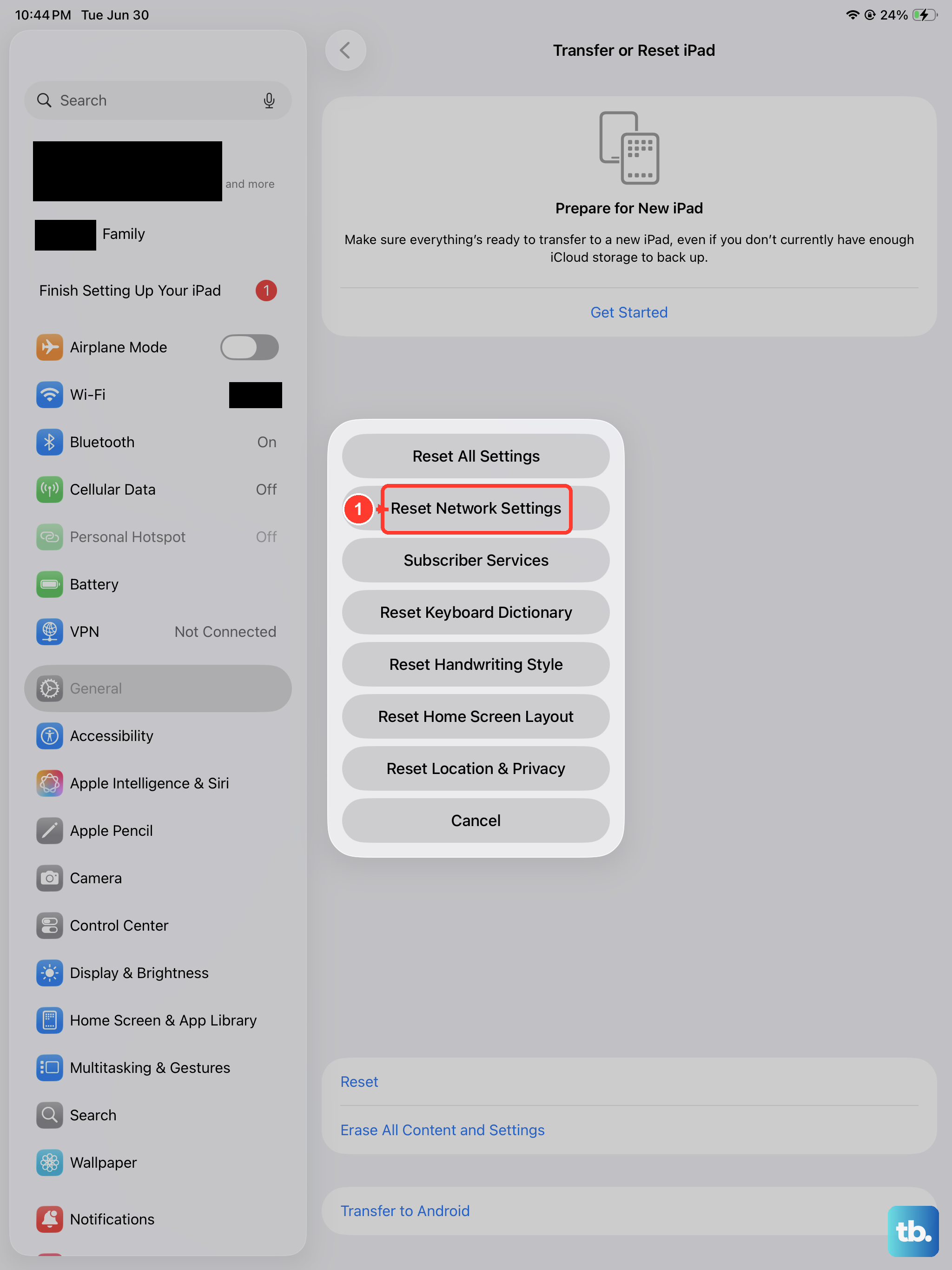
This is a more thorough step that can resolve deeper configuration issues. It will erase all your saved Wi-Fi networks and passwords, Bluetooth pairings, and any custom VPN or APN settings, so you'll need to rejoin your Wi-Fi networks afterward.
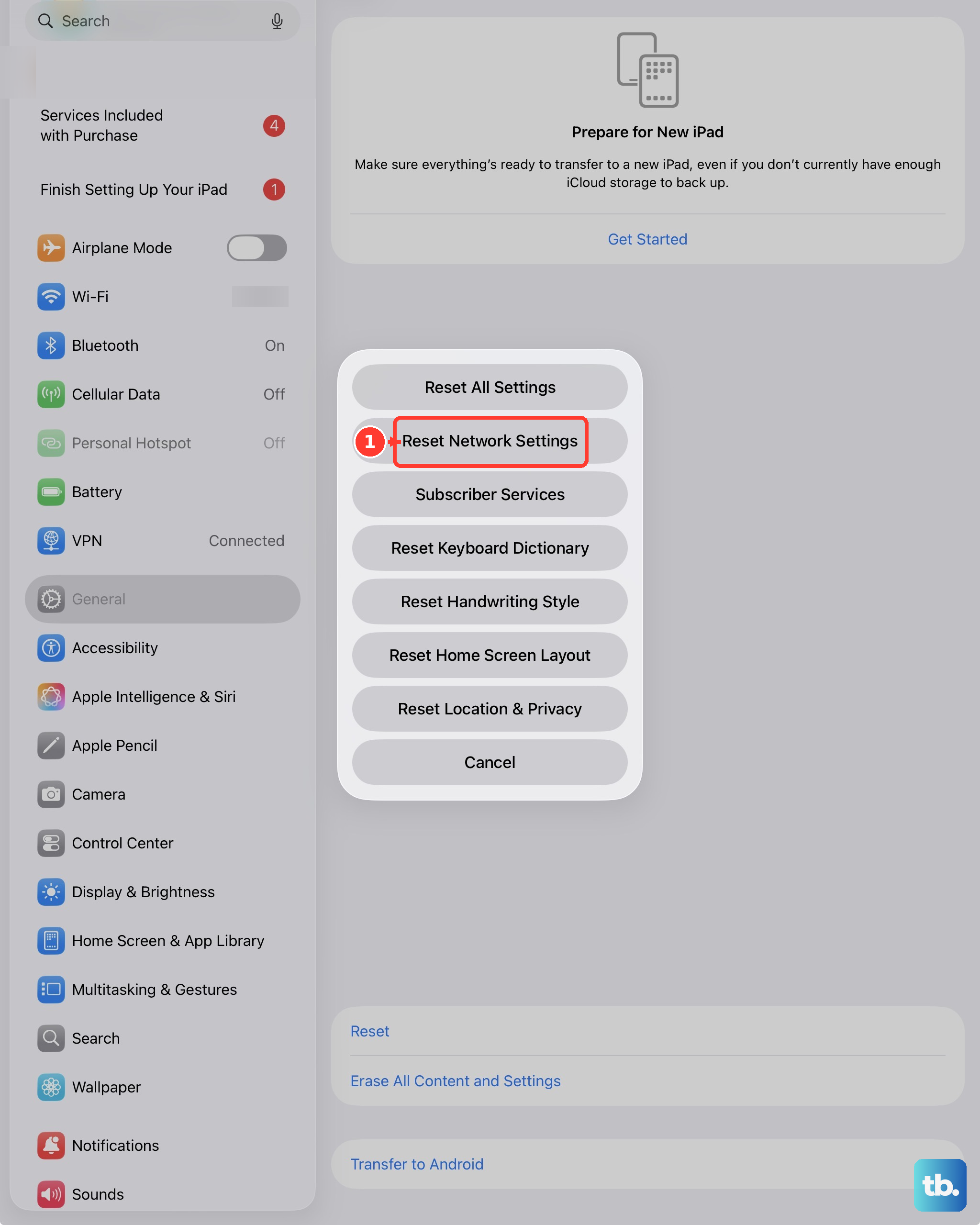
To do this, open Settings, tap General, then scroll down and tap Transfer or Reset iPad. Tap Reset at the bottom, and then choose Reset Network Settings. You'll need to enter your passcode to confirm.
Manually Select Your Network
Your iPad usually connects to your carrier's network automatically. If there's a problem with that process, you can try choosing it yourself. Go to Settings > Cellular > Network Selection.
Turn off the "Automatic" switch. Your iPad will search for available networks for a moment. When the list appears, select your carrier's name from the list. If it doesn't connect, you can turn "Automatic" back on.
Update Your iPadOS Software
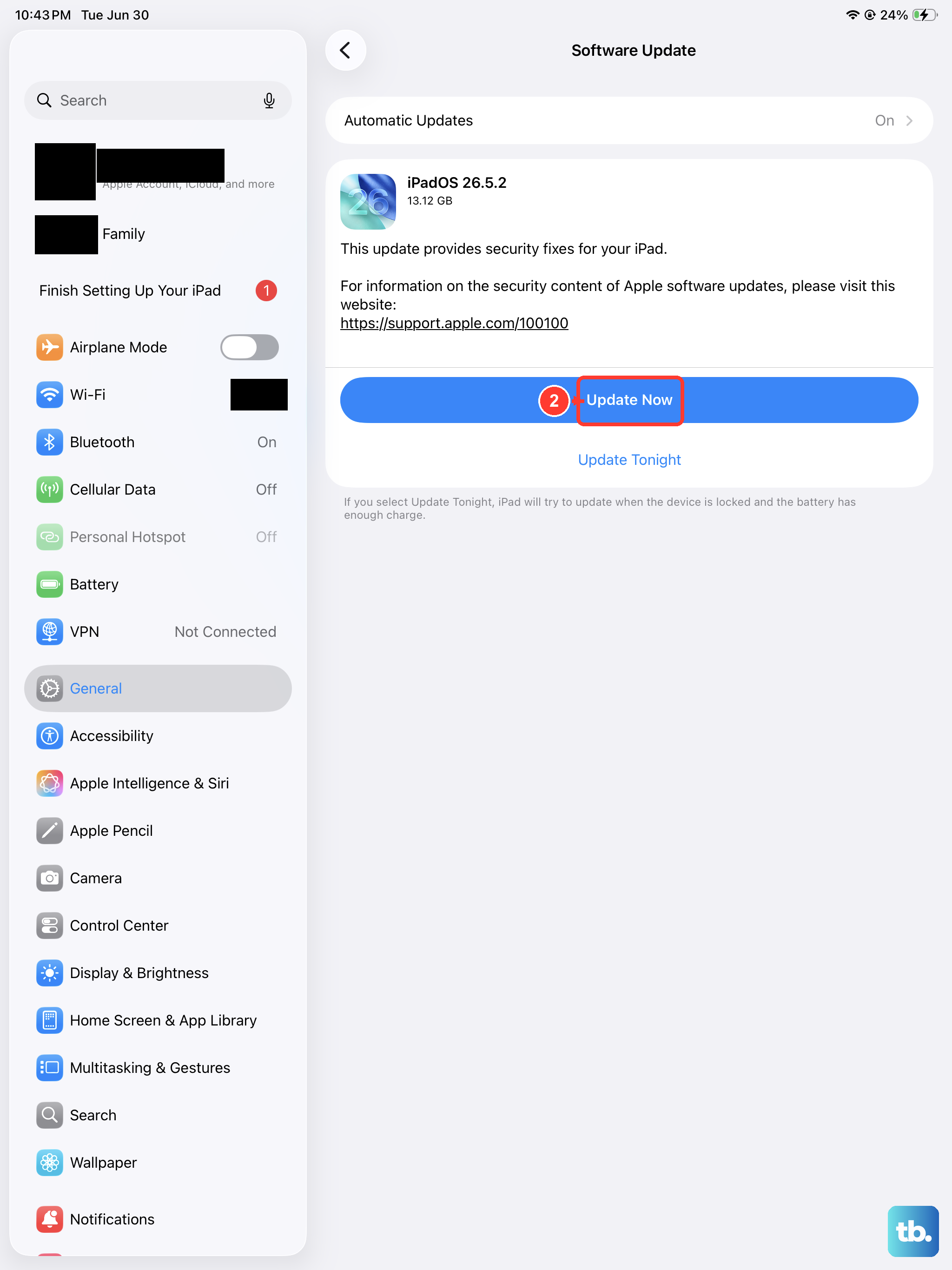
Apple frequently includes fixes for cellular connectivity in its software updates. It's a good idea to make sure you're running the latest version of iPadOS. Plug your iPad into power using a 20W or higher USB-C PD charger to ensure the update doesn't get interrupted.
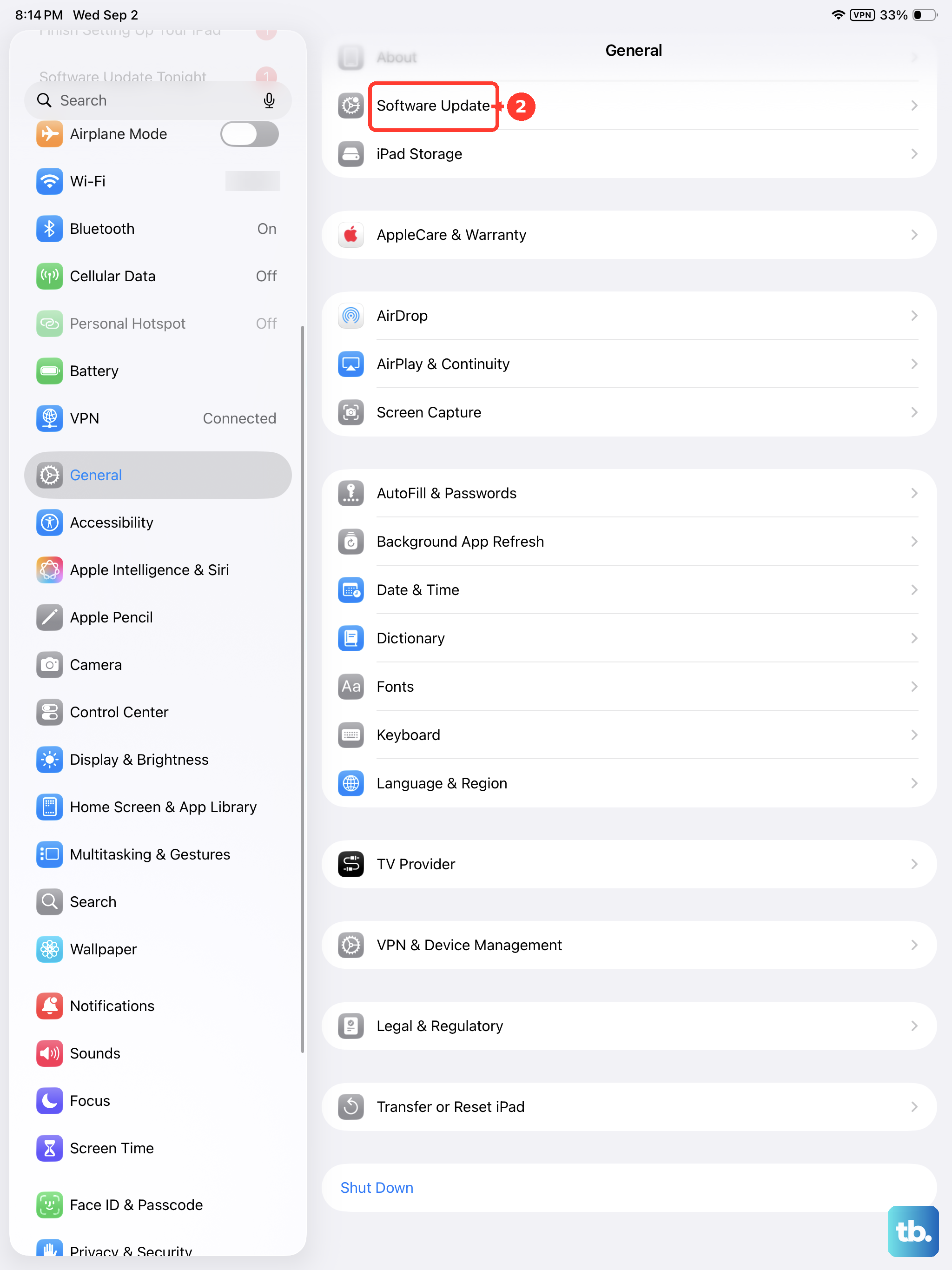
Then, go to Settings > General > Software Update. If an update is available, tap "Download and Install." Keeping your iPad updated is one of the best ways to prevent a variety of issues.
Check for Physical or Account Issues
If you've tried all the software fixes, it's time to look at potential physical or account-related causes. First, contact your cellular carrier. They can check if there's an outage in your area or if there's a problem with your account, like an unpaid bill that suspended service.
They can also tell you if your SIM card is active and may suggest getting a replacement SIM, which often solves persistent "No Service" problems. While you have them on the line, you can also verify that your APN (Access Point Name) settings are correct for your data plan, though these usually configure automatically on iPad.
Perform a Force Restart
A force restart is different from a normal shutdown and can clear more stubborn glitches. On the iPad 10th Generation, you press and quickly release the Volume Up button, then press and quickly release the Volume Down button.
Finally, press and hold the Top button. Keep holding it even when the power-off slider appears. Continue holding until you see the Apple logo, then you can let go. This doesn't erase any data, it just gives the system a fresh start.