
When your iPad 10th Generation's Personal Hotspot stops sharing your cellular connection, it leaves your other gadgets stranded. Whether your laptop can't find the network, the connection keeps dropping, or devices just won't join, the fixes are usually straightforward.
Start by heading to Settings > Personal Hotspot and turning the toggle off. Wait a good 10 seconds, then flip it back on. Make sure Allow Others to Join is enabled. This quick reset often clears out a minor software hiccup and gets things working again right away.
Restart Your iPad
To restart your iPad 10th Generation, quickly press and release the Volume Up button, then quickly press and release the Volume Down button. Finally, press and hold the Top button until you see the Apple logo appear. This force restart is more thorough than a standard shutdown and can resolve deeper system glitches affecting the hotspot.
Verify Your Cellular Data Connection
Your hotspot can't work without an active data connection. Open Settings > Cellular Data and ensure the main Cellular Data switch is on. Check the signal indicator in the top-right corner of your screen. If you're in a basement or a rural area with weak signal, the hotspot will be unreliable or may not appear at all.
It's also worth double-checking your mobile plan. Some carriers require you to add a specific tethering feature, and others might have temporarily suspended it if you've exceeded a data limit.
Reset the iPad's Network Settings
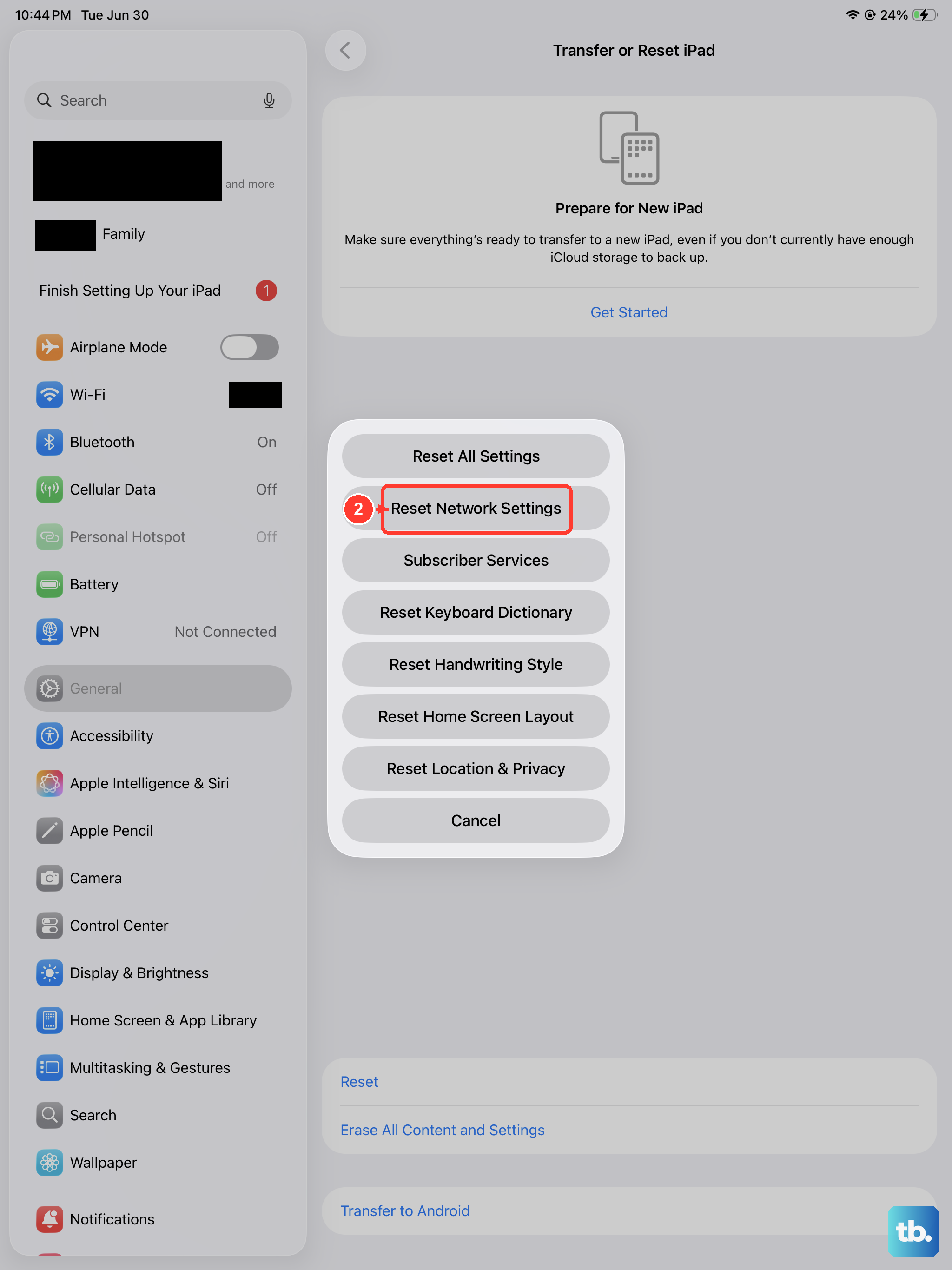
If the hotspot is still being stubborn, a network settings reset is a powerful next step. Go to Settings > General > Transfer or Reset iPad. Tap Reset and then choose Reset Network Settings. This will erase all your saved Wi-Fi networks, Bluetooth pairings, and VPN configurations, so you'll need to reconnect to Wi-Fi afterward.
This process rebuilds your network connections from the ground up and has fixed hotspot issues for many users, especially after a major iPadOS update.
Check for a Carrier Settings Update
Small updates from your cellular provider can fix connectivity bugs. Navigate to Settings > General > About. If a carrier settings update is available, a prompt will appear on this screen asking you to install it. These updates are tiny and install in seconds, but they're crucial for maintaining a stable connection.
Forget the Network on Your Other Device
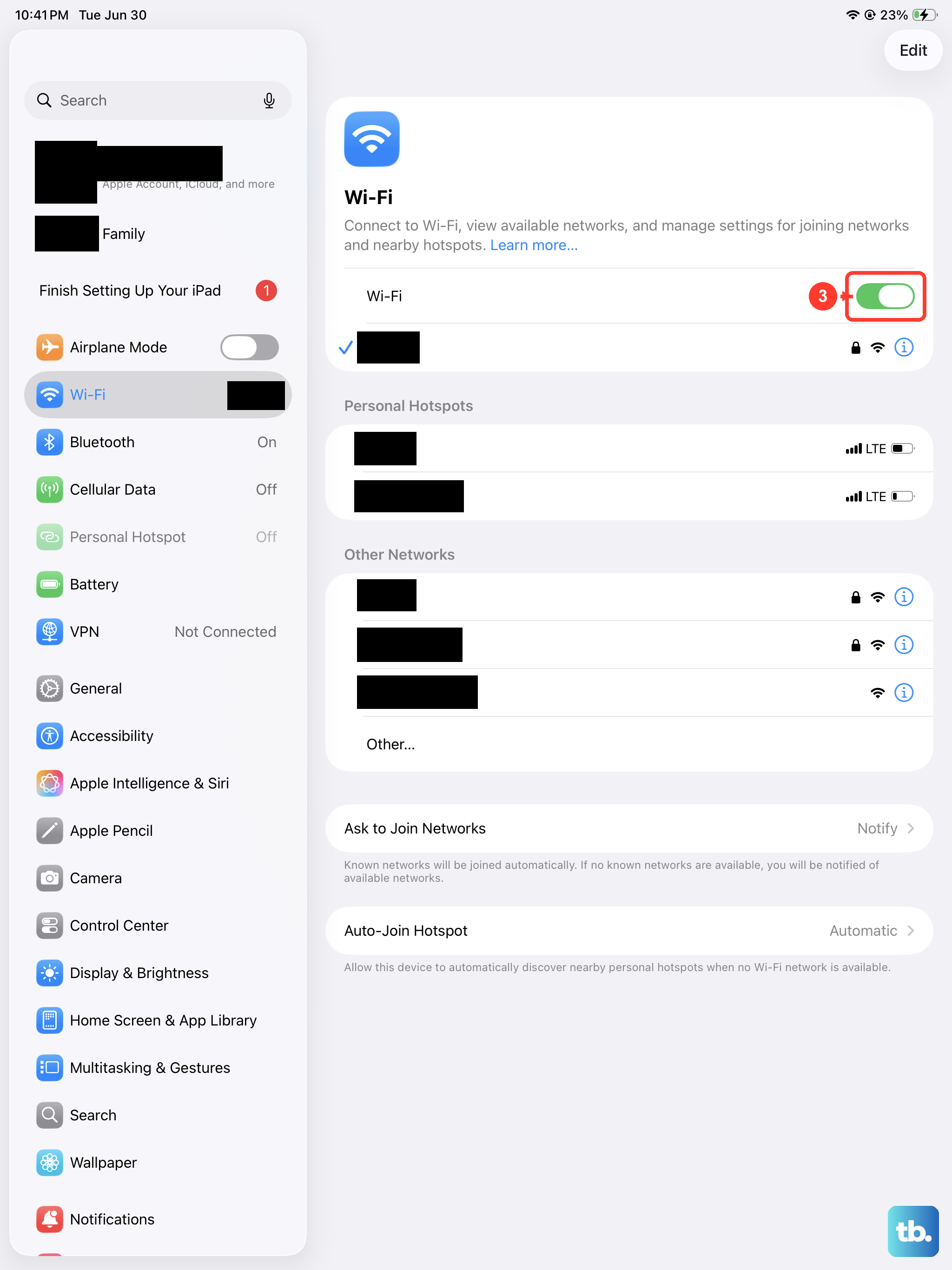
The problem might not be with your iPad, but with the device trying to connect. On your laptop or phone, go into its Wi-Fi settings and find your iPad's hotspot name. Choose to "Forget" or "Remove" that network. Then, search for available Wi-Fi networks again, select your iPad, and enter the password fresh.
Sometimes the saved connection profile on the client device gets corrupted, and starting over is the easiest fix.
Change Your Hotspot's Wi-Fi Password
Go back to Settings > Personal Hotspot and tap Wi-Fi Password. Change it to something new and tap Done. Now, try connecting your other device using this new password. This forces a completely new authentication handshake between the devices, which can bypass connection errors.
Try Connecting with a USB Cable
If the Wi-Fi hotspot is problematic, a wired connection is often more stable. Connect your iPad 10th Generation to your Mac or Windows PC using a USB-C cable. On the iPad, ensure Personal Hotspot is turned on in Settings. Your computer should recognize it as a new network interface almost immediately.
For Windows, you may need to trust the computer on your iPad and potentially install driver software. On a Mac, it typically just works. Bluetooth tethering is another option, though it's generally slower than Wi-Fi or USB.
Install the Latest iPadOS Update
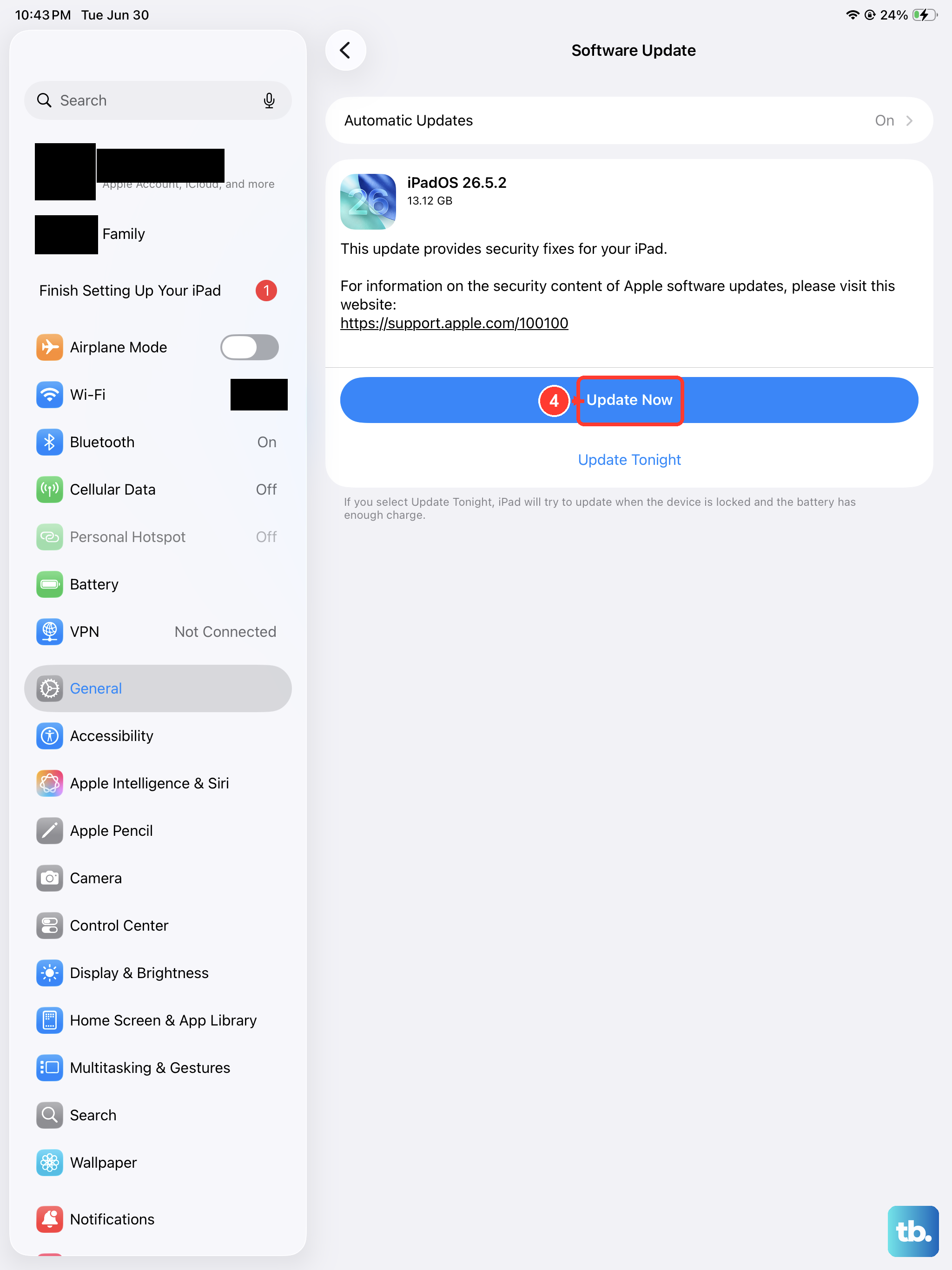
Software bugs are a common cause of hotspot failures, and Apple frequently patches them. Go to Settings > General > Software Update. If an update for iPadOS is available, download and install it. It's a good idea to plug your iPad into power using a 20W or higher USB-C PD charger during the update process, especially since the 10th Gen's large battery can make updates slow on a low charge.
Contact Your Mobile Carrier
If you've tried everything and the hotspot still won't function, the issue might be on your carrier's end. There could be a provisioning error on your account, a temporary network outage in your area, or a restriction on your specific plan. A quick call or online chat with your carrier's support can confirm that Personal Hotspot is active and working on your line.











