

Windows update history is where you check what installed, when it landed, and which KB entry belongs to a recent update. The quickest route is Settings, but Windows 11 and Windows 10 put the page in different places. Start with the built-in history page, then use uninstall, recovery, command line, or Microsoft release pages only when you need the extra detail.
1. Open Windows 11 Update History From Settings
This is the main consumer view for installed Windows updates and install dates on Windows 11.
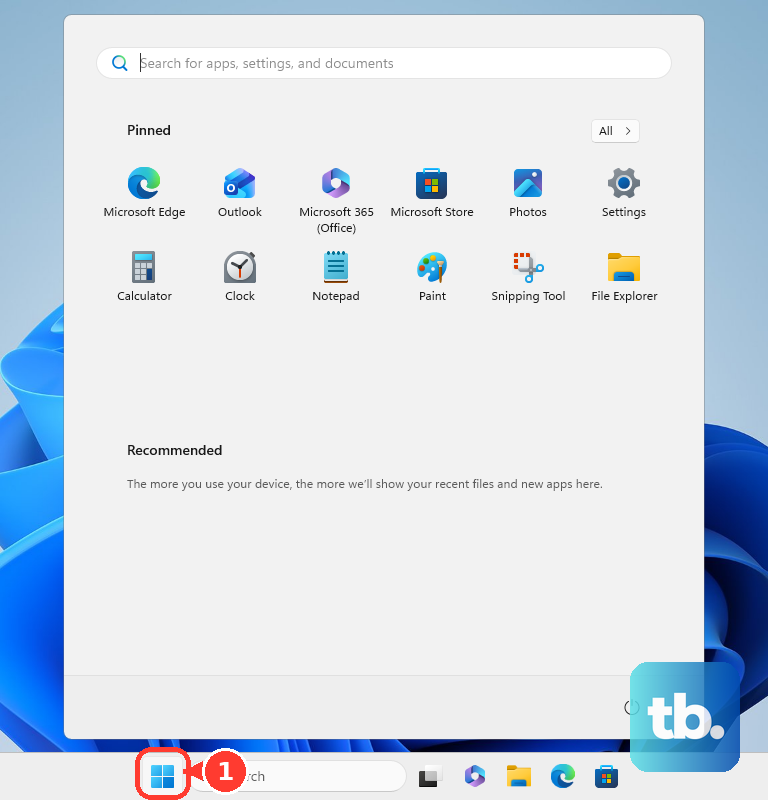
- 1.Open Start.
- 2.Select Settings.
- 3.Choose Windows Update.
- 4.Select Update history.
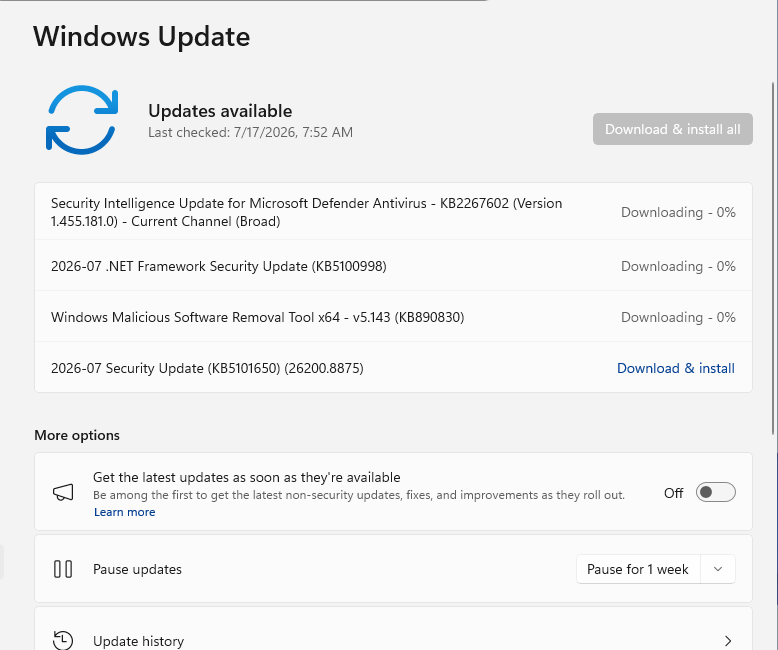
Some update categories appear grouped, so expand each section before deciding an update is missing. Review the update categories and install dates on the Update history page.
2. Find Windows 10 Update History In Settings
Open Start, then select Settings. Choose Update & Security, select Windows Update, and choose View update history.
Windows 10 uses this slightly older Settings path, and it remains Microsoft’s documented route for Windows 10 devices in support or extended servicing contexts. Free Windows 10 support ended on October 14, 2025, but the update history screen still uses this path.
3. Jump Straight To Update History With Run
For the fastest route, press Windows key + R, enter ms-settings:windowsupdate-history, and select OK. Windows opens the same Update history page directly on Windows 10 and Windows 11 systems that support the Settings URI scheme.
4. Review Updates Windows Allows You To Uninstall
The uninstall screen is for removing eligible updates, not for browsing a complete history. Microsoft states that some updates cannot be uninstalled.
On Windows 11, open Start, select Settings, choose Windows Update, and select Update history. Next, choose Uninstall updates, select the update, and choose Uninstall.
On Windows 10, go to Start > Settings > Update & Security > Windows Update > View your update history > Uninstall updates, then select the update and choose Uninstall.
5. Roll Back The Latest Update When Windows Will Not Start
Open Windows Recovery Environment, select Troubleshoot, and choose Advanced options. After that, select Uninstall Updates, then choose Uninstall latest quality update or Uninstall latest feature update.
Use Windows Recovery Environment when Windows fails to boot after an update. This screen does not show full update history; it gives you rollback actions for the latest quality update or feature update.
For a feature-version rollback from inside Windows, open Settings > System > Recovery > Go back. That option returns the PC to a previous Windows version when the rollback files are still available.
6. Check Control Panel For Office And MSI Updates
Control Panel still helps with some installed updates, especially MSI and Office-style updates. Open Start, enter Control Panel, and open Control Panel.
Then search for Installed Updates and select View installed updates. Use Settings first for normal Windows Update history.
7. Pull Hotfix Details From PowerShell Or Command Prompt
Open Start, enter PowerShell, open Windows PowerShell, then run Get-HotFix. To sort PowerShell hotfix results by install date, run Get-HotFix | Sort-Object InstalledOn -Descending.
To query the CBS-backed WMI class directly, open Windows PowerShell and run Get-CimInstance -ClassName Win32_QuickFixEngineering. To check the system hotfix inventory, open Command Prompt, run systeminfo, then review the Hotfix(s) section.
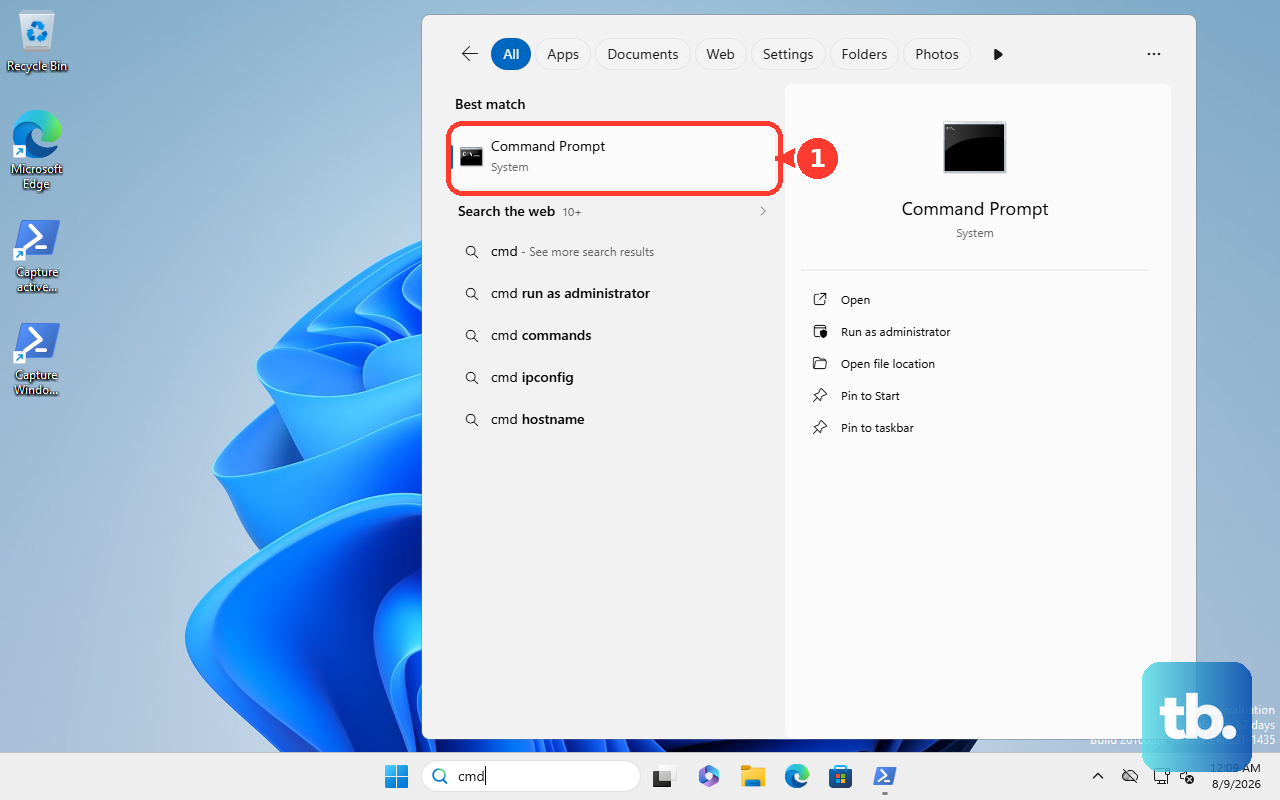
For servicing package verification, open Command Prompt as Run as administrator, then run Dism /online /Get-Packages. Command line checks are useful for audits and troubleshooting, but they do not replace the Settings history page.
They focus on hotfixes, CBS-backed entries, servicing packages, or system inventory, so the results can differ from Settings. Skip WMIC-based update checks. Microsoft lists WMIC as deprecated; Windows 11 version 24H2 does not preinstall it, and Windows 11 version 25H2 removes it during feature update installation.
8. Compare Your KB Number With Microsoft Release Pages
Your PC’s local history shows what installed on that device. Microsoft’s public release pages show what Microsoft released for each Windows version.
Open the Windows 11 release information page to review Windows 11 release history and KB entries. Then open the matching Windows 11 update history page for your version to review release notes, known issues, and build history.
Open Windows 10 release information or Windows 10 update history to review Windows 10 monthly update entries and KB links. Open Microsoft Update Catalog, enter a KB number or update title in Search, select Search, then choose Download when you need the manual update package.
The Microsoft Update Catalog is not a local history viewer. It is for finding and downloading official Microsoft update packages.
9. Separate Personal PCs From Managed Devices
For the device in front of you, use Settings > Windows Update > Update history on Windows 11, or Settings > Update & Security > Windows Update > View update history on Windows 10.
School and work PCs can report update deployment through admin tools, including Intune reports, Windows Update for Business reports, and Microsoft Graph Windows updates APIs. Those tools belong to IT admin workflows, not everyday local history checking.
On Surface devices, the Surface app > Help & support screen checks driver and firmware update status, and Microsoft’s Surface update history pages list model-specific releases. Surface firmware updates cannot be uninstalled or reverted.
Frequently Asked Questions
Why does Settings show different update history than PowerShell?
Settings is the main consumer update history page. PowerShell tools such as Get-HotFix and Win32_QuickFixEngineering focus on hotfix or CBS-backed data, so they do not include every Windows Update, MSI update, Store update, or driver update.
Can I see Windows update history without opening Settings manually?
Yes. Press Windows key + R, enter ms-settings:windowsupdate-history, and select OK. That opens the Update history page directly on supported Windows 10 and Windows 11 systems.
Does Microsoft Update Catalog show what is installed on my PC?
No. Microsoft Update Catalog is for searching and downloading official update packages. Use Settings to see the update history installed on your own PC.
What should I use instead of WMIC for update history?
Use Settings first. For command line checks, use Get-HotFix, Get-CimInstance -ClassName Win32_QuickFixEngineering, systeminfo, or DISM, depending on whether you need hotfix, CBS, system inventory, or servicing package details.