A specific Windows update, driver, or hotfix is not always easiest to find through Settings. Microsoft Update Catalog is the official place to download listed Microsoft update packages when you already know what you need. Start with Windows Update for everyday fixes, then use the Catalog only when you need a specific package and can match it to your Windows version and architecture.
1. Start with Windows Update first
For normal security, reliability, and driver updates, use the built-in updater before opening the Catalog.
- 1.On Windows 11, open Start > Settings > Windows Update.
- 2.Select Check for updates.
- 3.If Windows lists updates, select Download & install.
- 4.Restart when Windows prompts you.
On Windows 10, use Start > Settings > Update & Security > Windows Update > Check for updates, then select Download & install when updates appear. Windows 10 consumer support ended on October 14, 2025, except for supported servicing channels such as eligible ESU and LTSC scenarios.
2. Decide when Catalog fits
Open Microsoft Update Catalog when you need a listed KB update, hotfix, Microsoft software update, or exact driver package. It is built for advanced users and administrators, so the match matters more than speed.
Use the official site at catalog.update.microsoft.com. Search by KB number, update title, product, classification, driver model, manufacturer, driver class, or hardware ID. For driver searches, a four-part hardware ID such as PCI\VEN_14E4&DEV_1677&SUBSYS_01AD1028 is a valid Catalog search term.
3. Download the matching update
- 1.Go to catalog.update.microsoft.com.
- 2.Click the Search text box.
- 3.Enter the KB number, update title, product name, driver model, manufacturer, driver class, or hardware ID.
- 4.Select Search or press Enter.
- 5.Choose the result that matches your Windows version and architecture.
- 6.Select Download.
- 7.In the download pop-up, select the update link to save the file.
- 8.Close the Download window and the Microsoft Update Catalog window.
- 9.Open File Explorer and go to the folder where the file was saved.

Do not use third-party update download portals. The Catalog is Microsoft’s canonical download page for these packages.
4. Install an MSU file from File Explorer
Use the Windows Update Standalone Installer for a downloaded .msu package.
- 1.Open File Explorer.
- 2.Go to the folder containing the downloaded .msu file.
- 3.Double-click the update file.
- 4.Follow the Windows Update Standalone Installer prompts.
- 5.Restart when Windows prompts you.
For Windows 11 version 24H2 and later checkpoint cumulative updates, the Catalog download pop-up can include prerequisite checkpoint .msu files. Copy only the target update and its prior checkpoint files to one local folder, and make sure no other .msu files are present. Install them in Microsoft’s documented order, or on devices with KB5060829 or later, double-click the latest .msu so Windows Update Standalone Installer installs the missing checkpoint updates in sequence.
5. Run command line installs
Use an elevated terminal when you need a direct WUSA or DISM install.
- 1.Download the correct .msu package from Microsoft Update Catalog.
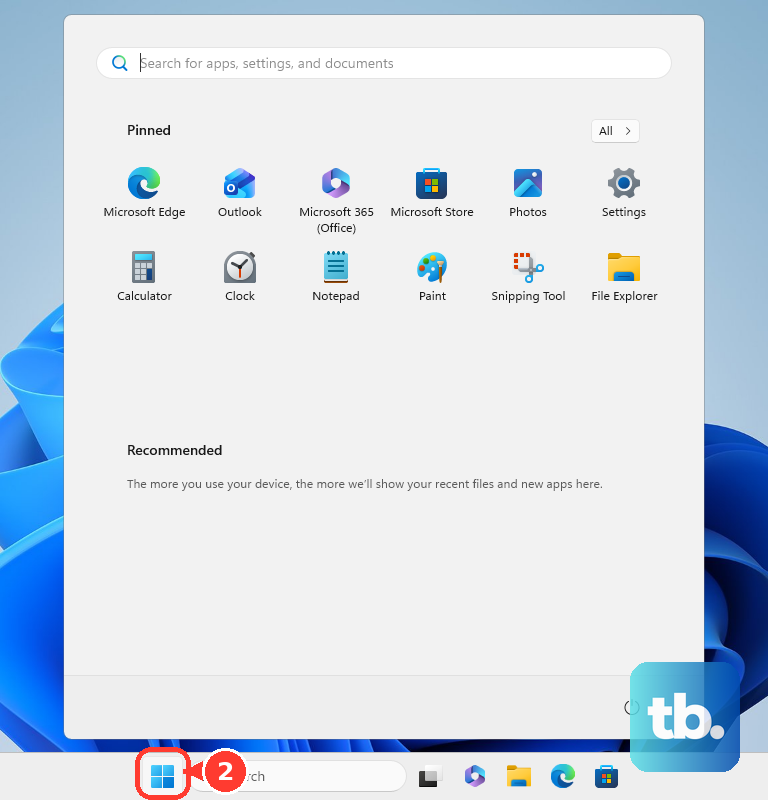
- 2.Open Start.
- 3.Search for Command Prompt or PowerShell.
- 4.Select Run as administrator.
- 5.Run wusa.exe C:\path\update.msu, replacing the path with the full path to the downloaded file.
- 6.Restart when Windows requires it.
For unattended deployments, Microsoft documents the /quiet and /norestart WUSA switches. For DISM servicing on the running Windows installation, Windows 11 version 21H2 or later supports DISM /Online /Add-Package /PackagePath:"C:\path\update.msu". To point DISM at a folder, place only the target cumulative update and required checkpoint updates in that folder.
6. Install Catalog drivers with Device Manager
For drivers, use Windows Update, Optional updates, or the hardware maker’s official site before manually installing a Catalog driver. Optional drivers are not installed automatically.
- 1.On Windows 11, open Start > Settings > Windows Update > Advanced options.
- 2.Turn on Receive updates for other Microsoft products.
- 3.Under Additional options, select Optional updates.
- 4.Select the listed driver updates you want to install.
- 5.Select Download and install.
- 6.Restart the device after the updates finish installing.
When you already have the exact Catalog driver package, install it through Device Manager.
- 1.Extract the downloaded driver package if it is compressed.
- 2.Right-click Start.
- 3.Select Device Manager.
- 4.Expand the device category.
- 5.Right-click the device.
- 6.Select Update driver.
- 7.Select Browse my computer for drivers.
- 8.Select Browse....
- 9.Choose the folder containing the extracted driver files.
- 10.Select OK.
- 11.Select Next, then Close.
- 12.Restart when Windows prompts you.
7. Undo a bad update or driver
Windows removes many updates from Settings, while Microsoft says some updates cannot be uninstalled.
- 1.On Windows 11, open Start > Settings > Windows Update > Update history > Uninstall updates.
- 2.Select the update.
- 3.Select Uninstall.
On Windows 10, use Start > Settings > Update & Security > Windows Update > View update history > Uninstall updates, then select the update and choose Uninstall.
When Windows does not start normally, use Windows Recovery Environment instead.
- 1.Open Windows Recovery Environment.
- 2.Select Troubleshoot.
- 3.Select Advanced options.
- 4.Select Uninstall Updates.
- 5.Choose Uninstall latest quality update or Uninstall latest feature update.
For a driver rollback, right-click Start, select Device Manager, expand the device category, right-click the device, select Properties, open the Driver tab, choose Roll Back Driver, pick a reason, select Yes, and restart when prompted.
8. Avoid old Catalog methods
Skip instructions that tell you to use Internet Explorer, ActiveX controls, trusted-site setup, or the old WSUS Import Updates browser action. Microsoft’s current Catalog download instructions use the website search and download flow, and Microsoft now documents the WSUS ActiveX import path as deprecated.
For WSUS, administrators use Microsoft’s current PowerShell import script with copied UpdateIDs from the Catalog details page. For Intune-managed devices, Microsoft documents Win32 app deployment for downloaded .msu packages, while normal Windows Update policies remain the preferred update-management path.
Frequently Asked Questions
Can Microsoft Update Catalog install updates by itself?
No. The Catalog downloads the package. Installation happens through Windows Update Standalone Installer, DISM, PowerShell, Device Manager, WSUS, or Intune, depending on the package and device.
Which file type should I expect from Microsoft Update Catalog?
Windows update packages commonly download as .msu files. Driver packages can require extraction before you point Device Manager to the folder containing the driver files.
Can I remove a Catalog update with DISM by pointing to the MSU file?
No. Microsoft documents DISM /Remove-Package by installed package name for supported CAB-file packages, not direct removal by .msu package path.
Should I use Catalog drivers on a work or school PC?
Use the update method your organization manages. Microsoft documents WSUS, Intune driver update policies, and Intune package deployment for managed Windows devices.