Windows can start misbehaving after a driver, update, or app change, and System Restore is the built-in way to roll system files and settings back to an earlier restore point. rstrui.exe opens that same restore wizard directly. Start with the Run command, then use the recovery paths below when Windows is too unstable to open normally.
1. Launch rstrui.exe from Run
Press Windows logo key + R.
Type rstrui.exe.
Press Enter.
When Restore system files and settings opens, select Next.
2. Open the same wizard through Control Panel
The official menu route is Control Panel > Recovery > Open System Restore.
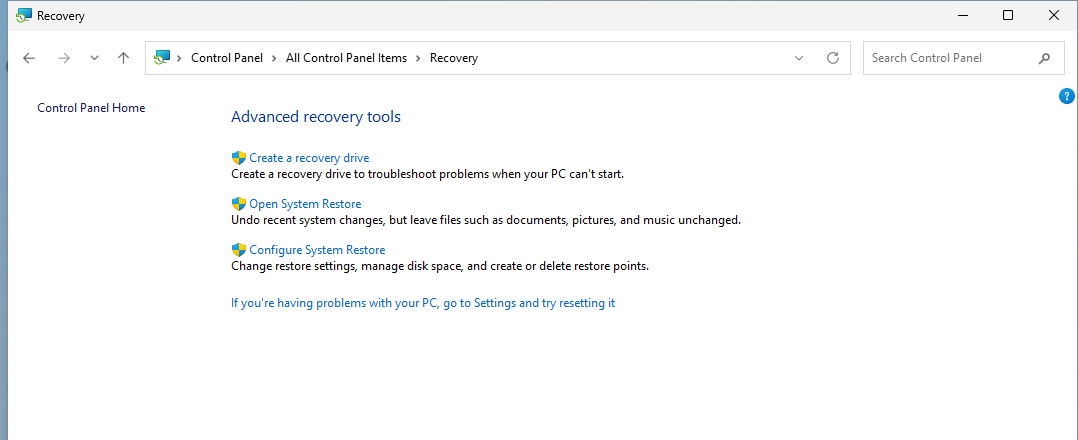
It opens the same System Restore wizard as rstrui.exe, so use it when you want a point-and-click path.
When Restore system files and settings appears, select Next.
3. Pick the restore point and finish
This fixes the point where the wizard is open and Windows is waiting for a restore point.
In Restore system files and settings, select Next.
Choose the restore point you want to use.
Select Scan for affected programs to check what Windows may change.
Select Next.
Select Finish.
4. Restart into System Restore from Settings
Open Settings.
Then select System > Recovery.
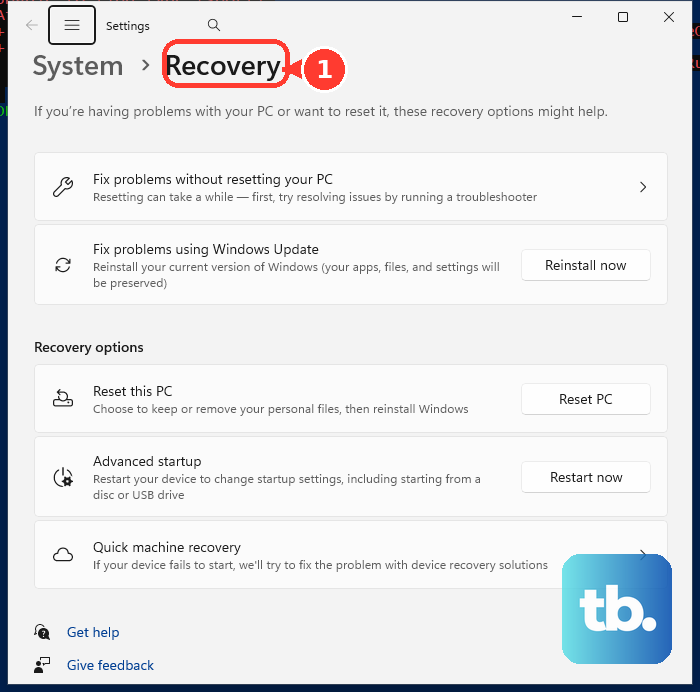
Under Recovery options, next to Advanced startup, select Restart now.
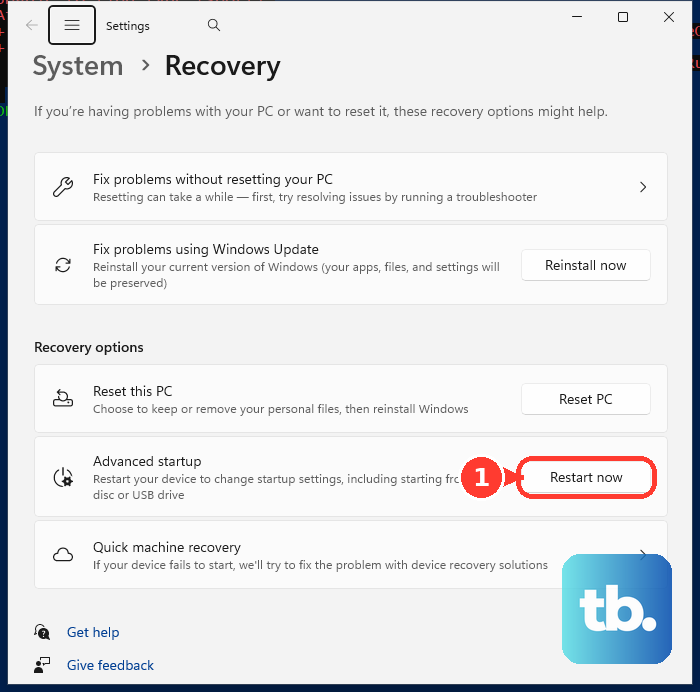
In Windows Recovery Environment, select Troubleshoot > Advanced options > System Restore.
5. Use Shift plus Restart from the power menu
This fixes the case where Windows is unstable, but you can still reach the power menu.
Press and hold Shift.
While holding Shift, select Power > Restart.
In Windows Recovery Environment, select Troubleshoot > Advanced options > System Restore.
6. Trigger Automatic Repair when Windows will not start
- 1.Start the device and wait for the Windows logo or manufacturer logo.
- 2.Hold the power button until the device shuts down.
- 3.Repeat that shutdown process once.
- 4.Turn the device on a third time.
- 5.On Automatic Repair, select Advanced options.
- 6.Select Troubleshoot > Advanced options > System Restore.
7. Boot from recovery or installation media
Boot the PC from a previously created USB recovery drive, then select Troubleshoot > Advanced options > System Restore.
Alternatively, boot from a previously created CD or DVD Windows Repair Disc, then select Troubleshoot > Advanced options > System Restore.
On a working PC, use Create Windows 11 Installation Media from Microsoft’s Windows 11 download page to make installation media.
Connect that media to the PC that will not start, then turn it on.
On the initial setup screen, enter language and preferences, select Next, then select Repair my PC.
After Windows Recovery Environment opens, select Troubleshoot > Advanced options > System Restore.
Microsoft says the Windows 11 Media Creation Tool is for x64 PCs and cannot create installation media for Arm-based PCs.
8. Check what blocks System Restore
On a managed work or school PC, the policy Turn off System Restore can block access to the System Restore Wizard.
The related policy Turn off Configuration can block System Restore configuration through System Protection.
On Windows 11 versions 24H2, 25H2, and 26H1 after the July 2026 Windows security update, restore points must pass required security checks when Virtualization-Based Security is enabled and running.
Restore points that do not meet those checks cannot be used unless Virtualization-Based Security is disabled.
Do not use Cortana or old F8-era recovery instructions as current fixes; current Windows 11 recovery uses rstrui.exe, Control Panel, Windows Recovery Environment, recovery media, or installation media.
Frequently Asked Questions
Is rstrui.exe the same as System Restore?
rstrui.exe is the command that opens the System Restore wizard. The restore itself still happens inside the normal Windows interface after you choose a restore point and select Finish.
Does rstrui.exe work on Windows 11?
Yes. Microsoft lists the Run dialog method with rstrui.exe for Windows 11, and it opens the Restore system files and settings wizard.
Can I use rstrui.exe on Windows 10?
Yes, rstrui.exe opens the same wizard on Windows 10. Keep the lifecycle in mind, though: Windows 10 reached end of support on October 14, 2025. Eligible enrolled PCs can still receive limited Critical and Important security updates through the Extended Security Updates program, with consumer coverage running through October 12, 2027, but ESU does not extend the Windows 10 lifecycle or provide technical support. LTSC editions have their own separate lifecycle dates.
What should I use when Windows will not start?
Use Windows Recovery Environment through Automatic Repair, a recovery drive, a repair disc, or Windows installation media, then open System Restore from Troubleshoot and Advanced options.
Can a company computer block rstrui.exe?
Yes. A managed device can use the Turn off System Restore policy, which prevents users from accessing the System Restore Wizard.