

To use Notepad in Windows, select Start, type Notepad, select Notepad, then enter your text and press Ctrl + S to save it. Choose a filename and location for your document. These basic steps work in Windows 11 and Windows 10. Tabs, session restoration, spellchecking, and Markdown formatting apply to Windows 11 versions of Notepad that include those features.
The short version
- Start writing: Open Notepad from Start and type or paste your text.
- Save your file: Press Ctrl + S and choose a filename and folder.
- Find text: Press Ctrl + F to search your document.
- Keep changes on disk: Save your files separately even when Windows 11 Notepad offers session restoration.
| Task | Where to start |
|---|---|
| Open Notepad | Search from Start |
| Pin to Start | Right-click the search result |
| Pin to the taskbar or access recent files | Right-click Notepad's taskbar icon |
| Open files from File Explorer | Edit with Notepad on supported Windows 11 installations |
| Open a file from a command prompt | notepad followed by the filename |
| Choose default file types | On Windows 11, Settings > Apps > Default apps |
| Create and save a document | Ctrl + N, then Ctrl + S |
| Save with a specific extension | File > Save As |
| Select, copy, move, or undo text | Editing keyboard shortcuts |
| Find or replace text | Ctrl + F or Ctrl + H |
| Create or move tabs | Add tab in Windows 11 Notepad with tabs |
| Choose tabs or separate windows | App settings in Windows 11 Notepad with tabs |
| Resume unsaved work | Session restoration in compatible Windows 11 Notepad |
| Reopen a recent document | File > Recent where available |
| Change theme or font | App settings in redesigned Windows 11 Notepad |
| Read character counts | Status bar in Windows 11 Notepad with character counts |
| Correct spelling | A red-underlined word in Notepad with spellcheck |
| Control spellchecking | App settings or the document's context menu |
| Apply Markdown formatting | Formatting toolbar or typed syntax in supported versions |
| Switch Markdown views | View or the status-bar toggle |
| Insert or expand a table | Table in builds with table support |
| Find the updated AI toolbar | Writing Tools where available |
| Rewrite selected text | Rewrite or Ctrl + D with eligible AI |
| Summarize selected text | Summarize or Ctrl + M with eligible AI |
| Generate text | Write or Ctrl + Q with eligible AI |
| Turn off AI features | Notepad's app settings |
| Set printed headers and footers | File > Page Setup |
| Install Notepad | Microsoft's Windows Notepad product page |
| Update Store-serviced Notepad | Microsoft Store's Downloads or library |
| Repair or reset the app | Windows app settings where advanced options are available |
| Report a problem | Feedback Hub on Windows 11 |
Open Notepad and keep it within reach
Select Start, type Notepad, then select Notepad from the results. For quicker access next time, right-click its search result and select Pin to Start. You can then open it from its pinned icon on Windows 11 or Windows 10.
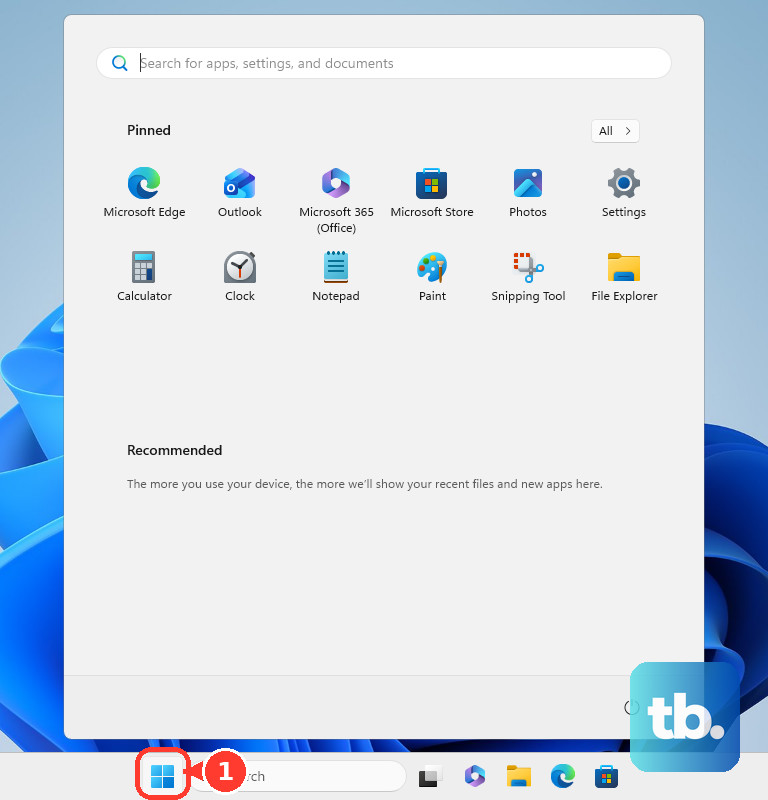
With Notepad open, right-click its taskbar icon and select Pin to taskbar. Select that icon to reopen the app. Right-click the icon to access its jump list, which can include recent files depending on your Windows history settings.
On Windows 11 with Notepad's File Explorer integration, select one or more files in File Explorer and right-click the selection. Choose Edit with Notepad to open them.
If that command is missing, you can open a file from a command prompt on Windows installations with Notepad available. Enter notepad followed by the filename, such as notepad hello.cpp, then press Enter.
To make Notepad the default for a file extension on Windows 11, open Settings > Apps > Default apps. Search for .txt or your desired extension, select the result, then choose Notepad.
Create and save a text file
Type into the document, or press Ctrl + V to paste text you have copied. Press Ctrl + N when you want another document. In Windows 11 Notepad with tabs, that creates a document in a tab.
When you are ready to keep your work, press Ctrl + S. Choose the destination folder and filename, then select Save. Continue saving as you make changes that you want written to the file.
For a specific extension such as .md, .html, .csv, or .xml, select File > Save As and choose the destination folder. Set Save as type to All Files (*.*), then enter the complete filename, including its extension, in File name. Select Save to use that extension without an appended .txt.
Edit and find text with keyboard shortcuts
Use Ctrl + A to select all text and Ctrl + C to copy it. To move selected text, press Ctrl + X, place the cursor at its destination, then press Ctrl + V. Press Ctrl + Z to undo an edit.
For longer documents, press Ctrl + Home to move to the beginning or Ctrl + End to move to the end. Press Ctrl + F and enter the text you want to find.
Replacing text changes the matching wording in your document. Press Ctrl + H to open find and replace, then enter the search text and its replacement. Modern Notepad uses a redesigned search interface, so its appearance differs from older versions.
Manage tabs and return to your work
In Windows 11 Notepad with tabs, select Add tab or press Ctrl + N to create another document. Select a tab to switch to it, or drag a tab outside the window to put that document in a separate window. Open Notepad's app settings to choose whether opened files use tabs or a new window.
With session restoration enabled in compatible Windows 11 Notepad versions, save important changes before closing the app, then reopen it to see whether your tabs and unsaved edits were restored. Save files separately when you want those changes written to the original documents. Restoring a session does not save those changes to the files.
In Windows 11 Notepad with recent-file history, select File > Recent and choose a document you recently closed. The taskbar jump list offers another route to recent files when your Windows history settings allow it. If newer controls are missing, check Microsoft Store for an available Notepad update.
Adjust appearance and spelling
In redesigned Windows 11 Notepad, open the app's settings page to adjust its theme or font options. Notepad follows your Windows theme by default, but you can override that choice in the app.
Windows 11 Notepad versions with a character count show it in the status bar. Select part of your text to see counts for both the selection and the complete document.
In Windows 11 Notepad with spellcheck, click or tap a red-underlined word and select a suggested spelling. You can also place keyboard focus on the word and press Shift + F10 to access suggestions. The same menu lets you ignore a word or add it to the dictionary.
Control spellchecking for the app or individual file types in Notepad's app settings. For a temporary change to the current file, use the document's context menu. Some coding and log file types have spellchecking disabled by default, while autocorrect fixes common errors as you type.
Use Markdown formatting
In Windows 11 Notepad with formatting support, use the formatting toolbar to apply bold, italics, hyperlinks, lists, or headings. You can apply formatting to selected text or while typing. Entering Markdown syntax directly is another way to format the document.
Open View or use the status-bar toggle to switch between formatted Markdown and syntax views. You can also disable formatting support in Notepad's app settings.
Windows 11 Notepad builds with table support include Table in the formatting toolbar. Select it to insert a table, or enter a table using Markdown syntax. To add rows or columns, use the table's right-click menu or the toolbar's Table menu.
Use optional writing tools
Windows 11 Notepad versions receiving the updated AI toolbar use Writing Tools in place of the older generic Copilot icon. AI actions require Notepad with AI enabled and an eligible cloud or local model. If those features are missing, you can still create, edit, and save text with Notepad's basic controls.
To rewrite text, select it, right-click, and choose Rewrite, or press Ctrl + D. Choose a rewriting option and review the alternatives. To summarize selected text, right-click and choose Summarize, or press Ctrl + M, then adjust the summary length and review the result.
To generate new text, position the cursor or select reference text, then right-click and choose Write, or press Ctrl + Q. Enter your prompt, select Send, and review the output before selecting Keep Text. To turn off AI features, open Notepad's app settings and disable them.
Set printed headers and footers
On Windows 11 and Windows 10, select File > Page Setup to edit Header and Footer. Enter &f for the filename, &p for a page number, &d for the date, or &t for the time. Use &l, &c, or &r for left, center, or right alignment.
Emptying either field removes that header or footer from the printed output. Leave the relevant field empty when you want to omit it. Microsoft says you must reenter these settings for subsequent printing sessions.
Fix a missing or malfunctioning Notepad
If Notepad is missing, open the official Windows Notepad product page and use its installation action for your compatible device. Use Microsoft Store's device compatibility check when installing.
For Store-serviced Notepad on Windows 11, open Microsoft Store and check for app updates from Downloads or the library. Install an available Notepad update. Store apps also update automatically, and the wording of update controls varies with the Store version.
If the app is malfunctioning, on Windows 11 open Start > Settings > Apps > Installed apps. Find Notepad, select More > Advanced options, then select Repair when offered. This route applies to packaged Notepad installations with advanced options.
On Windows 10, open Settings > Apps > Apps & features to find the app's repair options. Select Advanced options, then Repair, when offered for your installation. If advanced options are missing, check the Store installation or update options available for your device.
Resetting Notepad can remove app data, so save any needed unsaved work first. If repair fails and the app offers it, select Reset. For a continuing Windows 11 Notepad problem, press Windows + F to open Feedback Hub and submit feedback under Apps > Notepad.
Frequently Asked Questions
Can Notepad add a timestamp whenever you reopen a file?
Yes, on Windows 11 and Windows 10, you can create a document that adds a timestamp when reopened. Type .LOG on the first line, press Enter, and save the document. Reopening that saved file appends the current date and time before your next entry.
How do you create a Notepad desktop shortcut?
On Windows 11 with Notepad installed, press Windows + R, enter shell:AppsFolder, and press Enter. Select Notepad, press Shift + F10, select Create shortcut, then select Yes.
Can you dictate text into Notepad?
On Windows 11, place the cursor in your Notepad document and press Windows + H, then dictate your text. Voice typing requires a microphone, internet access, and a supported language. To finish, say Stop listening or select the microphone button.
Can you open Notepad by voice?
With Voice access configured on Windows 11 version 22H2 or later and Notepad installed, say Open Notepad while Voice access is listening. To set it up on Windows 11 version 22H2 or later, open Start > Settings > Accessibility > Speech, turn on Voice access, and complete the language download and microphone setup. Microsoft directs you to Voice access instead of the retired Cortana app or legacy Windows Speech Recognition.